
README file from
GithubAudioPen - Obsidian Sync
Obsidian plugin and service that connects your editor to AudioPen or VoiceNotes to transcribe audio files and add them to your notes.
This is based on the amazing work trashhalo did with obsidian-webhooks, but updated and extended to work with AudioPen and VoiceNotes.
Setting up the plugin
- Install the obsidian plugin from the community plugins
- Go to https://audiopen-obsidian.web.app to signup for the service
- Generate a login token
- Used the token to log in the
Audiopen-Obsidian Syncplugin settings in Obsidian - Add the webhook url to AudioPen
For detailed instructions, read on:
5. How to add the webhook to AudioPen
You can follow the same instuctions to add the webhook to VoiceNotes
After you did 1-4 above, you'll have a webhook url and a token.
The webhook URL looks like this: https://europe-west1-audiopen-obsidian.cloudfunctions.net/webhook/ab97f2f036a143f5d3555e5fc3f4e833
- Navigate to AudioPen
- Make sure you're logged in
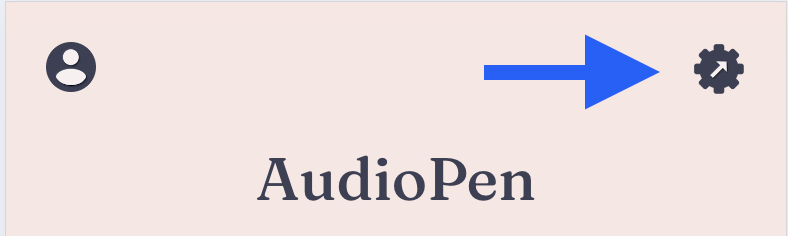
- Click the settings icon at the top right of the screen:
- Scroll down to the section
Beta Programand enable the toggle - Right above in the
Integrationssection, clickSet up integrations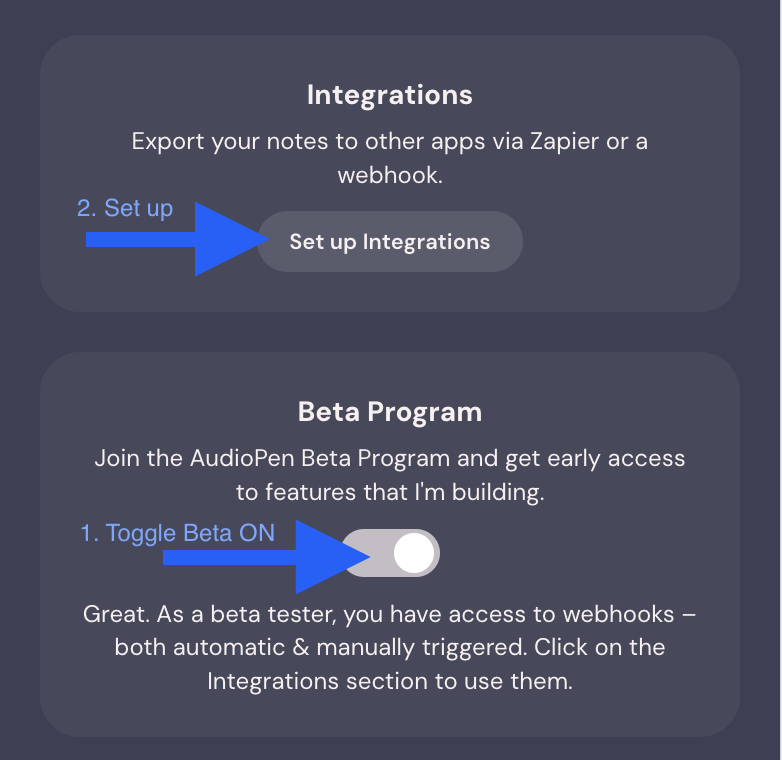
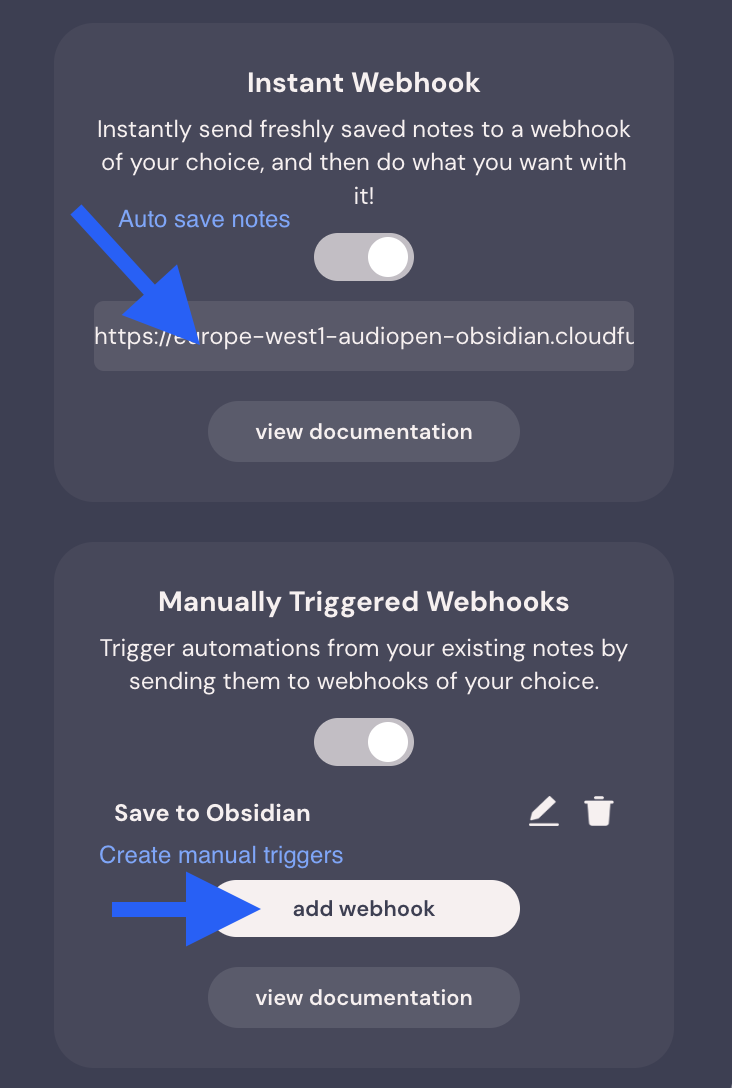
- add your webhook url
- as an automatic webhook
- (optionally) as a manual trigger, if you want to be able to update notes
Custom Templates
You can create custom templates for your notes by creating a audiopen-template.md file (name it anything you want), preferably in your template folder with your other templates.
1. Choose a starting point for your template:
2. Save it to your vault's template folder
3. Edit it to your liking
You can use the following variables in your template:
{title}- title of the AudioPen note{body}- rewritten version of the note{orig_transcript}- original transcript of the note{id}- AudioPenID - if you remove this from the template, it won't be able to append or update notes and will always create a new one.{date_created}- date created in AudioPen{date_formatted}- date created formatted to link to your daily notes, uses settings in periodic notes plugin, or daily notes plugin if periodic notes isn't installed.{tagsAsLinks}- AudioPen tags formatted as list of[[Links]]for Obsidian properties{tagsAsTags}- AudioPen tags formatted as a list of tags for Obsidian properties{platform}- platform used to transcribe the note (audiopen or voicenotes)
Note: Both
{tagsAsLinks}and{tagsAsTags}are rendered as a simple list like:- "[[Link one]]" - "[[Link two]]"They currently don't handle empty states for you, that's why I suggest always having one tag or one link in the template before you insert
{tagsAsLinks}or{tagsAsTags}. As you can see in the example templates, I added a tag#audio-penand a link to the current daily note using{date_formatted}. Otherwise if you don't add any tags in AudioPen, and the template only contains{tagsAsLinks}or{tagsAsTags}, the template YAML properties won't be valid.
4. Add the template to the plugin settings
- toggle
Use custom templateon and select your template in the dropdown below.
5. Test it
- make a new note on AudioPen to make sure the template works for you.
Suport this plugin
If you sign up to AudioPen or VoiceNotes with a link from this readme, I'll get a little kickback at no cost to you. You can also:
 or become a Github Sponsor
And while you're at it, you might be interested in some of the other things I think about and create. You can find my work slow.works and read about my thoughts on Substack