
README file from
GithubColumns
A kanban-style card view for Obsidian. Group notes by tags or any frontmatter property into columns, with tag filtering, property chips, and split‑pane preview.
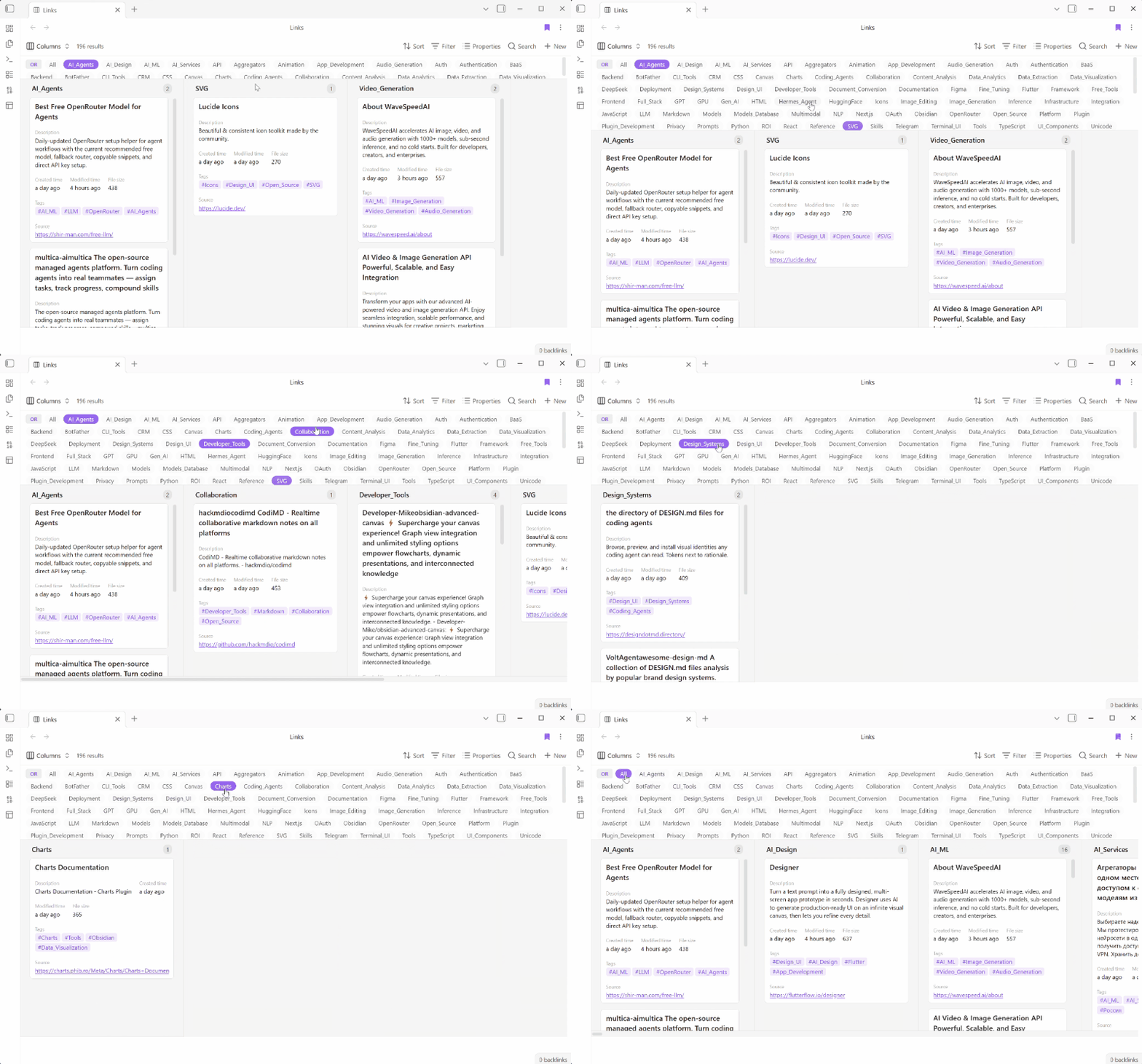
Demo
1. Overview
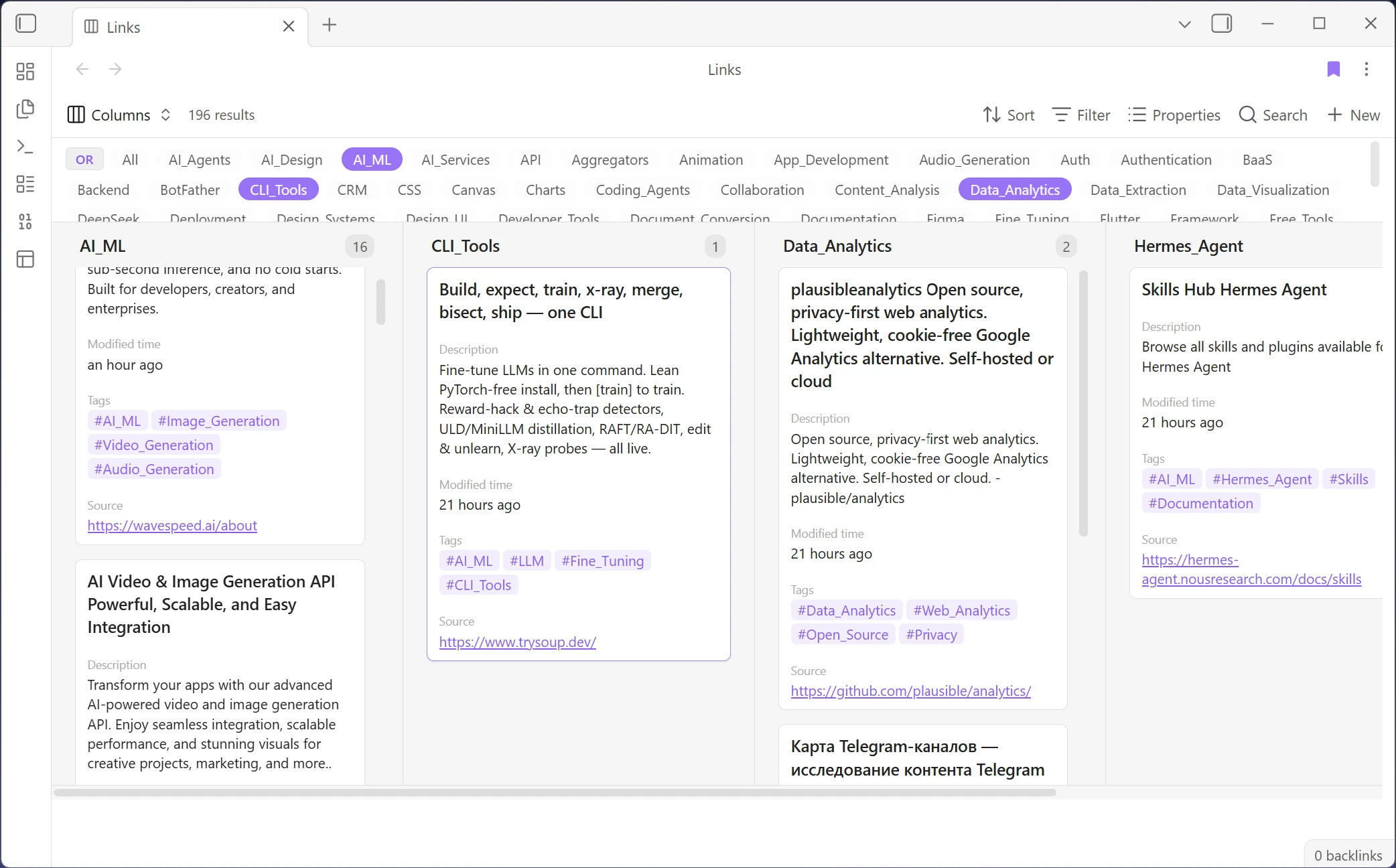
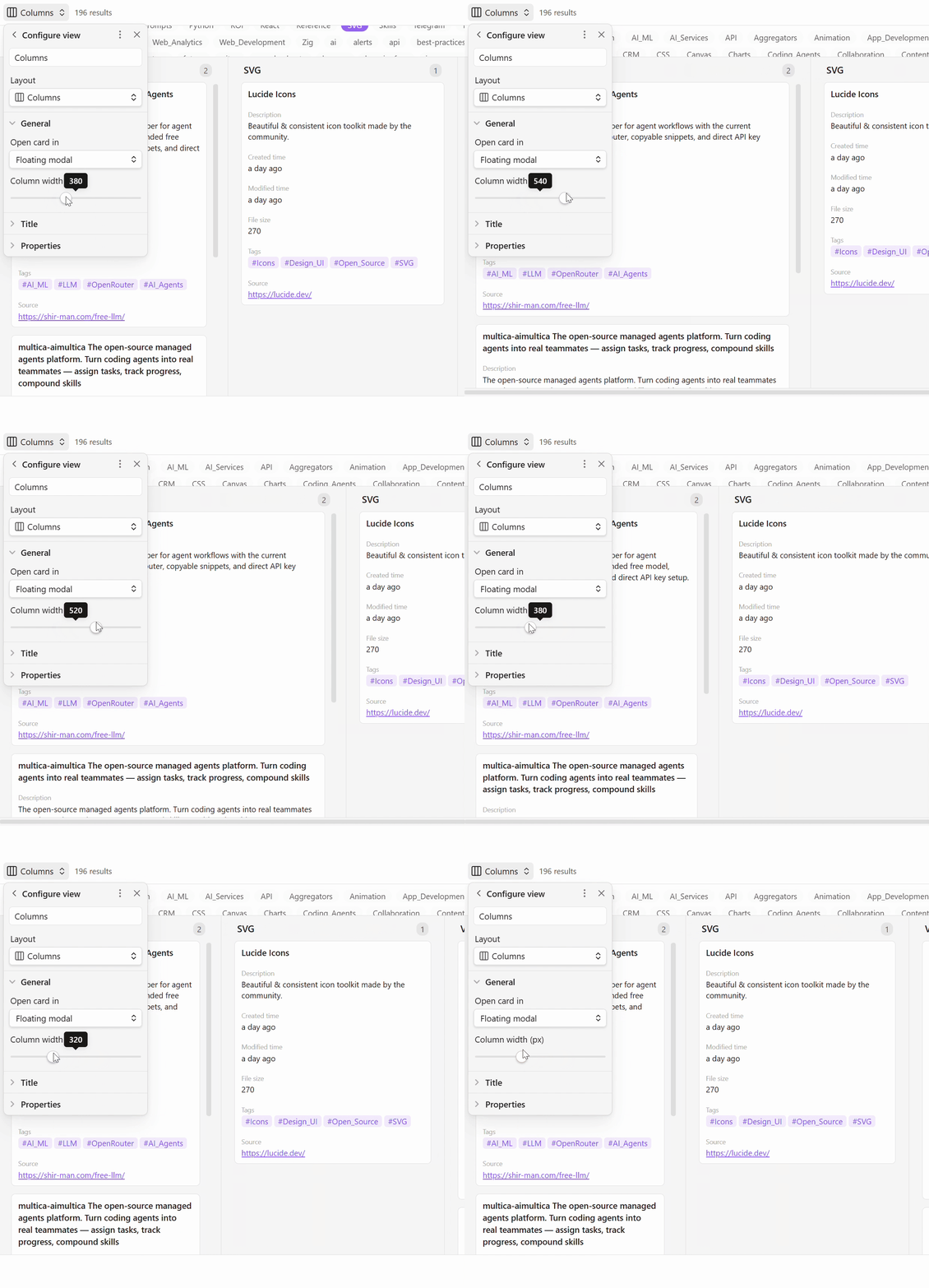
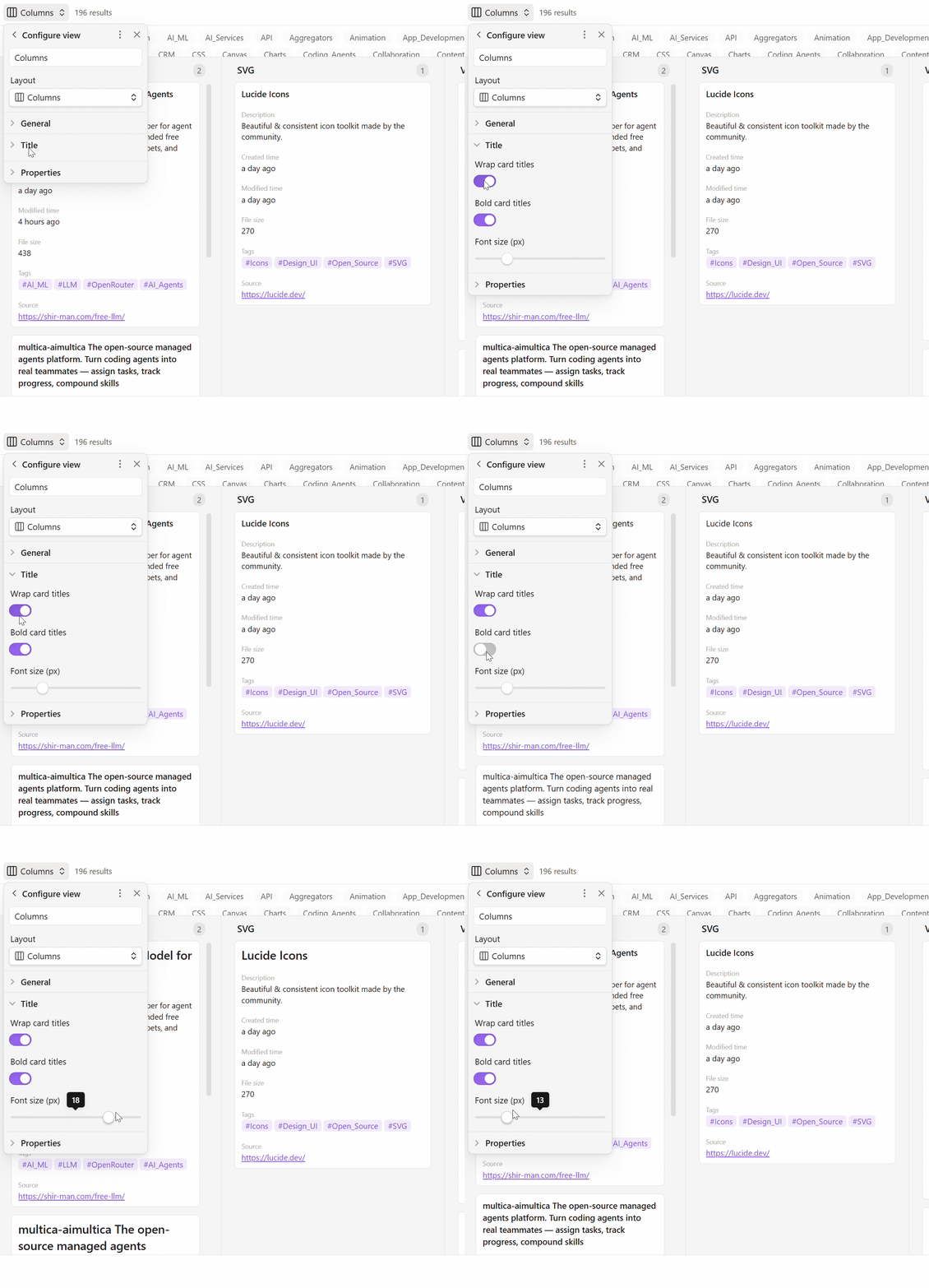
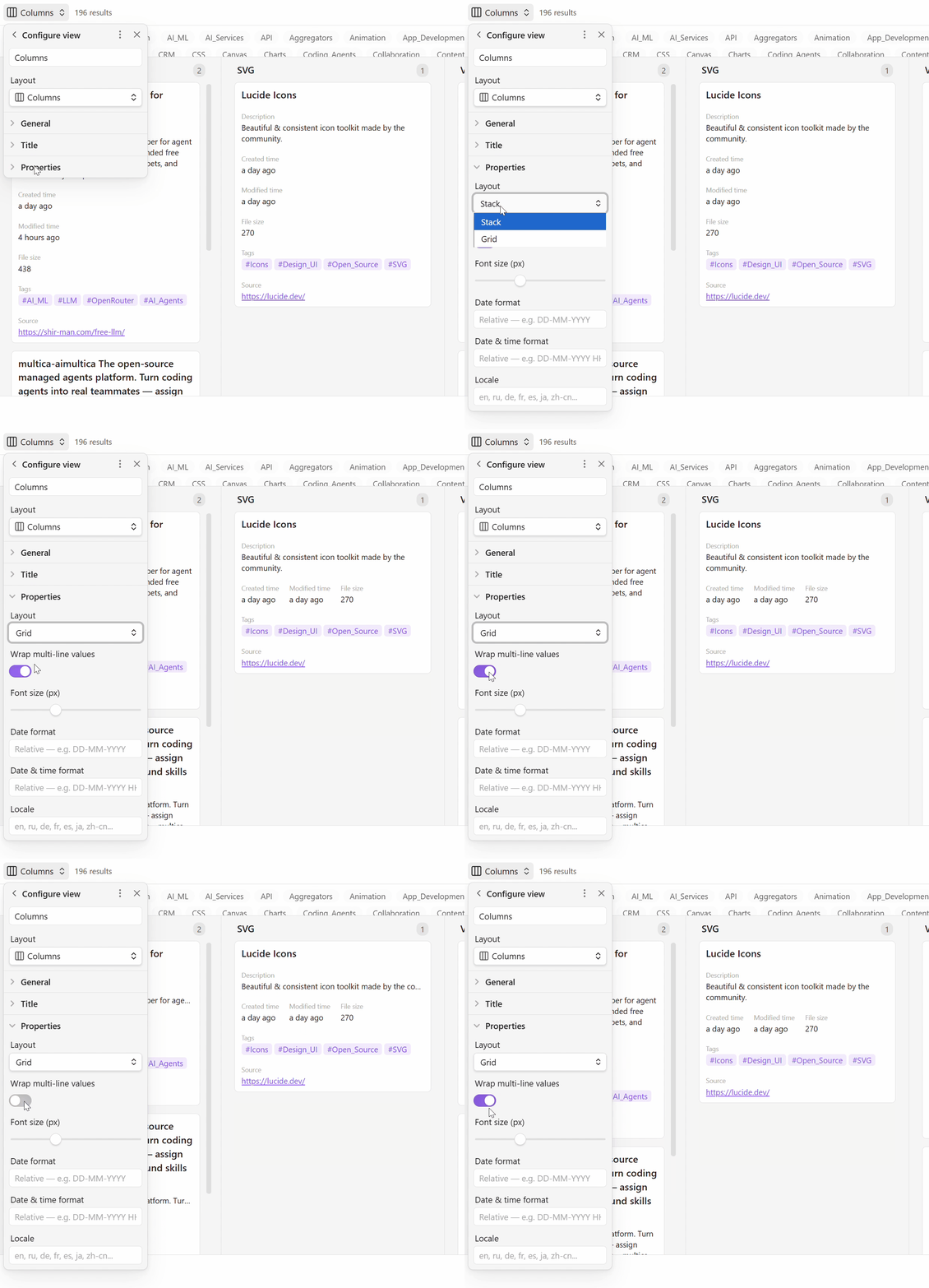
2. Creating and configuring a view
3. Tag filtering & column navigation
Features
- Column grouping — group by
tags,status,categoryor any frontmatter property - Multi-column groups — display multiple cards per column in a grid layout (1–6 columns, configurable)
- Masonry layout — alternative card arrangement where cards fill gaps vertically (CSS columns-based, toggle in settings)
- Zebra striping — alternate column backgrounds for easier visual scanning (toggle in settings)
- Split‑pane preview — open cards in a right or bottom split pane; LMB reuses the pane, Ctrl+LMB opens a new tab
- Tag filtering — click tags to AND/OR filter across columns; Ctrl+Click toggles a single tag
- Property chips — view note properties as styled chips (text, tags, links, booleans, dates)
- Date formatting — Moment.js format and locale support
- Grid/Stack layout — compact inline properties or structured vertical layout
- Native integration — uses Obsidian BasesView framework (Sort, Filter, Properties, Search toolbar)
Usage
- Create a new
.basefile (or open an existing database) - Click the view switcher and select Columns
- Click Group by in the toolbar → choose a property (e.g.
tags,status) → notes are grouped into columns - Filter by clicking tag pills below the toolbar:
- Left-click on a tag → show only notes with that tag (clears other filters)
- Left-click another tag → show notes matching ANY selected tag (OR mode)
- Ctrl+Click or Right-click on a tag → toggle that tag without clearing others
- Click the OR/AND button → switch between OR and AND mode for multiple tags
- Click All → clear all filters
- Open a card — mode depends on the gear‑menu setting:
- Active pane — opens in the current leaf
- Floating modal — preview in a pop‑up (default)
- New tab — opens in a new tab
- Split right / Split down — opens in a split pane:
- Left-click → replaces the file in the existing split pane
- Ctrl+Click → opens a new tab inside the split pane
- Open the gear menu (⚙) to configure appearance: title style, property chips, date format, layout
Settings (gear menu)
General
- Open card in (active pane / floating modal / new tab / split right / split down)
- Card width (px)
- Columns per group (1–6)
- Zebra striping (toggle)
- Masonry layout (toggle)
Title
- Wrap card titles
- Bold card titles
- Font size (px)
Properties
- Layout (Stack / Grid)
- Wrap multi-line values
- Font size (px)
- Date format
- Date & time format
- Locale
Installation
- Download from Obsidian community plugins (pending)
- Or manual: copy
main.js,manifest.json,styles.csstocard-columns/in your vault's.obsidian/plugins/
Support
If you find this plugin useful, consider supporting its development:
https://donation.streamiverse.io/mamadaevv
License
MIT