Chatty

by Sadnan Saquif
5
4
3
2
1
Score: 51/100

Description

The Chatty plugin adds text-to-speech capabilities to your notes by leveraging your system's built-in voices through the browser's speech synthesis API. Without relying on any external services or internet connection, it allows you to listen to selected text via a right-click menu or a configurable hotkey. It's especially useful for auditory learners or for proofreading notes by ear. Voice and language preferences can be adjusted in the plugin settings, provided your operating system has the required language packs installed. It has been tested on Windows, where new voices can be added through language settings.

Reviews

No reviews yet.

Stats

2
stars
3,085
downloads
2
forks
204
days
204
days
208
days
1
total PRs
0
open PRs
0
closed PRs
1
merged PRs
0
total issues
0
open issues
0
closed issues
0
commits

RequirementsExperimental

  • System language pack installed for the desired voice (e.g., via Windows Settings > Time & Language > Language)

Latest Version

7 months ago

Changelog

Changes requested by reviewer as per the following PR review

https://github.com/obsidianmd/obsidian-releases/pull/7303#issuecomment-3395650754

  • renamed generic CSS clash to prevent possible conflicts
  • used sentence case for the UI where applicable
  • used Obsidian's getLanguage() function and simplified typings
  • used Obsidian's setHeading() function
  • removed any time with PluginManifest

README file from

Github

Chatty

A simple plugin for Obsidian that allows you to listen to your notes using text-to-speech.

No external apis, just uses the browser's built-in speech synthesis capabilities and your default system voices.

This plugin has been tested on Windows only.

Setup

The plugin uses your system's default languages and their text-to-speech voices. In order to add a new language, you need to install the language pack for your operating system.

For Windows, you can do this by going to Settings > Time & Language > Language, and then adding a new language.
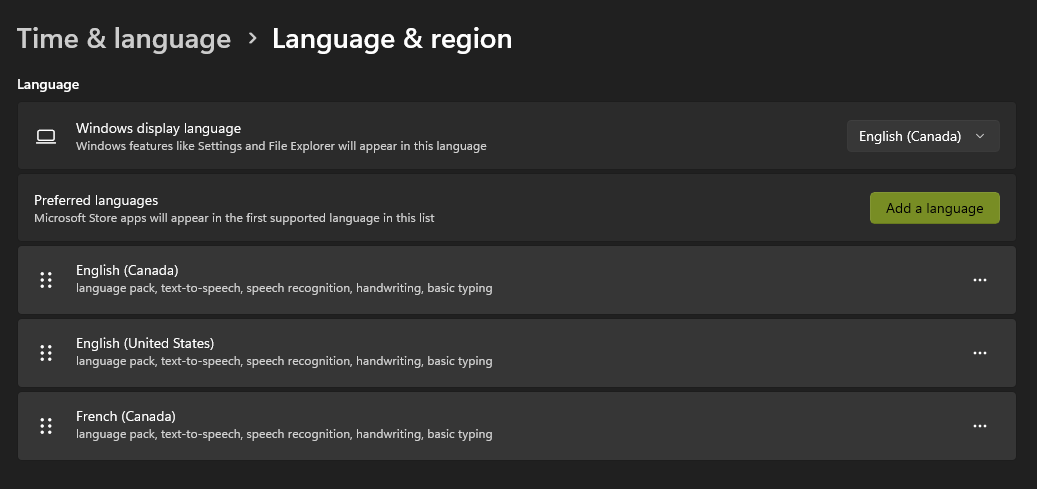
Windows Language Settings

Features

You can either select the text in your notes, right-click, and select "Speak Selected Text".
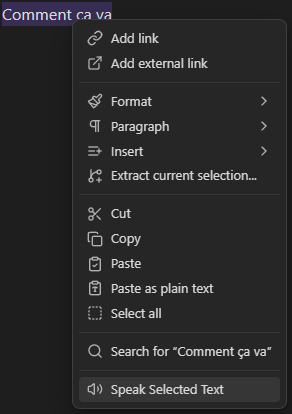
Speak Selected Text

Or you can select the text and then use the hotkey combination, the default hotkey is Ctrl + Alt + S.

But you can change this in the plugin settings, along with the voice and language settings.

Beware that certain hotkey combinations may not work as they might already be used by Obsidian or by other plugins.
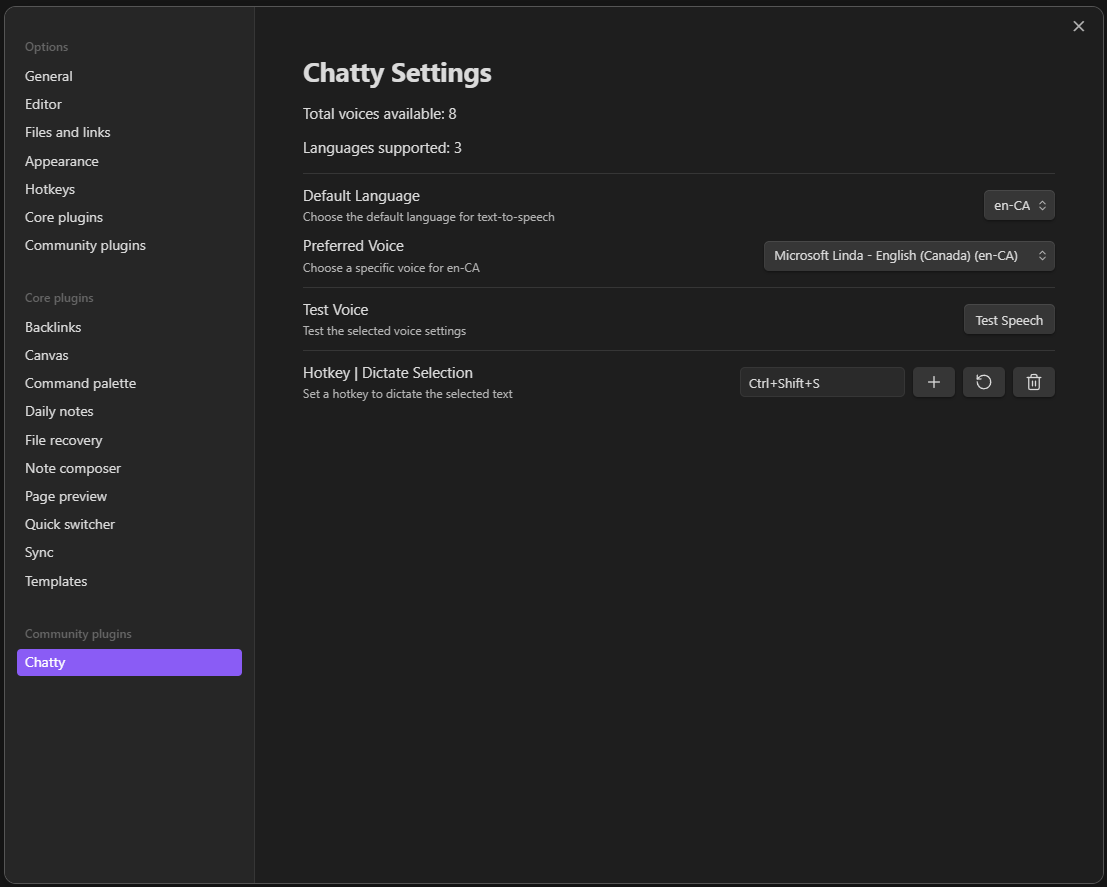
Chatty Settings

Similar Plugins

info
• Similar plugins are suggested based on the common tags between the plugins.