Data Files Editor

by ZukTol
5
4
3
2
1
Score: 37/100

Description

Category: Coding & Technical Tools

The Data Files Editor plugin enables users to create and edit .txt, .json, and .xml files directly within Obsidian. It provides a seamless way to manage non-markdown data files, allowing customization through settings that enable or disable editing and creation for each supported file type. Users can create new data files through the file tree's context menu, ensuring flexible file placement. While the plugin currently supports plain text and JSON with syntax highlighting, future updates aim to enhance XML editing capabilities. This tool enhances Obsidian's functionality for users who work with structured and unstructured data files alongside their notes.

Reviews

No reviews yet.

Stats

28
stars
19,120
downloads
10
forks
450
days
86
days
86
days
9
total PRs
5
open PRs
1
closed PRs
3
merged PRs
22
total issues
14
open issues
8
closed issues
18
commits

Latest Version

3 months ago

Changelog

What's Changed

New Contributors

Full Changelog: https://github.com/ZukTol/obsidian-data-files-editor/compare/1.2.1...1.3.0

README file from

Github

Obsidian Data Files editor plugin

Release workflow status GitHub release (latest SemVer)

This plugin adds ability to create and edit files of types: .txt, .json, .xml in Obsidian (https://obsidian.md)

Installation

  1. Open Settings > Third-party plugin
  2. Make sure Safe mode is off
  3. Click "Browse community plugins"
  4. Search for "Data Files Editor" in Obsidian's community plugins browser
  5. Click Install
  6. Once installed, close the community plugins window and activate the newly installed plugin

Usage

Settings

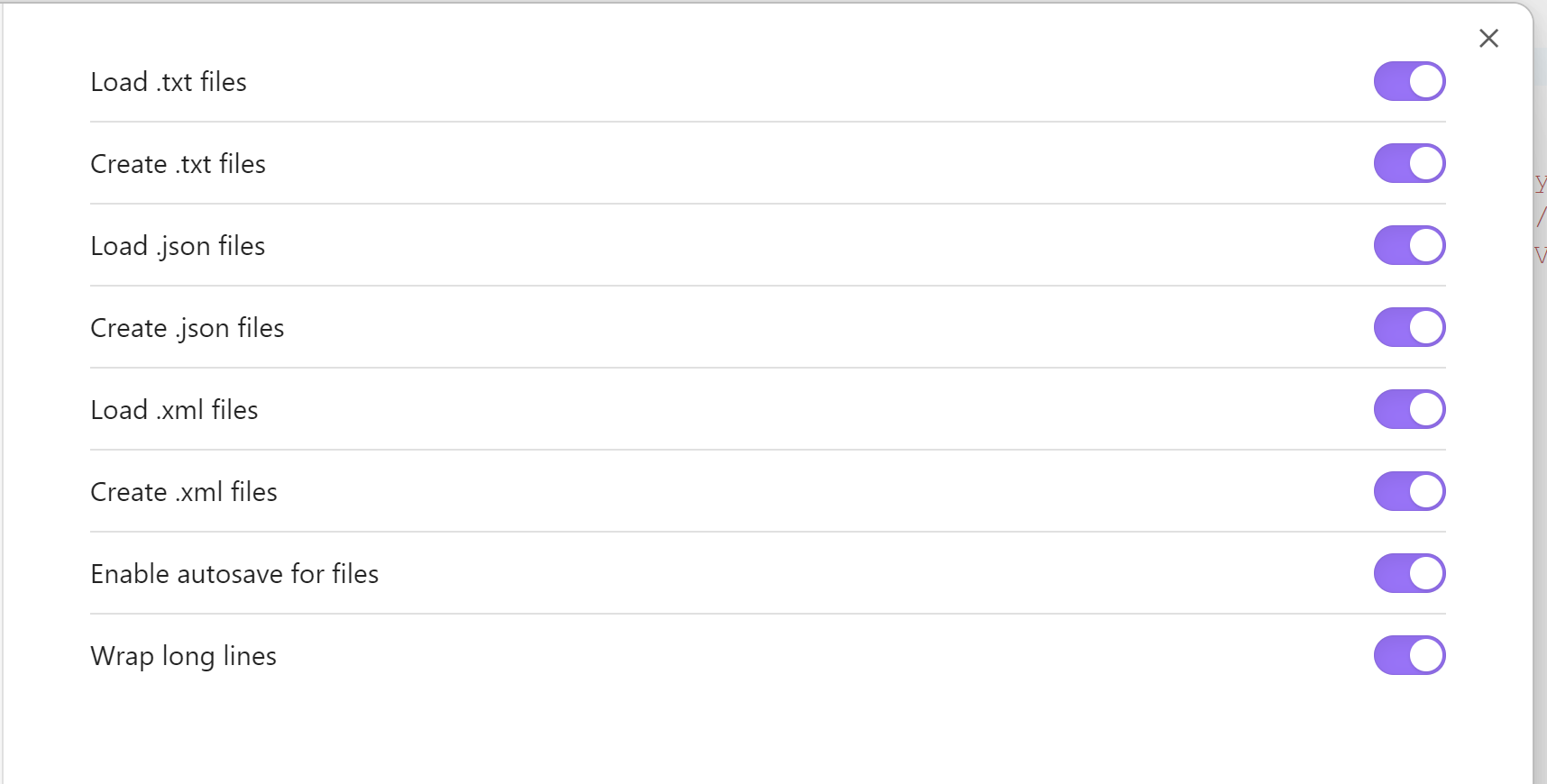
You can separately enable editing and creation of each type of data file. screenshot of settings screen
TXT editor

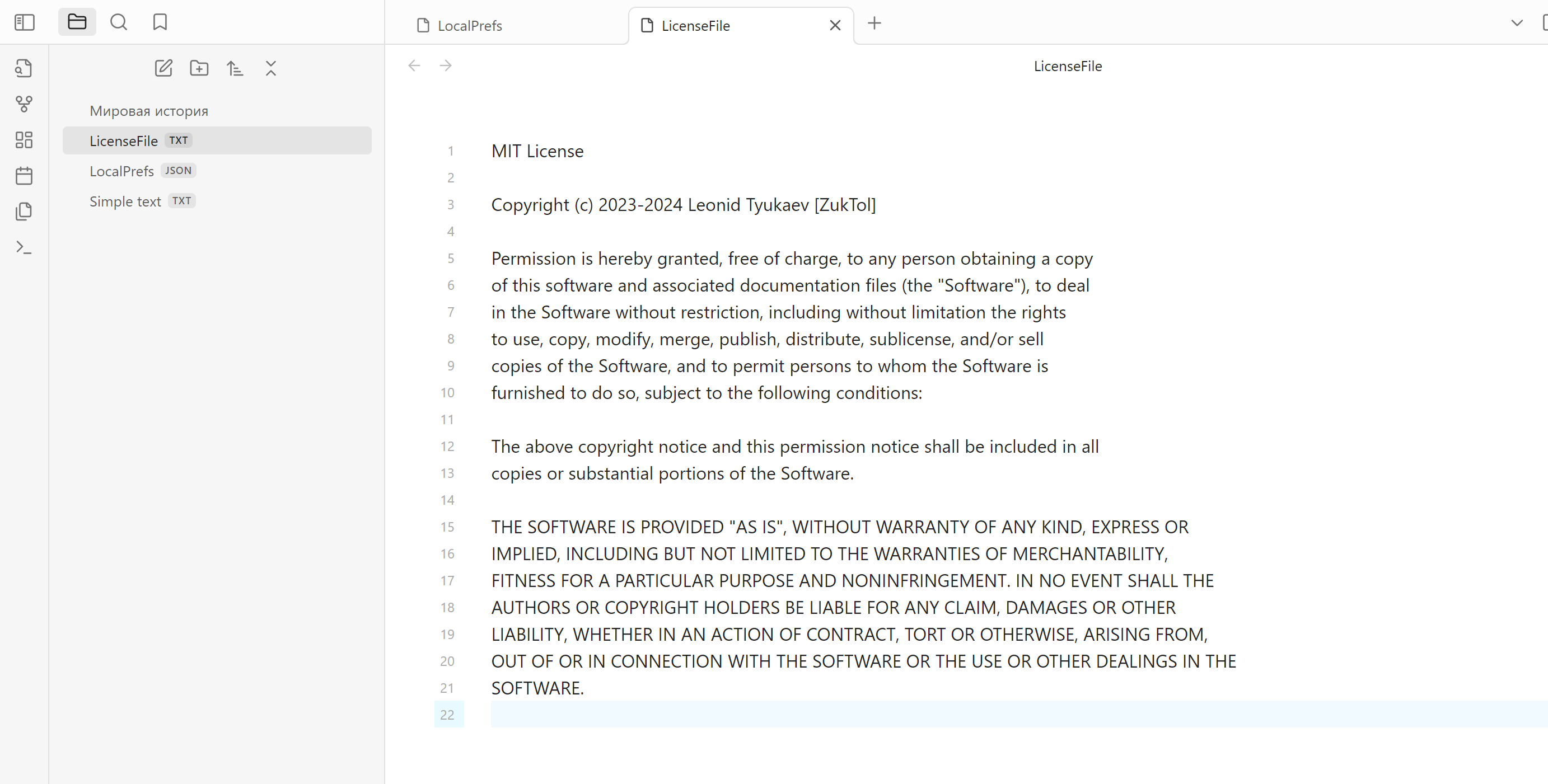
txt editor

JSON editor

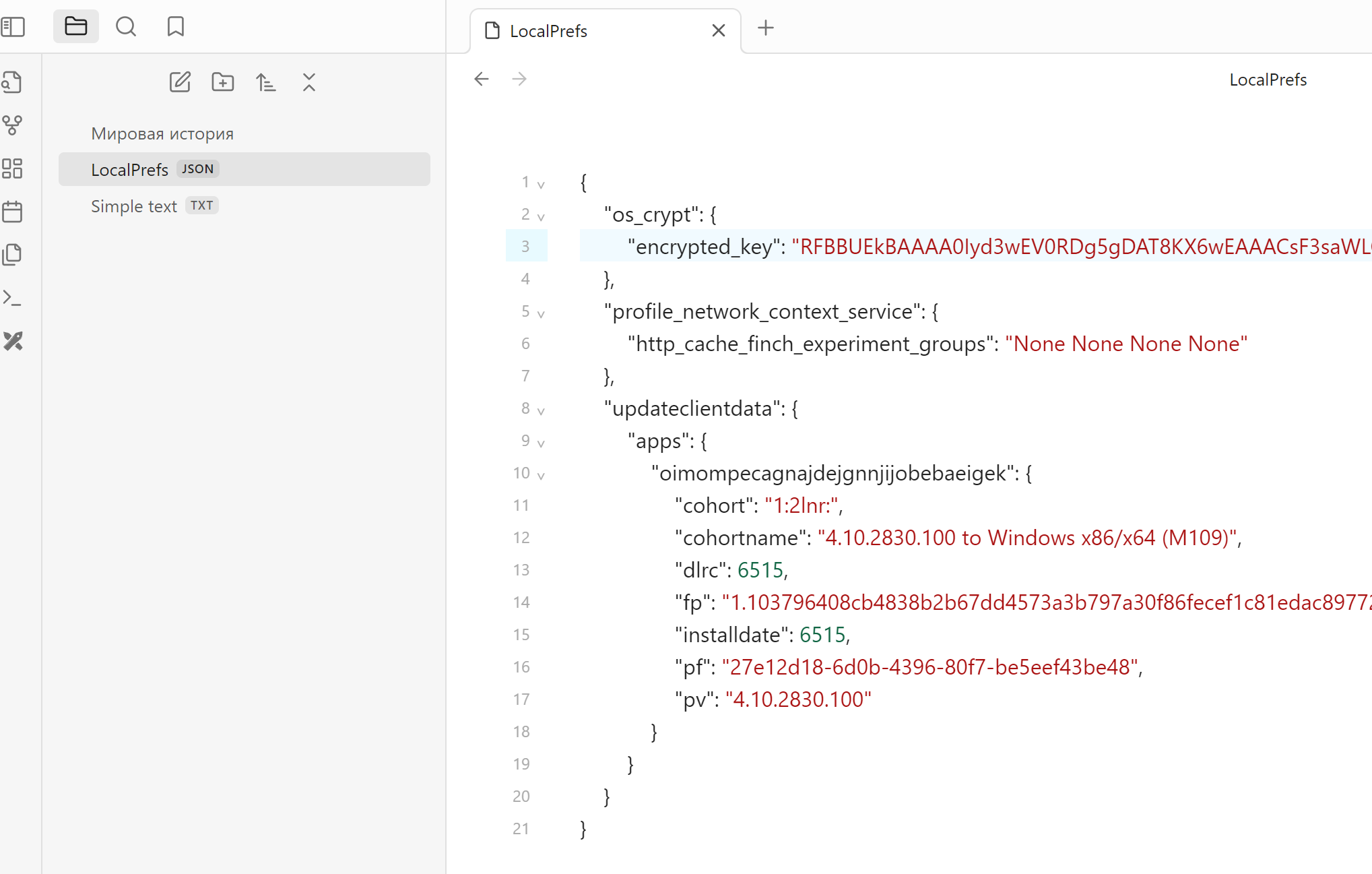
json editor

XML editor

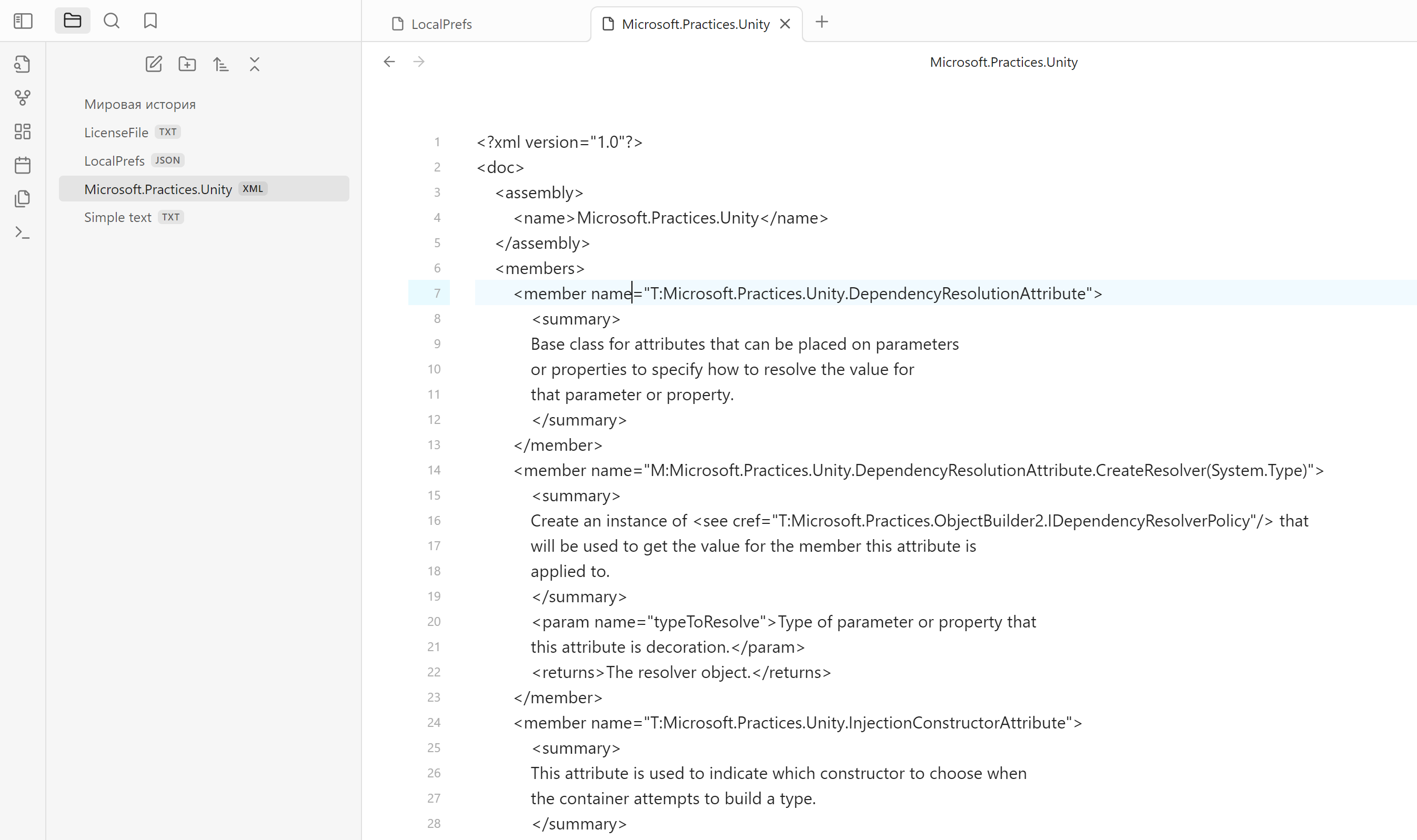
Doesn't have highlighting yet, will be added in future releases xml editor
File creation

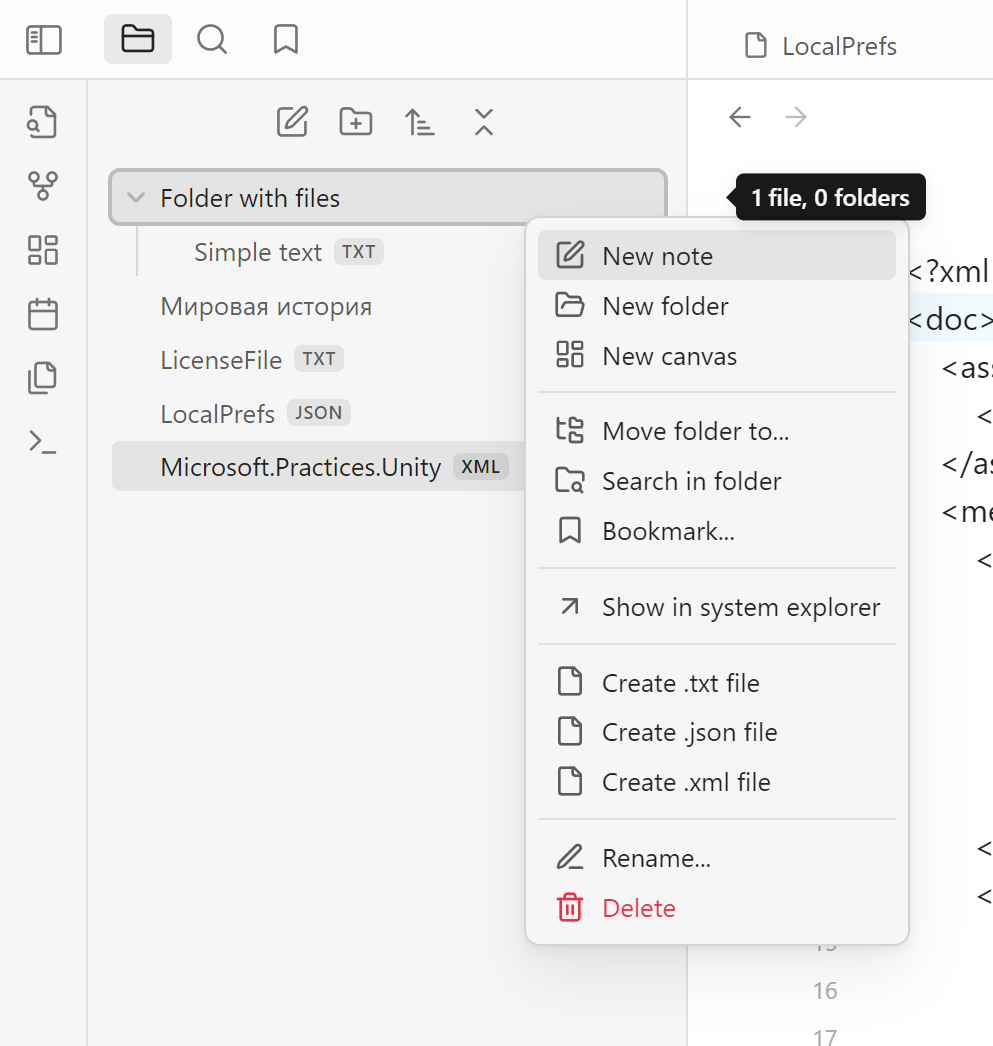
You can create files of each type from the context menu in file tree. If you click on the folder, file will be created inside the folder. If you click on any file, new file will be created on the same level that selected file. context menu
Similar Plugins

info
• Similar plugins are suggested based on the common tags between the plugins.