
README file from
GithubObsidian Dendron Tree
Obsidian Dendron Tree adds a tree for exploring Dendron notes. Features:
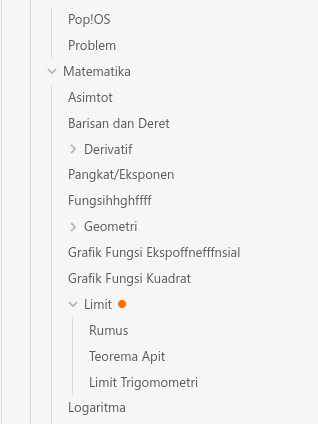
Features:
- Dendron Tree, browse notes easily using tree
- Lookup
- Automatically generate frontmatter on a new file
- Multi vault support
- Custom resolver and renderer for link and embed
Dendron Tree
To view the Dendron Tree you can select "Open Dendron Tree" in the Application's Ribbon bar.
A note with an orange circle indicator
( ) is a note that does not have a
corresponding file.
) is a note that does not have a
corresponding file.
To open a note file you can select the note name in the tree. This also expands the note in the tree.
To expand and collapse a note you can select arrow ( ) on the left of
the note.
) on the left of
the note.
You can right-click a note on a Desktop or long-press the note on a Mobile to open the note's menu. Note menu will have the following item:
- "Create Current Note". This will create a file for the selected note. This only show when the note does not have a corresponding file.
- "Create New Note". This will open Lookup with the selected note's path as the initial prompt. You can see lookup documentation on how to use it.
- "Delete Note". This will delete the selected note file. This only show when the note has a corresponding file.
Lookup
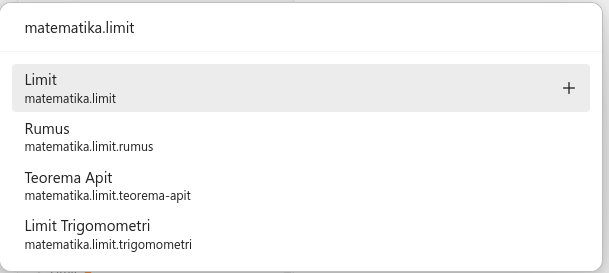
To lookup a note you can run "Dendron Tree: Lookup Note" command. With this, you can open and delete a note.

You can create a note by inputting a Dendron path that does not exist. Then you will get "Create New" item. Select this item to create a new note.

You can also select a note that does not have a corresponding file. An item that when selected will create a new note is indicated by + icon at the right.
It's recommended to always input Dendron path in lookup modal.
Multi Vault
You can add or remove a vault in Plugin Settings. You must specify the vault path and vault name.
Custom Resolver and Renderer (Disabled by Default)
For embed/ref, Dendron format are extenstion for Obsidian format. You can see Dendron documentation about [Note Reference]
Dendron and Obsidian have different formats and capabilities for ref/embed and wikilink. When this feature is enabled, all wikilink and embed will be forced to render using Dendron format. This also overrides link hover functionality.
Here are the brief differences between Dendron and Obsidian regarding WikiLink.
This is the format of Obsidian WikiLink:
[[href|title]]
Whereas, this is the format of Dendron WikiLink:
[[title|href]]
In Obsidian, if the title for wikilink is not specified then the link will be used as the title. But, in Dendron, note target's title will be used as the title.
In Dendron, to target a note in another vault we must use special syntax like this:
dendron://vault_name/note_path
For embed/ref, Dendron format is an extension of the Obsidian format. You can see Dendron documentation about Note Reference