
README file from
GithubKnomo
English | 简体中文
A local-first Memos entry for Obsidian: quick capture, Daily Note context, monthly Markdown collection, card review, and mobile-friendly input.
Knomo is a memo-first capture plugin for Obsidian. It helps you write down fragmented thoughts quickly while keeping the content inside your own Vault, in regular Markdown files that remain readable and editable outside the plugin.
Knomo is built around a simple idea:
- Write quickly, without deciding the final note structure first;
- Keep every memo in the context of the day through Daily Notes;
- Automatically collect memos into monthly Markdown files for browsing and review;
- Use cards, filters, search, references, images, tasks, and statistics to rediscover and reuse what you wrote;
- Stay local-first and non-destructive.
Knomo does not try to replace Obsidian's files, folders, tags, links, backlinks, or Daily Notes. It provides a lighter capture layer on top of Obsidian's Markdown workflow.
Screenshots
Desktop
Mobile
Why Knomo?
Obsidian is excellent for long-term knowledge management, but many thoughts do not arrive as polished notes. They arrive as fragments: a sentence from reading, a meeting idea, a task, a screenshot, a link, a small decision, a feeling, or a half-formed connection.
If every fragment requires opening the right file, finding the right heading, choosing the right folder, and deciding the final structure, many of them never get written down.
Knomo gives those fragments a low-friction entry point:
- Capture first — open Knomo, write a memo, save it.
- Keep daily context — the memo is written to the Daily Note of the day.
- Collect by month — Knomo maintains monthly Memos Markdown files for centralized browsing.
- Review as cards — use the card flow, filters, search, and statistics to revisit what you wrote.
- Return to Markdown — every memo remains part of your local Obsidian workflow.
Core Principles
Memo-first
Knomo treats the memo as the first capture unit. You can record first, then later connect, tag, search, reference, develop, or move content into larger notes.
Daily Note + Monthly Memos
Knomo's core workflow has two Markdown layers:
- Daily Note: preserves when and where the memo happened;
- Monthly Memos file: collects memos into a month-level stream for browsing and review.
Daily Notes answer: What happened today?
Monthly Memos answer: What did I write down this month?
Local-first
Memo content is stored in your Obsidian Vault. Knomo does not require an account, does not rely on an external server, and does not actively upload your notes.
Markdown-friendly
Knomo tries to support and preserve common Obsidian / Markdown syntax, including tags, internal links, Markdown links, URLs, images, lists, task lists, block references, quotes, headings, and code blocks.
Non-destructive
Knomo does not turn your Daily Notes into a private database. It writes memo-shaped Markdown and keeps the original content readable.
Mobile-friendly
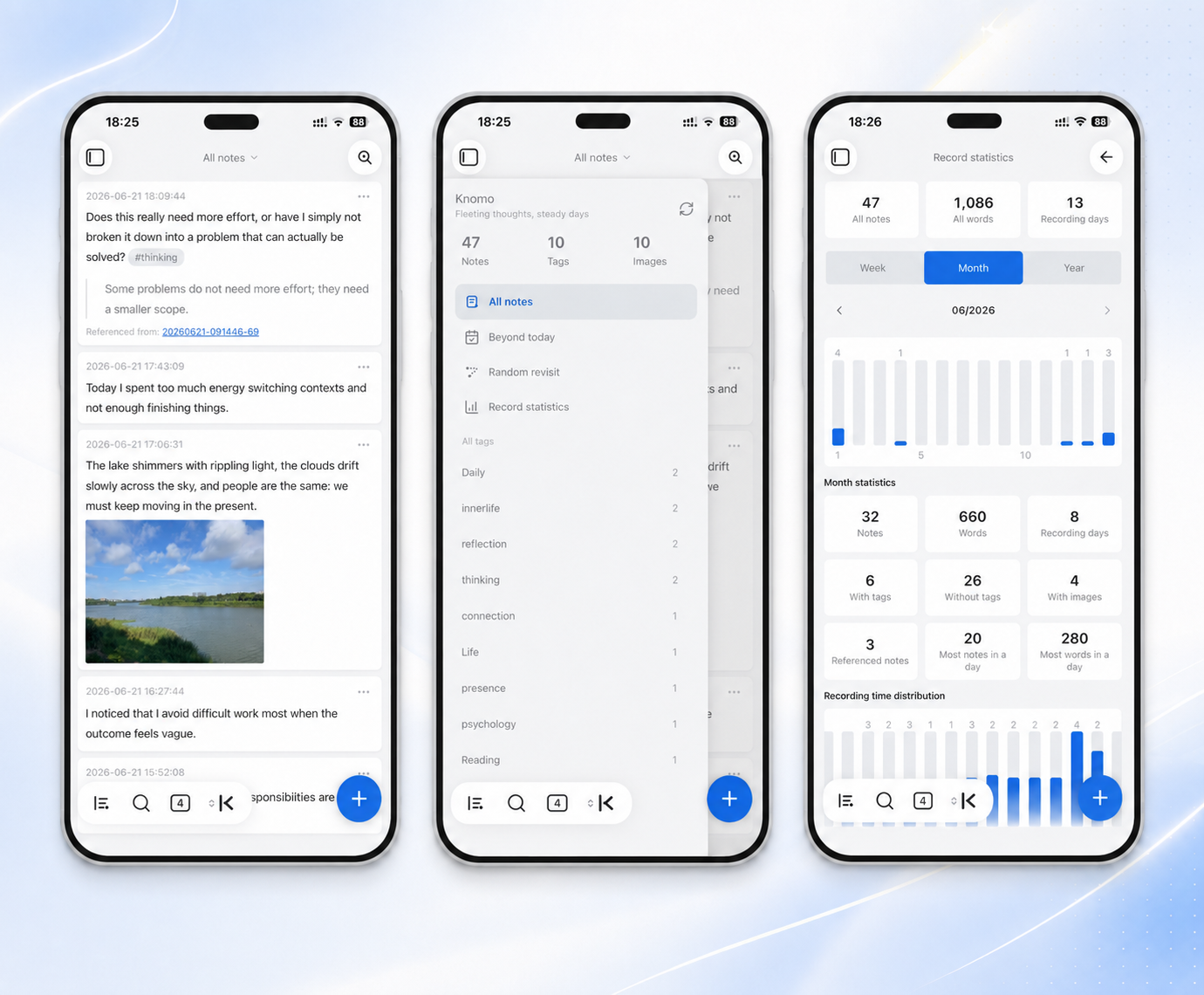
Knomo treats Obsidian mobile as a core use case, not as a smaller desktop window. The composer, keyboard behavior, touch targets, sidebar, search, and card browsing are optimized for mobile capture.
Feature Highlights
Quick capture
Write and save memos directly inside Knomo without opening a Markdown file first.
Good for:
- fleeting thoughts;
- reading excerpts;
- project ideas;
- meeting notes;
- work reminders;
- daily review material;
- temporary notes to process later.
Daily Note writing
Knomo depends on Obsidian's core Daily Notes plugin.
New memos are written under a configured heading in the Daily Note of the day. The default heading is:
## Memos
Example:
## Memos

- 18:30:12 I came up with a new product idea #idea
- 21:10:03 This paragraph from a book is worth revisiting #reading
You can configure the heading, insertion position, and time format in Knomo settings.
Monthly Memos files
In addition to Daily Notes, Knomo automatically maintains monthly Memos Markdown files.
Default example:
# Knomo/Memos-2026-06.md

## [[2026-06-21]]

- 09:20:10 A small product idea that should not be lost #idea
- 22:15:42 Review note: this needs to become a project brief later #review

## [[2026-06-20]]

- 16:42:03 Useful quote from reading #reading
Monthly files make it easier to browse a long memo stream without losing the daily source context.
Card-based browsing
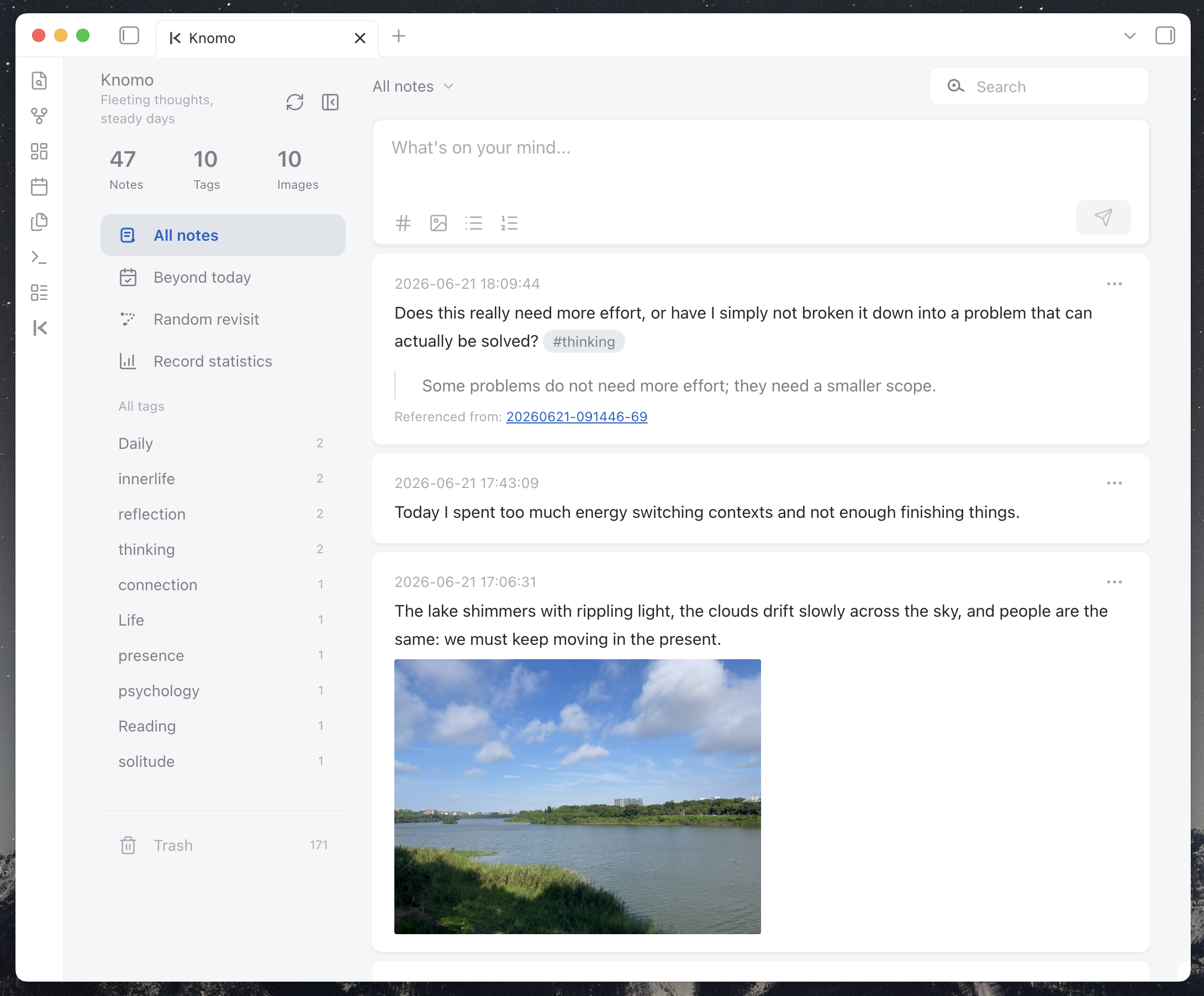
Knomo displays memos as cards instead of forcing you to read the raw Markdown stream.
Cards are useful for:
- quickly browsing recent memos;
- reading on mobile;
- scanning search results;
- filtering by tags, links, images, or date ranges;
- opening the source Daily Note;
- copying text or links;
- editing, deleting, restoring, or referencing a memo.
Filters and search
Knomo supports multiple ways to narrow down your memo stream:
- all notes;
- untagged memos;
- memos with links;
- memos with images;
- on-this-day / anniversary review;
- recent ranges such as this week, this month, last 7 days, last 30 days, last week, and last month;
- tag filtering;
- keyword search;
- statistics-driven filters.
For large Vaults, Knomo can load recent content first and then hydrate the full memo set for filters and statistics that require all data.
Tags, links, and backlinks-friendly Markdown
Knomo recognizes tags and links written inside memos.
- 16:20:00 Improve the mobile composer spacing #knomo #interaction
- 19:05:00 This connects to [[Product Design]] and [[Mobile UX]]
- 20:10:00 Reference: https://obsidian.md
Knomo preserves the original Markdown instead of replacing it with a private format.
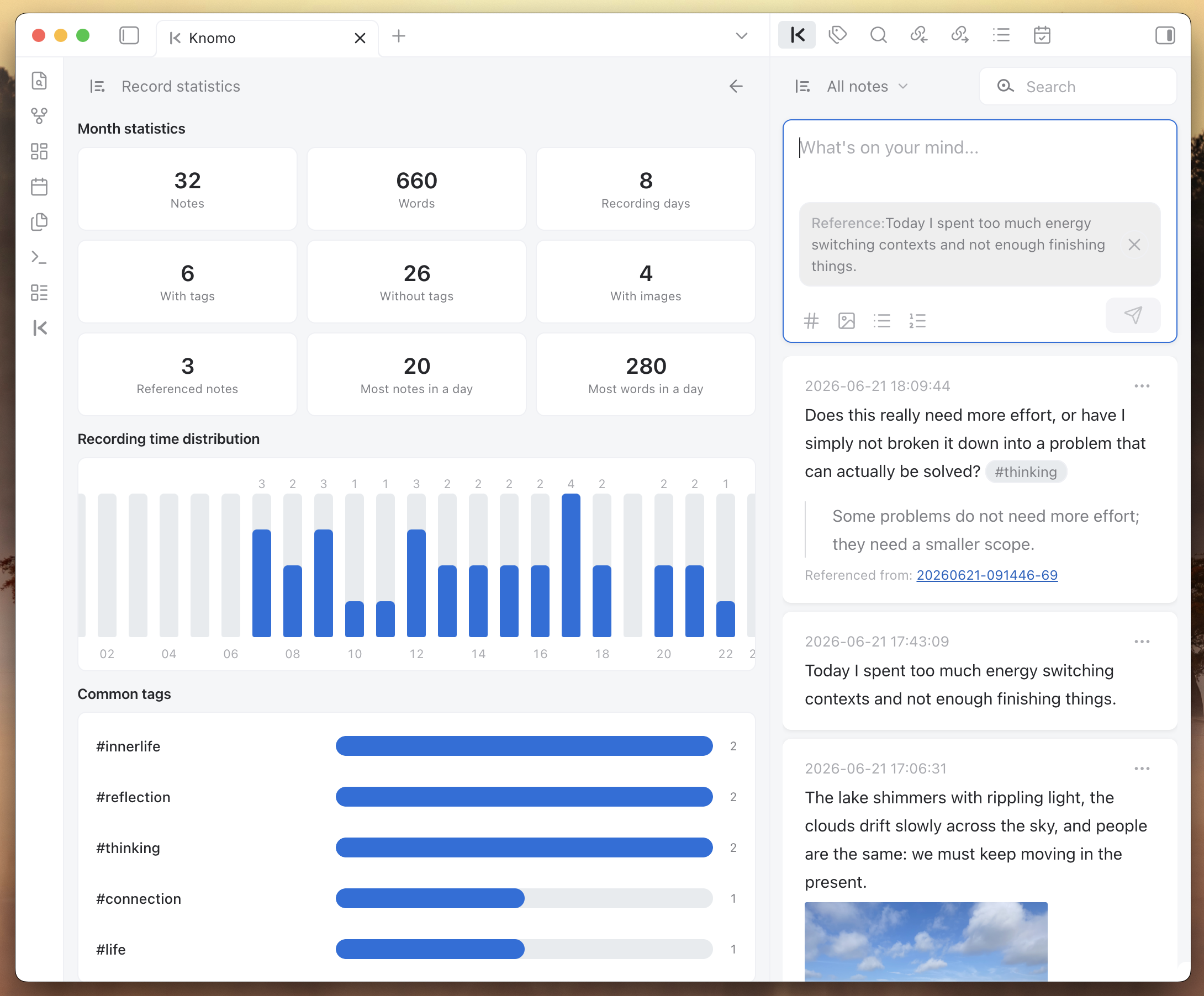
Reference cards
When a memo should respond to or build on another memo, Knomo can create a reference from the card action menu.
This is useful when you want to:
- continue an old thought;
- cite a previous memo in a new memo;
- connect scattered fragments over time;
- keep the original source memo traceable.
References use Obsidian-friendly links or block references so the connection remains meaningful outside Knomo.
Image preview
Knomo supports lightweight image previews in memo cards.
Supported use cases include:
- local Obsidian embeds such as
![[image.png]]; - regular Markdown images such as
; - multiple images in one memo;
- opening a larger preview from the card;
- switching between images in the preview.
The goal is not to become an image manager. Knomo only provides compact previews so image-based memos remain easy to browse.
Task lists and checkboxes
Knomo supports Markdown task lists inside memos.
Example:
- 09:30:00
	- [ ] Send the project note
	- [x] Check yesterday's meeting memo
Task status can be updated from the card view and synced back to the source Markdown content.
Record statistics
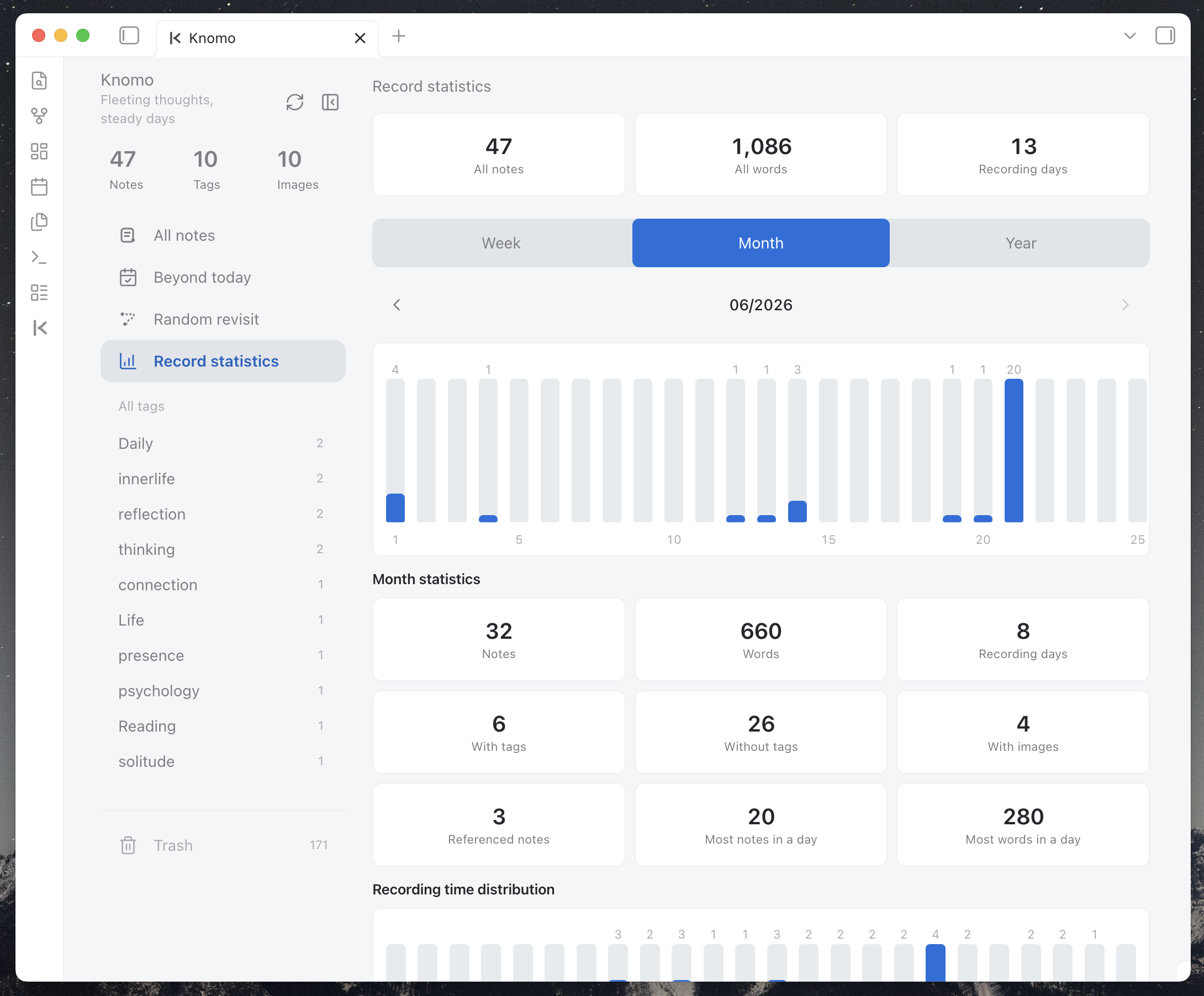
Knomo includes a record statistics view for understanding your memo habits and reviewing your writing rhythm.
It can show:
- total notes;
- total words;
- recording days;
- notes with tags;
- notes without tags;
- notes with images;
- referenced notes;
- busiest days by note count;
- wordiest days;
- weekly, monthly, and yearly trends;
- recording time distribution;
- common tags.
Statistics are designed for review and navigation, not for turning writing into a productivity scoreboard. You can use statistics to notice patterns and jump back into related memo cards.
Random revisit and review
Knomo includes lightweight review entry points such as random revisit and date-based review. They are designed to help old fragments meet the present again without requiring AI or external services.
A memo does not need to become useful immediately. Sometimes its value appears when you encounter it again in a different context.
Trash, restore, and repair
Knomo includes safer maintenance flows for day-to-day use:
- deleted memos can appear in Trash;
- memos can be restored when possible;
- permanent deletion requires a separate action;
- the memo index can be repaired from Markdown sources;
- legacy Daily Note memo-shaped content can be previewed and imported.
Markdown remains the long-term trusted source. The plugin index is used to improve browsing, filtering, and synchronization.
Mobile input experience
Knomo has dedicated mobile interaction improvements:
- touch-friendly quick create entry;
- bottom composer designed for phone input;
- better coordination with the system keyboard;
- long-content height and scrolling control;
- larger touch targets;
- mobile search page;
- mobile sidebar drawer;
- mobile-friendly image preview;
- adaptation for safe areas and Obsidian mobile navigation bars.
Knomo's mobile goal is not just to open inside Obsidian mobile, but to make quick memo capture feel natural there.
Theme compatibility
Knomo uses Obsidian theme variables where possible and includes compatibility work for community themes such as Minimal.
If you use a different theme and see spacing, color, contrast, or mobile layout issues, feedback is welcome.
Installation
Install from Obsidian Community Plugins
When Knomo is available in the Obsidian community plugin marketplace:
- Open Obsidian Settings;
- Go to Community plugins;
- Turn off Restricted Mode if needed;
- Search for
Knomo; - Install and enable the plugin.
Manual installation
- Download the latest release files:
main.jsmanifest.jsonstyles.css
- Create this folder in your Vault:
.obsidian/plugins/knomo/
- Put the three files into the folder;
- Restart Obsidian;
- Enable Knomo in Community plugins;
- Run
Open Knomofrom the command palette.
Quick Start
1. Enable Daily Notes
Knomo requires Obsidian's core Daily Notes plugin.
Before using Knomo, make sure:
- Daily Notes is enabled;
- the Daily Notes folder is configured;
- the date format is configured;
- Obsidian can create Daily Note files normally.
2. Open Knomo
You can open Knomo by:
- clicking the Ribbon icon;
- running
Open Knomofrom the command palette; - pinning the Knomo view to your workspace.
3. Create your first memo
Write:
Today I started using Knomo to capture small thoughts #knomo
After saving, the memo appears in the card flow and is written to the corresponding Markdown files.
4. Review and connect
After writing for a while, try:
- filtering by tags;
- searching keywords;
- opening memos with links or images;
- using Random revisit;
- checking Record statistics;
- referencing an older memo when creating a new one.
Markdown Format
Knomo uses simple Markdown that stays readable outside the plugin.
Single-line memo
- 18:30:12 This is a memo
Multi-line memo
- 18:30:12 First line
	Second line
	Third line
Memo with tags
- 18:30:12 I read a useful point today #reading #product
Memo with links
- 18:30:12 This connects to [[Product Design]] and https://obsidian.md
Memo with image
- 18:30:12 Inspiration screenshot ![[image.png]]
Memo with task list
- 09:30:00
	- [ ] Follow up with the project owner
	- [x] Check yesterday's memo
Memo with quote
- 20:15:00
	> A small note can become useful when it returns at the right time.
Monthly archive
## [[2026-06-21]]

- 18:30:12 This is a memo
Settings Overview
Knomo settings include:
- Daily Note insertion heading;
- new memo insertion position;
- memo time format;
- monthly memos folder;
- monthly memos filename format;
- date heading format inside monthly files;
- monthly date sort order;
- optional exclusion of monthly memo files from Obsidian search / graph / statistics;
- pinned tags;
- legacy Daily Note memo import;
- data repair and rebuild tools.
Data and Privacy
Knomo's core principle is: your data belongs to you.
- Memo content is stored in your Obsidian Vault;
- Daily Notes and monthly Memos files are regular Markdown files;
- Markdown files can be read, backed up, synced, and migrated directly;
- the plugin index improves browsing, filtering, statistics, and sync behavior;
- the plugin index is not the only source of truth;
- Knomo does not require an account;
- Knomo does not rely on an external server;
- Knomo does not actively upload your notes.
Data Safety Notes
Knomo writes to Markdown files. To reduce risk:
- back up your Vault before first use;
- make sure Obsidian Sync, Git, or other sync tools are working normally;
- back up before importing legacy Daily Note content;
- check the original Markdown if the card flow looks inconsistent;
- use repair / rebuild tools if the index becomes outdated;
- treat Markdown files as the long-term trusted source.
Knomo's goal is not to hide Markdown. It is to make Markdown easier to capture, browse, and reuse.
Recommended Workflows
Daily fragmented capture
Use Knomo as a quick input box inside Obsidian. Write first; organize later.
Reading excerpts
- 10:32:00 The important part is not the number of features, but the path users take to complete their goals. #reading #product
Project idea pool
- 16:20:00 The mobile input box should feel like a calm panel above the keyboard. #knomo #interaction
Task capture
- 09:30:00
	- [ ] Draft the release note
	- [ ] Review the mobile card layout
Image-based inspiration
- 18:30:12 Layout reference for a compact card ![[card-layout-reference.png]] #design
Review and reuse
Use tags, search, Random revisit, Record statistics, and references to bring old fragments back into current work.
What Knomo Is Not
Knomo is not:
- a replacement for Obsidian files or folders;
- a cloud memo service;
- an AI note organizer;
- a full task manager;
- an image manager;
- a private database that locks your content away.
Knomo is a local memo-first capture and review layer for Obsidian Markdown.
Differences from Other Tools
How is Knomo different from flomo?
flomo is a standalone Memos product. Knomo is an Obsidian plugin.
Knomo is more suitable for users who want to keep fragmented notes in their own Vault while continuing to use Obsidian's tags, links, search, backlinks, Daily Notes, and Markdown workflow.
How is Knomo different from Thino?
Thino is a mature Obsidian Memos plugin.
Knomo focuses more on:
- Daily Note integration;
- monthly Markdown collection;
- local-first memo storage;
- mobile input experience;
- lightweight card review;
- low-friction personal capture.
If you need a mature and feature-rich Memos plugin, Thino may be a better fit. If you want a lightweight memo entry that stays close to Daily Notes and local Markdown, Knomo may fit your workflow.
FAQ
Will Knomo lock my data inside the plugin?
No. Core memo content is written to Markdown files. The index improves the experience, but Markdown remains the long-term trusted source.
Do I have to enable Daily Notes?
Yes. Knomo's main writing workflow is built around Obsidian's core Daily Notes plugin.
Will Knomo upload my notes?
No. Knomo does not rely on external servers and does not actively upload your notes.
Does Knomo support mobile?
Yes. Mobile is one of Knomo's main optimization areas. Knomo includes a mobile composer, keyboard adaptation, mobile search, touch-friendly controls, safe-area handling, mobile sidebar behavior, and mobile-friendly card browsing.
Why do my card flow and Markdown files look inconsistent?
The index may not have refreshed yet, or Markdown files may have been edited externally.
Try:
- checking the original Markdown file;
- refreshing Knomo;
- using repair / rebuild tools;
- opening an issue with reproduction steps if the problem persists.
Can I edit Markdown files manually?
Yes. Knomo is designed to keep content readable in Markdown. If you edit files manually, refresh or rebuild the index if the card flow does not update as expected.
Feedback and Contribution
Feedback is welcome, especially:
- bug reports;
- mobile experience feedback;
- theme compatibility issues;
- Markdown parsing edge cases;
- data sync / index repair issues;
- UI / UX suggestions;
- documentation improvements.
When reporting mobile issues, please include device model, OS version, Obsidian version, theme, and reproduction steps.
License
Knomo for Obsidian Desktop and Mobile
Knomo is licensed under the MIT License. You are free to use, copy, modify, merge, publish, distribute, sublicense, and/or sell copies of this software, as long as you preserve the copyright and license notice in any substantial portion of the code.
This includes any standalone snippets, styles, components, or utility functions you may extract from Knomo.
If you distribute a fork of Knomo or reuse part of its code, it would be appreciated if you keep a link back to the original project in your README and keep my Buy me a coffee link.
Knomo is designed for Obsidian and may continue to be updated to stay compatible with new versions of Obsidian, including improvements for desktop, mobile, and community themes such as Minimal.
See the LICENSE file for details.