
README file from
GithubNote Database
Local database views for Markdown notes in Obsidian.
Note Database turns Markdown files and frontmatter properties into editable table, board, gallery, list, chart, calendar, and timeline views. It stays local-first, works with plain Markdown files, and keeps database configuration inside your vault.
Highlights
- Seven database views: switch the same notes between table, board, gallery, list, chart, calendar, and timeline layouts.
- Markdown-first storage: every database is saved as a normal
db_view: trueMarkdown file in your vault. - Inline property editing: edit text, numbers, dates, currency, checkboxes, selects, multi-selects, statuses, and file names directly from the view.
- Flexible filtering and grouping: combine filters, sorting, grouping, hidden fields, title fields, manual order, and per-view layout settings.
- Chart view: visualize the current filtered records with bar, line, area, donut, number, stacked, grouped, and mixed charts.
- Calendar and timeline views: schedule date and datetime properties with month, week, day, and long-range timeline scales.
- Board subgroups and drag feedback: organize board columns with secondary grouping and clearer drag targets.
- Computed fields: build formulas with field references, helper functions, live previews, and optional frontmatter sync.
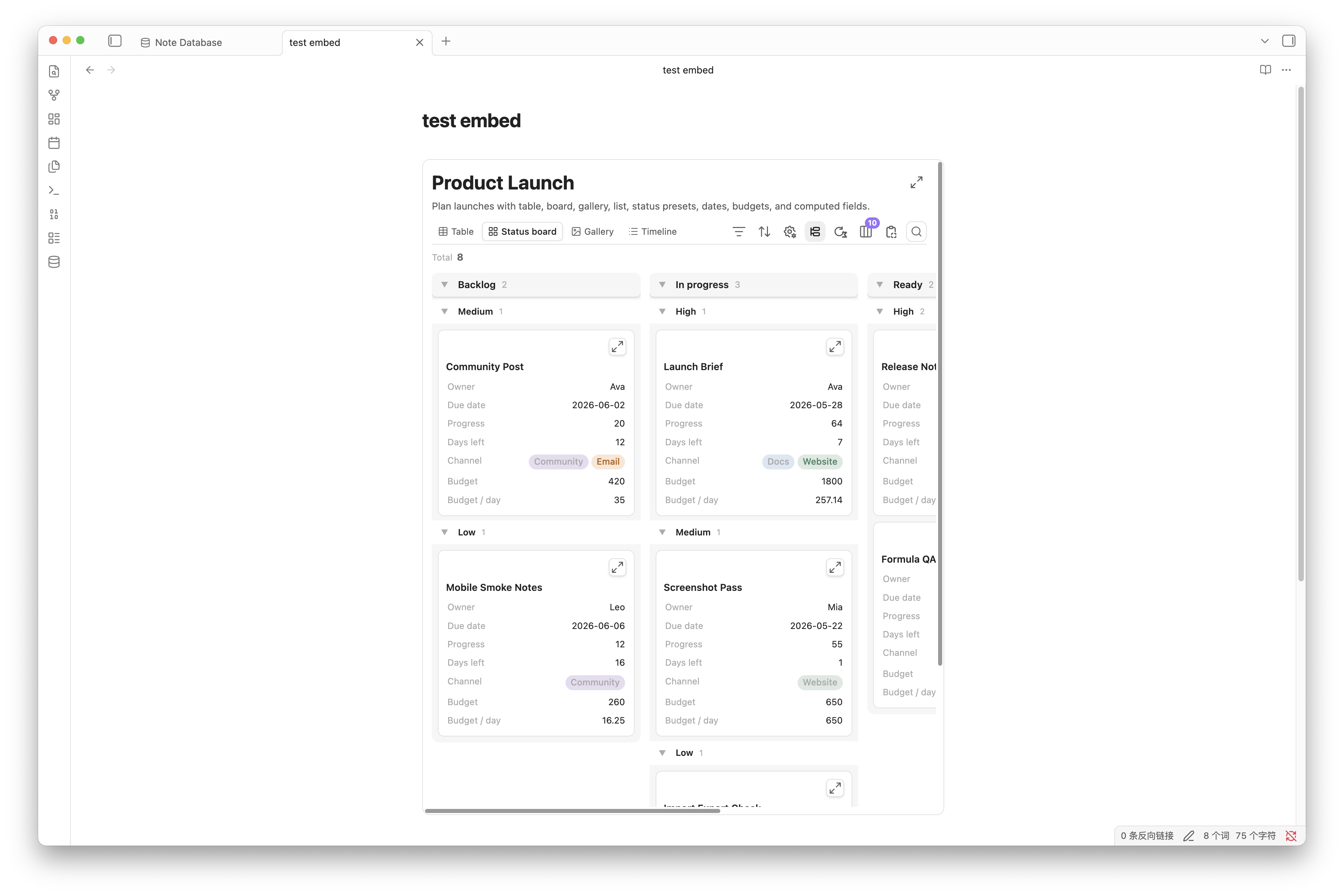
- Embedded views: embed read-only database views inside any note while keeping view switching, filters, sorting, grouping, visible fields, and export tools available.
- Database-file tab controls: choose whether database files always open in new tabs and whether duplicate database-file tabs are prevented.
- Import, export, and Bases conversion: move data with CSV + Markdown ZIP files or convert Obsidian
.basefiles. - Local and private: vault content, metadata, formulas, and settings stay on your device.
Views
| Table | Board |
|---|---|
 |
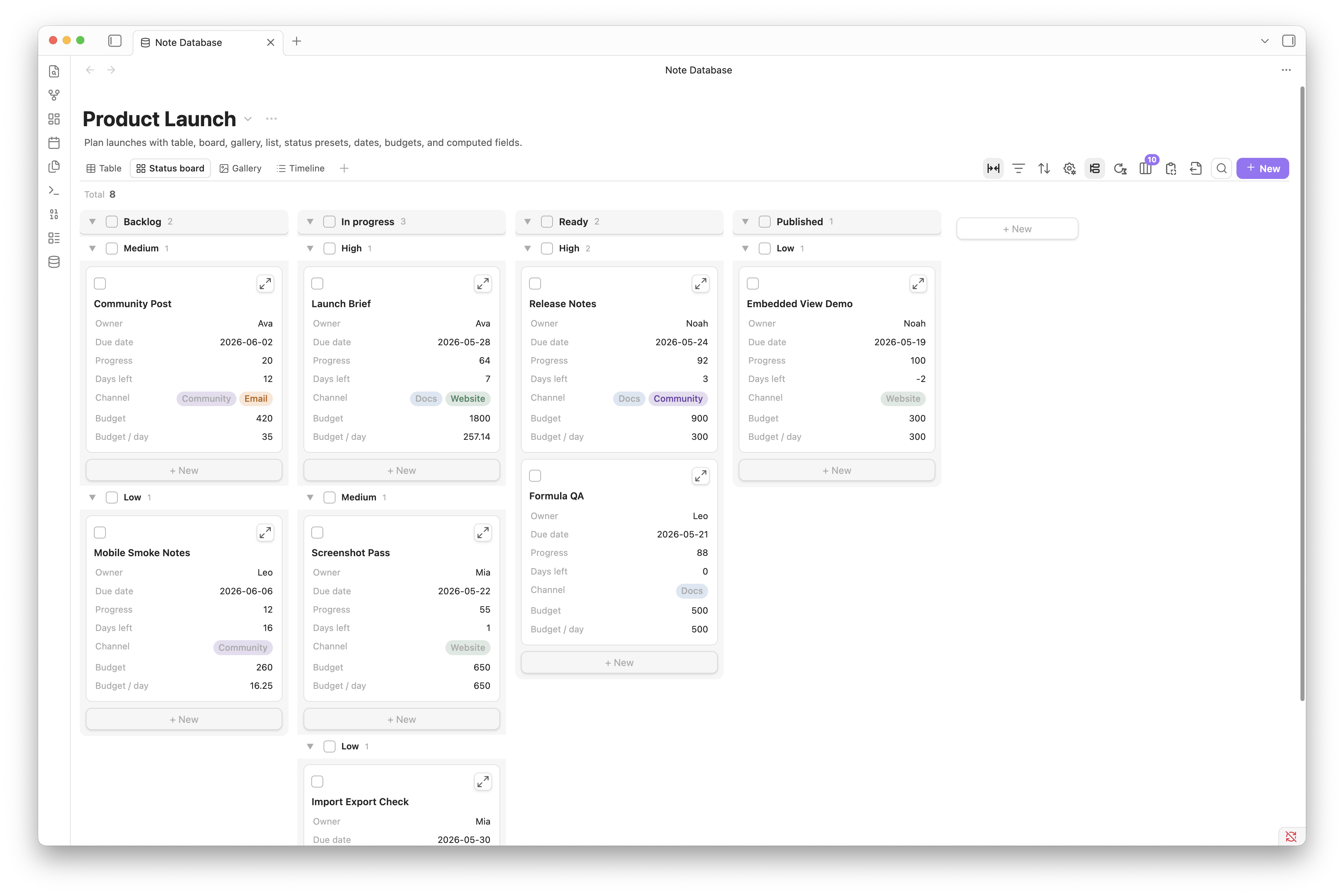 |
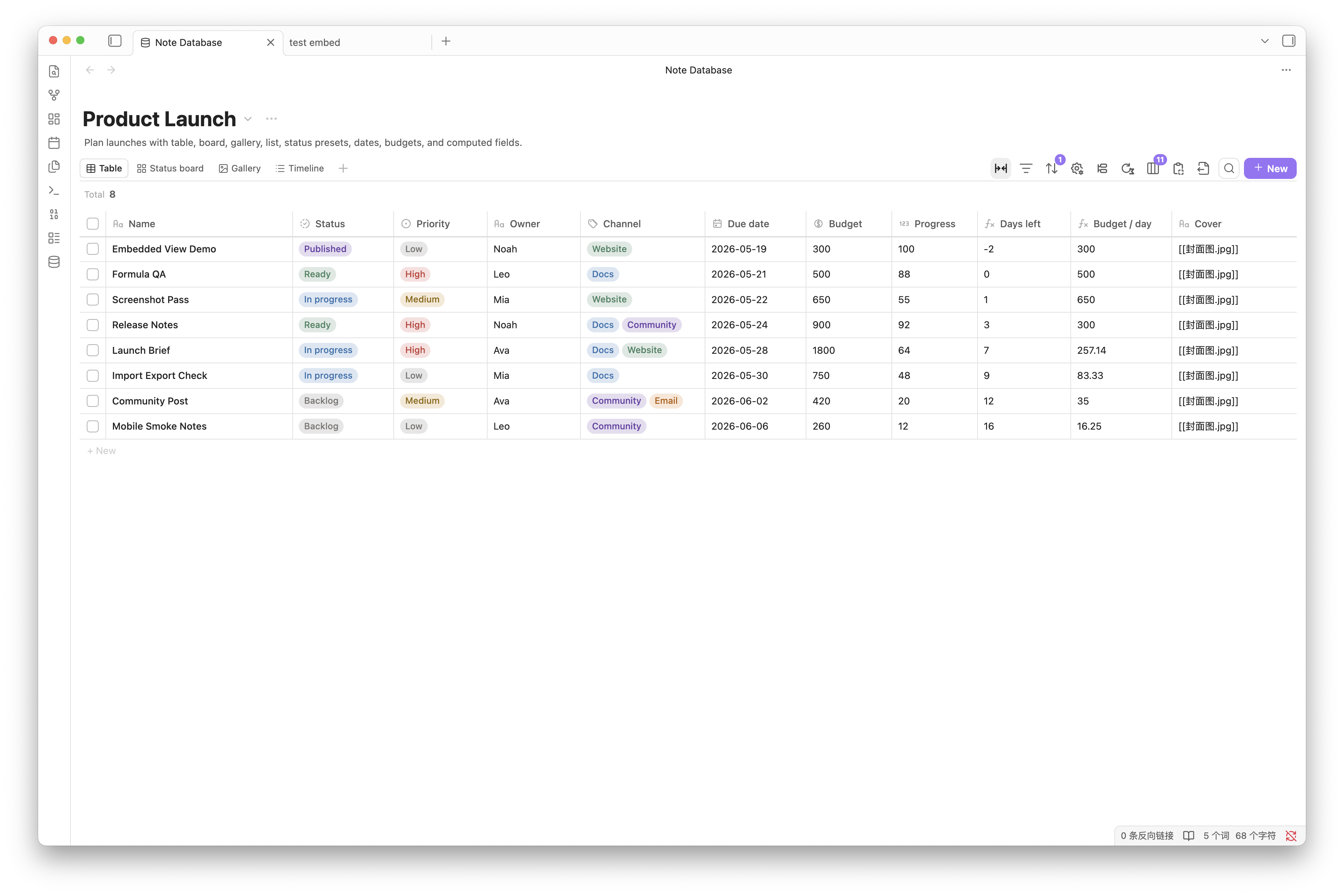
| Dense property editing, column sorting, grouping, batch selection, resizing, and structured review. | Status-driven workflows with grouped columns, subgroups, card fields, manual ordering, and drag-and-drop updates. |
| Gallery | List |
|---|---|
 |
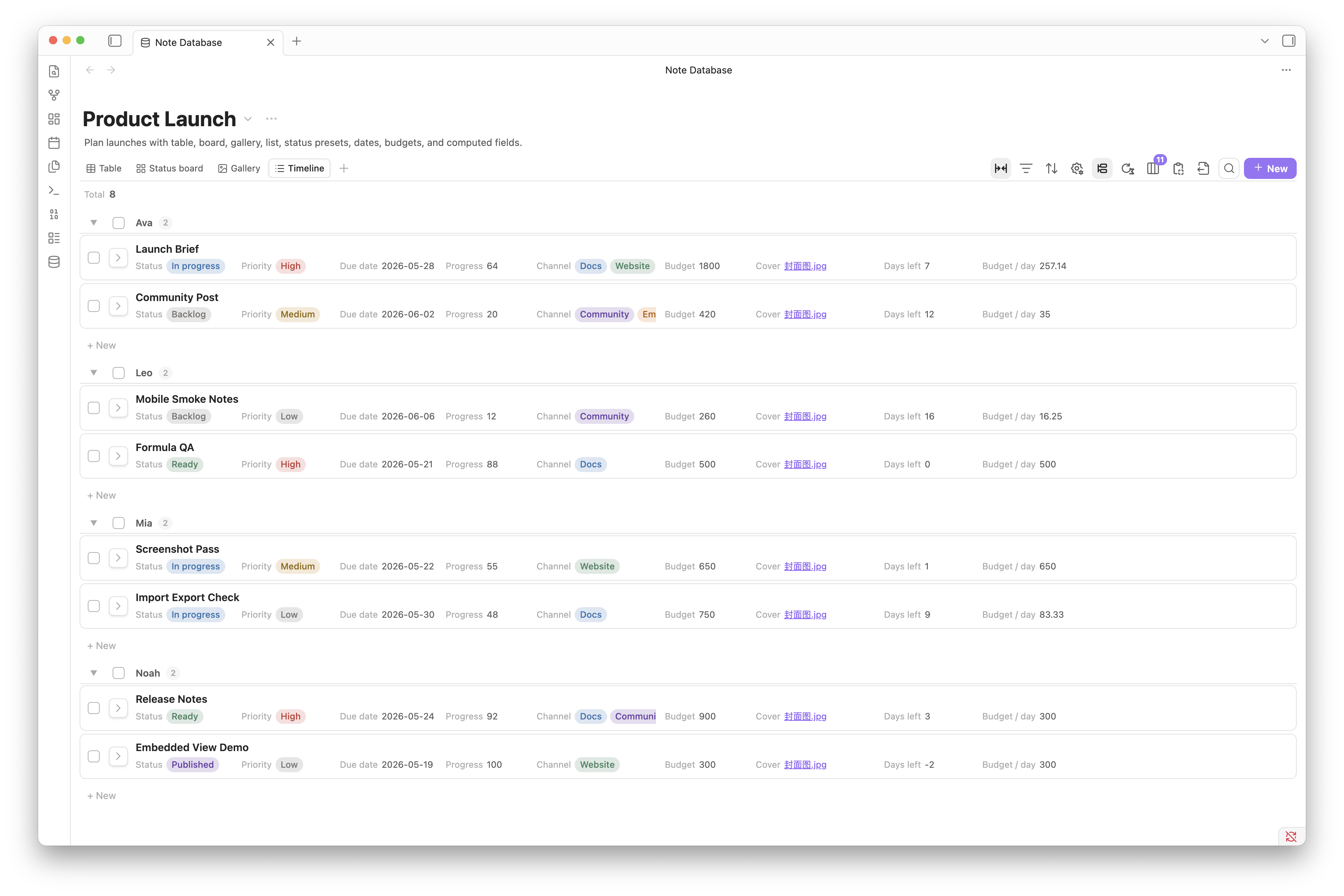 |
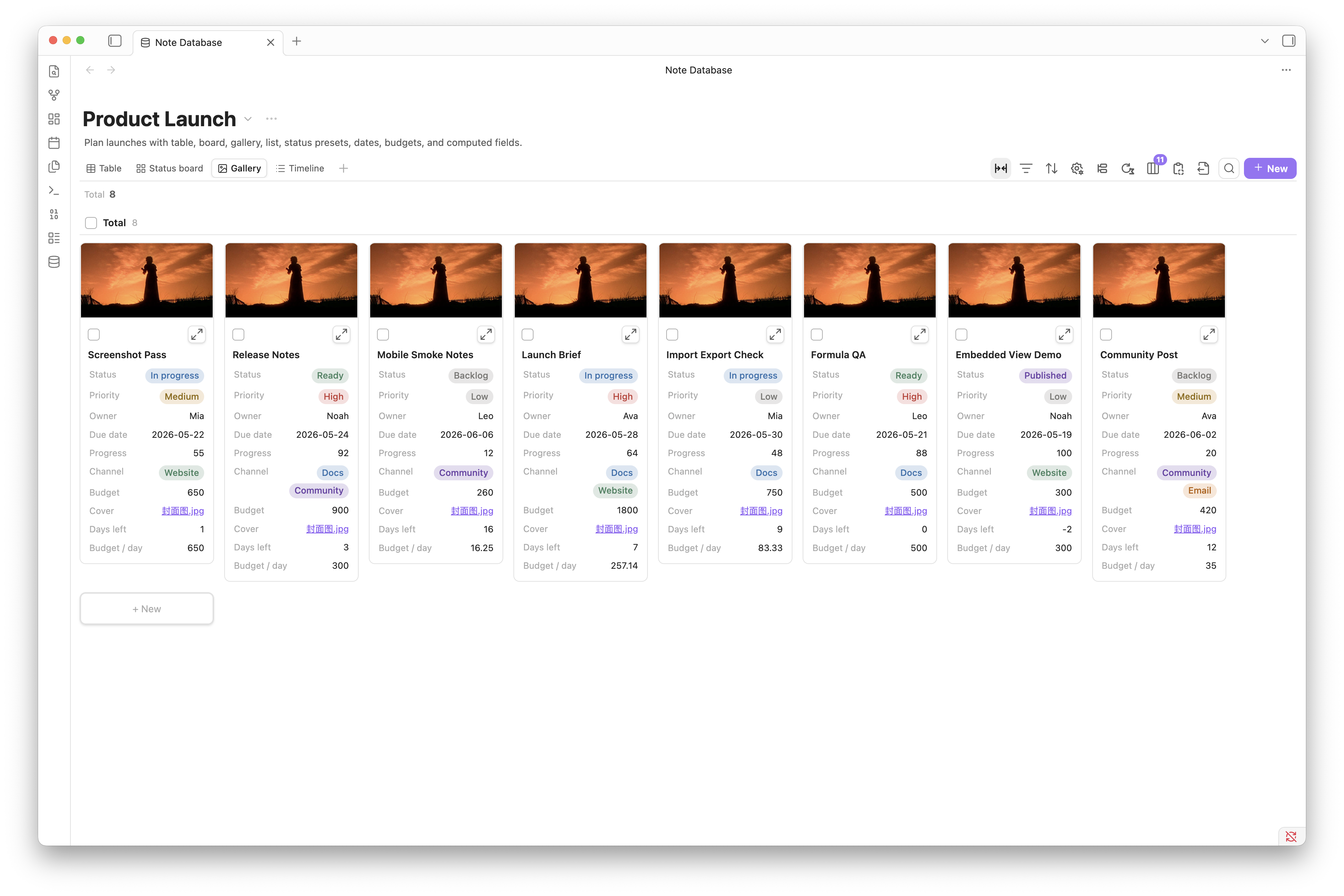
| Visual browsing for reading plans, references, portfolios, and card-style content libraries. | Compact indexes for tasks, directories, research notes, and long lists that need fast scanning. |
| Chart | Timeline |
|---|---|
 |
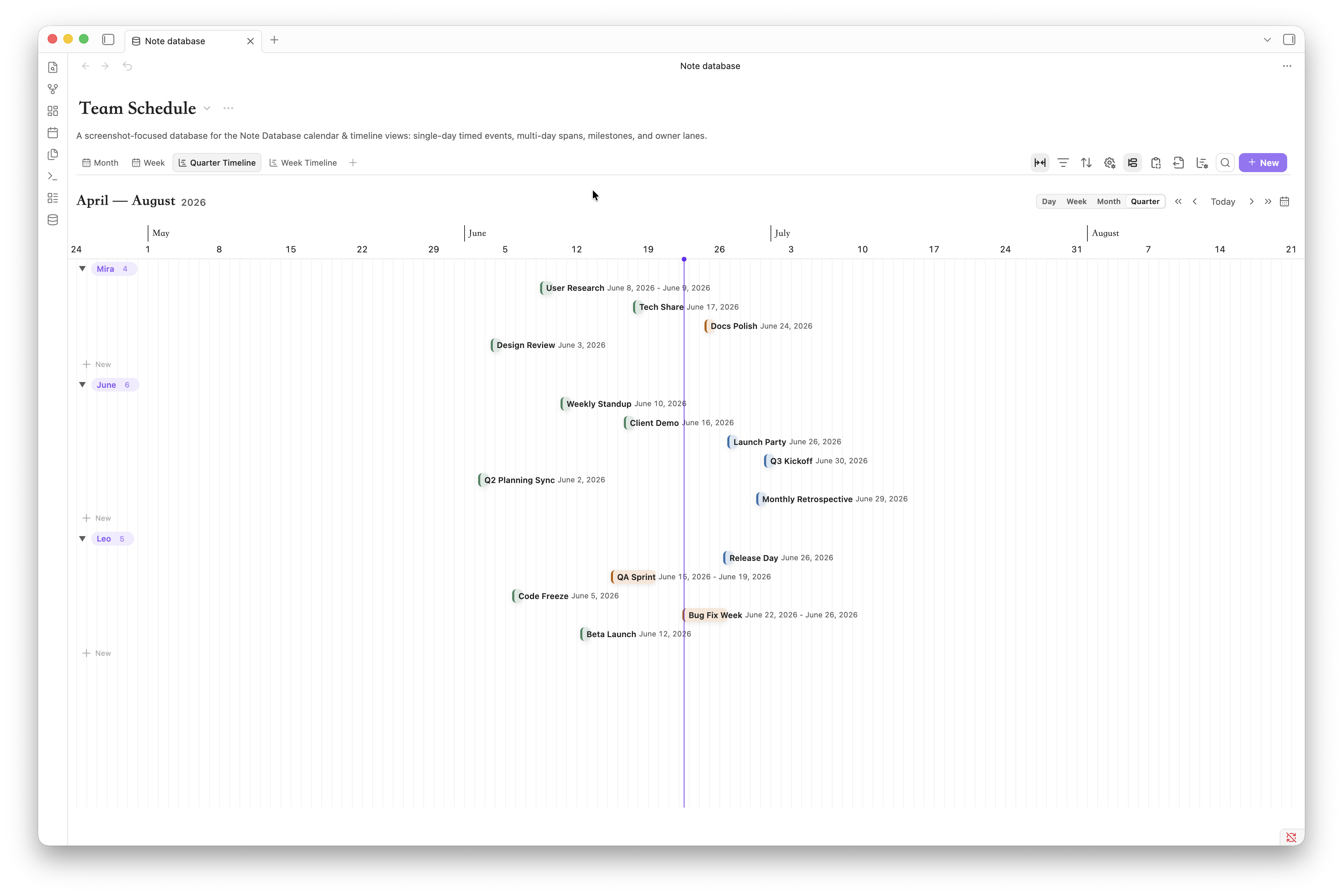 |
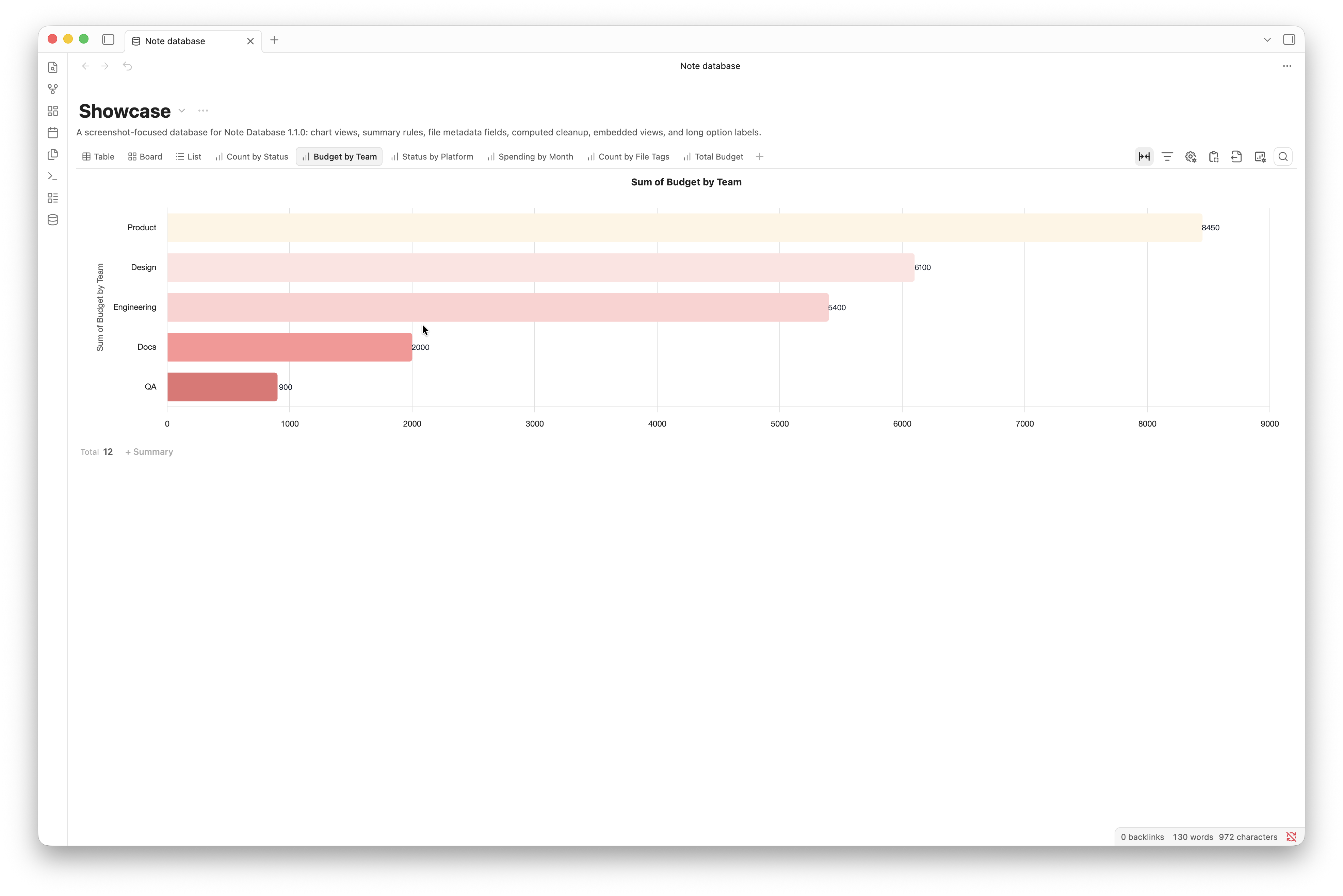
| Aggregate the current search and filter result into configurable charts with summaries, drilldown, palettes, and export. | Near-term review and compressed long-range planning with day, week, month, and quarter scales, grouping, drag, and resize. |
| Calendar (Month) | Calendar (Week) |
|---|---|
 |
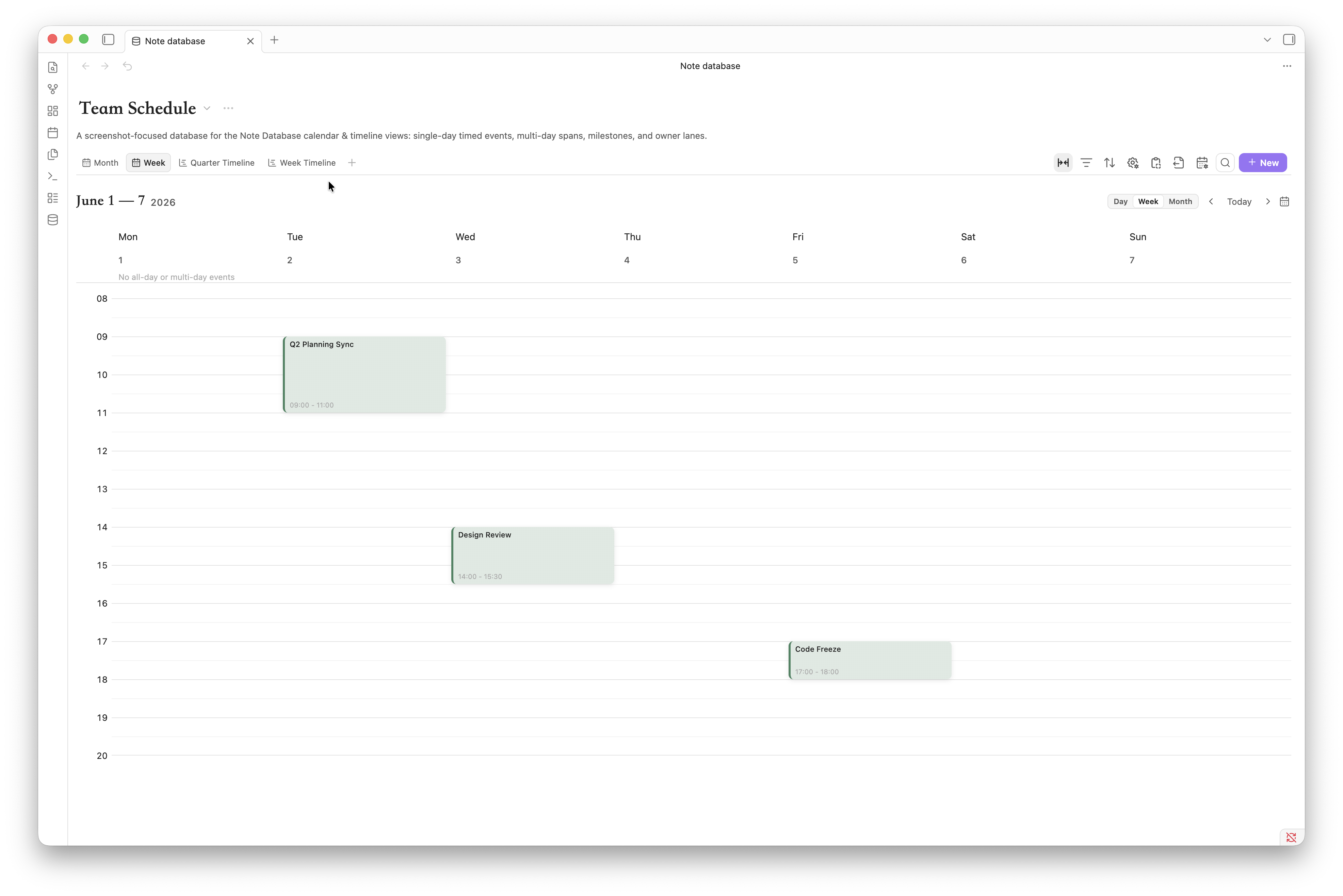 |
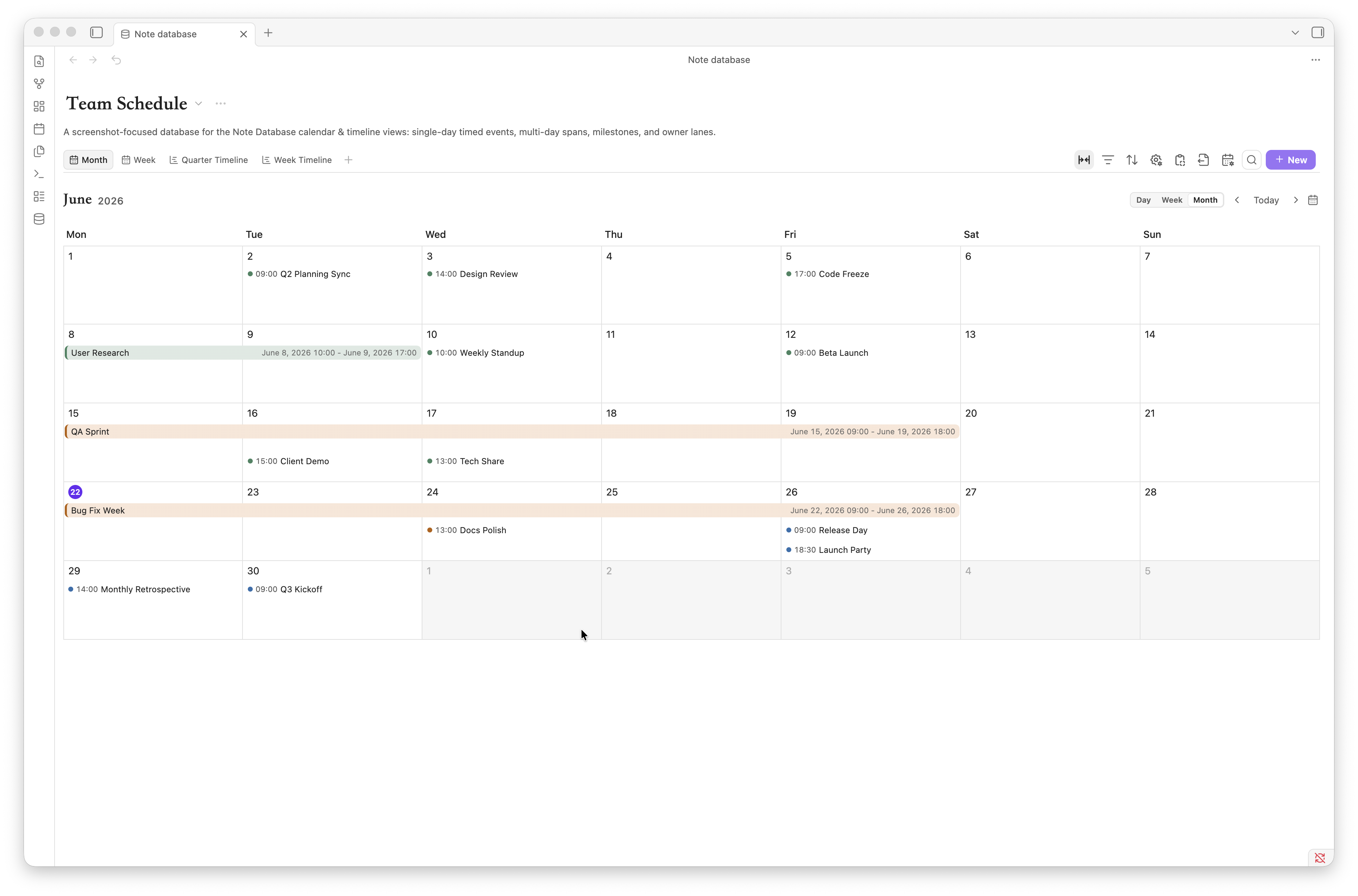
| Month-level scheduling for all-day spans, multi-day plans, and direct drag or resize date changes. | Near-term scheduling with an all-day lane and a time grid for date and datetime events. |
Each view can keep its own filters, sorting, grouping, visible fields, title field, and layout settings.
Chart Views
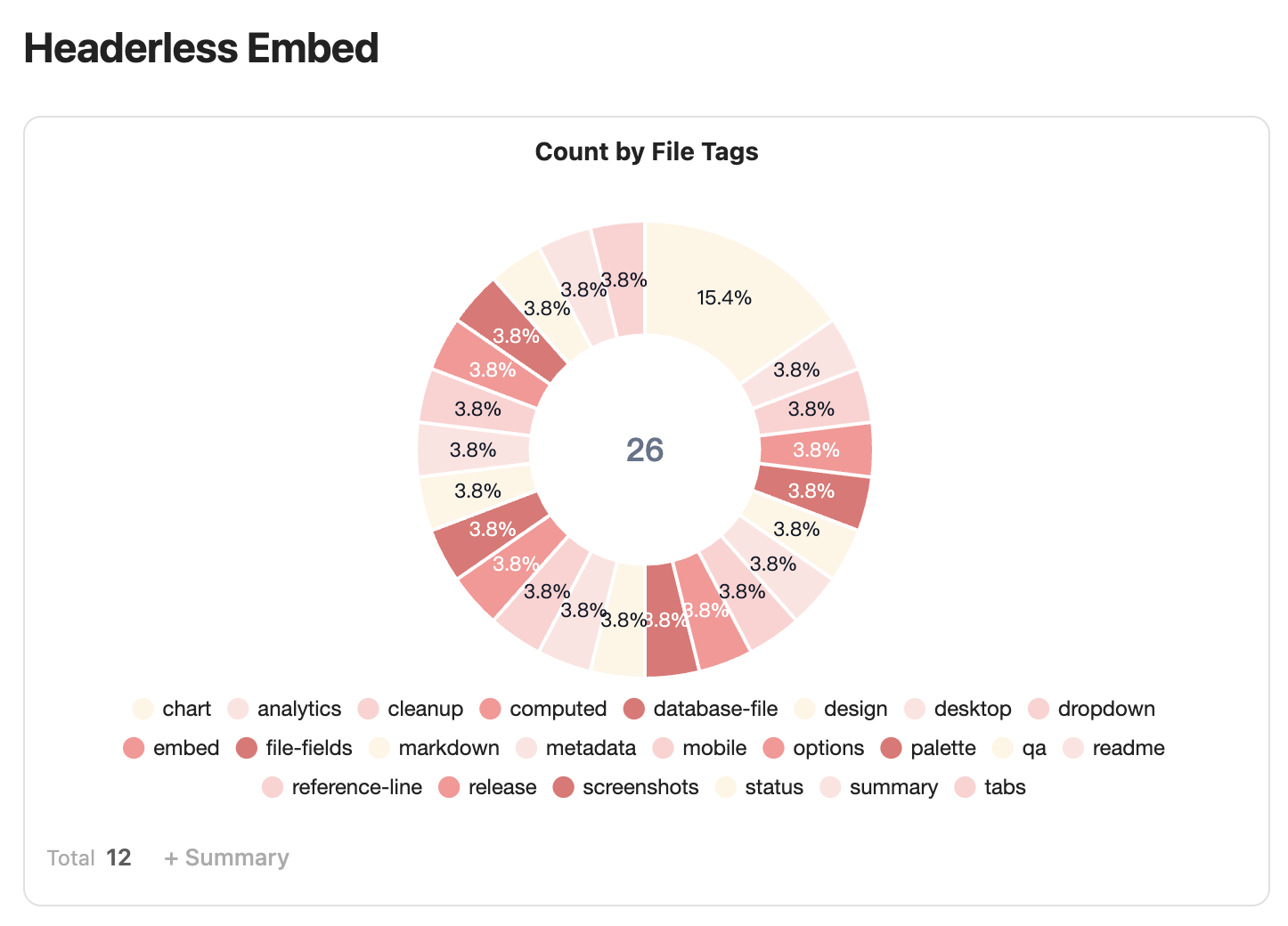
Chart views use the same records as the current database after search, filters, and result limits. They support count and numeric aggregations, date and number buckets, visible group controls, cumulative series, reference lines, data labels, legends, and PNG export.
Click a chart mark to inspect the matching records before applying it as a filter.
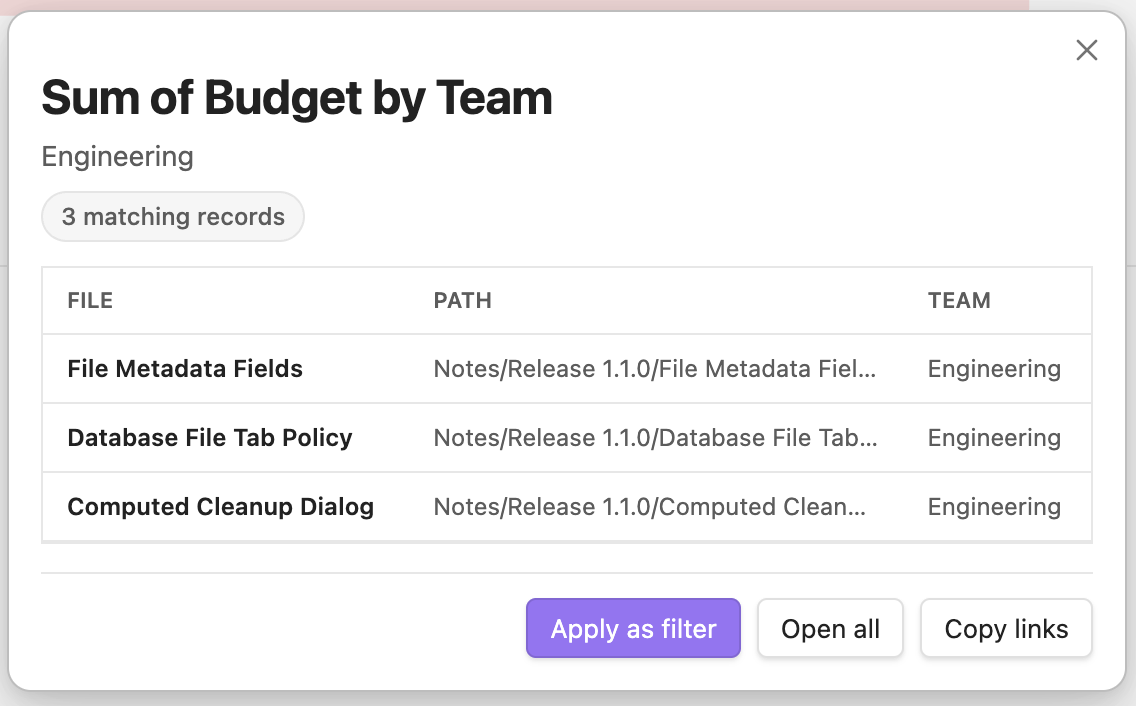
Summary rules can combine count-style, numeric, date, checkbox, and unique-value calculations.

Calendar And Timeline Views
Calendar views turn date and datetime fields into month, week, and day schedules. Multi-day events stay readable across cells, all-day spans can be moved or resized, and week/day time grids support timed event creation and editing.
Timeline views focus on planning across short and long ranges. Use day scale for datetime detail, week scale for near-term review, month scale for multi-day overview, and quarter scale for compressed long-range planning. Events can be grouped, dragged, resized, and inspected with compact range labels.
Getting Started
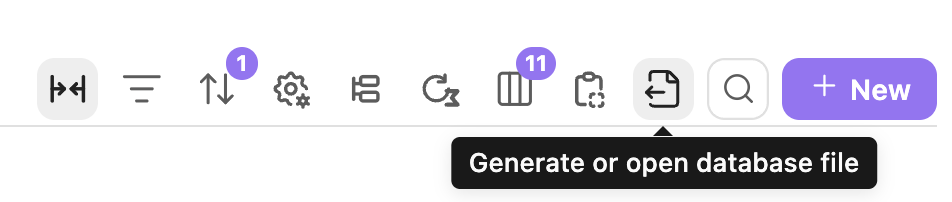
Click the database icon in the left ribbon, or run Note database: Open dashboard from the command palette. The command palette can also import data, convert .base files, or open the corresponding database file.
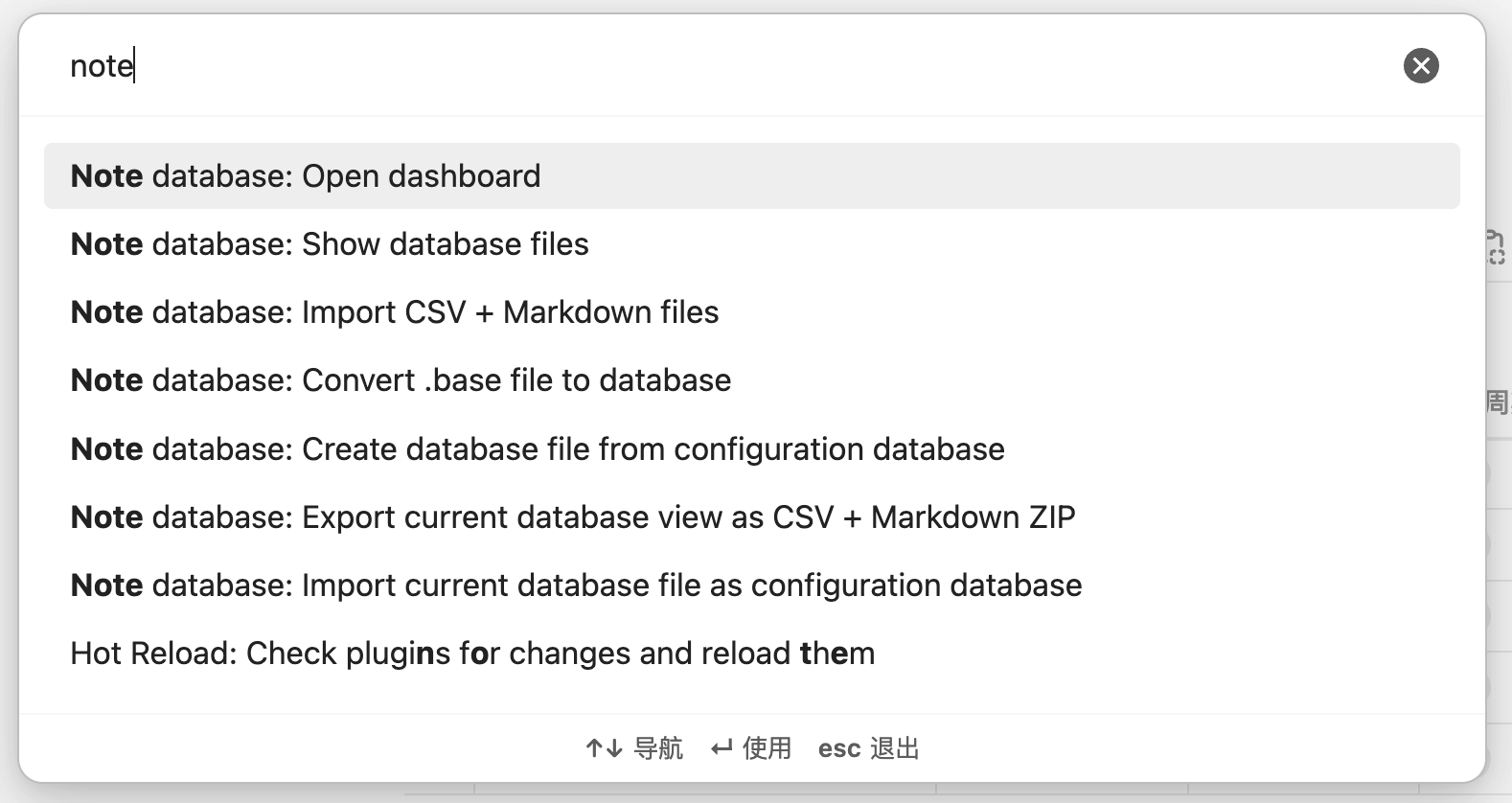
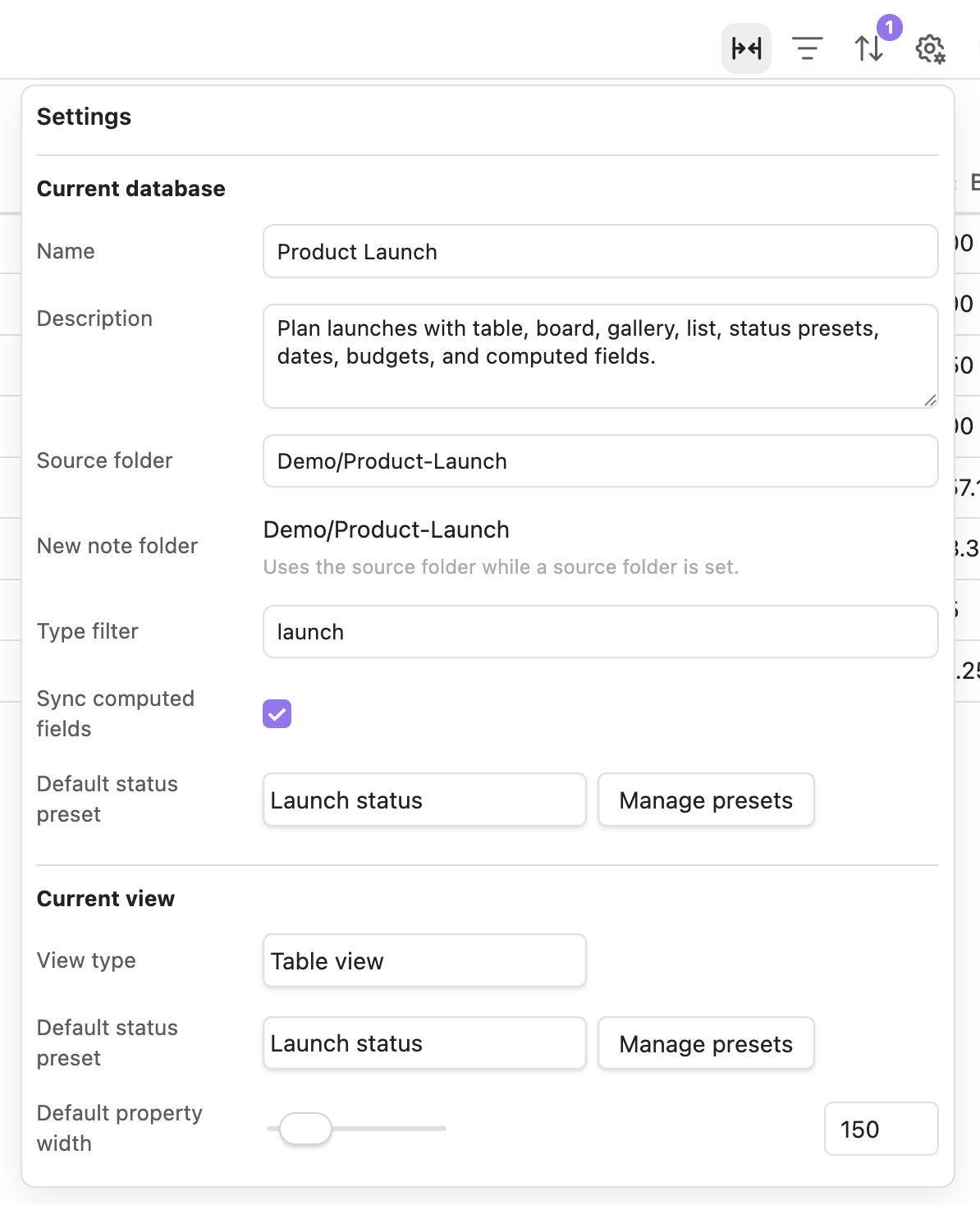
After creating a database, choose a source folder, then add properties and views. The source folder decides which Markdown notes belong to the database; view settings decide how those notes are presented.
The dashboard settings panel separates "Current database" and "Current view": database settings cover the name, description, source folder, and new-note folder; view settings cover the title field, default field width, gallery cover, board subgroup, status presets, and layout behavior.
The plugin settings page manages global options such as language, the default database-file folder, global status presets, database files, import/export, and the plugin trash.
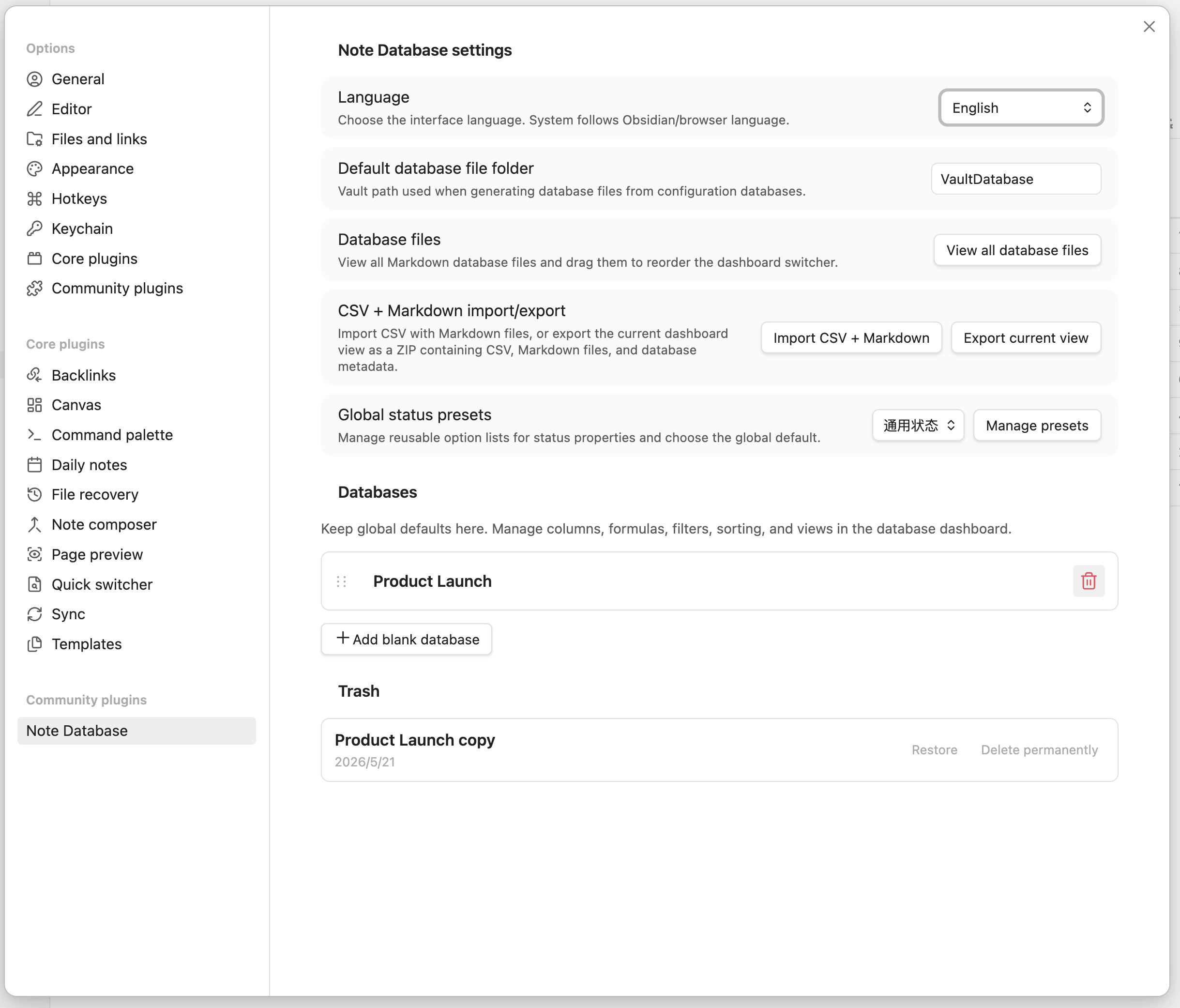
Database-file opening can also be tuned from plugin settings. You can always open database files in a new tab, prevent duplicate tabs for the same database file, or combine both settings depending on how you use Obsidian panes. The same behavior is applied when opening from the dashboard, the file explorer, and database-file drag/open fallbacks.
Embedded Views
Right-click a view tab in the full dashboard, or use the export menu to copy the current view's embed code.
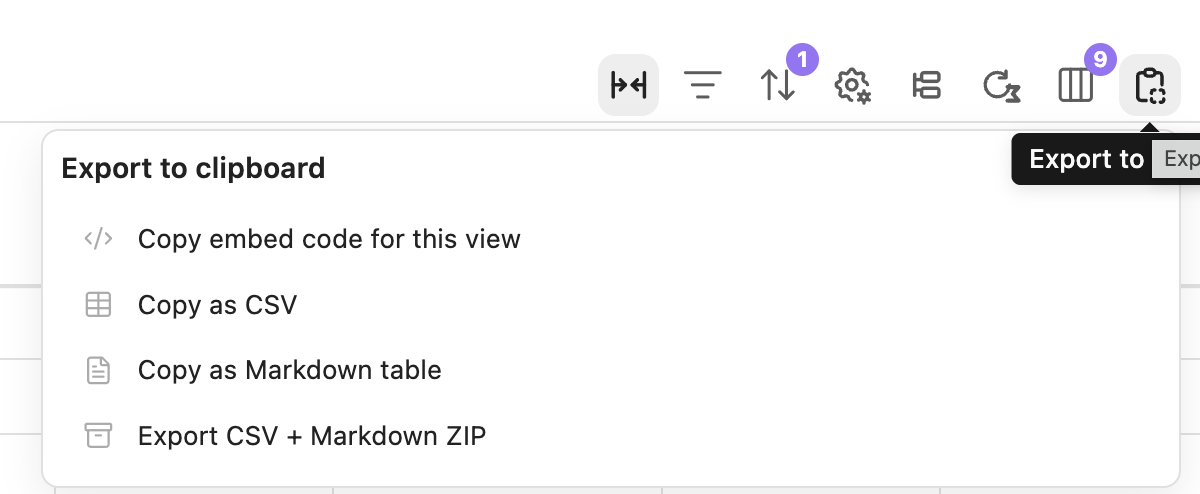
Paste the code into any Obsidian note to get a read-only embedded database view. Embedded views still include view switching, filters, sorting, grouping, visible properties, computed fields, and copy/export tools.
Use the floating header toggle in an embedded block, or add hideHeader: true, when you want the block to omit the database header and use the whole area for view content.
Embed code example:
```note-database
dbPath: database/Example.md
viewId: mh2g9dz3_abcd123
```
Every database configuration is saved as a Markdown file with db_view: true, with its configuration stored in the frontmatter database object. Existing settings-based databases from earlier versions are migrated automatically.
Computed Fields And Formulas
Computed fields support bracket references such as [Property name]. Direct variable names and field("field_key") are also supported for compatibility, but bracket references are the recommended format. Formulas use safe expression evaluation with built-in helpers for note databases.
Common helpers:
| Function | Description |
|---|---|
TODAY() |
Current date |
NOW() |
Current date and time |
DAYS(start_date, end_date) |
Days between two dates |
DAYSFROMNOW(date) |
Days from today |
ADDDAYS(date, days) |
Add days to a date |
DATEADD(date, amount, "days") |
Add days, weeks, months, or years to a date |
ROUND(number, digits) |
Round a number |
FLOOR(number), CEILING(number) |
Math rounding helpers |
MAX(a, b, ...), MIN(a, b, ...) |
Compare values |
CONCAT(text1, text2, ...) |
Join text |
IF(condition, trueValue, falseValue) |
Conditional logic |
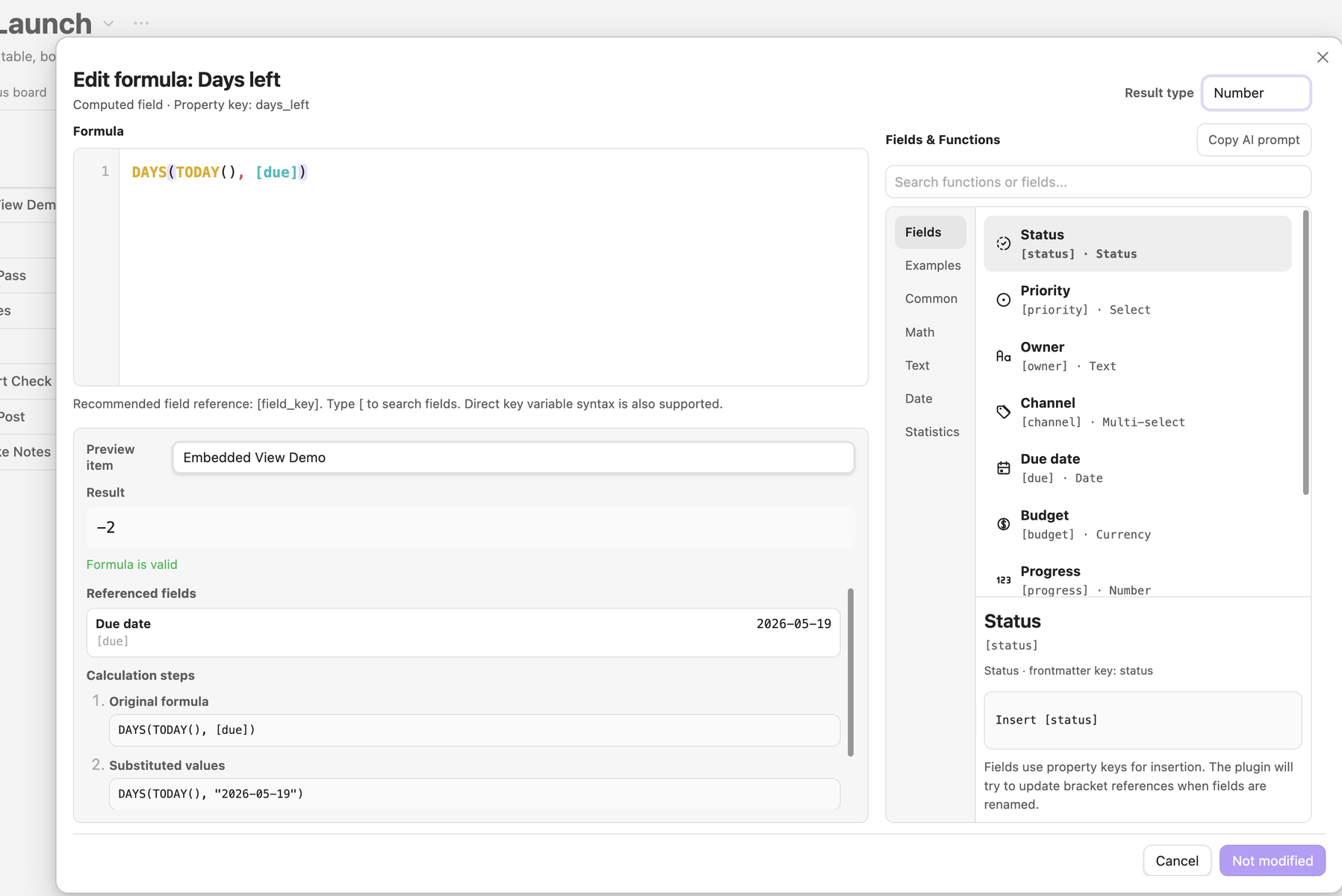
The formula editor shows available fields, function lists, examples, live preview results, referenced values, and step-by-step substitutions, so users do not have to write formulas in a blank textarea. It also includes a copyable AI prompt helper for sending the current formula draft, fields, and function context to an assistant.
Computed values refresh for display whenever a database view is opened. In the database settings, choose whether those values remain display-only virtual properties, are written back to frontmatter automatically, or are written back only when you click the manual sync button.
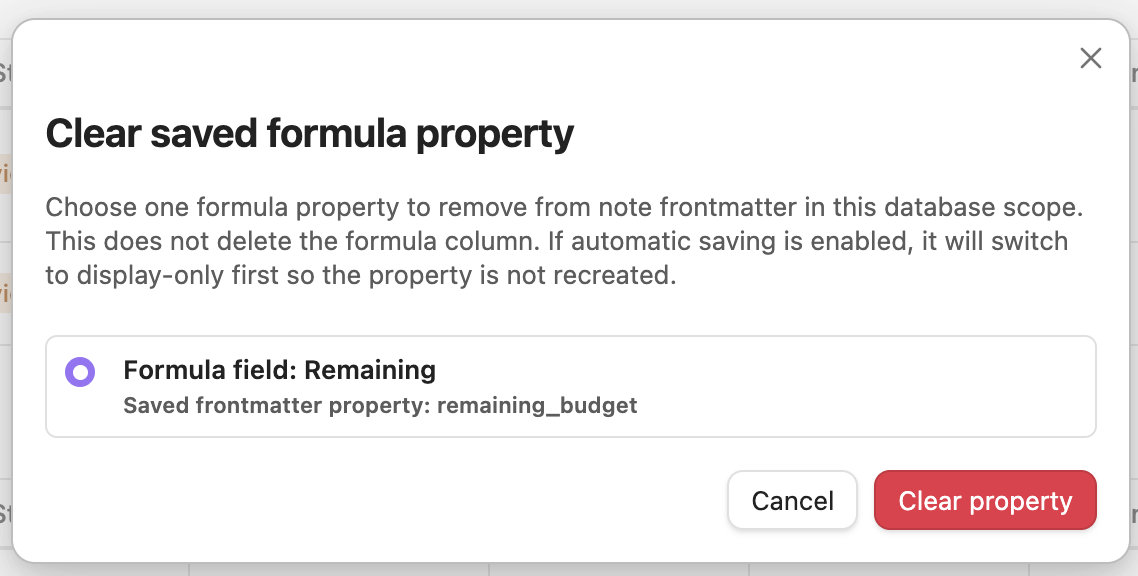
If you previously saved a computed result into note frontmatter and later decide to keep it display-only, use the cleanup action to remove that saved property from notes in the current database scope.
File Metadata Fields
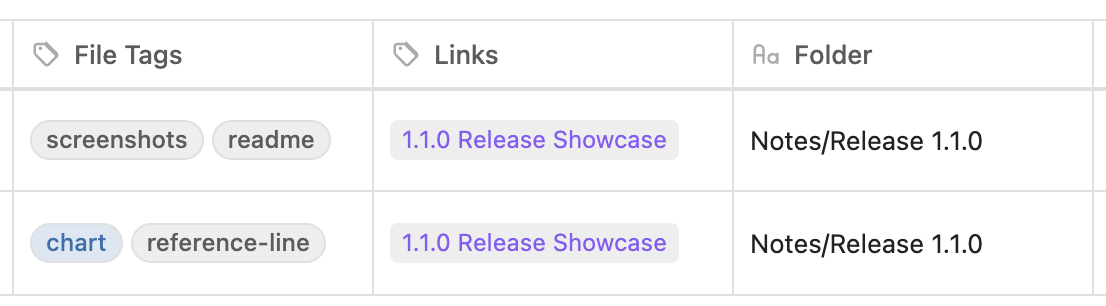
Built-in file fields such as file.name, file.tags, file.links, file.folder, and file timestamps are treated as file metadata instead of ordinary frontmatter properties. file.name can rename the note, file.tags can update frontmatter tags, and read-only metadata fields are protected from accidental writes.
Import, Export, And Bases
Note Database can export the current database as a CSV + Markdown ZIP, and import the same format back. Export lets you choose the ZIP location, can optionally include frontmatter in the Markdown files, and the ZIP also includes database metadata to help restore properties, views, and configuration on re-import.
If imported CSV + Markdown files do not include database metadata, the plugin infers property types from CSV content and opens a confirmation dialog so you can review dates, numbers, checkboxes, select, multi-select, status fields, and other types before import.
The toolbar export menu can also copy the current view as embed code, CSV, or a Markdown table.
If you already use Obsidian Bases, you can convert the current .base file into a Note Database database from the command palette. Conversion tries to preserve source rules, column order, column widths, sorting, grouping, and cards/list view information.
Source filters are converted without flattening nested AND, OR, or NOT groups. Simple rules are editable as fields and operators; richer Bases filter statements are preserved as editable expression rules and evaluated with the built-in compatibility layer. Unsupported plugin-specific expressions are not silently simplified.
Before conversion finishes, the plugin opens a property confirmation dialog so you can review field types and adjust dates, numbers, checkboxes, select, multi-select, status fields, and other properties.
Installation
From Obsidian Community Plugins
- Open Settings -> Community Plugins.
- Search for
Note Database. - Install and enable the plugin.
Manual Installation
- Download
main.js,styles.css, andmanifest.jsonfrom the latest release. - Create
.obsidian/plugins/note-database/in your vault. - Copy the three files into that folder.
- Enable the plugin in Settings -> Community Plugins.
Privacy
Note Database runs locally inside Obsidian. It does not send vault content, metadata, formulas, or settings to any external service. See PRIVACY.md.
Support
If Note Database helps you, a star or donation helps support continued development:
Changelog
1.2.1
- Fixed database-file tab and header behavior so
db_view: truefiles use Obsidian's native file-view header path. - Made embedded database references prefer database ids, improving resilience when database files are moved or renamed.
- Added number display styles for number fields: rating, horizontal progress bar, and ring progress, with configurable icons, emoji, colors, max values, divisors, and value display.
- Added datetime grouping by date with an "ignore time" option, and fixed datetime edit popovers to use segmented time input consistently.
- Added per-group row limits with progressive expand controls.
- Improved mobile settings, status preset dropdowns, table checkbox alignment, card/list field widths, column-width adjustment, and popover input styling.
1.2.0
- Added calendar and timeline views for date and datetime properties, including month/week/day calendar scales and day/week/month/quarter timeline scales.
- Added richer date and datetime handling: localized display, datetime formulas, cross-day labels, consistent invalid-range handling, and repair prompts.
- Improved calendar and timeline interaction details, including drag/resize behavior, current-range highlighting, mini-calendar navigation, clipped event fades, and responsive timeline windows.
- Fixed day-based calendar and timeline drags so datetime events keep their original clock times.
- Improved drag/drop feedback for board cards, groups, rows, and timeline events.
- Improved embedded views so refreshing database blocks does not pull the surrounding Markdown note back to the embed.
1.1.0
- Added chart views with bar, horizontal bar, line, area, donut, number, stacked, grouped, percent-stacked, and mixed chart layouts.
- Added chart options, chart summaries, visible groups, palettes, reference lines, drilldown records, and PNG export/copy.
- Expanded summary rules with numeric, date, checkbox, unique, empty, and filled calculations.
- Added protected file metadata fields, including editable
file.nameandfile.tags, clickable file links, and read-only file metadata guards. - Added computed frontmatter cleanup for users who want to remove previously saved computed values from note frontmatter.
- Added database-file tab controls for always opening database files in new tabs and preventing duplicate database-file tabs.
- Improved embedded views, shared dropdowns, source rules, drag feedback, option editing, and release-readiness UI polish.
1.0.9
- Improved Obsidian plugin review compatibility and stability after 1.0.8, including safer icon rendering, computed checkbox formula editing, popout-window compatibility, confirmation modals, Promise handling, type-safety cleanup, and ZIP export buffer handling.
See the GitHub releases for full release history.