Obsidian Camera

by Aldrin Jenson
5
4
3
2
1
Score: 51/100

Description

Category: File Management

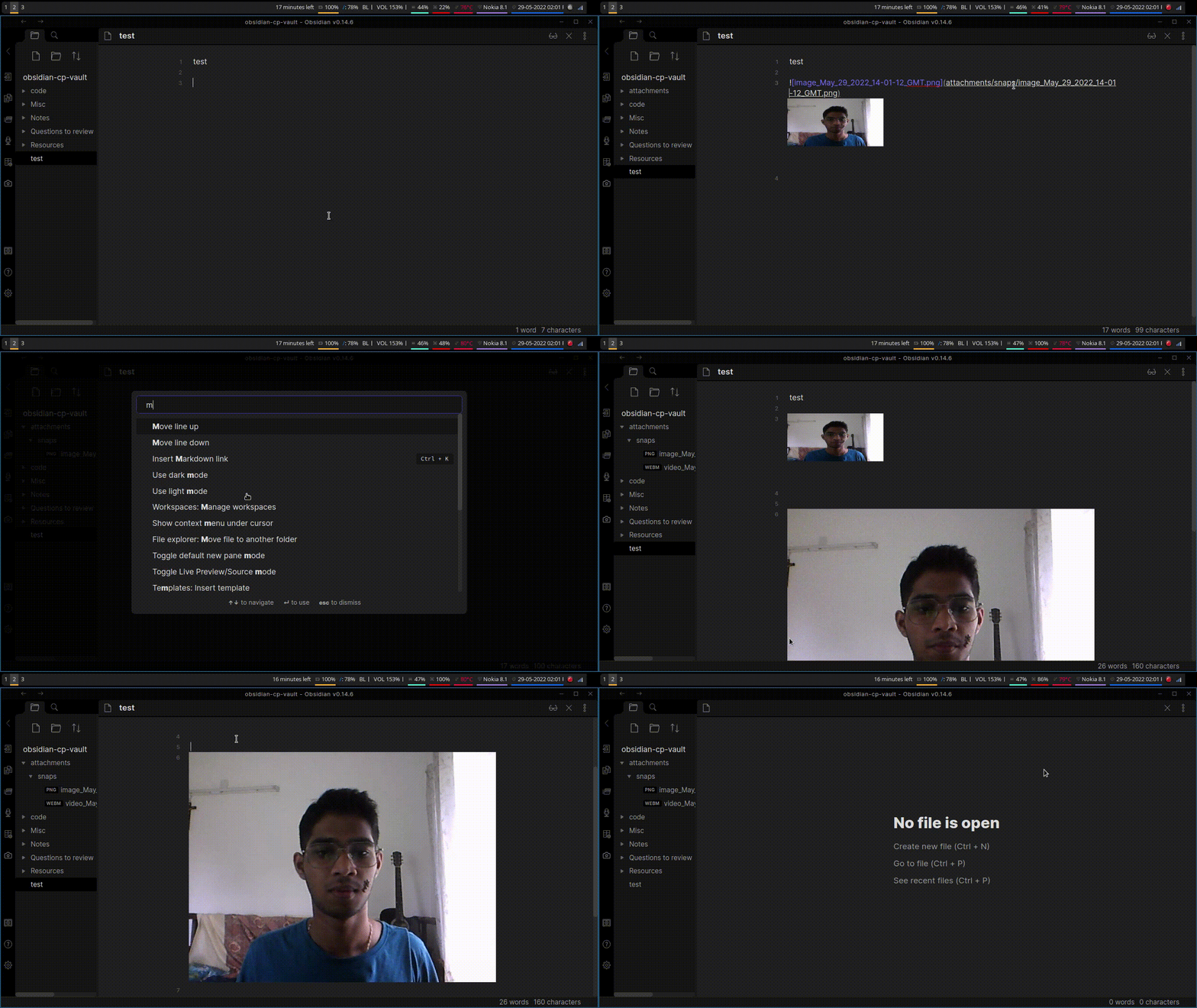
The Obsidian Camera plugin allows you to capture high-quality photo and video recordings within Obsidian, and have them seamlessly integrated into your notes. With this plugin, you can effortlessly create links to your recordings from any open markdown file, making it easy to reference and revisit your multimedia content. The plugin also features a convenient file picker for selecting the desired recording location. Whether you're documenting research, creating tutorials, or simply capturing memories, Obsidian Camera makes it simple to incorporate visuals into your notes.

Reviews

No reviews yet.

Stats

35
stars
14,979
downloads
7
forks
1,437
days
833
days
833
days
8
total PRs
1
open PRs
3
closed PRs
4
merged PRs
19
total issues
6
open issues
13
closed issues
7
commits

Latest Version

2 years ago

Changelog

  • Remove unnecessary upload button to add files
  • Fix bug of 2 videos being added to editor once recording stops
  • Styling improvements for upload button

Full Changelog: https://github.com/aldrinjenson/obsidian-camera/compare/1.6.0...1.8.0

README file from

Github

Obsidian Camera

Camera plugin for Obsidian(https://obsidian.md).

Note: This software is in Beta and may have some issues in certain systems like mobile devices

Features

  • Take photo and video recordings and have them saved in vault
  • Create and paste links to the recording automatically if a markdown file is open
  • File picker

Note

  • This was built primarily with Obsidan-desktop in mind
  • Mobile version mostly works, but there may be some differences depending on the mobile manufacturer

Installataion

Install directly by browsing from community plugins.

Or

Manual Installation:

  • Create a new folder called obsidian-camera in VaultFolder/.obsidian/plugins folder
  • Copy the main.js and manifest.json files to this folder
  • reload Obsidian
  • enable "Obsidian Camera" extension under Settings>Community plugins>Installed pluggins

Usage:

  • Open command palette and search for "camera" once the extension is enabled OR
  • Click the camera icon in the left ribbon

Demo
demo.gif