
README file from
GithubSimple Wordbook
简体中文 | English
✅ Current Version: v1.5.2 | Minimum Obsidian Compatibility: v1.12.7 (verified on v1.12.7)
📦 Plugin ID:
simple-wordbook📌 Project Structure: Pure JavaScript, no build tools,
main.jsis the source code💡 Inspiration: obsidian-language-learner and HiWords
📖 Overview
Simple Wordbook is a word/phrase highlighting and learning management plugin designed for Obsidian.
It automatically highlights words from your custom wordbooks in notes and provides a complete learning toolkit including sidebar, lookup panel, mastery tracking, AI-assisted queries, and more.
✨ Features
📚 Wordbook Management
- Support multiple
.jsonformat wordbook files, with free addition, removal, and enable/disable functionality. - Drag-and-drop sorting to adjust wordbook priority.
- Read-only mode to prevent accidental modifications.
- Support for word phonetics, definitions, aliases, and color tags (red/orange/yellow/green/blue/purple).
- Definitions support full Markdown format, including tables, lists, internal links, etc.
🎯 Document Highlighting
-
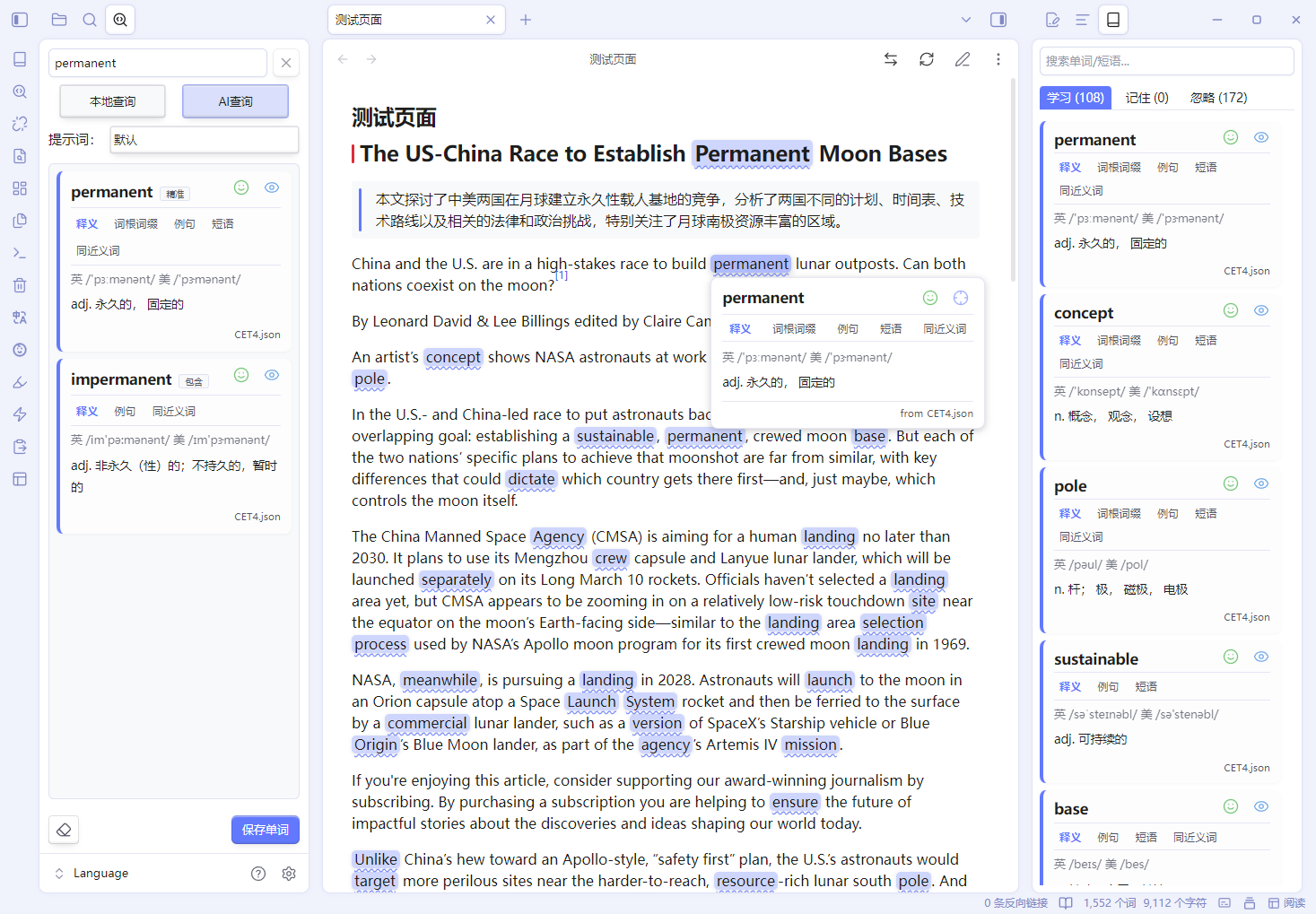
Automatically highlight words from wordbooks in Reading Mode, Editing Mode, and PDFs.
-
Alias matching support to automatically highlight different forms of the same word.
-
Highly customizable highlight styles:
- Background color (follow card color or custom)
- Underline style (none / solid / dashed / dotted / wavy / double)
- Bold text
-
Path range filtering to only highlight specified folders or files (include/exclude mode).
📖 Sidebar Cards
- Automatically scan the current document and extract all matched words as cards.
- Card displays: word, phonetics, definition, source wordbook, color tag.
- Support 「Learning / Mastered / Ignored」 view categories.
- Mastery/Ignore marking with two management modes: Global Unified or Per Wordbook Independent.
- Independent scrolling for card content area, supporting multi-paragraph definition tab switching.
- Card search and filtering functionality.
🔍 Lookup Panel
- Local Query: Quickly retrieve words/aliases from enabled wordbooks, supporting multiple matching modes (smart, exact, prefix, contains, fuzzy).
- AI Query: Call large language models (OpenAI, DeepSeek, Zhipu GLM, Tongyi Qianwen, Ollama, etc.) for detailed definitions.
- Support custom prompts (multiple prompt sets can be added and switched in the panel).
- Query results can be directly saved as word cards with automatic phonetic extraction.
- Three Enter Modes: Local Only / AI Only / Local Priority.
- Two Clear Buttons: Clear input box / Clear output box.
🤖 AI Configuration
- Support multiple service providers: OpenAI, DeepSeek, Zhipu GLM, Tongyi Qianwen, Ollama (local).
- Customizable API endpoint, API key, and model name.
- Editable default prompt (supports
{word}placeholder). - Custom prompt management (add/edit/delete).
- Shortcut Setting Button: Next to the "Add Custom Prompt" button, click "Set Shortcut" to automatically navigate to Obsidian's shortcut settings page, filtered to show only this plugin's commands for quick hotkey binding.
- Test Connection function to quickly verify configuration validity.
🖱️ Hover Preview
- Hover over highlighted words to show definition popups.
- Popup displays phonetics, full definitions, and multiple wordbook sources.
- Directly mark mastery/ignore or locate to sidebar within the popup.
- Support blurred definition mode (blurred by default, clear on hover).
🔊 Pronunciation
- Click words to play TTS audio.
- American/British accent switching support.
- Customizable TTS URL template (supports
{{word}},{{type}},{{accent}}placeholders).
⌨️ Commands & Shortcuts
The plugin registers the following commands (customizable in Obsidian Settings → Keyboard Shortcuts):
表格
| Command Name | Description |
|---|---|
Open Sidebar |
Activate sidebar view |
Open Lookup Panel |
Open lookup panel and focus input box |
Add Word |
Open add word modal |
Refresh Wordbooks |
Reload all wordbook files and refresh highlights |
Open Settings |
Navigate to plugin settings page |
Dynamically Generated Commands:
In AI Configuration → Custom Prompts, each added custom prompt automatically generates an independent command:
表格
| Command Format | Description |
|---|---|
Lookup Prompt: {Prompt Name} |
Execute this command after selecting a word to perform AI query with the corresponding custom prompt |
These commands are automatically registered and users can bind independent hotkeys (e.g., Ctrl+Shift+1, Ctrl+Shift+2) in Obsidian Settings → Keyboard Shortcuts for one-click lookup with specific prompts.
- Command list auto-refreshes after adding/deleting/renaming prompts (no Obsidian restart required).
- Permanent shortcut binding: Shortcuts remain valid as long as prompt names are unchanged.
- Deleted prompts remove corresponding commands (shortcuts enter "dangling" state without errors); readding prompts with the same name automatically restores shortcuts.
Editor Right-Click Menu:
- After selecting text, right-click to see "Add Word/Phrase" and "Lookup: ..." options.
- "Lookup" displays a submenu to select Default or Custom Prompt Names for direct AI query.
🎨 Custom Styling (CSS Snippets)
Override default plugin styles with CSS snippets. The following example makes highlighted word backgrounds in sidebar cards follow card color with 10% opacity (built-in to the plugin, see styles.css):
css
.word-card .simple-wordbook-highlight,
.word-card-content .simple-wordbook-highlight,
.lookup-result .word-card .simple-wordbook-highlight {
  background-color: color-mix(in srgb, var(--card-color) 10%, transparent) !important;
  text-decoration: none !important;
  border-radius: 6px !important;
  padding: 0 2px !important;
}
Refer to the namespace in the plugin's styles.css for more customization options.
📸 Preview
🚀 Installation
Manual Installation
- Download
main.js,manifest.json,styles.css. - Place them in your vault's
.obsidian/plugins/simple-wordbook/directory. - Enable the plugin in Obsidian Settings.
BRAT Installation (Recommended for Beta Versions)
- Install and enable the BRAT plugin.
- In BRAT Settings, click Add Beta Plugin.
- Enter repository URL:
https://github.com/Bin-T/obsidian-simple-wordbook. - Click Add Plugin, then enable it in the Community Plugins list.
🎮 Usage Guide
1. Add Wordbooks
- Create a new blank
.jsonfile in your vault, or import a.jsonwordbook file with the following format (JSON array where each word object requires awordfield, with optionalaliases,definition,phonetic,color, etc.):
json
[
  {
    "word": "abandon",
    "aliases": ["abandoned", "abandoning"],
    "phonetic": "UK /əˈbændən/ US /əˈbændən/",
    "definition": "**Definition**\n  to leave a place, thing, or person forever; to give up doing something\n\n **Example**\nHe abandoned his car in the snow.",
    "color": "red"
  }
]
- Open Settings → Simple Wordbook → File Management, click "Add Wordbook File", and select your
.jsonfile. - The file will appear in the list, with options to enable/disable or set as read-only.
2. Sidebar Usage
- Open the sidebar by clicking the 📖 icon in the left Ribbon or using the command.
- The sidebar automatically displays word cards matching the current document.
- Click 😊/😐 on cards to mark mastery/unmastery.
- Click 👁/🚫 to mark ignore/unignore.
- Click words to play pronunciation (requires TTS configuration).
- Right-click word cards from non-read-only wordbooks to Edit/Delete words.
3. Lookup Panel Usage
- Open the lookup panel by clicking the 🔍 icon in the left Ribbon or using the command.
- After entering a word, click "Local Query" to search in wordbooks.
- Click "AI Query" to call AI for detailed definitions.
- Switch prompts using the "Prompt" dropdown menu.
- Directly click "Save Word" in query results to store in wordbooks.
Enter Mode
In Settings → General Settings → Lookup Panel → Enter Mode, choose:
- Local Only: Enter key only queries local wordbooks.
- AI Only: Enter key only triggers AI query.
- Local Priority: Check local first, then call AI if not found.
Local Query Mode
In Settings → General Settings → Lookup Panel → Local Query Mode, choose:
- Smart Match (Comprehensive Sorting)
- Exact Match (Exact Only)
- Prefix Match
- Contains Match
- Fuzzy Match (Allow Spelling Errors)
Maximum Results
Modify the setting in Settings → General Settings → Lookup Panel → Maximum Results to set the maximum number of results (1-100) returned by local queries.
4. Right-Click Menu
- Select text in the editor, right-click → "Add Word/Phrase" to quickly add words.
- Select text, right-click → "Lookup: xxx" to open the lookup panel and query automatically (AI only).
5. Hover Preview
- Hover the mouse over any highlighted word to automatically show the definition popup.
- Switch between multiple sources, mark mastery, or locate to sidebar within the popup.
6. Highlight Configuration
Adjust settings in Settings → General Settings → Highlighting & Preview:
- Enable/Disable automatic highlighting.
- Highlight Color: Follow card color or custom.
- Underline Style: None/Solid/Dashed/Dotted/Wavy/Double.
- Bold Text
- Hover Preview
- Blurred Definition
⚙️ Configuration Details
File Management
表格
| Configuration | Description |
|---|---|
| Wordbook Files | List of added wordbooks, with enable/disable/delete/drag-sort options |
| Read-only Mode | Prevents editing or deleting words in the wordbook when enabled |
| Mastery/Ignore Mode | Global Unified or Per Wordbook Independent management |
General Settings
表格
| Configuration | Description |
|---|---|
| Highlighting & Preview | Highlight color, style, hover preview, blurred definitions |
| Highlight Range | Only include/exclude files in specified paths |
| Pronunciation Settings | TTS URL template, pronunciation preference (American/British) |
| Lookup Panel Enter Mode | Local Only / AI Only / Local Priority |
| Lookup Panel Local Mode | Smart / Exact / Prefix / Contains / Fuzzy |
| Lookup Panel Maximum Results | Maximum number of cards returned by local queries (1-100) |
AI Configuration
表格
| Configuration | Description |
|---|---|
| Service Provider | OpenAI, DeepSeek, Zhipu GLM, Tongyi Qianwen, Ollama, Custom |
| API Endpoint/Key/Model | Auto-filled based on provider, can be manually modified |
| Default Prompt | Use {word} as placeholder |
| Custom Prompts | Add multiple prompt sets, switchable in lookup panel |
| Test Connection | Verify if current configuration is valid |
🗂️ Data Storage
表格
| File | Path | Description |
|---|---|---|
| Wordbook Files | User-specified | .json format, can be placed anywhere in the vault |
| Mastery Status File | .obsidian/plugins/simple-wordbook/_wordbook_mastery.json |
Stores mastered words, customizable path (default in plugin folder) |
| Ignore Status File | .obsidian/plugins/simple-wordbook/_wordbook_ignored.json |
Stores ignored words, customizable path (default in plugin folder) |
| Settings File | .obsidian/plugins/simple-wordbook/data.json |
Plugin configuration, fixed in plugin folder by default |
❓ Frequently Asked Questions (FAQ)
Q: Highlights not working?
A: Check if "Enable Automatic Highlighting" is enabled in settings; verify wordbook files are enabled; confirm the current file is within the "Highlight Range".
Q: Empty sidebar?
A: Ensure the current document contains words from enabled wordbooks that are not marked as "Ignored". If "Sidebar Range Filtering" is enabled, confirm the current file is in scope.
Q: AI query failed?
A: Check if API endpoint, key, and model name are correct, and network is stable. Use the "Test Connection" function in settings to verify.
Q: How to highlight in PDFs?
A: PDF highlighting is supported by default. Ensure automatic highlighting is enabled and wait for PDF rendering completion.
Q: Lost mastery status?
A: Check if the "Mastery Status File" path is correct and writable. The plugin automatically migrates data when switching mastery modes (Global/Per Wordbook).
Q: How are tabs in hover previews/word cards split and named?
A:
- The plugin uses
---(three consecutive hyphens) as a separator to split definition text into multiple sections, each becoming an independent tab. - The plugin scans for bold text at the start (
**bold text**) of each section and extracts it as the tab display name.
Example: Writing the following in the definition box of the "Edit Word/Phrase" modal generates 3 tabs:
text
**Definition**
to leave a place, thing, or person forever; to give up doing something

---

**Common Examples**
He abandoned his car in the snow.
He abandoned his car in the snow.

---

**Related Phrases**
abandon hope  give up hope
-
If a section does not start with
**Title**, the plugin automatically assigns default names:- First section (with or without title) → Default name: **
Definition** - Subsequent sections → Default names: **
Content 2**, **Content 3**, etc.
- First section (with or without title) → Default name: **
Q: How to quickly bind shortcuts for custom prompts?
A: In the AI Configuration → Custom Prompts section, click the "Set Shortcut" button to automatically navigate to Obsidian's shortcut settings page, filtered to show only this plugin's commands. Bind independent hotkeys to each "Lookup Prompt: xxx" command for one-click lookup.
📄 Development Notes
This plugin is written with AI assistance, and all core functions have been carefully tested and verified by the developer to ensure code quality, security, and stability.
If you encounter any issues during use, please submit an Issue in the GitHub repository.
📜 License
This project is open source under the MIT License. You can find the LICENSE file in the root directory of the repository.