
README file from
GithubTag Tactician
Better tag management for Obsidian: bulk-edit frontmatter tags, discover related notes through tag similarity, and browse your vault by a hierarchical tag structure.
Features
- Bulk tag operations — add or remove frontmatter tags across many notes (or whole folders) at once, with a live preview before you apply.
- Related notes — a sidebar that surfaces notes similar to the one you're viewing, scored by tag overlap, title, path, and links.
- Tag navigation — a sidebar that organizes your notes into a collapsible hierarchy based on nested tags, so one note can live in many "folders" at once.
Contents
- Requirements
- Installation
- Bulk tag operations
- Related notes view
- Tag navigation view
- Commands
- Support & contributing
Requirements
Tag Tactician requires Obsidian 1.7.2 or newer.
Installation
- Open Settings → Community plugins.
- Turn off Restricted mode (formerly "Safe mode").
- Click Browse and search for
Tag Tactician. - Click Install, then Enable.
Bulk tag operations
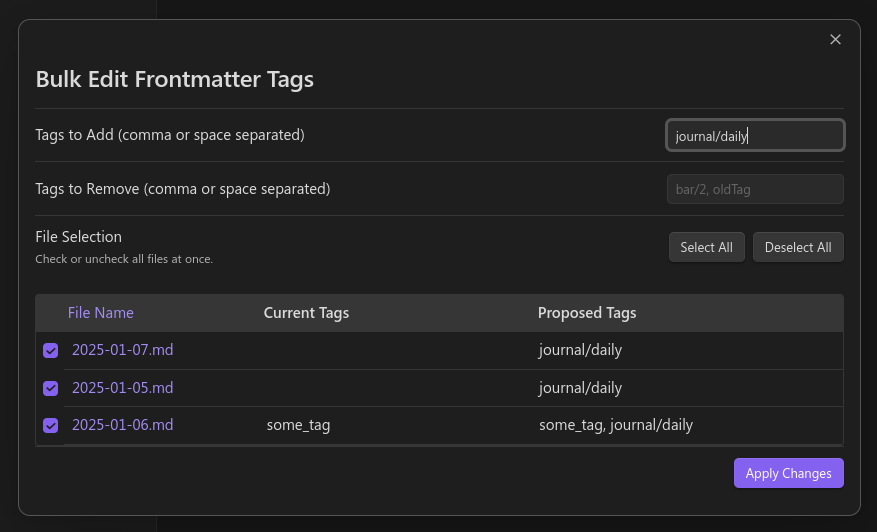
Add or remove frontmatter tags across many notes in one pass.
⚠️ Back up your vault first. This plugin is still in early development and there is no undo for bulk edits.
How to use
- Open the bulk-edit modal in one of these ways:
- Right-click one or more notes or folders and choose Edit tags (frontmatter). (Folders are expanded to all the notes inside them.)
- In the Search results pane, click the results menu (the icon above the results) and choose Edit tags on N notes….
- In the modal you'll see:
- Add tags and Remove tags fields — enter one or more tags, separated by commas.
- A table of every selected file showing its current tags and a live preview of the proposed result.
- A checkbox per row to include or exclude that file (use Select all / Deselect all to toggle them together).
- Review the preview, then click Apply changes to update every checked file at once.
Settings
-
Show warning for non-Markdown files — when enabled, non-
.mdfiles in your selection are listed with a warning and excluded from changes. -
Tag list style — how tag arrays are written to frontmatter:
Hyphens (block style):
tags:
  - foo
  - bar
Brackets (flow style):
tags: [foo, bar]
Caveats & limitations
- Frontmatter tags only — inline
#tagsin the note body are not modified. - Invalid YAML — notes with broken YAML or duplicate
tagskeys are skipped with a warning; fix those manually. - Large vaults — updating thousands of notes at once can be slow; consider working in smaller batches (a folder or partial selection at a time).
- No undo — Obsidian has no built-in undo for plugin-driven edits, so back up your vault or test on a few sample notes first.
Related notes view
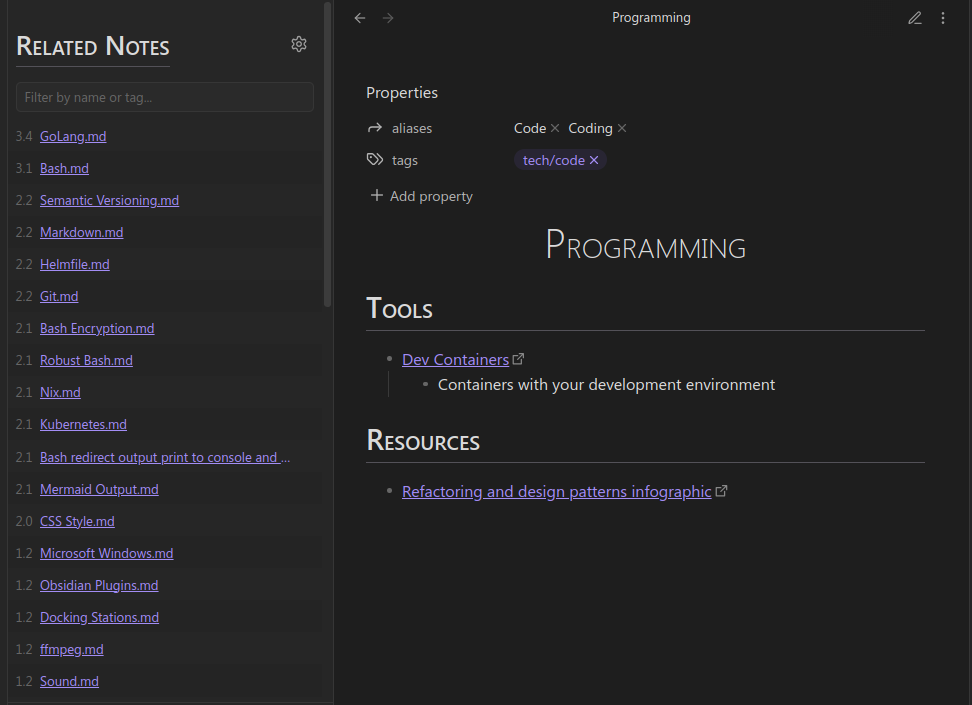
Finds notes that are similar to the note you're currently viewing. Similarity is a weighted blend of tag similarity, title similarity, path similarity, and whether the notes link to each other.
Open it from the command palette: Tag Tactician: Open related notes sidebar.
When a note is active, the view lists related notes. Each entry shows:
- A link to the note.
- (Optional) A similarity score — higher means more similar.
- (Optional) The tags on that note.
The toolbar above the list provides:
- An options menu to show/hide tags, show/hide the score, and refresh the list.
- A filter box to narrow the list by title or tag (matches are highlighted).
Settings
- Show tags by default — show related notes' tags when the view opens.
- Show score by default — show the similarity score when the view opens.
- Hide results with score below — hide related notes scoring under this threshold (default
1). - Score weighting — adjust how much each factor (tag, title, path, links) contributes to the score.
- Higher values increase that factor's importance.
- Set a weight to
0to ignore that factor entirely. - Each defaults to
1.
Tag navigation view
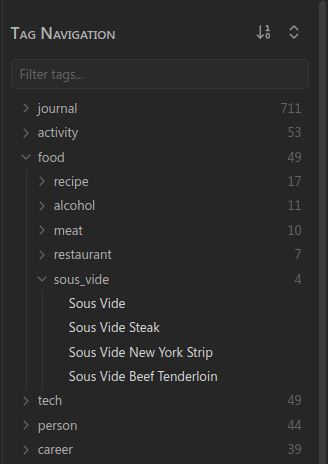
A sidebar that organizes your notes into a collapsible hierarchy built from nested tags. A nested tag such as programming/python acts like a folder — but unlike folders, a note can appear under every tag it carries.
Open it from the command palette: Tag Tactician: Open tag-based file navigation.
The toolbar above the list provides:
- A button to change the sort order (by name, note count, or created/modified date).
- A button to expand or collapse all tag groups.
- A filter box to narrow the list by tag or filename (matches are highlighted).
Settings
- Default navigation sorting — the sort order applied when the view opens.
- Tag group icon (closed / open) — the icons used for collapsed and expanded tag groups.
- File icon — the icon shown next to individual notes.
Commands
| Command | What it does |
|---|---|
| Open related notes sidebar | Opens the Related notes view in the right sidebar. |
| Open tag-based file navigation | Opens the Tag navigation view in the left sidebar. |
Bulk tag editing is triggered from the file/folder right-click menu and the search results menu rather than a command (see Bulk tag operations).
Support & contributing
Found a bug or have a feature idea? Please open an issue on the GitHub repository. Pull requests are welcome.
See CHANGELOG.md for release notes.