
README file from
GithubTrietment Kanban
English | Nederlands
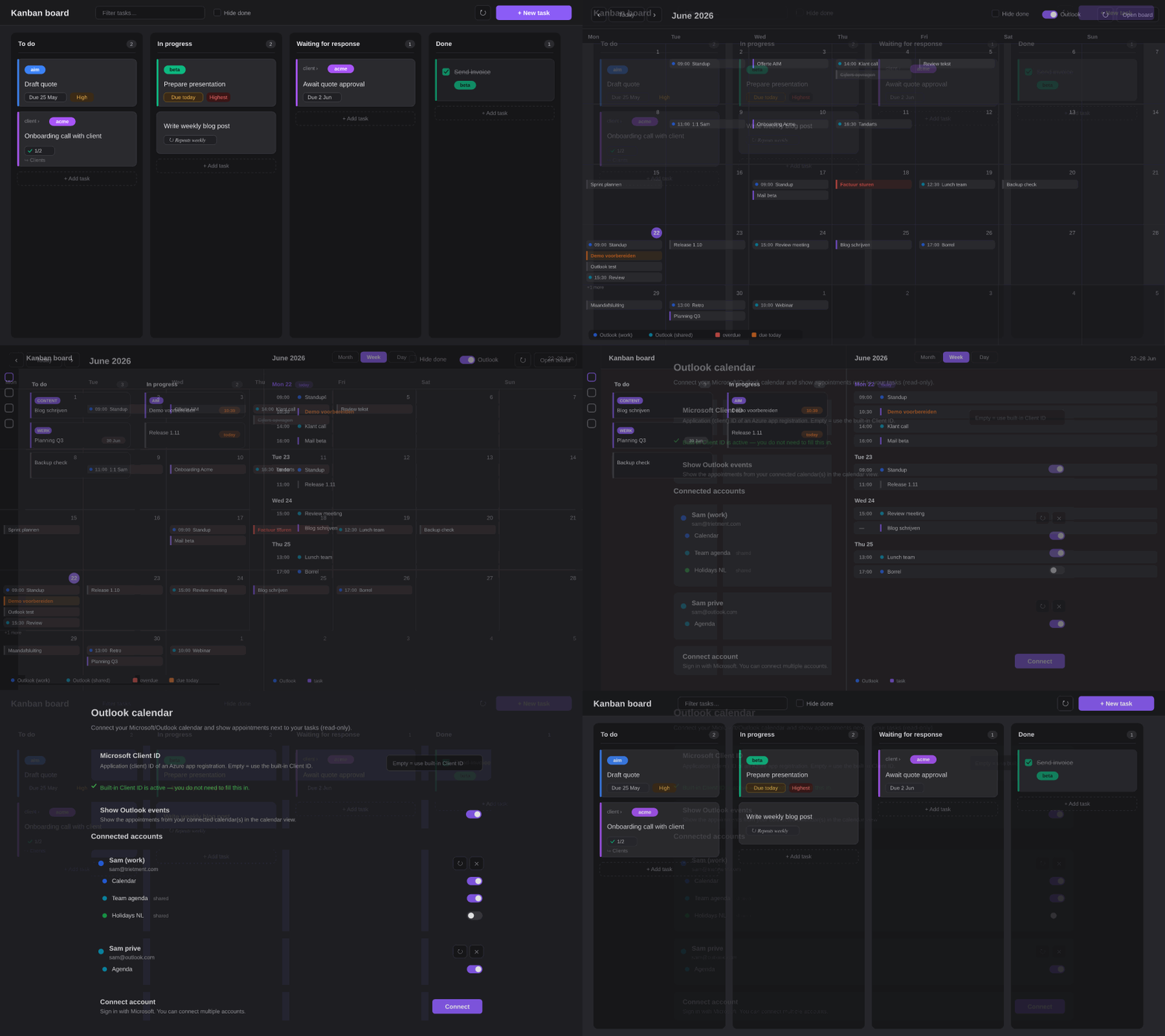
A Kanban board for Obsidian that collects tasks from every note in your vault. Tasks are plain markdown checkboxes with optional metadata; the plugin shows them as draggable cards in columns. Works on desktop and mobile.
If you find this plugin useful, you can buy me a coffee — thank you!
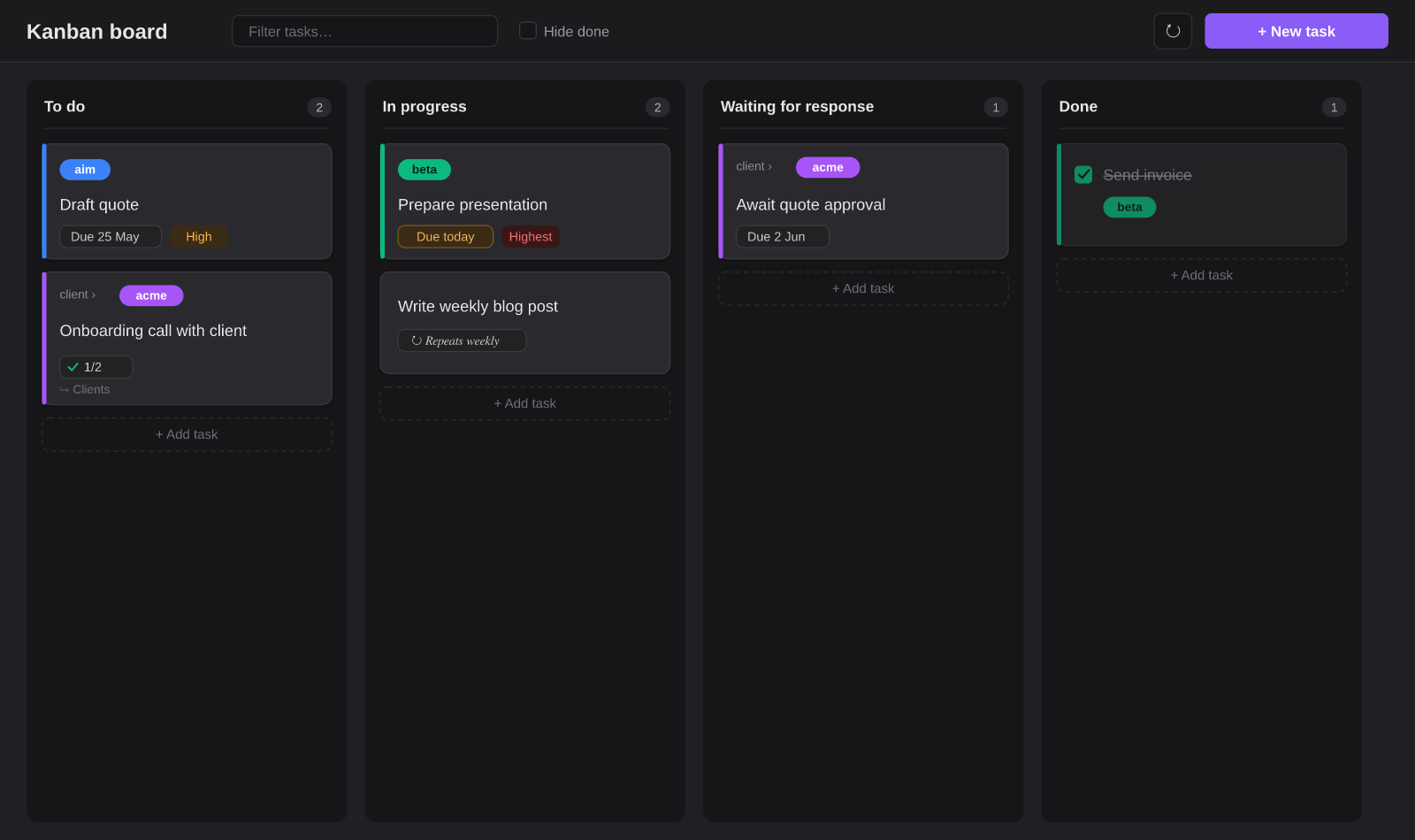
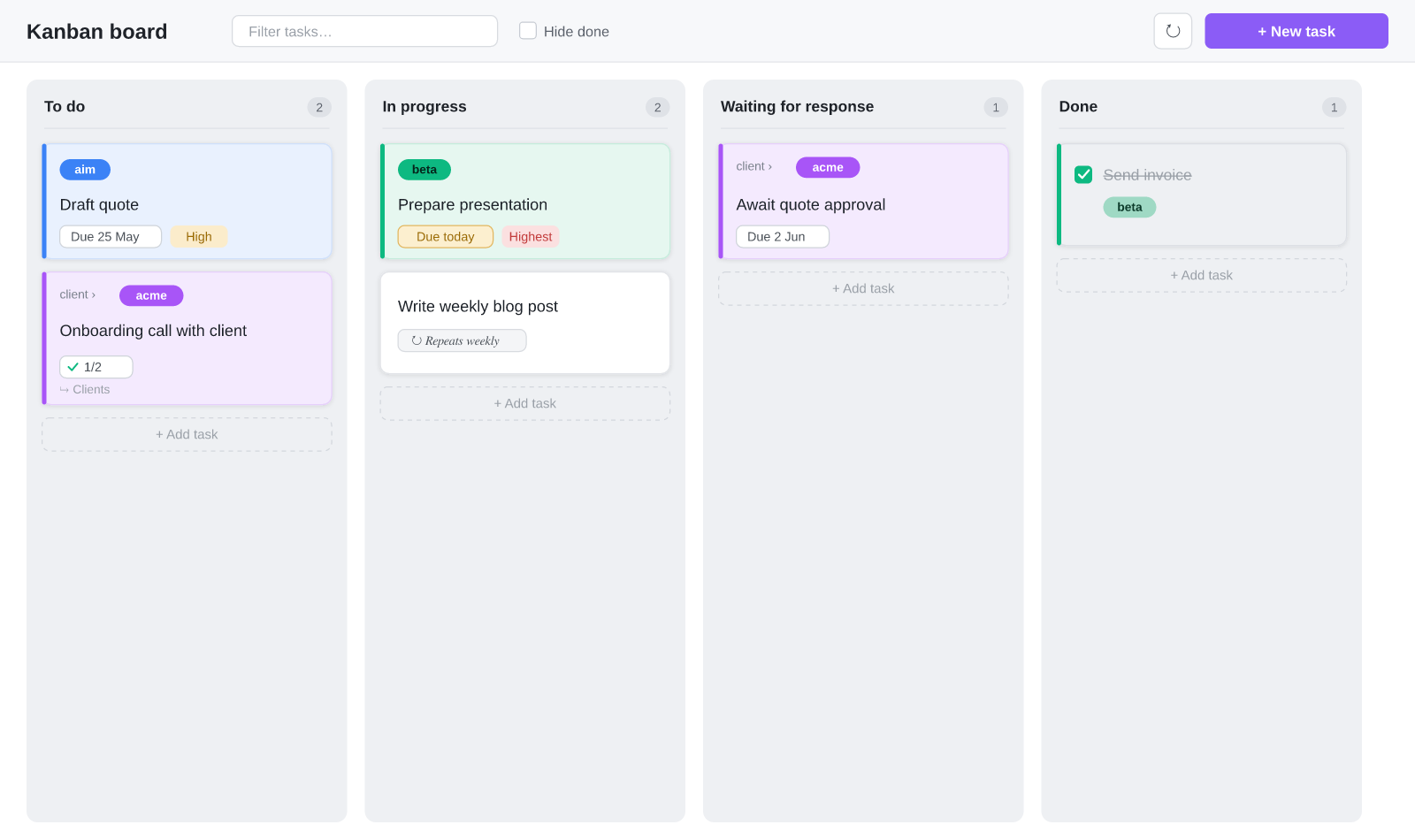
New in 1.12 — Clients, swimlanes, multiple boards, customizable priorities & card covers
Cards now carry a client alongside the project, priorities are customizable (your own names + colors), and you can give a card a cover (an image or plain text). Organize with swimlanes (group cards by project, client, priority or due date) and multiple boards (each scoped to its own projects/clients); edit the title and priority straight from a card; or tag a whole note #kanban to pull in all its tasks.
Features
- Tasks from your whole vault — every
- [ ]checkbox with a#kanban/tag appears on the board. - Dynamic columns — defaults: To do / In progress / Waiting for response / Done. Add, rename, reorder or remove columns in the settings. Drag cards between columns (desktop) or change the column in the edit modal (mobile).
- Bilingual (EN/NL) — the whole interface is available in English and Dutch. By default the plugin follows the Obsidian language; you can also choose manually.
- Projects with colors — group with
#project/name, each with its own color and optional label. Subprojects (#project/client/acme) are supported. - Clients — a second colored tag dimension with
#client/namealongside the project, so a card can carry both a client and a project. - Swimlanes — group cards into horizontal lanes by project, client, priority or due date via the board header's "Group by" control.
- Multiple boards — create named boards, each scoped to certain projects/clients with its own lane grouping; switch boards from the header.
- Card covers — show an image (
[cover:: [[logo.png]]]or a URL) or a plain-text banner on a card; upload an image with one click. - Due dates, times & recurrence —
📅 2026-05-28, an optional time⏰ 14:30, and🔁 every week. Completed recurring tasks automatically create the next instance (keeping their time). - Calendar view (Month / Week / Day) — see every task on its due date, with the same color coding as the board (red = overdue, orange = today). Switch between a month grid and agenda-style Week and Day views from the header; tasks with a time and your appointments share one timeline sorted by time. In the month view, "+N more" is clickable and opens that day so nothing stays hidden. The views stay readable in a narrow split pane. Open the calendar from the ribbon (calendar icon), the command palette, or the 📅 button on the board. Click a day to add a task with that date prefilled; click a task to edit it.
- Outlook calendar (optional) — connect one or more Microsoft/Outlook accounts via OAuth and see your appointments next to your tasks in the calendar view (read-only). Pick exactly which calendars to show per account, including shared calendars. See Outlook setup.
- Customizable priorities — define your own priority list (name + color) in the settings, or use the built-in
🔺 ⏫ 🔼 🔽 ⏬. Cards show a colored priority pill. - Subtasks — indented checkboxes under a task. The board shows a
☑ 2/5progress badge; add and check them in the edit modal. - Linked note per card — use the 📄 button to create a dedicated note for a task from a template (a
[[wikilink]]in the task line). If it already exists, the button opens it. Optionally, completing a card moves its note into a0. archivesubfolder (and reopening moves it back). - Click = edit — click a card for the edit modal: status/column, due date, project, recurrence, subtasks and note in one place.
- Automatic moving — tasks due today (or overdue) move automatically to the In-progress column.
- Inbox — quick entry of new tasks into a configurable inbox note.
- Collect from #kanban notes (optional) — tag a note with
#kanbanand all its checkboxes appear on the board without per-task tags, scoping the board to your #kanban notes (new tasks land in the Inbox to sort, done ones in the done column).
Installation
From Obsidian's community plugins (recommended)
- Open Settings → Community plugins and make sure community plugins are enabled.
- Click Browse and search for Trietment Kanban.
- Click Install, then Enable.
Works the same on desktop and mobile. Obsidian offers updates automatically.
Manually
- Create the folder
<vault>/.obsidian/plugins/trietment-kanban/. - Copy
main.js,manifest.jsonandstyles.cssfrom the latest release into it. - Restart Obsidian and enable the plugin under Settings → Community plugins.
Task syntax
A task is a plain markdown checkbox with optional metadata:
- [ ] Draft quote 📅 2026-05-25 ⏰ 09:30 #project/aim #kanban/doing ⏫
    - [ ] Request figures
    - [x] Pick template
- [ ] Onboarding call [[Acme onboarding]] #project/client/acme #kanban/todo
- [x] Mail sent #project/client/beta #kanban/done
| Part | Meaning |
|---|---|
#kanban/<column> |
Which column the task is in (e.g. #kanban/doing) |
#project/<name> |
Project; use / for subprojects (#project/client/acme) |
#client/<name> |
Client — a second colored tag dimension shown alongside the project |
📅 YYYY-MM-DD |
Due date |
⏰ HH:mm |
Time of day (24h), shown on the calendar timeline |
🔁 every week |
Recurrence (every day/week/month/year, also every 2 weeks) |
🔺 ⏫ 🔼 🔽 ⏬ |
Priority (highest → lowest) |
[[Note]] |
Linked note |
[cover:: …] |
Card cover — an image ([[file]] or URL) or plain text |
indented - [ ] |
Subtask of the task above it |
You can put tasks in any note in your vault — they are picked up automatically.
Styling cards with CSS
Card metadata is rendered with data-field / data-value attributes, so you can style values from a CSS snippet (Settings → Appearance → CSS snippets) — for example, turn priorities into colored pills:
.tk-prio { padding: 1px 8px; border-radius: 999px; }
.tk-prio[data-value="highest"] { background: var(--color-red); color: #fff; }
.tk-prio[data-value="low"]     { background: var(--color-green); color: #fff; }
Each meta element (.tk-prio, .tk-due, .tk-recur, the project badge) carries data-field + data-value, and the card carries data-column, data-priority and data-project.
Usage
- + New task (or the
+under a column) adds a task, by default in the inbox note. - Click a card → edit modal with column/status, due date, project, recurrence, subtasks and the linked note.
- 📄 creates/opens the linked note; ☑ 2/5 shows subtask progress.
- Drag a card to another column (desktop) to update the
#kanban/tag. - Click a project badge to filter on that project.
Settings
- Add/rename/remove/reorder columns, default column, done column, inbox note, show inbox column.
- Automatic moving (today → In progress, optionally also overdue).
- Language (automatic / Dutch / English).
- Projects & colors, with a button to scan the vault (or only specific scan folders) for
#project/tags. - Linked notes: note folder and template file (empty = built-in template).
- Outlook calendar: Microsoft Client ID, show events toggle, connected accounts.
Outlook calendar setup
The Outlook integration uses OAuth 2.0 (Authorization Code + PKCE) and Microsoft Graph. It is read-only — appointments are shown next to your tasks, nothing is written back.
- Go to the Microsoft Entra admin center → App registrations → New registration.
- Choose a supported account type. For personal and work/school accounts across organizations, pick Accounts in any organizational directory and personal Microsoft accounts.
- Under Authentication → Add a platform → Mobile and desktop applications, add the redirect URI
obsidian://trietment-kanban-auth, and enable Allow public client flows. - Under API permissions, add the delegated Microsoft Graph permissions
User.Read,Calendars.Read,Calendars.Read.Sharedandoffline_access. - Copy the Application (client) ID and paste it into the plugin settings (Outlook calendar → Microsoft Client ID).
- Click Connect and sign in. Repeat to connect multiple accounts.
- Under each connected account, use the calendar picker to choose which calendars to show. Shared calendars appear once you have added them in Outlook; use the refresh button to reload the list. Each calendar gets its own color.
Sign-in tokens are stored per device (in local storage, not in data.json), so they are never copied by Obsidian Sync — you sign in once per device. Work/school accounts may require admin consent depending on your organization.
Files
main.js— the pluginmanifest.json— plugin metadatastyles.css— stylingversions.json— version ↔ minimum Obsidian version
data.json(your personal settings and project colors) belongs to your vault and is deliberately not in this repo.
License
MIT.
Nederlands
English | Nederlands
Een Kanban-bord voor Obsidian dat taken verzamelt uit alle notes in je vault. Taken zijn gewone markdown-checkboxes met optionele metadata; de plugin toont ze als sleepbare kaarten in kolommen. Werkt op desktop én mobiel.
Vind je deze plugin handig? Je kunt me een koffie trakteren — dankjewel!
Nieuw in 1.12 — Klanten, swimlanes, meerdere borden, aanpasbare prioriteiten & kaart-covers
Kaarten dragen nu een klant naast het project, prioriteiten zijn aanpasbaar (eigen namen + kleuren) en je kunt een kaart een cover geven (een afbeelding of platte tekst). Orden met swimlanes (groepeer op project, klant, prioriteit of datum) en meerdere borden (elk met een eigen bereik); bewerk titel en prioriteit direct vanuit een kaart; of tag een hele notitie met #kanban om al haar taken op te halen.
Functies
- Taken uit je hele vault — elke
- [ ]checkbox met een#kanban/-tag verschijnt op het bord. - Dynamische kolommen — standaard: Te doen / Bezig / Wacht op reactie / Klaar. Voeg in de instellingen zelf kolommen toe, hernoem ze, wijzig de volgorde of verwijder ze. Sleep kaarten tussen kolommen (desktop) of wijzig de kolom in de edit-modal (mobiel).
- Tweetalig (NL/EN) — de hele interface is beschikbaar in het Nederlands en het Engels. Standaard volgt de plugin de taal van Obsidian; je kunt ook handmatig kiezen.
- Projecten met kleuren — groepeer met
#project/naam, elk met eigen kleur en optioneel label. Subprojecten (#project/klant/acme) worden ondersteund. - Klanten — een tweede gekleurde tag-dimensie met
#client/naamnaast het project, zodat een kaart zowel een klant als een project kan dragen. - Swimlanes — groepeer kaarten in horizontale banen op project, klant, prioriteit of datum via de "Groeperen in banen"-keuze in de bordkop.
- Meerdere borden — maak benoemde borden, elk afgebakend op bepaalde projecten/klanten met een eigen banen-groepering; wissel bovenaan het bord.
- Kaart-covers — toon een afbeelding (
[cover:: [[logo.png]]]of een URL) of platte tekst op een kaart; upload een afbeelding met één klik. - Due dates, tijd & herhaling —
📅 2026-05-28, een optionele tijd⏰ 14:30, en🔁 every week. Afgevinkte herhalende taken maken automatisch de volgende instance aan (met behoud van hun tijd). - Kalenderweergave (Maand / Week / Dag) — zie elke taak op zijn due date, met dezelfde kleurcodering als het bord (rood = te laat, oranje = vandaag). Schakel in de kop tussen het maandraster en agenda-achtige Week- en Dagweergave; taken met een tijd en je afspraken delen één tijdlijn op tijd gesorteerd. In de maandweergave is "+N meer" klikbaar en opent die dag, zodat niets verborgen blijft. De weergaven blijven leesbaar in een smal split-paneel. Open de kalender via het lint (kalender-icoon), het commandopalet of de 📅-knop op het bord. Klik op een dag om een taak met die datum toe te voegen; klik op een taak om hem te bewerken.
- Outlook-agenda (optioneel) — koppel een of meer Microsoft/Outlook-accounts via OAuth en zie je afspraken naast je taken in de kalenderweergave (alleen-lezen). Kies per account precies welke agenda's je toont, inclusief gedeelde agenda's. Zie Outlook instellen.
- Aanpasbare prioriteiten — stel je eigen prioriteitenlijst in (naam + kleur) in de instellingen, of gebruik de ingebouwde
🔺 ⏫ 🔼 🔽 ⏬. Kaarten tonen een gekleurde prioriteit-pil. - Subtaken — ingesprongen checkboxes onder een taak. Het bord toont een
☑ 2/5-voortgangsbadge; toevoegen en afvinken doe je in de edit-modal. - Gekoppelde notitie per kaart — met de 📄-knop maak je uit een template een eigen notitie voor een taak (een
[[wikilink]]in de taakregel). Bestaat hij al, dan opent de knop hem. Optioneel verhuist het afronden van een kaart zijn notitie naar een submap0. archive(en bij heropenen weer terug). - Klik = bewerken — klik op een kaart voor de edit-modal: status/kolom, due date, project, herhaling, subtaken en notitie op één plek.
- Automatisch verplaatsen — taken die vandaag (of overdue) due zijn schuiven automatisch naar de Bezig-kolom.
- Inbox — snelle invoer van nieuwe taken in een instelbare inbox-note.
- Verzamelen uit #kanban-notities (optioneel) — tag een notitie met
#kanbanen al haar checkboxes verschijnen op het bord zonder per-taak-tag, waarmee je het bord beperkt tot je #kanban-notities (nieuwe taken komen in de Inbox om te sorteren, afgevinkte in de afgerond-kolom).
Installatie
Via de community-plugins (aanbevolen)
- Open Instellingen → Community-plugins en zorg dat community-plugins aan staan.
- Klik op Bladeren en zoek Trietment Kanban.
- Klik op Installeren en daarna Inschakelen.
Werkt hetzelfde op desktop en mobiel. Obsidian biedt updates automatisch aan.
Handmatig
- Maak de map
<vault>/.obsidian/plugins/trietment-kanban/. - Kopieer daarin
main.js,manifest.jsonenstyles.cssuit de laatste release. - Herstart Obsidian en zet de plugin aan bij Instellingen → Community-plugins.
Taaksyntaxis
Een taak is een gewone markdown-checkbox met optionele metadata:
- [ ] Offerte uitwerken 📅 2026-05-25 ⏰ 09:30 #project/aim #kanban/doing ⏫
    - [ ] Cijfers opvragen
    - [x] Template kiezen
- [ ] Onboarding-call [[Acme onboarding]] #project/klant/acme #kanban/todo
- [x] Mail verstuurd #project/klant/beta #kanban/done
| Onderdeel | Betekenis |
|---|---|
#kanban/<kolom> |
In welke kolom de taak staat (bv. #kanban/doing) |
#project/<naam> |
Project; gebruik / voor subprojecten (#project/klant/acme) |
#client/<naam> |
Klant — een tweede gekleurde tag-dimensie naast het project |
📅 JJJJ-MM-DD |
Due date |
⏰ UU:mm |
Tijdstip (24-uurs), getoond op de kalender-tijdlijn |
🔁 every week |
Herhaling (every day/week/month/year, ook every 2 weeks) |
🔺 ⏫ 🔼 🔽 ⏬ |
Prioriteit (hoogst → laagst) |
[[Notitie]] |
Gekoppelde notitie |
[cover:: …] |
Kaart-cover — een afbeelding ([[bestand]] of URL) of platte tekst |
ingesprongen - [ ] |
Subtaak van de taak erboven |
Je kunt taken in elke note van je vault zetten — ze worden vanzelf opgepikt.
Kaarten stylen met CSS
Metadata op een kaart krijgt data-field / data-value-attributen, zodat je waarden vanuit een CSS-snippet (Instellingen → Weergave → CSS-snippets) kunt stylen — bijvoorbeeld prioriteiten als gekleurde pillen:
.tk-prio { padding: 1px 8px; border-radius: 999px; }
.tk-prio[data-value="highest"] { background: var(--color-red); color: #fff; }
.tk-prio[data-value="low"]     { background: var(--color-green); color: #fff; }
Elk meta-element (.tk-prio, .tk-due, .tk-recur, de project-badge) draagt data-field + data-value, en de kaart draagt data-column, data-priority en data-project.
Gebruik
- + Nieuwe taak (of het
+onder een kolom) voegt een taak toe, standaard in de inbox-note. - Klik op een kaart → edit-modal met kolom/status, due date, project, herhaling, subtaken en de gekoppelde notitie.
- 📄 maakt/opent de gekoppelde notitie; ☑ 2/5 toont de subtaak-voortgang.
- Sleep een kaart naar een andere kolom (desktop) om de
#kanban/-tag bij te werken. - Klik op een project-badge om op dat project te filteren.
Instellingen
- Kolommen toevoegen/hernoemen/verwijderen/herordenen, standaardkolom, klaar-kolom, inbox-note, inbox-kolom tonen.
- Automatisch verplaatsen (vandaag → Bezig, optioneel ook overdue).
- Taal (automatisch / Nederlands / Engels).
- Projecten & kleuren, met een knop om de vault (of alleen bepaalde scan-mappen) te scannen op
#project/-tags. - Gekoppelde notities: notitie-map en template-bestand (leeg = ingebouwde template).
- Outlook-agenda: Microsoft Client ID, events-toggle, gekoppelde accounts.
Outlook-agenda instellen
De Outlook-koppeling gebruikt OAuth 2.0 (Authorization Code + PKCE) en Microsoft Graph. Het is alleen-lezen — afspraken worden naast je taken getoond, er wordt niets teruggeschreven.
- Ga naar het Microsoft Entra-beheercentrum → App-registraties → Nieuwe registratie.
- Kies een ondersteund accounttype. Voor persoonlijke én werk-/schoolaccounts over meerdere organisaties: Accounts in elke organisatiemap en persoonlijke Microsoft-accounts.
- Onder Verificatie → Een platform toevoegen → Mobiele en desktop-applicaties voeg je de redirect-URI
obsidian://trietment-kanban-authtoe en zet je Openbare clientstromen toestaan aan. - Onder API-machtigingen voeg je de gedelegeerde Microsoft Graph-rechten
User.Read,Calendars.Read,Calendars.Read.Sharedenoffline_accesstoe. - Kopieer de Application (client) ID en plak die in de plugin-instellingen (Outlook-agenda → Microsoft Client ID).
- Klik op Koppelen en meld je aan. Herhaal dit om meerdere accounts te koppelen.
- Onder elk gekoppeld account kies je met de agenda-kiezer welke agenda's je toont. Gedeelde agenda's verschijnen zodra je ze in Outlook hebt toegevoegd; gebruik de vernieuwen-knop om de lijst opnieuw te laden. Elke agenda krijgt een eigen kleur.
Aanmeld-tokens worden per apparaat bewaard (in lokale opslag, niet in data.json), zodat Obsidian Sync ze niet meeneemt — je meldt je één keer per apparaat aan. Werk-/schoolaccounts vereisen soms goedkeuring van de beheerder, afhankelijk van je organisatie.
Bestanden
main.js— de pluginmanifest.json— plugin-metadatastyles.css— stylingversions.json— versie ↔ minimale Obsidian-versie
data.json(je persoonlijke instellingen en projectkleuren) hoort bij je vault en zit bewust niet in deze repo.
Licentie
MIT.