
README file from
GithubVerovio Music Renderer for Obsidian
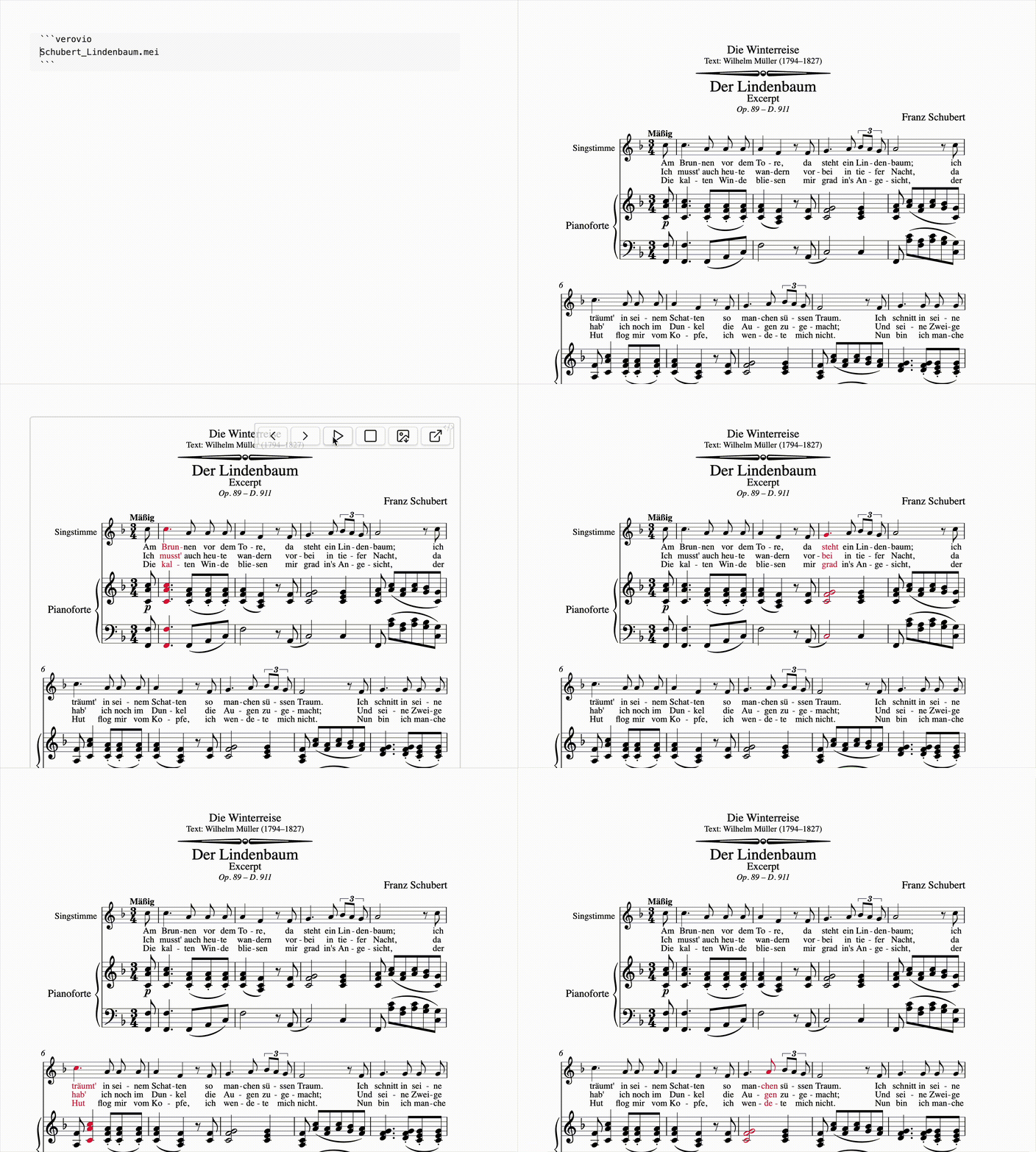
This is a plugin for Obsidian that uses Verovio – an open-source library for engraving Music Encoding Initiative (MEI) music scores (as well as MusicXML, ABC, PAE, CMME, GABC, Humdrum, and Volpiano) into SVG. With this plugin, you can render musical scores within Obsidian, edit them and play them back, enhancing your efficiency when working with written music.
The plugin currently has the following features:
- Rendering MEI, MusicXML, ABC, PAE, Humdrum, CMME, GABC, and Volpiano notation dynamically from files in the Obsidian folder (relative paths) and URLs (absolute paths) and also directly from code blocks – including rendering specific measure selections.
- A side panel where you can edit musical code with XML and MEI syntax highlighting, search the referenced file or code block, adjust per-rendering settings, and convert non-MEI sources to MEI. For MEI, the rendered score and the code editor are linked in both directions: clicking a rendered element jumps to its line – and clicking line selects the matching SVG element if there is one.
- A quick-n-dirty editor for sketching musical notation and pasting it as a codeblock in PAE oder MEI.
- Converting all supported formats to MEI via the Obsidian Command Palette or directly from the side panel.
- A download button for the rendered SVG file (the toolbar is visible when hovering the mouse over the rendered music).
- Sound playback of the rendered music with highlighting of live playback notes, synced to the sound playback. (You can choose your own highlight color.)
- Opening the rendered file via an external editor (if you want to edit your files with one click).
- Page turning buttons and automatic page turning during playback
- A settings menu with global rendering defaults, grouped Verovio controls, tooltips, sliders, reset buttons, automatic dark mode, and highlight color settings.
How to Use
Install the plugin, then copy the following into your Obsidian document:
COPY FROM HERE
```verovio
https://www.verovio.org/examples/downloads/Schubert_Lindenbaum.mei
```COPY UNTIL HERE
or just use a filename from a file in your Obsidian Vault like this:
COPY FROM HERE
```verovio
Schubert_Lindenbaum.mei
```COPY UNTIL HERE
you can also render directly from the Obsidian Code Block:
it works with MusicXML
COPY FROM HERE
```verovio
<mei xmlns="http://www.music-encoding.org/ns/mei">
  <music>
    <body>
      <mdiv>
        <score>
          <section>
            <measure n="1">
              <staff n="1">
                <layer n="1">
                  <note pname="c" oct="4" dur="4"/>
                  <note pname="e" oct="4" dur="4"/>
                  <note pname="g" oct="4" dur="4"/>
                </layer>
              </staff>
            </measure>
          </section>
        </score>
      </mdiv>
    </body>
  </music>
</mei>
```COPY UNTIL HERE
also with ABC Notation
COPY FROM HERE
```verovio
X:1
T: Test-Melody
M:4/4
K:C
C D | G A B c |
```COPY UNTIL HERE
and of course MEI
COPY FROM HERE
```verovio
<?xml version="1.0" encoding="UTF-8"?>
<?xml-model href="https://music-encoding.org/schema/5.0/mei-all.rng" type="application/xml" schematypens="http://relaxng.org/ns/structure/1.0"?>
<?xml-model href="https://music-encoding.org/schema/5.0/mei-all.rng" type="application/xml" schematypens="http://purl.oclc.org/dsdl/schematron"?>
<mei xmlns="http://www.music-encoding.org/ns/mei" meiversion="5.0">
   <meiHead>
      <fileDesc>
         <titleStmt>
            <title />
         </titleStmt>
         <pubStmt>
            <date isodate="2026-05-23-13:23:13" />
         </pubStmt>
      </fileDesc>
      <encodingDesc>
         <appInfo>
            <application xml:id="verovio" version="4.5.1-deb523f">
               <name>Verovio (4.5.1-deb523f)</name>
            </application>
         </appInfo>
         <projectDesc>
            <p>MEI encoded with Verovio</p>
            <p>Converted from Plaine and Easie to MEI</p>
         </projectDesc>
      </encodingDesc>
   </meiHead>
   <music>
      <body>
         <mdiv xml:id="m1fuif7x">
            <score xml:id="s59t00i">
               <scoreDef xml:id="sax54by" meter.count="4" meter.unit="4">
                  <keySig xml:id="kk0w9z9" sig="1s" />
                  <staffGrp xml:id="sr0v46p">
                     <staffDef xml:id="s1sv0eza" n="1" lines="5" clef.shape="G" clef.line="2" />
                  </staffGrp>
               </scoreDef>
               <section xml:id="shkhrm9">
                  <measure xml:id="m119wlyw" right="single">
                     <staff xml:id="s1w12kwo" n="1">
                        <layer xml:id="lu2c8co" n="1">
                           <note xml:id="npm6i1o" dur="4" oct="4" pname="c" />
                           <note xml:id="n1e4uqs9" dur="4" oct="4" pname="g" />
                           <note xml:id="n1mfvt3g" dur="4" oct="5" pname="d" />
                           <note xml:id="n1u9m2av" dur="4" oct="4" pname="e" />
                        </layer>
                     </staff>
                  </measure>
               </section>
            </score>
         </mdiv>
      </body>
   </music>
</mei>
```COPY UNTIL HERE
and also PAE
COPY FROM HERE
```verovio
@clef:G-2
@keysig:
@timesig:c
@data:2''C'B/=/''CC/=/2-4DE/2-8{'B''C+C'B}/2''C-//
```COPY UNTIL HERE
and also CMME files
COPY FROM HERE
```verovio
Beati_omnes.cmme.xml
```COPY UNTIL HERE
Inline CMME XML is recognized automatically.
COPY FROM HERE
```verovio
<Piece xmlns="http://www.cmme.org">
  <GeneralData>
    <Title>Beati omnes</Title>
    <Composer>Anonymous</Composer>
  </GeneralData>
  <!-- full CMME XML continues here -->
</Piece>
```COPY UNTIL HERE
CMME files are passed to Verovio as cmme.xml; files ending in .cmme.xml or .cmme are recognized directly, and generic .xml files are checked for CMME structure after loading.
and also Humdrum / **kern notation. Humdrum data can include bibliographic reference records such as !!!COM and !!!OTL before the musical spines begin. The spines start at exclusive interpretations such as **kern or **dynam: in the example below, the first two spines are the two piano staves and the third spine contains dynamics.
COPY FROM HERE
```verovio
!!!COM: Mozart, Wolfgang Amadeus
!!!OTL: Piano Sonata No. 2 in F major
!!!OMV: 1
!!!SCT1: K1 280
!!!SCT2: K6 189e
!!!OMD: Allegro assai
**kern	**kern	**dynam
*staff2	*staff1	*staff1/2
*clefF4	*clefG2	*
*k[b-]	*k[b-]	*
*F:	*F:	*
*M3/4	*M3/4	*
*MM152	*MM152	*
=1-	=1-	=1-
4FF 4F	4c: 4f: 4a: 4cc:	f
4C	4a/ 4cc/	.
4AA	4a/ 4cc/	.
=2	=2	=2
4FF	4.a/ 4.cc/	.
4FFF	.	.
.	(16ddLL	.
.	16ccJJ	.
4r	16b-LL	.
.	16a	.
.	16g	.
.	16fJJ	.
=3	=3	=3
8F 8AL	4ff	.
8F 8A	.	.
8F 8G 8B-	4ee	.
8F 8G 8B-	.	.
8F 8A 8c	4ee-)	.
8F 8A 8cJ	.	.
=4	=4	=4
8F 8B- 8dL	4dd	.
8F 8B- 8d	.	.
8F 8B- 8d	4r	.
8F 8B- 8d	.	.
8F 8B- 8d	4r	.
8F 8B- 8dJ	.	.
=5	=5	=5
8F 8G 8eL	(8ccL	p
8F 8G 8e	8b-J)	.
8F 8G 8e	4b-'	.
8F 8G 8e	.	.
8F 8G 8e	4r	.
8F 8G 8eJ	.	.
=6	=6	=6
*-	*-	*-
```COPY UNTIL HERE
Inline Humdrum is recognized automatically when the block contains Humdrum reference records such as !!!COM: or starts directly with exclusive interpretations such as **kern.
or from a Humdrum file in your vault
COPY FROM HERE
```verovio
mozart-sonata.krn
```COPY UNTIL HERE
Humdrum files are rendered with Verovio's Humdrum-enabled WASM module. Files ending in .krn, .kern, or .humdrum are recognized directly.
and also GABC / Gregorian chant notation
COPY FROM HERE
```verovio
supertitle:;
title: Alleluia
subtitle: Mode VI
text-left:;
text-right:;
annotation:VI;
%%
(c4) Al(f)le(g)lu(h)ia,(f) (,) al(gh)le(g)lu(f)ia,(d.c.) (,) al(f)le(gh)lu(gf)ia(f.) (::)
```COPY UNTIL HERE
or from a GABC file in your vault
COPY FROM HERE
```verovio
al--adducentur--vatican.gabc
```COPY UNTIL HERE
Note: Verovio imports and renders GABC as neume notation, but it does not currently produce playable MIDI for these neumes. The playback button is therefore disabled for GABC renderings.
and also Volpiano notation
COPY FROM HERE
```verovio
1---e--g--g---g--hj--h---h--gf7---e--f--g--f---e---4---h--g--h--j--g--h---3
```COPY UNTIL HERE
Volpiano files can also be rendered from the vault when using a .volpiano, .vol, or .vp file extension.
Note: Verovio imports Volpiano as regular MEI notes and produces playable MIDI. It does not currently preserve Volpiano neume grouping such as gf / hgf as grouped neumes, and line/page/column breaks such as 7 / 77 / 777 are not handled like in music21.volpiano.
Plaine & Easie Editor
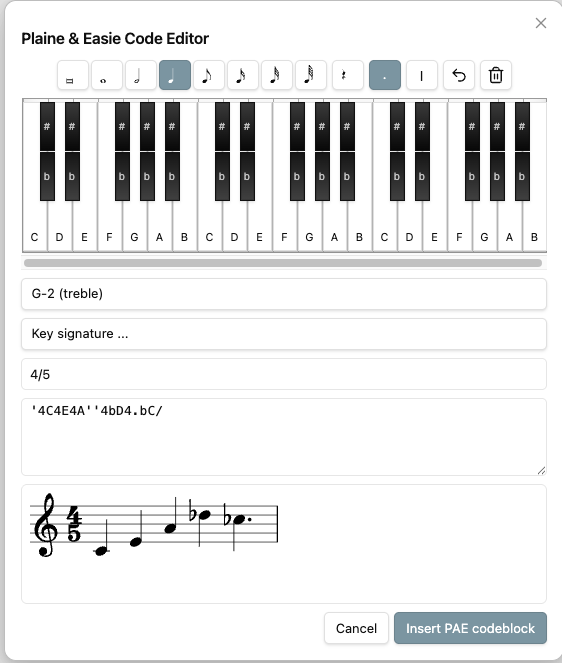
You can open a Plaine & Easie editor from the Obsidian Command Palette with the command "Insert Plaine & Easie music codeblock". It provides a notation-oriented input modal with note values, rests, clefs, key signatures, a small piano keyboard, live Verovio preview, and inserts the result as a compact PAE code block.
Side Panel
You can open a side panel via the Obsidian Command Palette or from a rendered score to inspect and edit the notation behind the rendering. The panel uses the same toolbar everywhere, with tabs for the referenced content, the original code block, MEI editing commands, insertion commands, conversion to MEI, and rendering settings.
For MEI data, the side panel is connected to the rendered SVG:
- Clicking a rendered note or other selectable SVG element highlights it, plays it when note playback on click is enabled, and jumps to the matching
xml:idin the editor. - Clicking an XML line in the editor selects the matching SVG element in blue.
- You can select several rendered elements with the rectangle selection tool.
Cmd/Ctrllets you extend the current selection. - Clicking outside the rendering clears the active score selection so Obsidian's normal editor shortcuts are not intercepted accidentally.
The Edit and Insert menus are available for editable MEI content. They can be used from the toolbar or by the displayed shortcuts once MEI elements are selected. The commands include common operations such as deleting elements, changing notes and rests, changing pitch and duration, toggling accidentals, adding control elements such as dynamics, tempo, slurs, beams, arpeggios, trills, octaves, clefs, and related MEI insertions.
The panel supports the different rendering sources explicitly:
- Inline MEI code blocks are fully editable in the side panel.
- MEI files from the vault can be edited directly, while the code block tab still lets you adjust the block that references the file.
- External URL sources are shown read-only for the fetched content; their local code block can still be edited.
- Inline non-MEI code blocks keep the Edit and Insert menus disabled, but can be converted to MEI from the toolbar after confirmation. Existing code block options such as
measureRangeare preserved where possible.
For referenced files and code blocks, the built-in search view is always available above the editor and follows Obsidian's editor search pattern.
Rendering Options
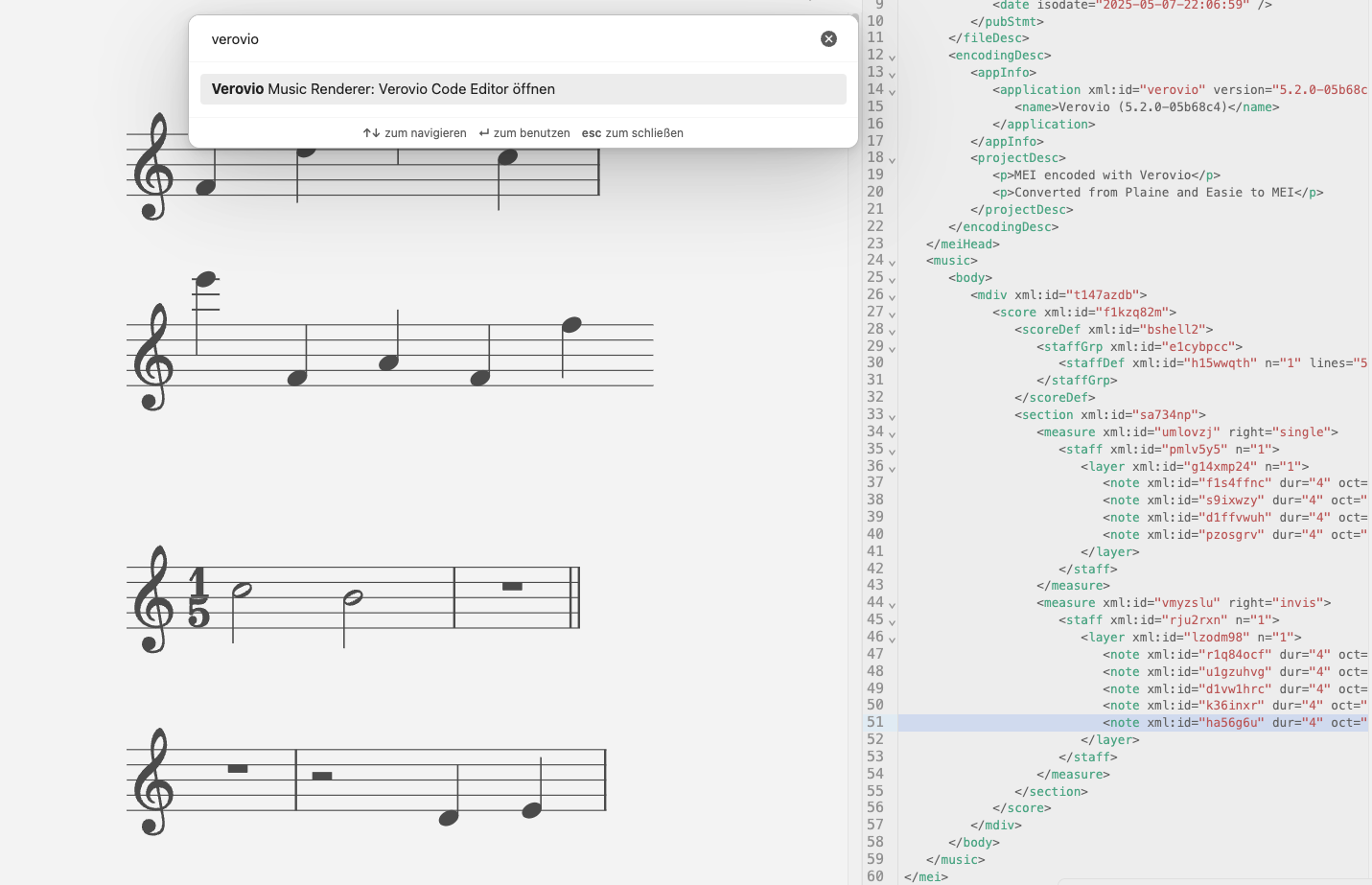
In the plugin settings, the global rendering settings are built from Verovio's available options and grouped into searchable sections. Numeric values include a slider, a number field, and a reset button; options also include tooltips with short descriptions, defaults, and ranges where available. These global settings are the fallback defaults for every rendering.
For code block renderings, the side panel includes a Rendering settings tab with the same controls plus measure selection. Changes made there are saved as code block options and override the global defaults only for that rendering. Resetting an individual value removes the local override so the current global setting applies again. You can also refer to the Verovio documentation for the full option reference.
COPY FROM HERE
```verovio
Schubert_Lindenbaum.mei
font: Leland
scale: 10
breaks: encoded
```COPY UNTIL HERE
Rendering Measure Selections
A special feature of this plugin is rendering predefined measures. To render measures 1-10, you can use the measureRange command like in this example. Please note that in this example, measure 20 is not included in the rendering. The type of breaks you choose to render can greatly influence the output (or even make the plugin render nothing at all). For example, "encoded" breaks can result in a blank rendering if no encoded break exists in your selection. Because of this, "breaks: none" is added to the example below, which might be a good default option for rendering musical snippets. You can also use "start" and "end" instead of numbers, e.g. measureRange: 2-end or measureRange: 15-end – or just render single measures: measureRange: 5. This works for measure-based MEI after import, such as MEI, ABC and MusicXML. Formats imported without <measure> elements, such as GABC, Volpiano and many CMME/mensural files, cannot be trimmed with measureRange.
COPY FROM HERE
```verovio
Schubert_Lindenbaum.mei
scale: 50
breaks: none
measureRange: 1-20
```COPY UNTIL HERE
Installing the Plugin
This plugin is part of the Obsidian community plugins. You can also install it via BRAT (just add the URL you're on right now as a beta plugin). You can also do it manually: Copy the files main.js and manifest.json from the release (look right) into the plugin folder of your vault like this: VaultFolder/.obsidian/plugins/Verovio-Music-Renderer/.
If you are forking this project, read this:
- Audio playback uses Paul Rosen's midi-js-soundfonts. The SoundFont URL is patched automatically during the build in
esbuild.config.mjs, so you do not need to editnode_modules/lz-midi/lib/midi.jsby hand. - The noisy MIDI-file logging in
lz-midiis disabled automatically during the build inesbuild.config.mjs, so it does not fill the Obsidian developer console.
Privacy & Network Activity
This plugin respects your privacy:
- Network requests are on-demand only: The plugin only makes network requests when you explicitly provide external URLs (e.g.,
https://example.com/file.mei) in code blocks. No background data transmission, automatic polling, or telemetry occurs. - Playback downloads SoundFonts on demand: When you press the playback button,
lz-midimay download instrument SoundFont files fromhttps://paulrosen.github.io/midi-js-soundfonts/FluidR3_GM/so the rendered score can be played. This is triggered by the user's playback action and is not telemetry. - No tracking or analytics: The plugin does not collect any usage data, telemetry, or user information.
- Local-first by default: Music files stored in your Obsidian vault are processed locally without any network access.
- Transparent external requests: When you reference an external URL in a code block, the plugin fetches that specific resource on-demand only when you render the code block. When you use playback, the plugin may fetch only the SoundFont assets needed for audio output.
Additionally Used (With Many Thanks):
- Verovio – please support RISM and their amazing work
- Verovio PAE Editor – many functions for quick and dirty PAE insertion were adapted from this editor
- mei-friend – the side panel editing functions were taken from the mei-friend editor
- lz-midi
FAQ
Q: Is it working with the mobile versions of Obsidian? A: Yes, but the buttons for download and opening externally don't work.
Q: The "folder" icon doesn't open anything. A: You need to define a default application for that file type to open it in your operating system.
Q: When I use "measureRange," it just renders a blank box. A: Try changing the breaks type in the plugin options.
Q: I don't hear anything, and playback isn't starting. A: Make sure you're connected to the internet to load the SoundFont for playback. It won't work offline, and note highlighting won't either. Check the Obsidian dev tools when in doubt.
Q: I don't hear anything on iOS. A: Make sure Silence/DnD Mode is not turned on; otherwise you won't hear anything, even with full volume.
Disclaimer
I vibecode my plugins—and the scope of this work exceeds my programming skills. Because of this, there is always a residual risk when using them. I do this primarily to bridge certain gaps in my own workflow. Should these plugins ever become obsolete because a professional developer used them as inspiration to code something truly solid and sophisticated, I would be absolutely thrilled.