
README file from
Githubyonxao-mindmap
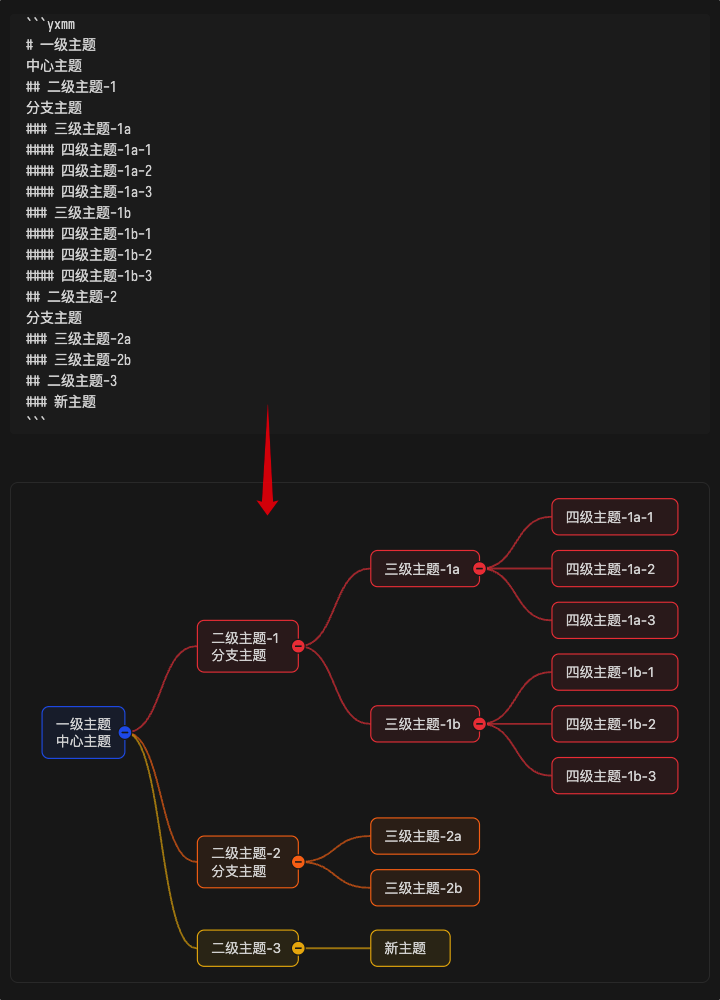
A feature-rich Obsidian mind map plugin that renders yxmm code blocks in Markdown documents as interactive SVG mind maps and various structural diagrams.
Demo screenshot:
✨ Core Features
- 🎨 Rich Layout Types: 7 categories with 20 layouts, including mind maps (right/left/bidirectional/up/down/vertical), tree diagrams, organization charts, timelines, radial maps, fishbone diagrams, and tree tables
- 🎯 Intuitive Syntax: Use topic-level markers (
#,##,###) to express hierarchy naturally and fluently - 🖱️ Full Interactive Editing: Double-click editing, drag-and-drop sorting, right-click menus, collapse/expand — support complete topic tree editing
- 🎨 8 Theme Color Schemes: default, ocean, forest, sunset, mono, rainbow, pastel-rainbow, neon-rainbow
- 🔗 Flexible Connector Styles: Curve, straight, and elbow connectors — freely switchable in mind map layouts
- 📐 Custom Fonts: Support setting font family, size, weight, and line height per topic level
- 🖼️ Export Functionality: Export PNG images or copy to clipboard
- 🌐 Multi-language Support: 16 languages, automatically follows Obsidian language settings
- ⚙️ Visual Configuration Panel: Intuitive configuration interface supporting global defaults and per-code-block configuration
- 📱 Responsive Design: Adapts to different screen sizes and Obsidian themes
🚀 Quick Start
Basic Usage
-
Create a
yxmmcode block in your Markdown document:Moving the cursor out of the code block will display it as a mind map.
```yxmm ``` -
Right-click menu
Right-click in an Obsidian note: click
Insert Mind Map.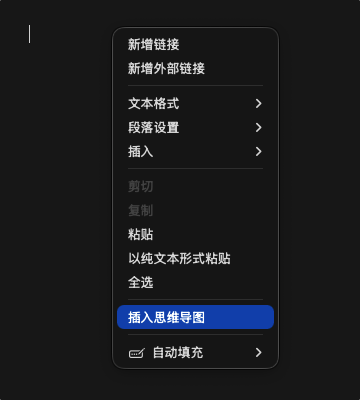
Complete Example
```yxmm
---
structure:
  layout: mindmap-right
  connectorStyle: curve
color:
  scheme: ocean
---

# Central Topic
## Branch Topic A
### Subtopic A1
### Subtopic A2
## Branch Topic B
### Subtopic B1
```
📝 Syntax Reference
Topic Hierarchy
- Use topic-level markers to represent hierarchy:
#is a level-1 topic,##is a level-2 topic,###is a level-3 topic, and so on. - Only topic-level marker lines like
#,##,###create new topics; ordinary text lines merge into the nearest previous topic as multi-line content.
| Marker | Meaning |
|---|---|
# |
Level-1 topic (central / root) |
## |
Level-2 topic (branch topic) |
### |
Normal topic (level-3 and deeper) |
Multi-line Topics
Ordinary text lines merge into the nearest previous topic as multi-line content:
```yxmm
# Central Topic
## Multi-line Topic Example
This is the second line
This is the third line
### Subtopic
```
Topic Attributes
Add attributes in [key=value] format at the end of a topic-level marker line:
```yxmm
# Central Topic [color=#3b82f6]
## Branch Topic [icon=book layout=mindmap-right]
### Subtopic [fontSize=14 fontWeight=700]
```
Supported attributes:
color=#3b82f6: Topic coloricon=book: Topic iconlayout=mindmap-right: Local layout typefontSize=16,fontWeight=700,fontFamily="...",lineHeight=20: Font overrides
Config Block
Add a YAML config block wrapped in --- at the top of the code block:
```yxmm
---
display:
  viewFit: fit
  fitViewNoUpscale: true
  saveFullConfig: true
structure:
  layout: mindmap-right
  connectorStyle: curve
  topicMaxWidth:
    global: 240
color:
  scheme: rainbow
  buttonColorMode: topic
font:
  family: "var(--font-text)"
  size: 16
  weight: 400
  lineHeight: 20
interaction:
  toolbar:
    corner: top-right
    placement: outside
  topicControlVisibility: toggle-always
  wheelZoom: false
  tabIndent: true
---

# Central Topic
## Branch Topic
```
🎨 Layout Types
Mind Maps
mindmap-right: Rightward mind map (default)mindmap-left: Leftward mind mapmindmap-bidirectional: Bidirectional mind mapmindmap-up: Upward mind mapmindmap-down: Downward mind mapmindmap-vertical: Vertical bidirectional mind map
Tree Diagrams
tree: Tree diagramtree-right: Rightward tree diagramtree-left: Leftward tree diagram
Organization Charts
org: Organization chartorg-right: Rightward organization chart
Timelines
timeline: Timelinetimeline-up: Upper-side timelinetimeline-down: Lower-side timeline
Radial Maps
radial: Radial map
Fishbone Diagrams
fishbone-left: Leftward fishbone diagramfishbone-right: Rightward fishbone diagram
Tree Tables
tree-table: Tree tabletree-table-stepped: Stepped tree table
🖱️ Usage Guide
Basic Operations
- Double-click a topic: Quickly edit topic content
- Click collapse button: Collapse/expand subtopics
- Drag a topic: Adjust sibling topic order or move to another position
- Right-click a topic: Open context menu (add, delete, copy, collapse, etc.)
Toolbar Operations
- Fit View: Automatically adjust viewport to show the entire map
- Zoom in/out: Adjust view zoom level
- Reset Collapse: Expand all topics
- Config Panel: Open visual configuration interface
- Source/Map Toggle: Switch between source mode and map mode
- Export Image: Export PNG image or copy to clipboard
View Modes
- Reading View: Browse only, editing functions disabled
- Editing View: Full editing capability, supporting topic drag, add, delete, etc.
Height Adjustment
- Drag the bottom edge of the canvas: Manually adjust canvas height
- Double-click the resize handle: Restore auto height
⚙️ Configuration
Configuration Priority
Topic attributes > Code block config > Plugin global defaults > Plugin built-in defaults
Global Default Configuration
Set global defaults in Obsidian Settings → Community plugins → yonxao-mindmap. All yxmm code blocks will inherit these configurations.
Language Support
Language option is also available in preferences. The initial default language follows Obsidian's current language; if the Obsidian language is not yet supported, it falls back to English. Currently supported:
- English: Fallback language.
- 中文(简体).
- 中文(繁體).
- 日本語.
- 한국어.
- Français.
- Deutsch.
- Español.
- Português (Brasil).
- Русский.
- Italiano.
- Bahasa Indonesia.
- Türkçe.
- Tiếng Việt.
- ไทย.
- हिन्दी.
Config Trimming
When display.saveFullConfig is false (i.e., "Save full config" is turned off in the config panel), any config item whose value matches the global default will be trimmed to keep the config block concise.
📦 Installation
Install from Obsidian Plugin Market
- Open Obsidian Settings
- Click
Community plugins - Click
Browse - Search for
yonxao-mindmap - Click
Install, then clickEnable
Manual Installation
- Download the latest
yonxao-mindmap.zip - Extract to your Obsidian plugins directory (
.obsidian/plugins/) - Enable the plugin in Obsidian settings
📄 License
This project uses AGPLv3 + Commercial dual licensing:
- AGPLv3: See LICENSE
- Commercial license: See COMMERCIAL-LICENSE.md
🤝 Contributing
Issues and Pull Requests are welcome!
📚 Documentation
- Development Context (Chinese): Development collaboration memo including architecture, terminology, workflows, and FAQs
- Regression Test Checklist (Chinese): Regression test checklist
- Example Gallery (Chinese): Collection of various layout examples
⭐ If this plugin helps you, please give it a star!