
README file from
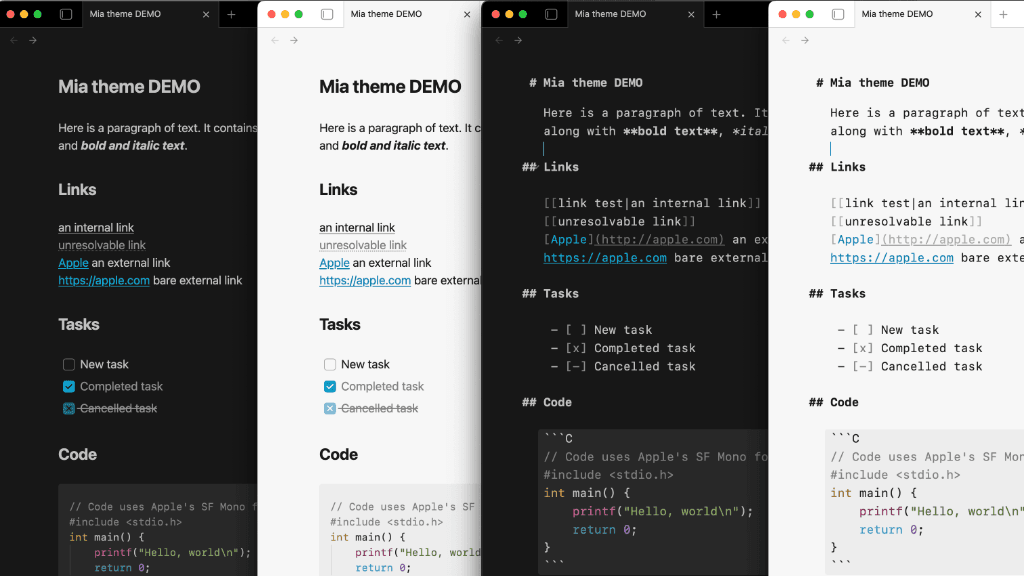
GithubMia is a lightweight Obsidian theme for macOS and iOS that builds on the default theme, with an emphasis on a clean, distraction-free experience.
Features
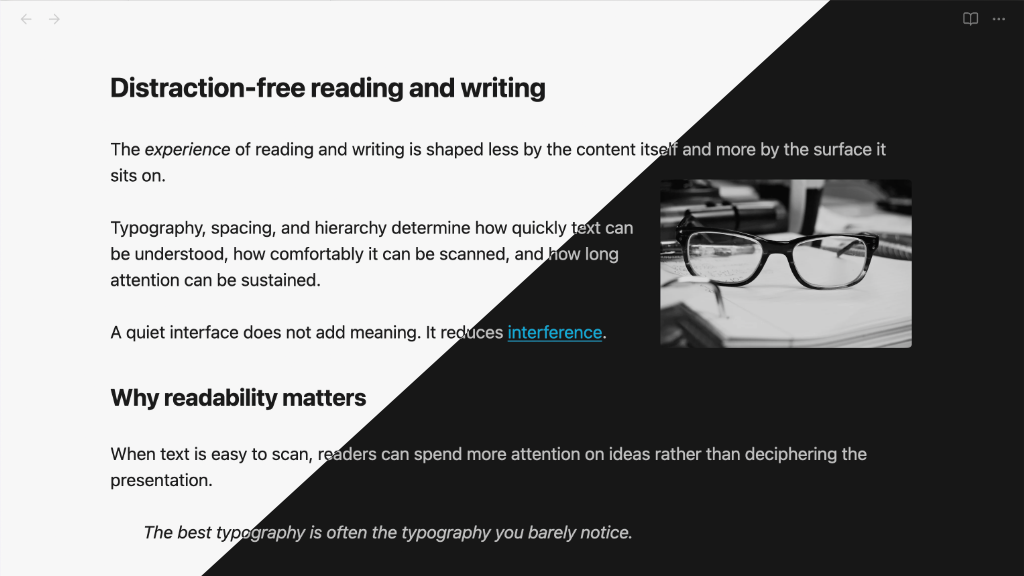
- Light mode and Dark mode support
- System fonts with spacing, headings, link styling designed for usability and readability
- A true source view for working with markdown:
- monospace font ("SF Mono")
- headings hang in margin
- formatting noise (e.g., url in a link) is muted
- Images are centered by default
- Image alt tags, including:
- Images
float-leftandfloat-right - Images
invert-darkandinvert-lightdepending on the theme
- Images
- Images are slightly dimmed in dark mode (configurable)
- Checkbox style for cancelled tasks
[-] - CSS class
readerfor reading in serif (similar to Safari reader) - PDF export at 12pt with black text
- Style Settings support for some of the more opinionated choices
Style settings
Install the Style Settings plugin to fine-tune the Mia theme's settings.
Source view
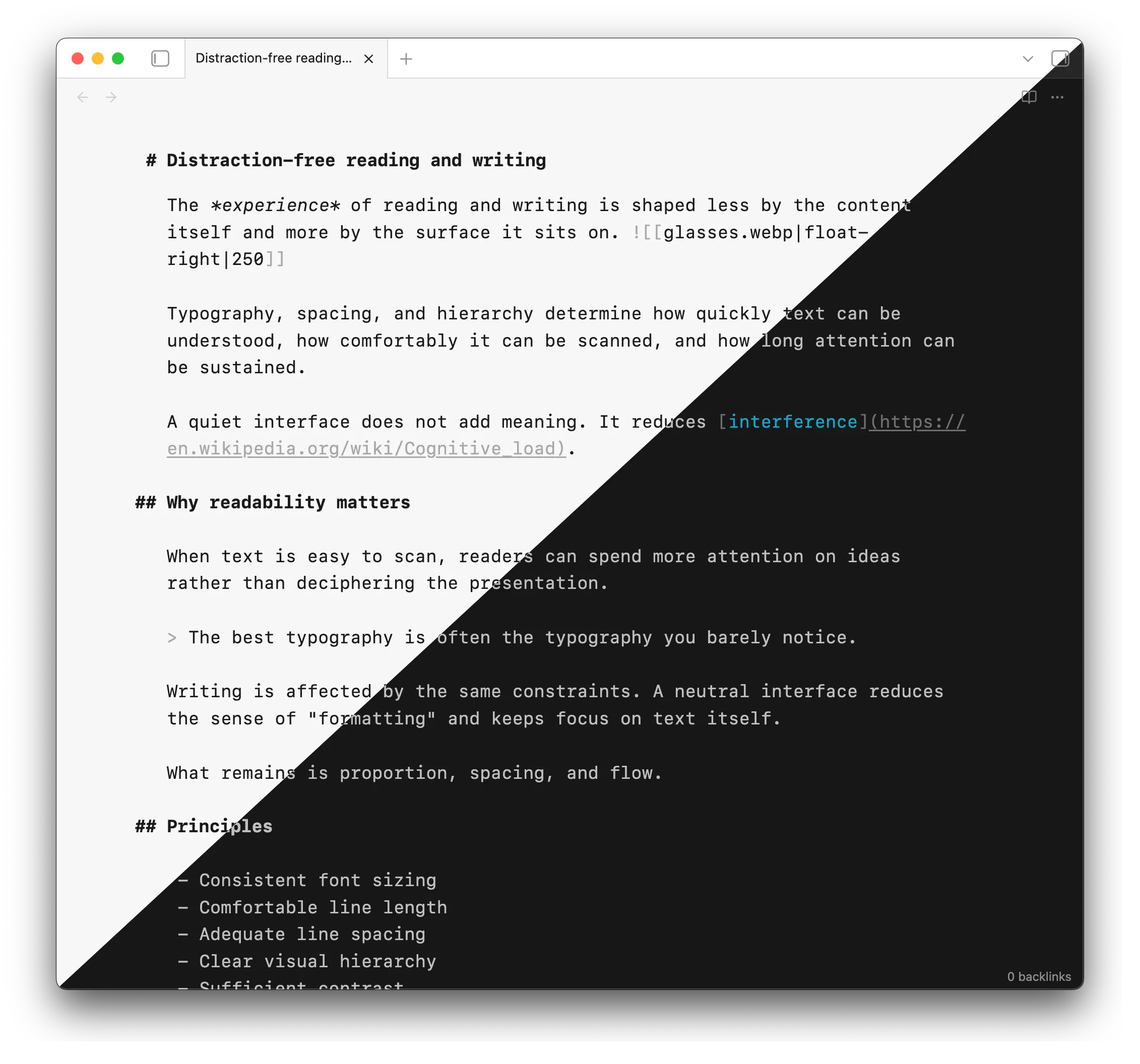
The source editing view is designed for working with plain text, similar to markdown editors like iA Writer. The monospace font "SF Mono" is used.
This font is available on iOS devices, but needs to be installed on macOS or other platforms. It is available at Fonts - Apple Developer. If you are on macOS or iOS, you do not need to install any other fonts. If you are on another platform, you may also install "SF Pro", otherwise the system-default font will be used.
You may use any other font in source view by setting the Monospace font in Obsidian Appearance settings.
Reader view
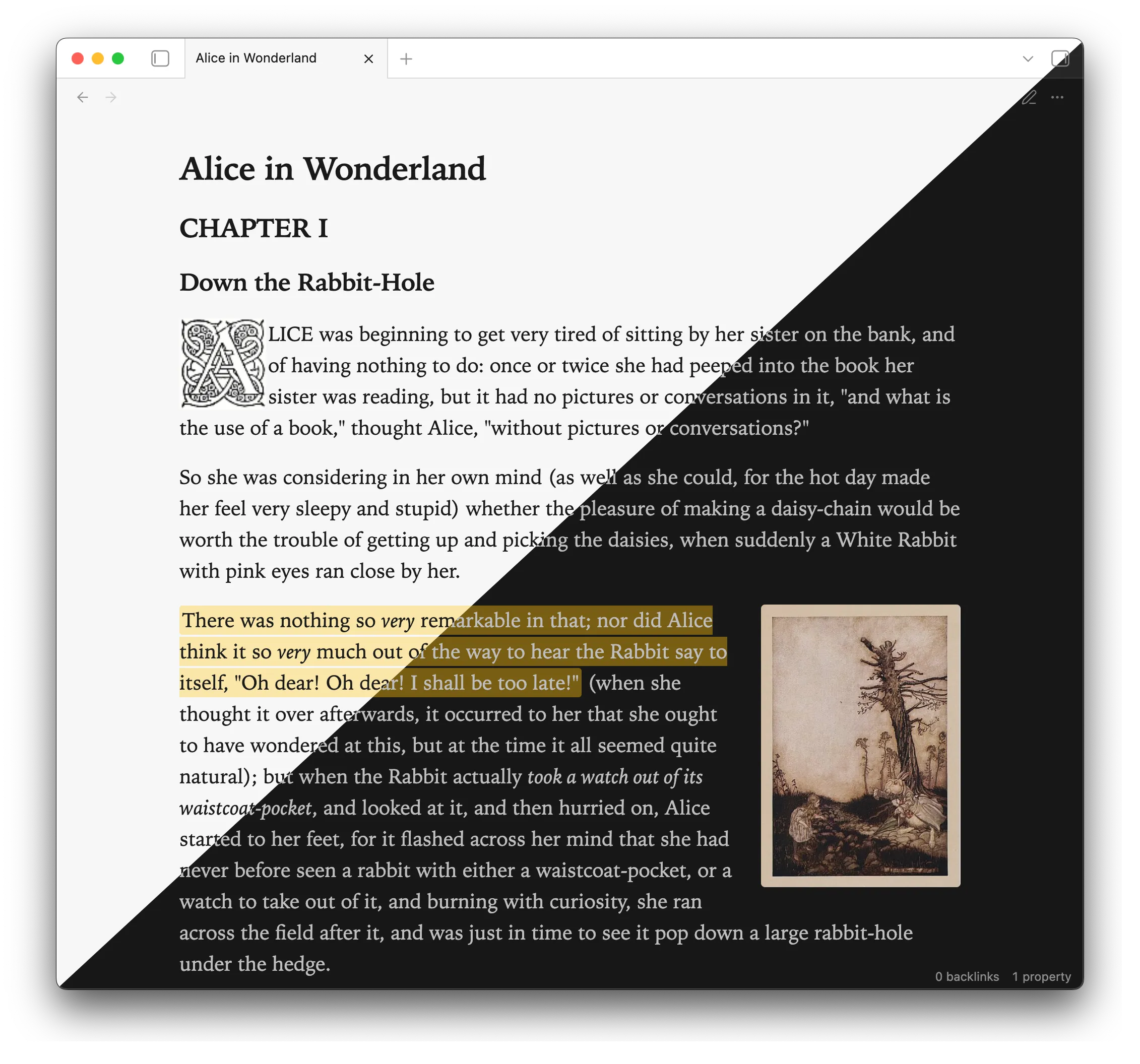
The regular reading view uses the system font.
Use reader in a cssclasses property to use a serif font ("Iowan Old Style") for reading view.
cssclasses: reader
Image alt classes
| alt tag | effect |
|---|---|
| float-left | image is left-aligned, and content wraps around it |
| float-right | image is right-aligned, and content wraps around it |
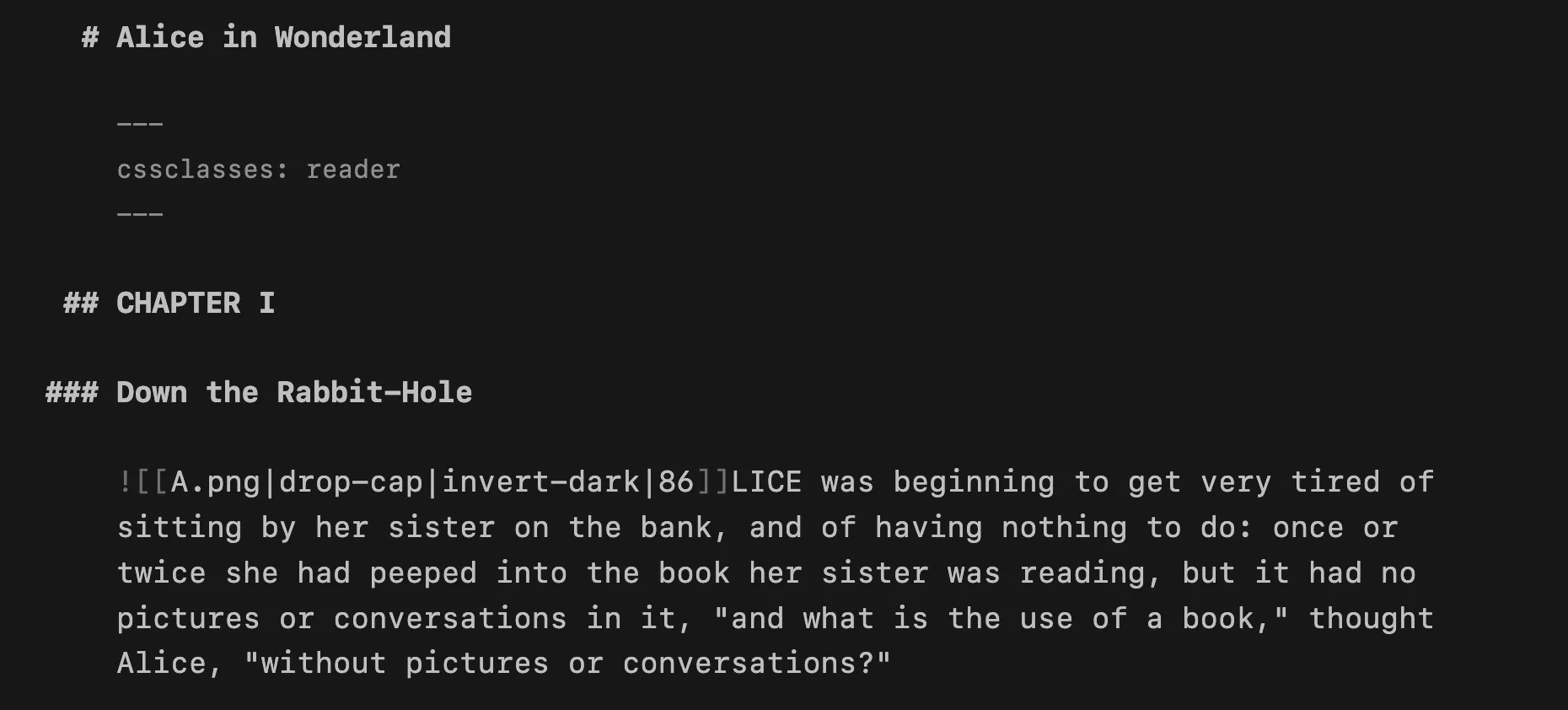
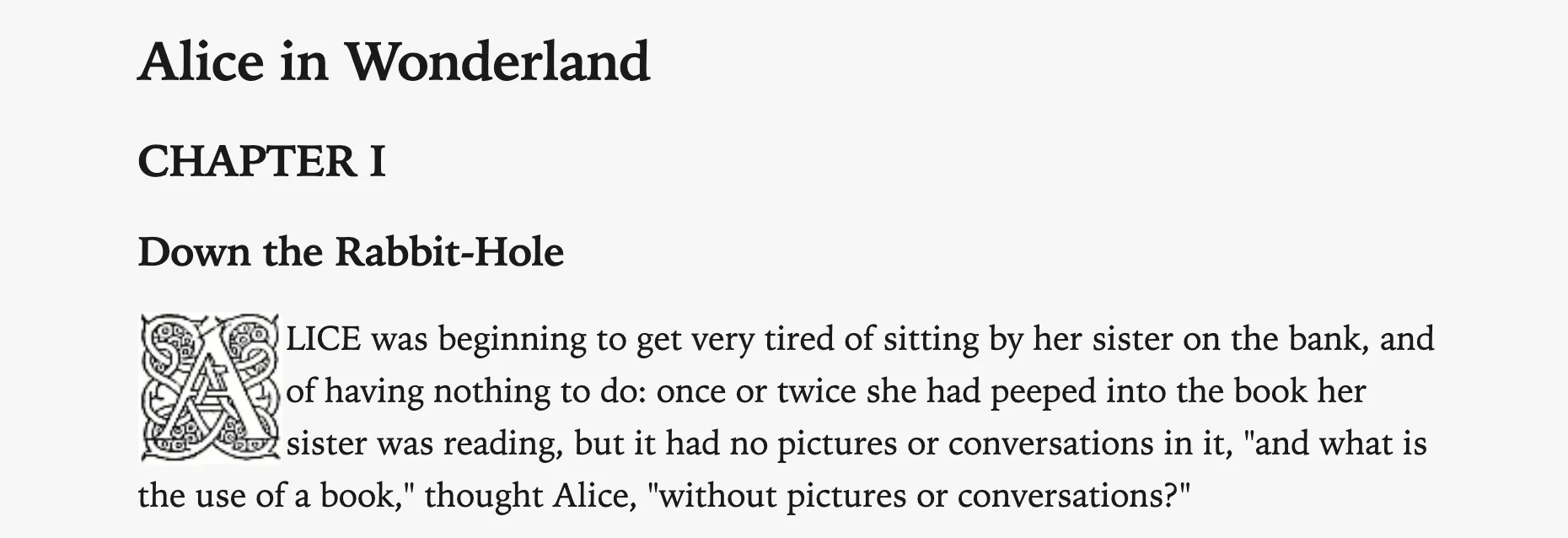
| drop-cap | image is left-aligned with nominal margin, and content wraps around it |
| banner-top-250 | image is restricted to 250px tall, cropped to the top of the image |
| screen, wp, wallpaper | image aspect ratio is constrained to 16 / 10 |
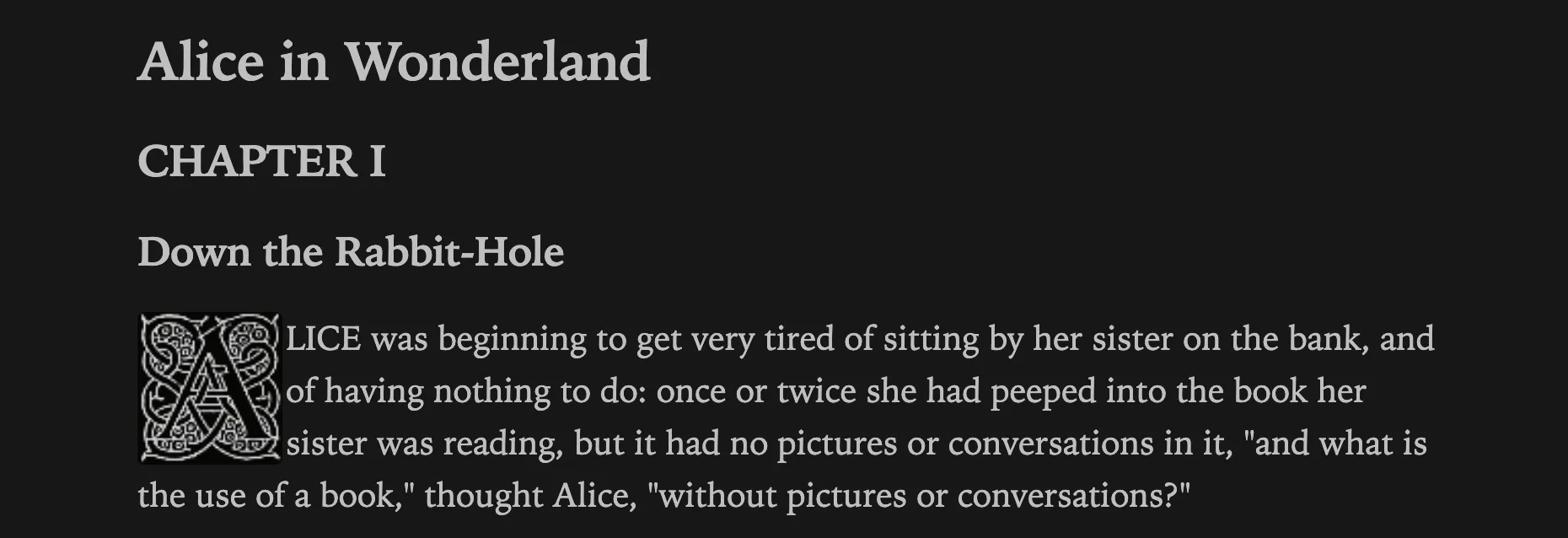
| invert-dark | image will be inverted when using the dark theme* |
| invert-light | image will be inverted when using the light theme* |
* these may be added after another alt class to combine effects.
Example 1
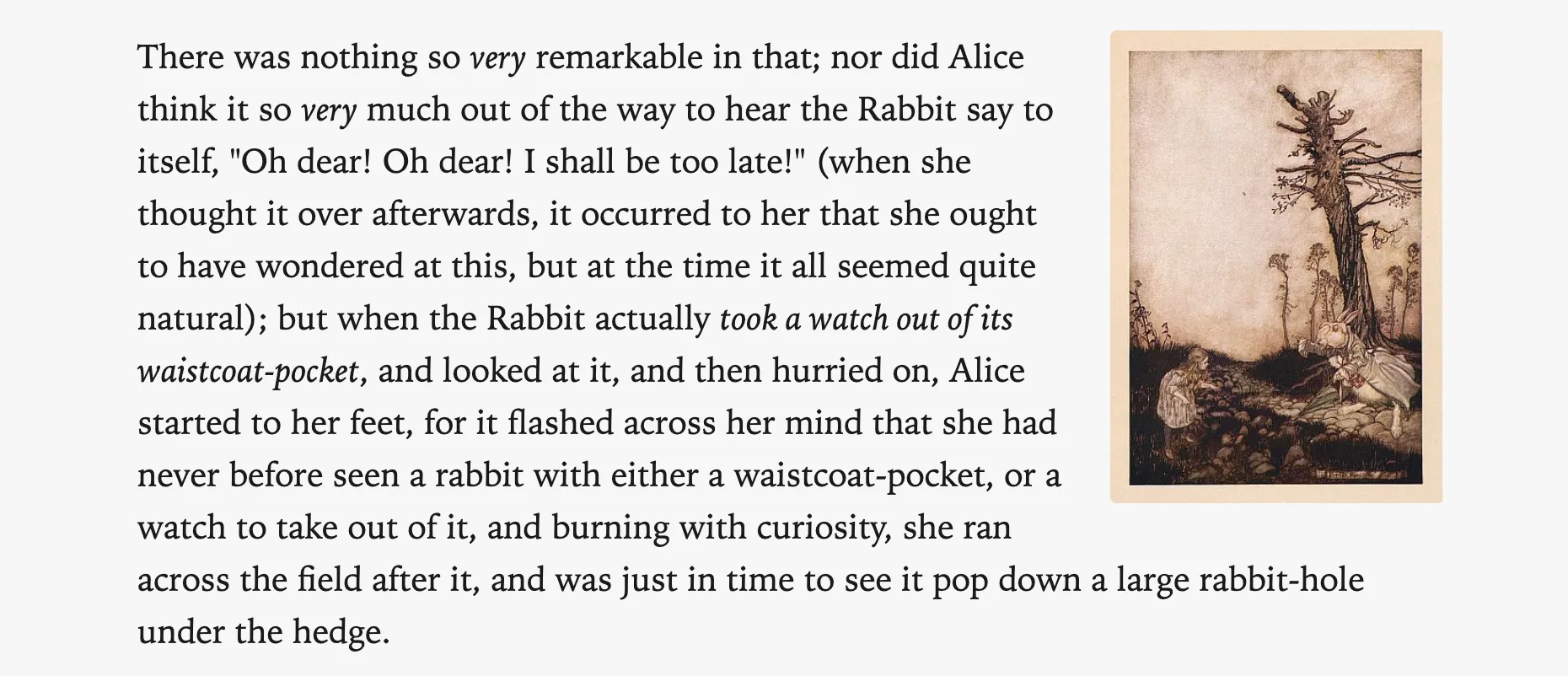
![[Alice and Rabbit.jpg|float-right|198]]
There was nothing so _very_ remarkable in that; nor did Alice think it so _very_ much out of the way to hear the Rabbit say to itself, "Oh dear! Oh dear! I shall be too late!" ...
Output:
Example 2
Here is the source view of an example with a drop-cap and invert-dark:
In light mode (and reading view), the invert-dark has no effect:
In dark mode, the drop cap is inverted:
Credits
- Image inversion is from contributions by den and BambusControl in this forum post.
- Some code editor colours from Flexoki — Steph Ango.
- Photo used in preview image is by Isabella Fischer on Unsplash.