
README file from
GithubObsidian Voice Plugin 🔊
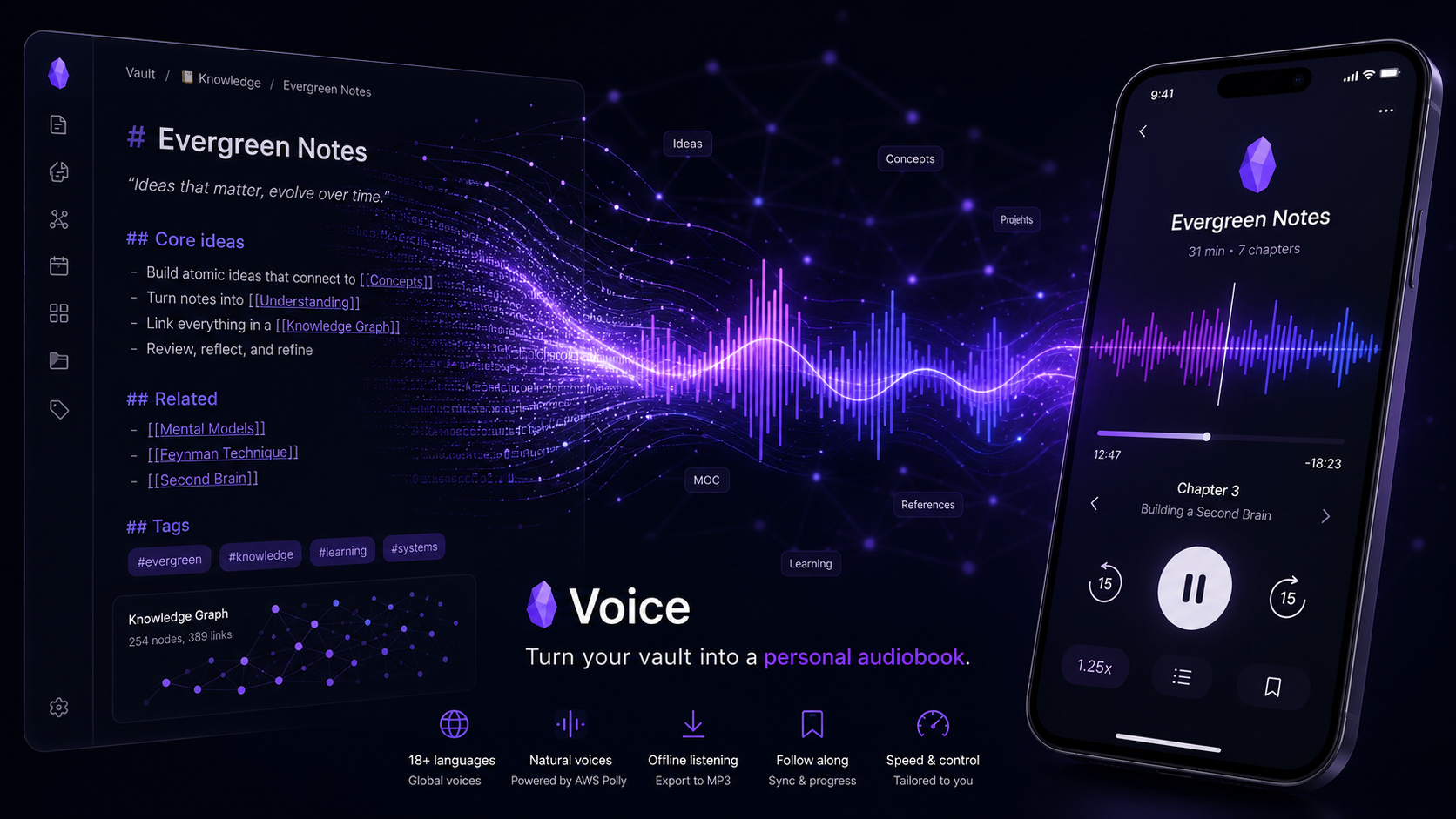
Turn every note into a mobile-friendly, audiobook-like experience. The Obsidian Voice Plugin reads your notes aloud in natural, lifelike speech — using the text-to-speech provider you already have. It supports all the major engines — AWS Polly, ElevenLabs, OpenAI, Google Cloud, and Azure Speech — so you can listen with whichever one you prefer. Listen with a dedicated player, jump between notes like chapters, change the speed on the fly, and save audio offline — with your credentials kept private in your own account.
Table of Contents
- Highlights
- The Voice Player
- Feature Tour
- Settings
- Keyboard Shortcuts
- Bring Your Own Provider
- Getting Started
- Connecting a Provider
- Troubleshooting & Help
Highlights
- A real audiobook player — open the Voice player, see your notes as chapters, and play, skip, and repeat just like a podcast app.
- Bring your own provider — Voice supports all the major text-to-speech engines (AWS Polly, ElevenLabs, OpenAI, Google Cloud, and Azure Speech), so you can listen with whichever one you already use. Every feature works the same on all of them.
- Listen in seconds — turn any note into lifelike speech straight from the ribbon, a command, or the player.
- Designed for every device — the same experience on desktop, iOS, and Android, with a touch-friendly mobile player and control bar.
- Own your audio — download MP3 files, auto-embed them into your note, and keep an offline archive.
- Stay in control — adjust tempo on the fly, jump forward or back, repeat a chapter or the whole list, and watch synthesis progress in real time.
- Stay private — your credentials live in your own provider account; nothing is routed through a third party.
The Voice Player
The Voice player is the heart of the plugin: an audiobook-style pane that turns your notes into chapters you can listen to back to back.
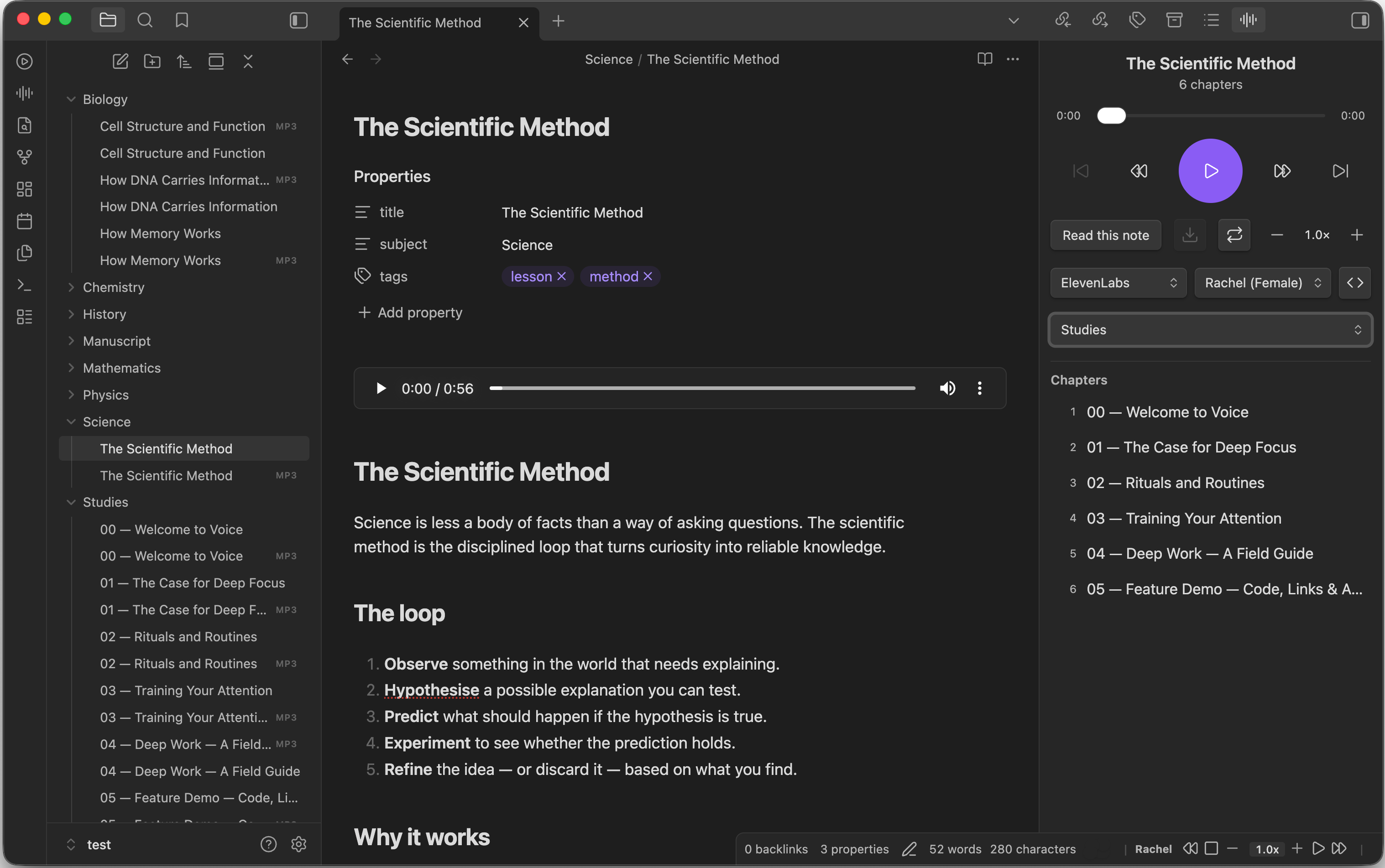
- Always within reach — the player is docked in the right sidebar (next to Backlinks and Outline) right after install, so it's there whenever you need it. On mobile it opens as a full-screen pane.
- Chapters from your folder — every MP3 saved next to the current note appears as a numbered chapter. Listen to a whole folder like an audiobook, and the chapter you're hearing is highlighted.
- Folder picker — jump between any folders in your vault that contain audio straight from the player, and the chapter list updates to that folder's MP3s. Each folder is shown leaf-first with its path trailing to the right, so same-named folders stay distinct. It follows the note you're viewing by default; turn off Folder Picker Follows Active Note in settings to keep your chosen folder while you browse.
- Rename tracks — hover a chapter and click the pencil to rename the MP3 right from the player. The file is renamed in place (same folder,
.mp3kept) and embeds are updated automatically. - Transport controls — previous / next chapter, rewind, play / pause, and fast-forward, with a draggable progress bar and live time display.
- Play & Regenerate — press play to listen to the note you're viewing; if its audio is already loaded, play just resumes it. The Regenerate button (↻) forces a fresh synthesis from scratch — useful after you've edited the note or changed the voice. The play button spins and a progress bar fills up while audio is synthesized.
- Repeat modes — cycle through off → repeat one → repeat all to loop a single chapter or play through every chapter in the folder.
- Speed on the spot — nudge playback from 0.5× to 2.0× with the − / + buttons.
- Download — save the current audio as an MP3 right from the player.
On mobile, the same player opens as a full-screen pane, optimized for touch:
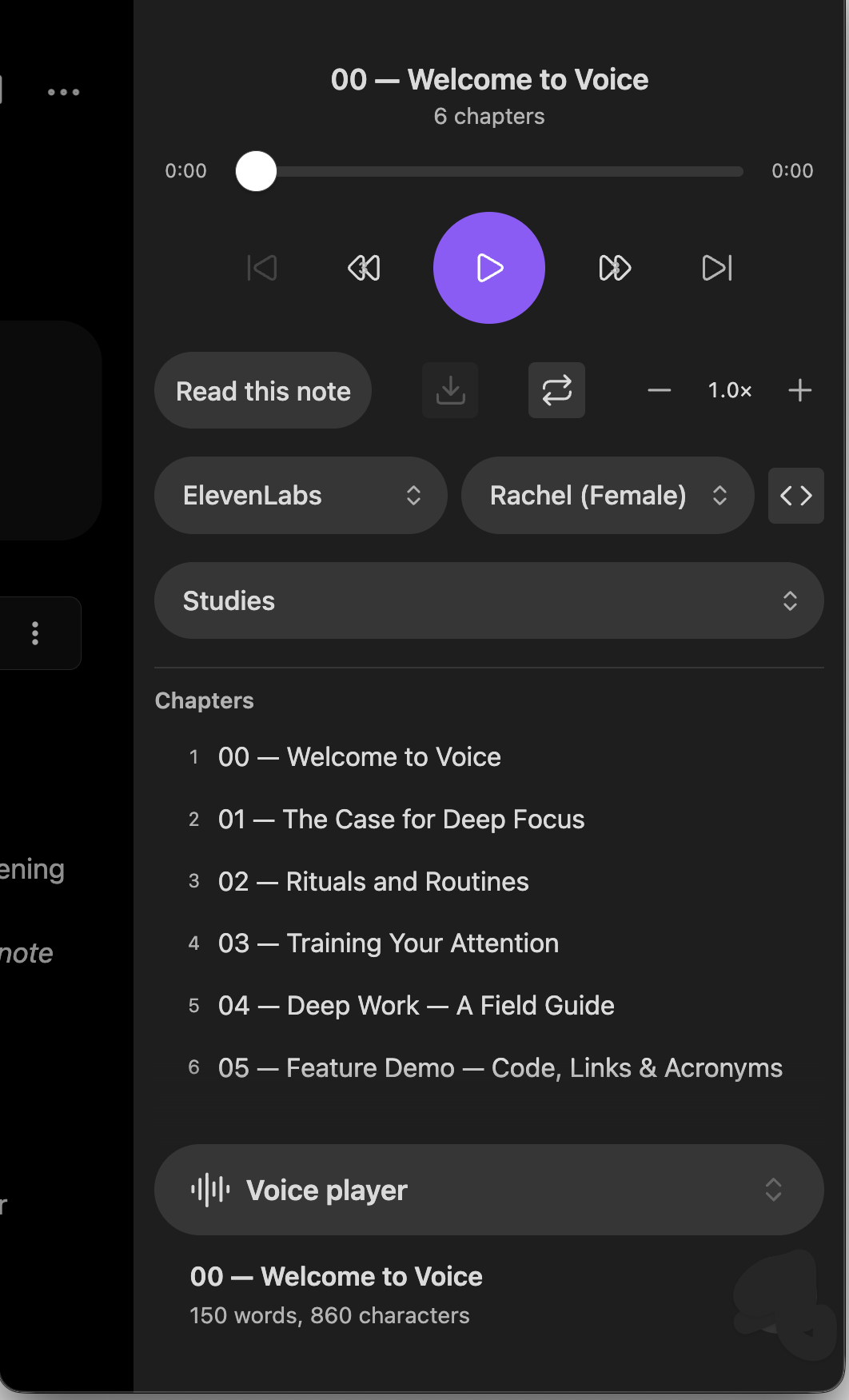
Tip: Open the player from the Open Voice player ribbon icon (the audio-waveform icon) or the Open the player. command.
Feature Tour
Listen Instantly
-
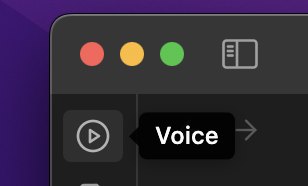
Start playback from the left-hand Voice ribbon icon (Voice read text) whenever you need it.
-
Default playback reads the entire note. In Source mode, select text first and only your selection is read.
-
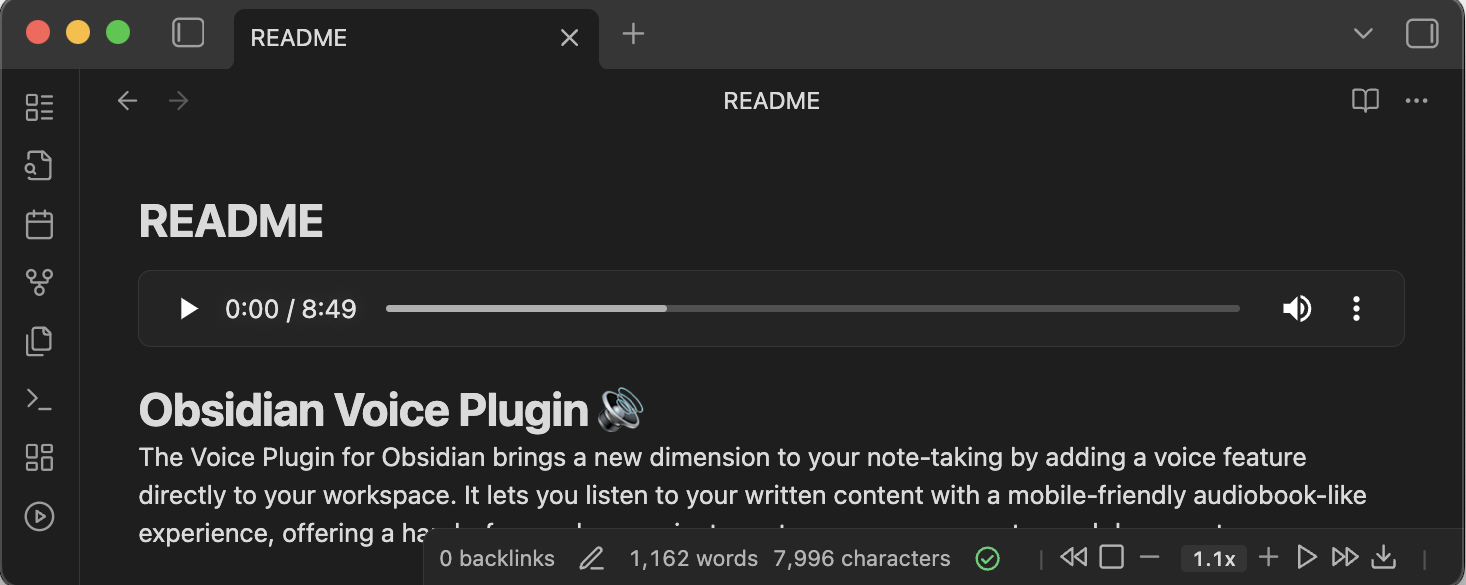
The ribbon icon shows a refresh indicator while synthesizing and flips to a pause icon when playback is ready.
Save & Play Audio Offline
-
While playback is running, press the download button to save an MP3 named after your note; the plugin embeds it right after the front matter so you can replay it anytime, offline.
-
Prefer a hands-off workflow? Enable Auto-Save Audio to Note in settings to save and embed the MP3 automatically after every successful playback — no manual click. Off by default.
-
Cached audio prevents repeat synthesis costs until your note content changes.
Precision Playback Controls
-
Track synthesis progress with the real-time status bar indicator until playback is ready.

-
Use rewind / fast-forward controls and on-the-fly tempo changes for quick navigation.
-
Set how far rewind and fast-forward jump — configure each independently from 1 to 60 seconds in settings (defaults to 3 seconds).
-
Adjust speech speed from 0.5× to 1.9× without leaving the status bar.

Personalize the Voice
-
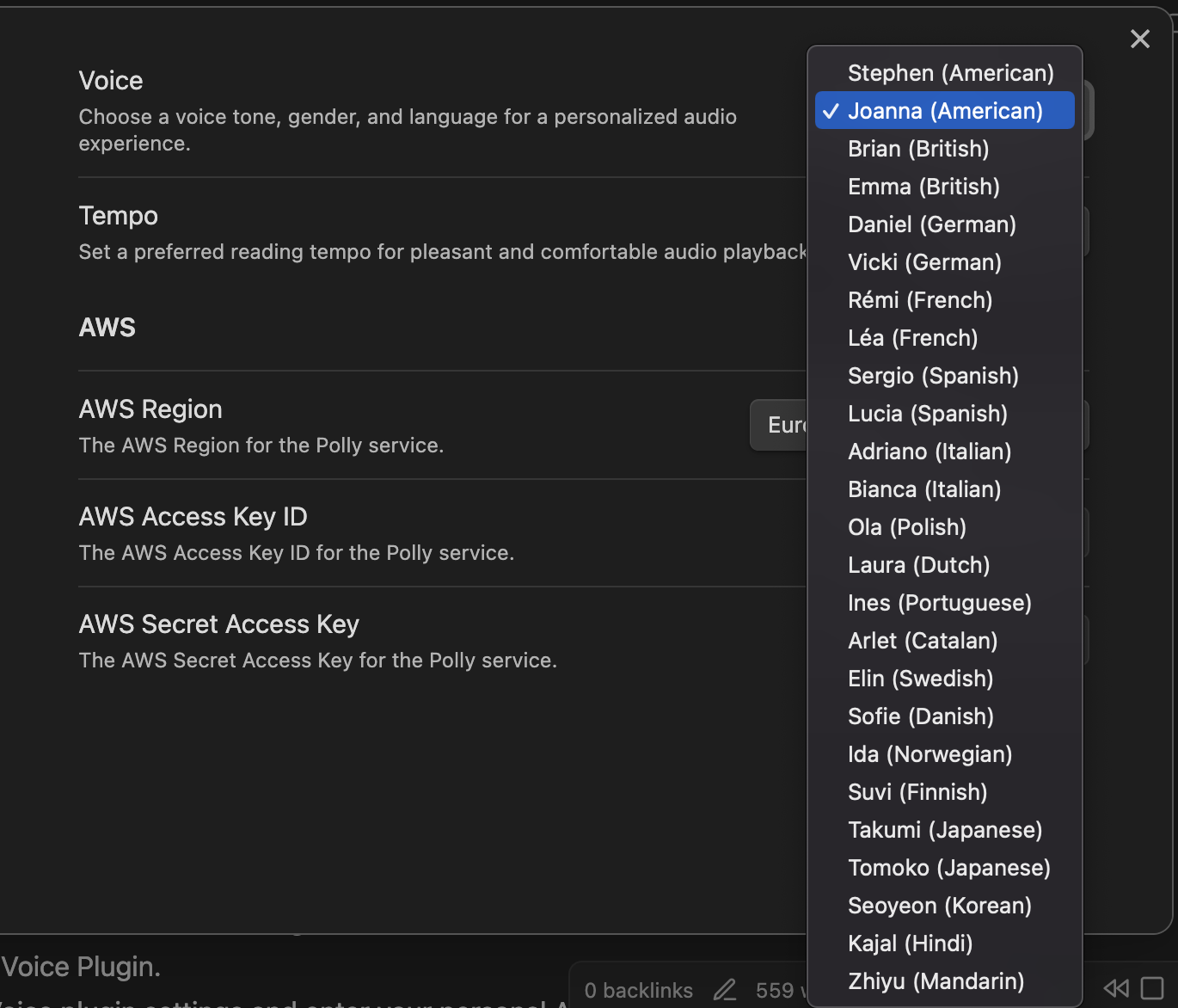
Choose from dozens of natural voices across many languages — American, British, German, French, Spanish, Italian, Polish, Dutch, Portuguese, Brazilian Portuguese, Catalan, Swedish, Danish, Norwegian, Finnish, Japanese, Korean, Hindi, Mandarin, and more.
-
Switch voices instantly from the status bar, or use the Switch to the next speaker. command to cycle through them hands-free.
Fine-Tune What Gets Spoken
These content toggles apply to every provider and are all off by default:
- Spell Out Acronyms — read uppercase words like
NASAorAPIletter by letter. Off pronounces them naturally. (Applies to AWS Polly.) - Read Code Blocks — read fenced code blocks (Mermaid, YAML, and other code) aloud. Off announces them with a short placeholder instead.
- Skip Website URLs — strip website URLs (
https://…andwww.…) from the spoken output while keeping the surrounding text and link labels intact. Off reads them as written. - Auto-Save Audio to Note — automatically save and embed the MP3 after each successful playback (see Save & Play Audio Offline).
Built for Mobile
-
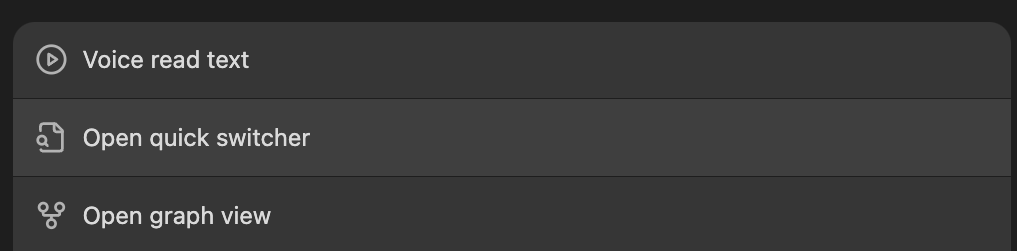
On the Obsidian mobile app, start playback or open the player from the dedicated Voice read text and Open Voice player menu items.
-
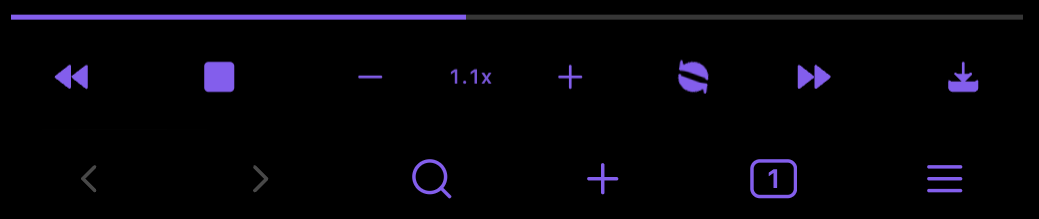
Control playback with the touch-friendly mobile control bar — play / pause, rewind, fast-forward, voice switching, tempo, and a progress indicator. (It stays out of the way while the full player is open.)
-
Update credentials, validate your setup, and check voice availability directly from mobile settings.
Smart Content Handling
- Markdown pre-processing cleans, enhances, and chunks content for reliable delivery.
- Headings, bold text, and pauses are emphasized natively on providers that support SSML (AWS Polly, Google Cloud, Azure Speech).
Settings
Everything is configured in one place: Settings → Voice. Pick a provider, enter its credentials, choose a voice, and tune playback to your taste.
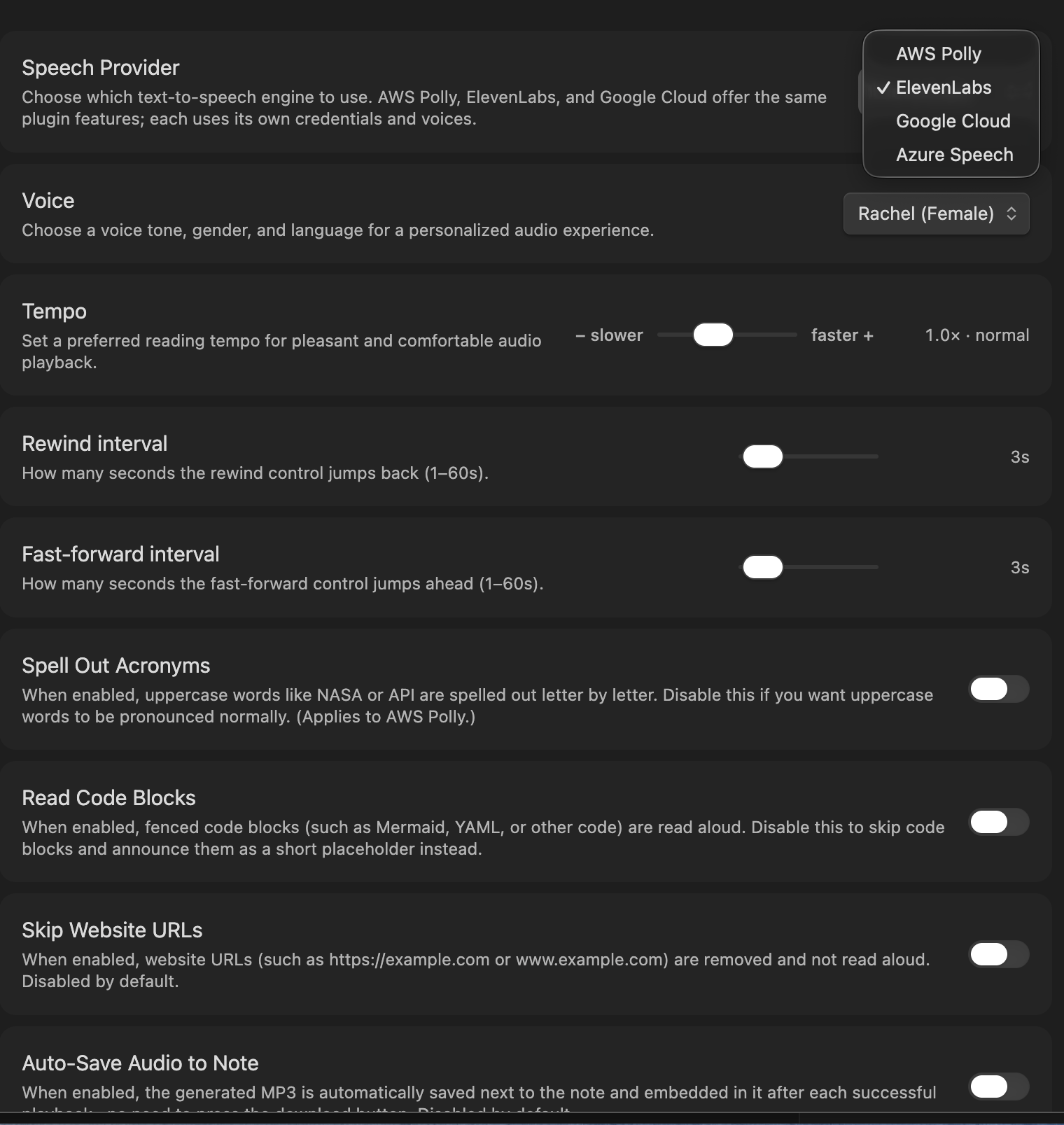
| Setting | What it does |
|---|---|
| Speech Provider | Choose the engine: AWS Polly, ElevenLabs, Google Cloud, Azure Speech, or OpenAI. The credential fields below adapt to your choice. |
| Voice | Pick the voice, gender, and language used for playback. |
| Tempo | Set your preferred reading speed (0.5× to 1.9×, default 1.0×). |
| Rewind interval | How many seconds the rewind control jumps back (1–60s, default 3s). |
| Fast-forward interval | How many seconds the fast-forward control jumps ahead (1–60s, default 3s). |
| Spell Out Acronyms | Read uppercase words letter by letter (AWS Polly). Off by default. |
| Read Code Blocks | Read fenced code blocks aloud instead of skipping them. Off by default. |
| Skip Website URLs | Remove URLs from spoken output while keeping link labels. Off by default. |
| Auto-Save Audio to Note | Automatically save and embed the MP3 after each playback. Off by default. |
| Folder Picker Follows Active Note | Player's folder picker auto-switches to the folder of the note you're viewing. On by default; turn off to keep your chosen folder. |
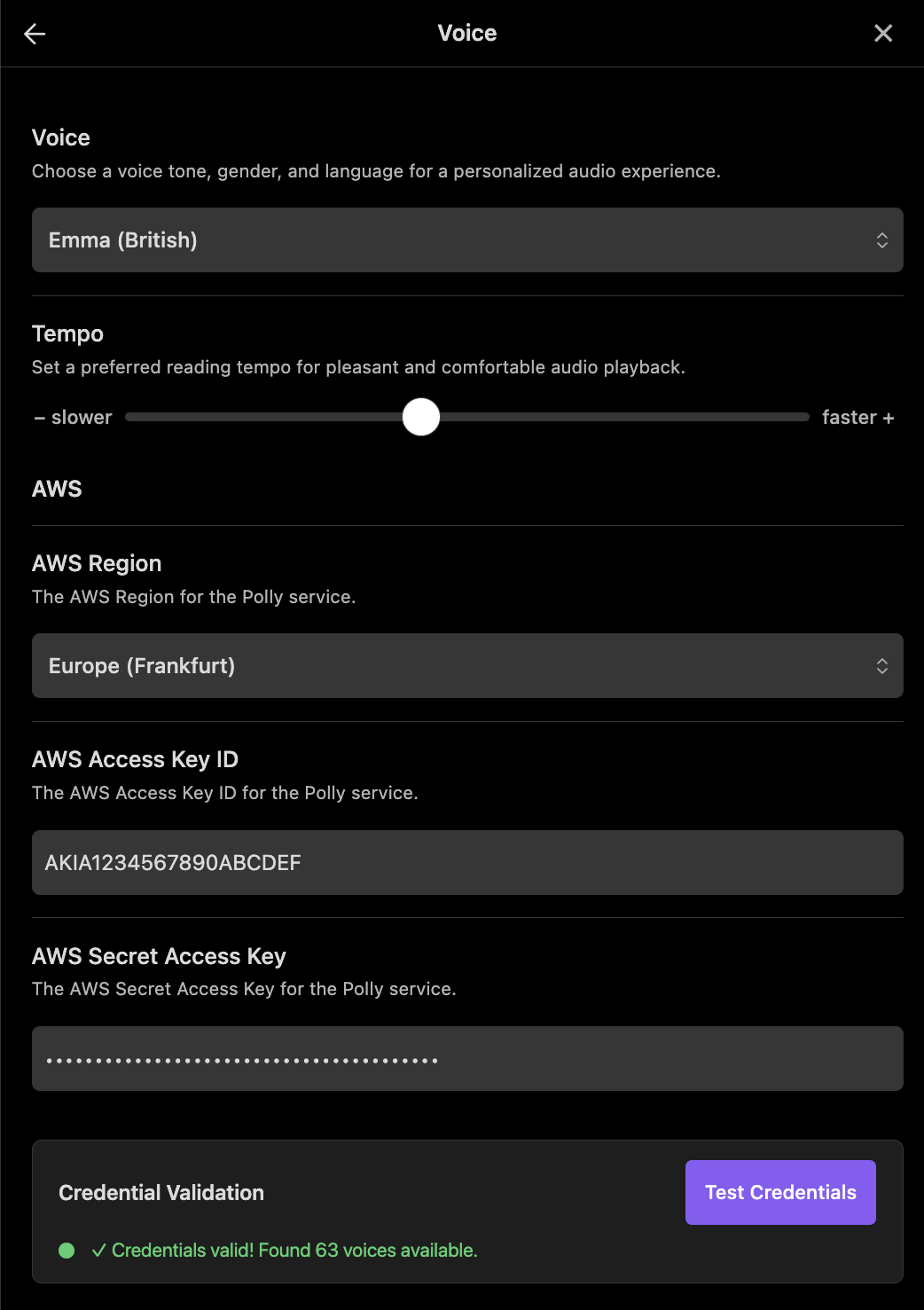
| Test Credentials | Validate your provider keys; on success it reports how many voices are available. |
Keyboard Shortcuts
Voice ships 16 commands you can bind to any hotkey. No keys are assigned by default — open Settings → Hotkeys, search for Voice, and assign whatever feels natural. (In the command palette, each command is prefixed with Voice:.)
| Command | What it does |
|---|---|
| Start reading the current document. | Begin reading the active note |
| Play or Stop reading the current document. | Toggle playback with one key |
| Pause reading the current document. | Pause playback |
| Stop reading the current document. | Stop playback and reset |
| Rewind by few seconds reading the current document. | Jump back by your rewind interval |
| Fast-Forward by few seconds reading the current document. | Jump ahead by your fast-forward interval |
| Increase the reading speed by 0.1x. | Speed up playback |
| Decrease the reading speed by 0.1x. | Slow down playback |
| Reading tempo increased by 15% for a faster pace of the current document. | Read at 1.15× |
| Reading tempo increased by 25% for a faster pace of the current document. | Read at 1.25× |
| Reading tempo reduced by 15% for a slower pace of the current document. | Read at 0.85× |
| Reading tempo reduced by 25% for a slower pace of the current document. | Read at 0.75× |
| Save the current audio as an MP3 and embed it in the note. | Download and embed the audio |
| Switch to the next speaker. | Cycle to the next voice |
| Open the player. | Open the Voice player pane |
| Show what's new. | Reopen the latest "What's New" note |
Bring Your Own Provider
Voice is built to work with the provider you already use. For a long time it was AWS Polly only — the goal now is to support all the common text-to-speech engines, so you can bring your own. Pick AWS Polly, ElevenLabs, OpenAI, Google Cloud, or Azure Speech from the Speech Provider dropdown in settings. Each provider keeps its own credentials and voice list; everything else — tempo, rewind/fast-forward intervals, downloads, auto-save, and the content toggles — works identically. After entering your credentials, press Test Credentials to confirm everything is connected.
| AWS Polly | ElevenLabs | Google Cloud | Azure Speech | OpenAI | |
|---|---|---|---|---|---|
| Voices | Neural voices across many languages | Premade & multilingual voices speaking 29 languages | Neural2 & WaveNet voices across many languages | Neural voices across many languages | Built-in multilingual voices (Alloy, Nova, …) |
| Credentials | AWS region + Access Key ID & Secret | ElevenLabs API key | Google Cloud API key (Text-to-Speech API enabled) | Azure Speech key + region | OpenAI API key |
| Emphasis | Native SSML pauses & emphasis | Expressive models with natural <break> pauses |
Native SSML pauses & emphasis | Native SSML pauses & emphasis | Natural prosody (no SSML) |
| Models | Neural engine | Multilingual v2 / Flash v2.5 / Turbo v2.5 | Neural2 / WaveNet | Neural | GPT-4o mini TTS / TTS-1 / TTS-1 HD |
Getting Started
- Install the Voice plugin inside Obsidian (Community Plugins → Browse → Voice) and toggle it on.
- Open Settings → Voice and pick your Speech Provider.
- Enter that provider's credentials (see Connecting a Provider) and press Test Credentials.
- Open any note and press the Voice ribbon icon — or open the player — to start listening.
- Not working? See Troubleshooting & Help.
Connecting a Provider
Start with the provider you already have — you can switch anytime.
AWS Polly — In Settings → Voice, choose AWS Polly, select your region, paste your Access Key ID and Secret Access Key, and press Test Credentials. For a step-by-step guide to creating a dedicated AWS key, see Advanced: AWS Polly Setup.
ElevenLabs — Sign in at elevenlabs.io, open Settings → API Keys, and create a key. In Settings → Voice, choose ElevenLabs, pick a model and voice, paste the key, and press Test Credentials.
Google Cloud — In the Google Cloud console, enable the Cloud Text-to-Speech API and create an API key. In Settings → Voice, choose Google Cloud, pick a voice, paste the key, and press Test Credentials. (Don't add an HTTP-referrer restriction — see the provider notes.)
Azure Speech — In the Azure portal, create a Speech resource and copy a Key and Region. In Settings → Voice, choose Azure Speech, select the matching region, pick a voice, paste the key, and press Test Credentials.
OpenAI — Create an API key at platform.openai.com/api-keys. In Settings → Voice, choose OpenAI, pick a model and voice, paste the key, and press Test Credentials.
Troubleshooting & Help
Run into an error, see a red control bar, or need the advanced provider setup (like creating a dedicated AWS user or picking the best region)? Everything is collected in the Troubleshooting & Advanced Setup guide.