
README file from
GithubXMind Linker


View XMind files in Obsidian and connect to XMind software for editing.
📸 Screenshots
XMind File Viewing in Obsidian
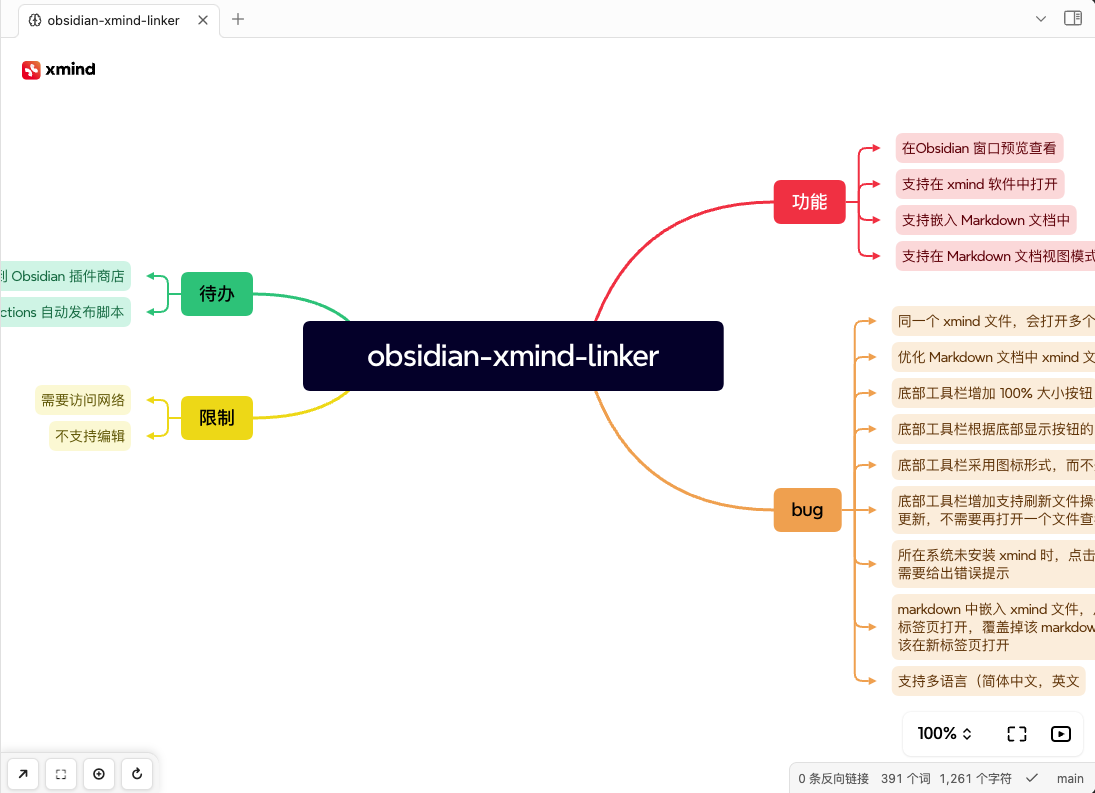 View XMind mind maps directly in Obsidian with full interactive features
Embedded XMind Files in Markdown
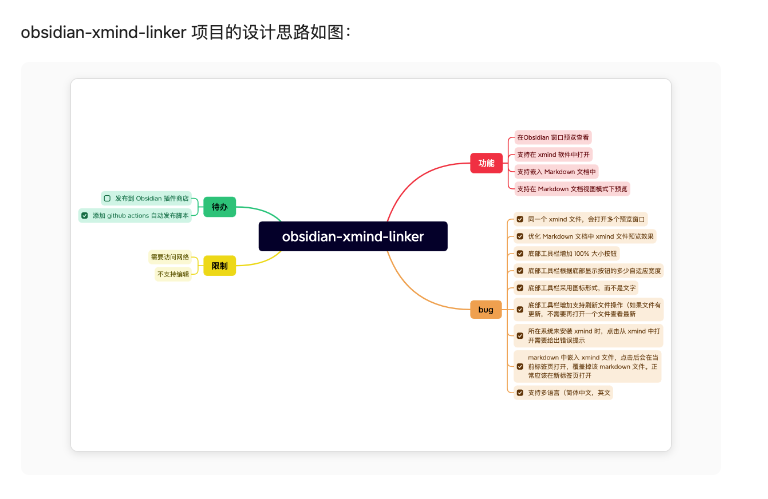 Seamlessly embed XMind files in your notes using simple markdown syntax
🌟 Core Features
- 📖 File Viewing: View XMind mind maps directly in Obsidian
- 🔗 Software Connection: One-click connection to XMind software for editing
- 📄 Note Embedding: Embed XMind files in Markdown using
![[file.xmind]]syntax - ⚡ Seamless Workflow: Smooth workflow between viewing and editing
- 🖼️ Thumbnail Preview: Auto-extract thumbnails for quick preview
- 🌐 Multi-Language: Support for English and Simplified Chinese interface
📦 Installation
Method 1: Community Plugin Store
- Open Obsidian Settings
- Go to Community Plugins → Browse
- Search for "XMind Linker"
- Install and enable the plugin
Method 2: Manual Installation
- Download the latest release files
- Extract to Obsidian plugins directory:
{vault}/.obsidian/plugins/xmind-linker/ - Enable the plugin in Obsidian settings
Method 3: Development Build
- Clone the repository to plugins directory
- Install dependencies and build
# Clone repository
git clone https://github.com/leafney/obsidian-xmind-linker.git

# Enter directory
cd obsidian-xmind-linker

# Install dependencies (using Bun)
bun install

# Build plugin
bun run build
🚀 Usage
1. Direct XMind File Viewing
- Double-click
.xmindfiles in Obsidian file explorer
2. Embedding in Markdown
# My Mind Map

Here's an embedded XMind file:

![[my-mindmap.xmind]]

Click to preview or hover for action options.
3. Thumbnail Preview
When thumbnail extraction is enabled, the plugin automatically extracts thumbnails from XMind files for direct use in Markdown:
![[my-mindmap.xmind]]
3. Connect to XMind for Editing
- Hover over embedded files for quick actions
- Click "Open in XMind" to launch external editor
- Return to Obsidian to view after editing in XMind
⚙️ Settings
Configure in Obsidian Settings → Plugin Options → XMind Linker:
- Language: Choose interface language (English/简体中文) with automatic detection
- System Integration: Enable connection to XMind software
- Hover Actions: Display action menu on hover
- Thumbnail Cache: Auto-extract thumbnails for faster preview
🛠️ Technical Implementation
Core Technology
- XMind file parsing: Native support for
.xmindformat (ZIP-based) - System integration: Cross-platform XMind software invocation
- Interactive preview: Full preview powered by xmind-embed-viewer
- Smart caching: Thumbnail extraction and caching mechanism
🔧 Development Guide
Requirements
- Node.js 16+
- Bun 1.0+
- Obsidian 0.15.0+
Development Workflow
# Install dependencies
bun install

# Development mode (watch file changes)
bun run dev

# Build production version
bun run build

# Run tests
bun test
Release Process
For maintainers who need to publish new versions:
-
Create and push tag (triggers automatic build):
# 推荐使用不带 v 前缀的标签格式(符合 Obsidian 官方要求) git tag 1.1.0 git push origin 1.1.0 -
Wait for GitHub Actions to complete the build and create the release
-
Update repository manifest using the provided script:
./update-version.sh 1.1.0
This process ensures that:
- The release is automatically built and published
- The repository's
manifest.jsonis updated for Obsidian Plugin Store compatibility - Users can download updates through Obsidian's plugin manager
Debugging Tips
- Enable developer tools in Obsidian:
Ctrl+Shift+I - Check console output for plugin status
- Use
console.logfor debugging
🙏 Acknowledgments
- xmind-embed-viewer - Xmind Core preview functionality
- Obsidian - Powerful knowledge management tool
- Cursor - AI-powered code editor that provided powerful development support for this project
- obsidian-xmind-viewer - Excellent open-source project that provided valuable design insights and technical inspiration
📞 Support
If you encounter issues or have suggestions:
- Check Issues
- Create a new Issue
- Join the discussion
📚 Documentation
- Feature Overview - Detailed feature descriptions and screenshots
- 中文文档 - Chinese documentation
- Installation Guide - Detailed installation instructions
- Usage Guide - Comprehensive usage documentation
- Deployment Guide - Development and deployment guide
📄 License
This project is licensed under the MIT License - see the LICENSE file for details.
Enjoy using XMind mind maps in Obsidian! 🎉