
README file from
GithubQuick Switcher++ for Obsidian



Find what you're looking for faster, using Quick Switcher++. An Obsidian.md plugin that extends the functionality of the builtin "Quick Switcher". What's new?
Features
- Find files by headings instead of filename
- Navigate to symbols (Canvas Nodes, Headings, Hashtags, Links, Embeddings) in your notes
- Navigate between open editors, and side panels
- Switch between configured Workspaces quickly
- Search Obsidian Bookmarks
- Run Obsidian commands
- Navigate to related files
- Open vaults
- Quick Filters to narrow down your search results
- General Settings
- Global Commands for Hotkeys/Shortcuts
Note: the core Obsidian "Quick Switcher" plugin must remain enabled. Quick Switcher++ extends the core switcher and shares the same configuration settings.
Demo
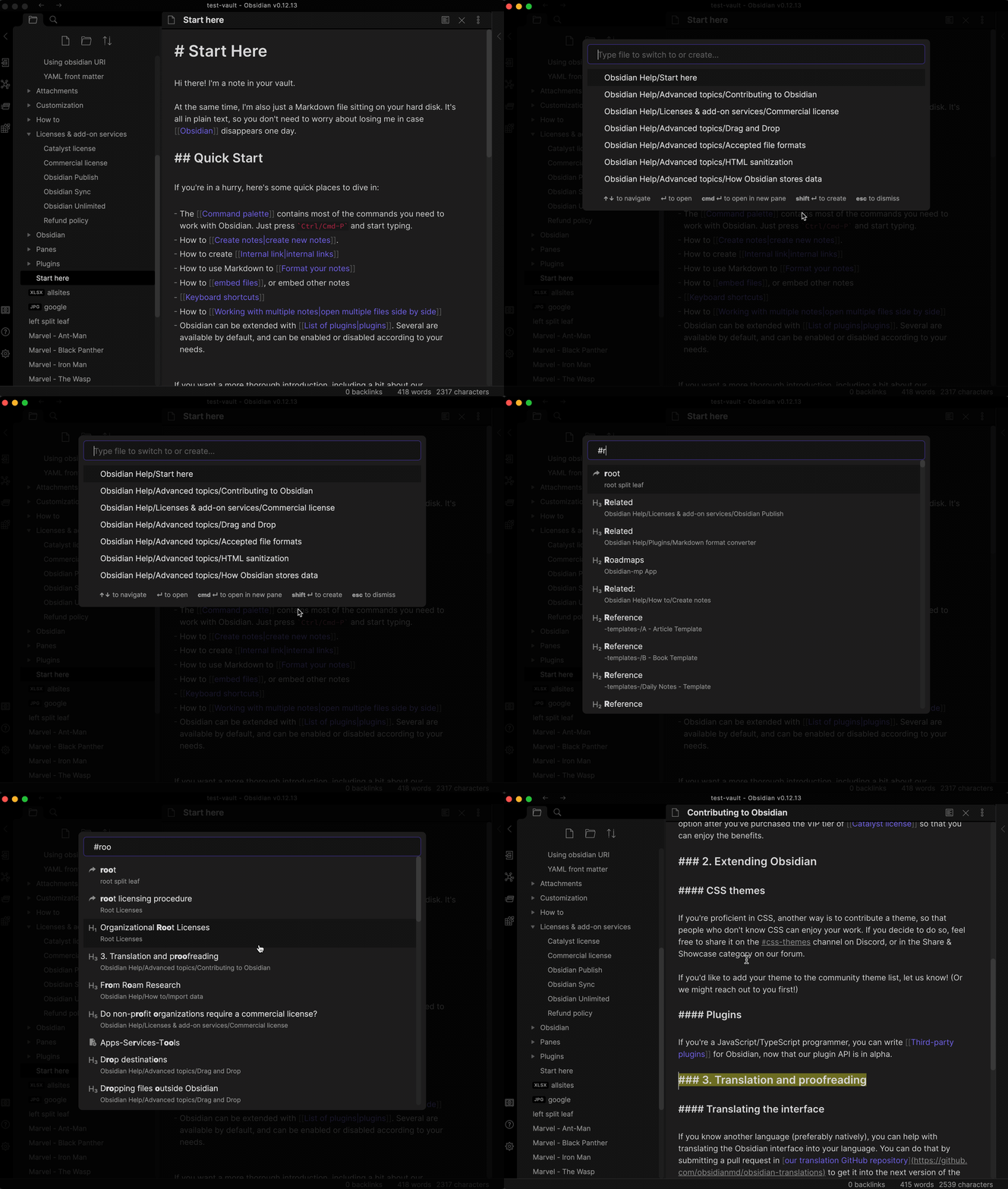
Search Headings:
Launch Switcher++ using a shortcut, trigger Headings mode using the default # command, then enter the search text. Notice, different heading level matches are returned, along with Alias, Unresolved and regular filename matches.
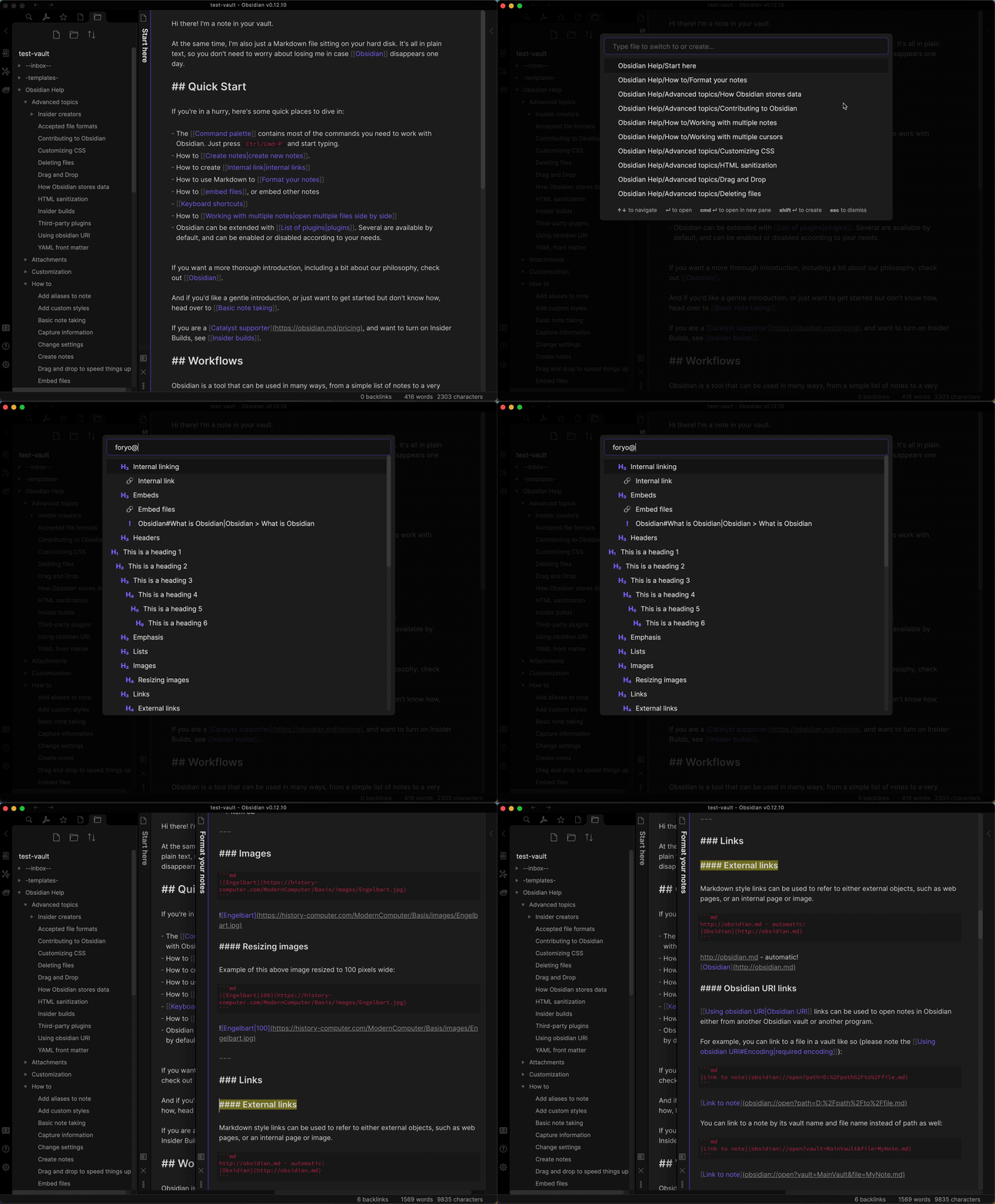
Symbol Navigation:
Launch Switcher++ using a shortcut, filter all files to find the Format your notes file, then trigger the symbol command (default @) to open the file directly to the External links section.
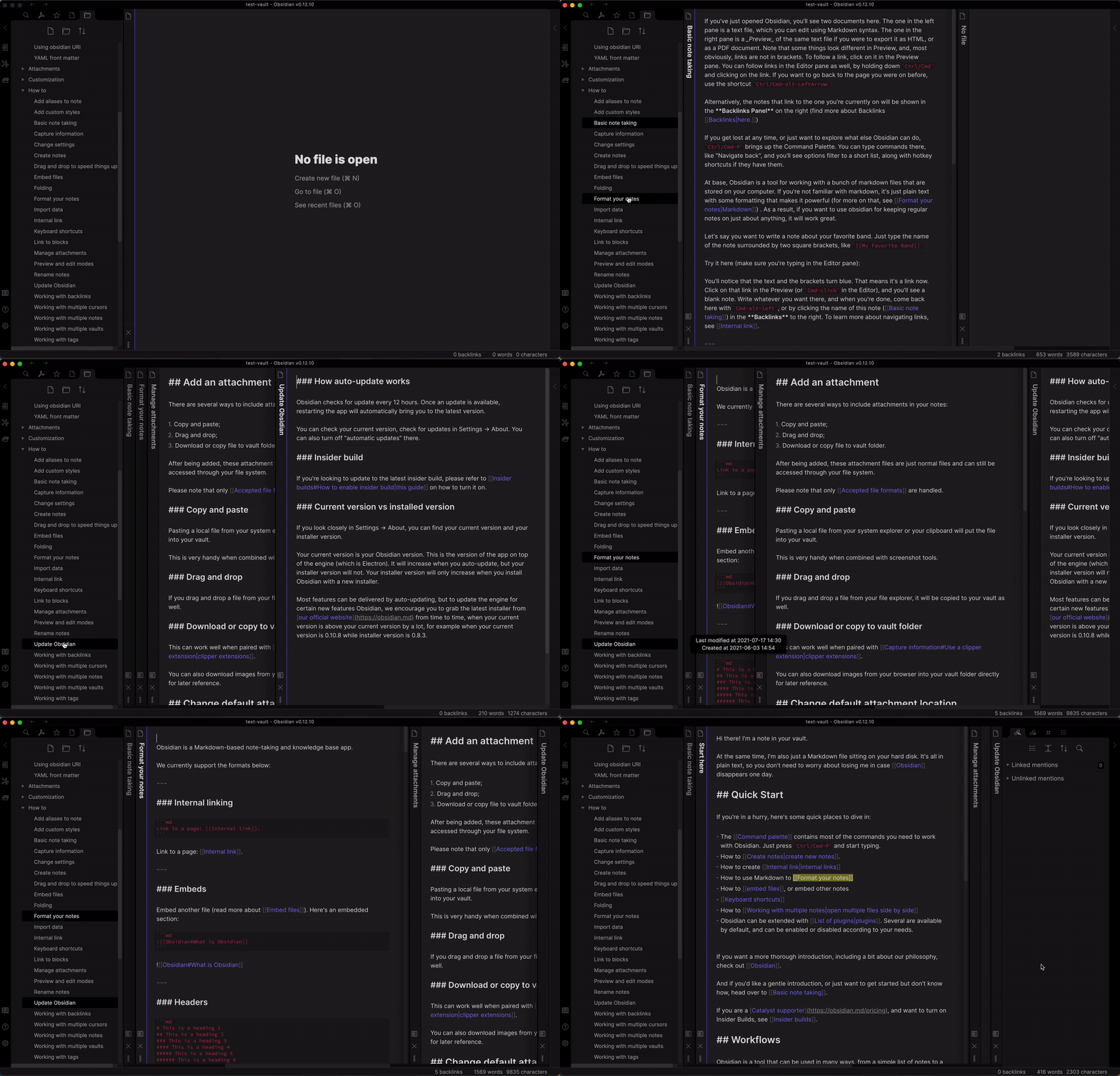
Editor Navigation:
Launch Switcher++ directly into editor mode using a shortcut, filter the currently open editors to find the Format your notes editor and make it active. Then use Switcher++ again to open the backlinks side panel.
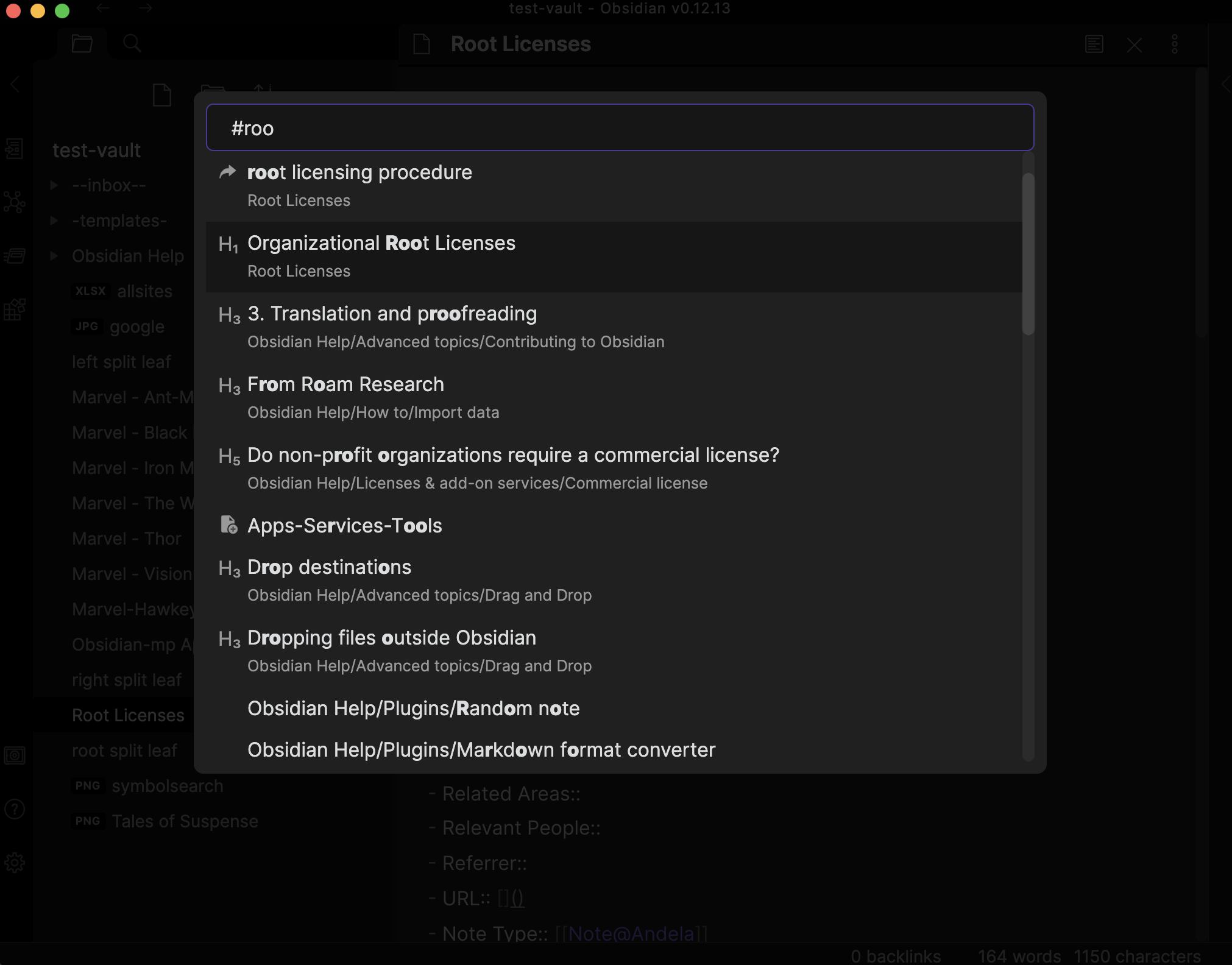
Search headings instead of filename
Find the file you're looking for by searching through the headings contained in the file, instead of only searching the filename. This mode can be configured to search a) strictly through only the first H1 header, fallback to filename search if there's no match with the H1, b) through all headers, and c) respect the builtin Quick Switcher settings Show existing only, Show attachments, and Show all file types. By default, this mode will display the first top 50 results.
Search headings configuration
| Setting | Description | Default |
|---|---|---|
| Headings list mode trigger | Character that will trigger headings list mode in the switcher. | # |
| Search Headings | Enabled: search and show suggestions for Headings Disabled: Don't search through Headings | enabled |
| Turn off filename fallback | Enabled: strictly search through only the headings contained in the file. Do not fallback to searching the filename when an H1 match is not found. Disabled: fallback to searching against the filename when there is not a match in the first H1 contained in the file. | disabled |
| Search all headings | Enabled: search through all headings contained in the file. Disabled: only search through the first H1 in each file. | enabled |
| Search Filenames | Enabled: search and show suggestions for filenames Disabled: Don't search through filenames (except for fallback searches) | disabled |
| Search Bookmarks | Enabled: search and show suggestions for Bookmarks Disabled: Don't search through Bookmarks | enabled |
| Max recent files to show | The maximum number of recent files to show when there is no search term. Set this to 0 to hide recent file suggestions in that case |
25 |
| Exclude folders | List of folder path regex that will be used to exclude folders and their sub-directories from suggestion search. One per line. | None |
| Hide Obsidian "Excluded files" | Enabled, suggestions for files that are in Obsidian's "Options > Files & Links > Excluded files" list will not be displayed. Disabled, suggestions for those files will be displayed but downranked. | disabled |
| File extension override | Override the "Show attachments" and the "Show all file types" builtin, system Switcher settings and always search files with the listed extensions. | canvas |
Symbol Navigation (Canvas Nodes, Headings, Hashtags, Links, Embeddings)
View, filter, and navigate to any symbol (Canvas Nodes, Headings, Hashtags, Links, Embedding, Callouts) in a file directly from the Quick Switcher, whether the file is currently open in an editor or not. This feature can be triggered in two ways a) for the active file in the currently active editor pane, b) for the currently selected (highlighted) suggestion in the switcher itself.
For active file in the active editor pane
The Quick Switcher++: Open Symbols for the active editor command will always trigger Symbol mode for the current active file in the active editor pane (the file actively being edited). Meaning, when this command is triggered (either via a hotkey, command palette, or trigger character), the list of symbol suggestions will always be symbols from the active file in the active editor pane when the command was triggered.
Embedded Symbol mode: For any other file in the vault, open or not
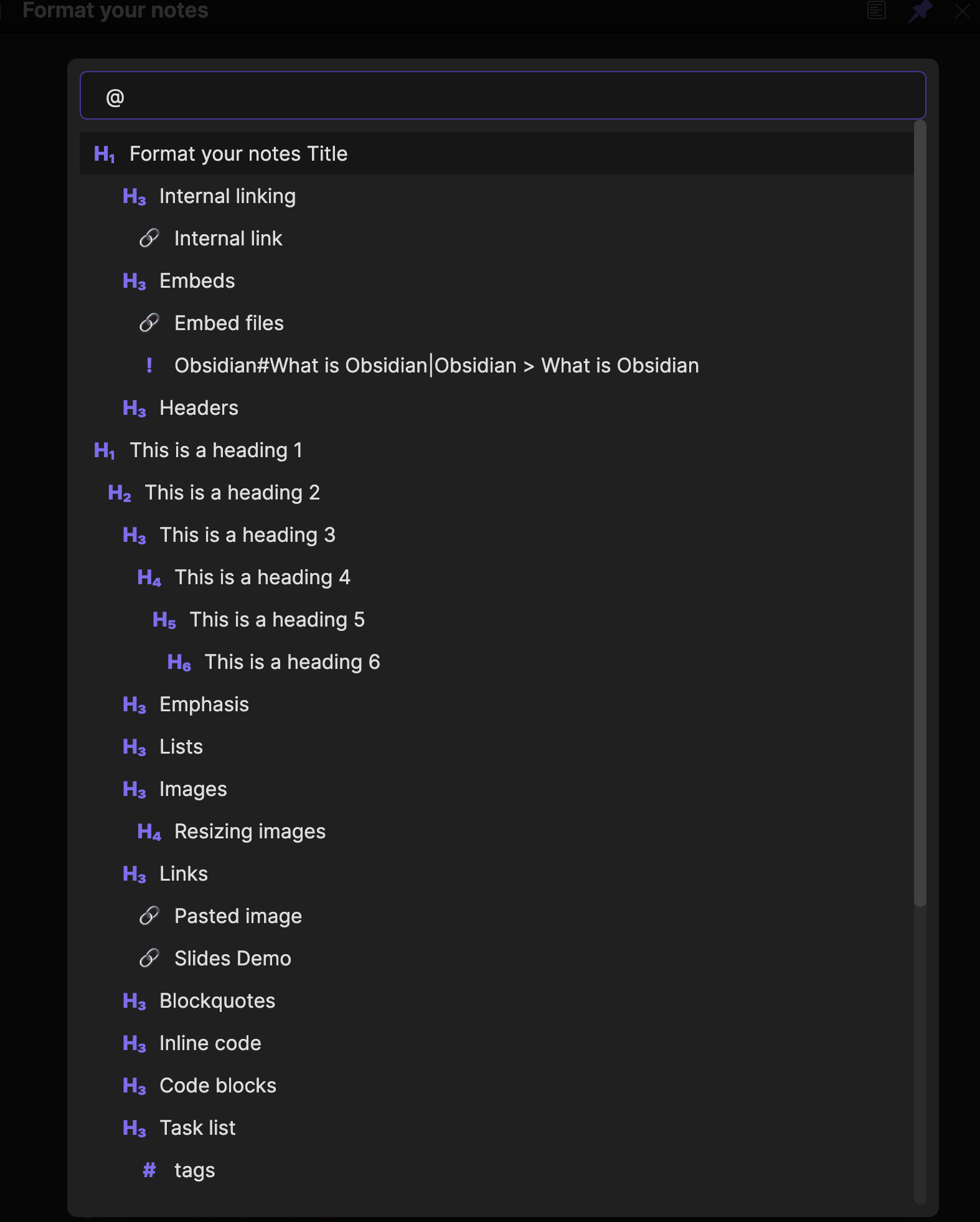
The Symbol mode trigger character (default @) will trigger Symbol mode for the currently highlighted suggestion in the switcher. Meaning, when you open up the switcher and it's displaying a list of your recent files (or a list of file search results), the source file for whichever suggestion is highlighted when you type @ is the file whose symbols will be displayed. The resulting list of symbol suggestions will be from the file suggestion that was highlighted when the @ was typed. You can use the navigation keys to select (highlight) which file will be used as the source file before typing @.
For example: symbols can be viewed by opening Quick Switcher++, typing some characters to filter and/or using the arrow keys to select (highlight) the file of interest. Then, once the file of interest is selected/highlighted, type the trigger character (default @) to view the symbols for the file of interest.
Symbol Navigation Configuration
| Setting | Description | Default |
|---|---|---|
| Symbol list mode trigger | Character that will trigger symbol list mode in the switcher. This triggers a display of Symbols for the source file of the currently selected (highlighted) suggestion in the switcher. If there is not a suggestion, display results for the active editor. | @ |
| Symbol list mode trigger - Active editor only | Character that will trigger symbol list mode in the switcher. This always triggers a display of Symbols for the active editor only. Note this trigger should be different from Symbol list mode trigger |
$ (note the trailing space) |
| List symbols as indented outline | Enabled: symbols will be displayed in the (line) order they appear in the source text, indented under any preceding heading.Disabled: symbols will be grouped by type: Headings, Tags, Links, Embeds. | enabled |
| Open Symbols in new pane | Enabled: always open a new pane when navigating to Symbols.Disabled: navigate in an already open pane (if one exists). | disabled |
| Open Symbols in active pane on mobile devices | Enabled: navigate to the target file and symbol in the active editor pane, in other words, don't create a new editor pane.Disabled: open a new pane when navigating to Symbols, even on mobile devices. | disabled |
| Auto-select nearest heading | Enabled: in an unfiltered symbol list, select the closest preceding Heading to the current cursor position. Disabled: the first symbol in the list is selected. | enabled |
| Show Headings | Enabled: display Headings in the symbol list.Disabled: don't show Headings in the symbol list | enabled |
| Show Tags | Enabled: display Tags in the symbol list.Disabled: don't show Tags in the symbol list | enabled |
| Show Embeds | Enabled: display Embeds in the symbol list.Disabled: don't show Embeds in the symbol list | enabled |
| Show Links | Enabled: display Links in the symbol list. When enabled, the following settings become visible to further refine which types of links are displayed, Links to headings, Links to blocks.Disabled: don't show Links in the symbol list |
enabled |
| Links to headings | Enabled: display links that point to a header, e.g [[file#header]]. This setting is only visible when Show Links is enabled.Disabled: don't show Links to headers |
enabled |
| Links to blocks | Enabled: display links that point to a block, e.g [[file#^blockid]]. This setting is only visible when Show Links is enabled.Disabled: don't show Links to blocks |
enabled |
Navigate between open editors
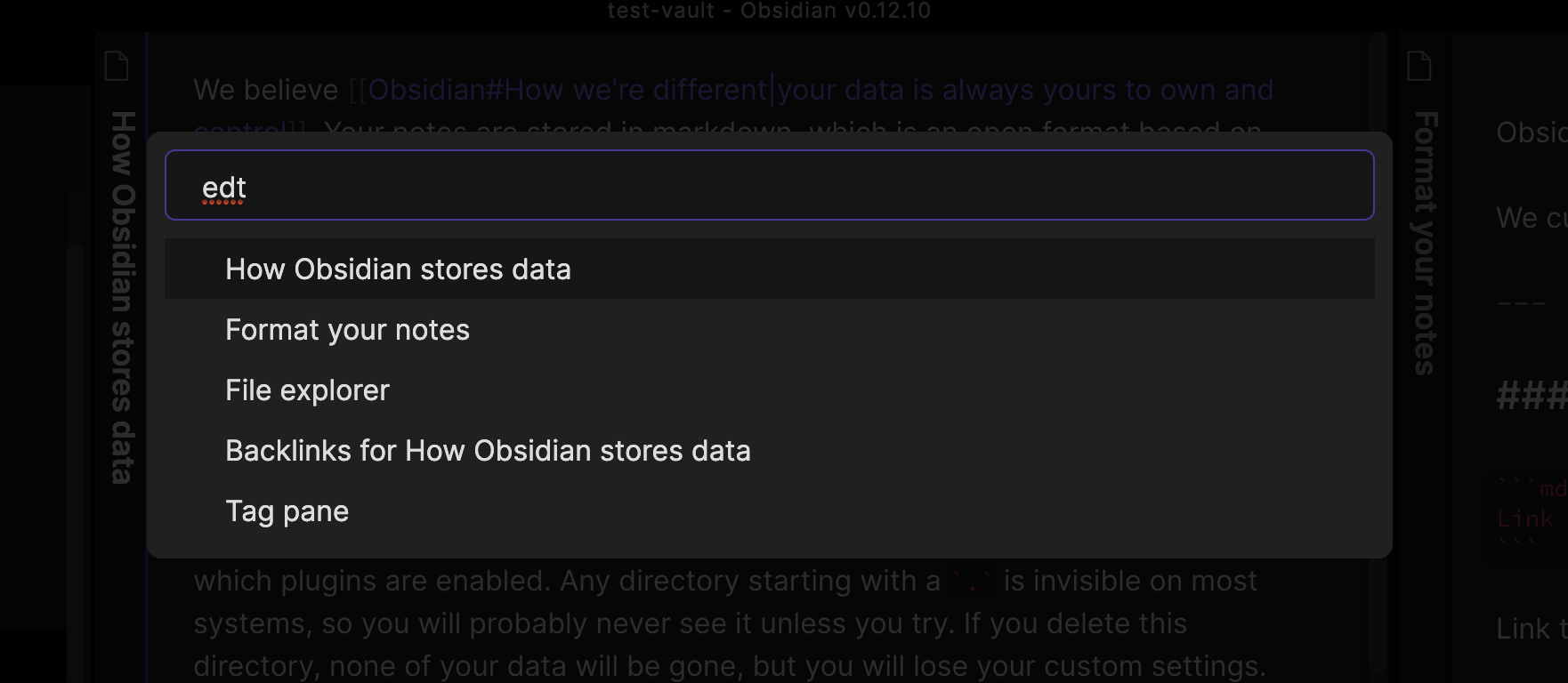
View, and filter all of the currently open editors, and navigate to any of them from Quick Switcher++ by using the default edt command. Note: Symbol search works in this mode as well, so you can use both modes together e.g. edt @. The default builtin Quick Switcher behavior is used when no commands are present.
Editors/views from the side panels can be configured to be displayed in the list as well. For example, you could use this to navigate to the backlinks, file explorer, tag pane, etc.. system views/panes directly from the Quick Switcher.
Editor Navigation Configuration
| Setting | Description | Default |
|---|---|---|
| Editor list mode trigger | Character that will trigger editor list mode in the switcher. | edt |
| Include side panel views | Show the specified view types from the side panels in the switcher. Add one view type per line. Leave empty to never display side panel editors in the switcher. | backlinkimagemarkdownpdf |
| Order default editor list by most recently accessed | Enabled: When there is no search term, order the list of open editors by most recent access time. | enabled |
Switch Workspaces
View, filter, and switch between configured Workspaces quickly using the default + command.
Note: the built-in system Workspaces plugin must be enabled for this mode to work.
Workspace configuration
| Setting | Description | Default |
|---|---|---|
| Workspace list mode trigger | Character that will trigger workspace list mode in the switcher. | + |
Search Obsidian Bookmarks
View, filter, and switch between Obsidian Bookmarks quickly using the default ' command.
Note: the built-in system Bookmarks plugin must be enabled for this mode to work.
Bookmarks configuration
| Setting | Description | Default |
|---|---|---|
| Bookmarks list mode trigger | Character that will trigger Bookmarks list mode in the switcher. | ' |
Run Commands
View, search, and run Obsidian commands quickly using the default > command. When there is no search text, the suggestion list will display the list of pinned commands, followed by a list of commands that were recently executed. When there are no pinned commands and no recently executed commands, then all commands are displayed initially. When there is search text, the suggestion list will only display commands that matched the search text.
Note: the core Obsidian "Command Palette" plugin must remain enabled. The core plugin provides the capabilities to manage Pinned Commands.
Command configuration
| Setting | Description | Default |
|---|---|---|
| Command list mode trigger | Character that will trigger command list mode in the switcher. | > |
| Max recent commands | The maximum number of commands to save in the recent list. | 25 |
| Recent commands display order | Select the sort order for recently used commands. | desc |
Related Items
View, filter, and navigate to files that are "related" to the selected input file directly from the Quick Switcher, whether the file is currently open in an editor or not. The supported relation types are: Outgoing links, Backlinks, and File system location. This feature can be triggered in two ways a) for the active file in the currently active editor pane, b) for the currently selected (highlighted) suggestion in the switcher itself.
For active file in the active editor pane:
The Quick Switcher++: Open Related Items for the active editor command will always trigger Related Items mode for the current active file in the active editor pane (the file actively being edited). Meaning, when this command is triggered (either via a hotkey, command palette, or trigger character), the list of related item suggestions will always be related to the active file in the active editor pane when the command was triggered.
For any other file in the vault, open or not:
The Related Items mode trigger character (default ~) will trigger Related Items mode for the currently highlighted suggestion in the switcher. Meaning, when you open up the switcher and it's displaying a list of your recent files (or a list of file search results), the source file for whichever suggestion is highlighted when you type ~ is the file whose relations will be displayed. The resulting list of related item suggestions will be for the file suggestion that was highlighted when the ~ was typed. You can use the navigation keys to select (highlight) which file will be used as the source file before typing ~.
For example: related items can be viewed by opening Quick Switcher++, typing some characters to filter and/or using the arrow keys to select (highlight) the file of interest. Then, once the file of interest is selected/highlighted, type the trigger character (default ~) to view the related items for the file of interest.
Backlinks relation (backlink)
When the Related Items command is triggered for a selected input suggestion/file, the entire vault is searched for all backlinks. Backlinks are files that contain an outgoing link pointing to the input file. These will be displayed in the result list along with a count of the number of links to the input file they contain.
Backlinks for Unresolved Links
Unresolved Links are outgoing links that point to files that do not exist in the vault. The Related Items commands can also be triggered for Unresolved Link suggestions, and will behave the same as a regular file.
Outgoing links relation (outgoing-link)
When the Related Items command is triggered for a selected input suggestion/file, all of the internal outgoing links from the input file will displayed in the result list.
File system location relation (disk-location)
When the Related Items command is triggered for a selected input suggestion/file, all files that are located in the same directory in the File System (or otherwise specified in the settings) as the input file will be displayed in the result list.
Related Items Configuration
| Setting | Description | Default |
|---|---|---|
| Related items list mode trigger | Character that will trigger related items list mode in the switcher. This triggers a display of Related Items for the source file of the currently selected (highlighted) suggestion in the switcher. If there is not a suggestion, display results for the active editor. | ~ |
| Related Items list mode trigger - Active editor only | Character that will trigger related items list mode in the switcher. This always triggers a display of Related Items for the active editor only. Note this trigger should be different from Related items list mode trigger |
^ (note the trailing space) |
| Show related item types | Specify which relation types are enabled to be displayed in the result list. | backlinkdisk-locationoutgoing-link |
| Exclude open files | Enabled: related files which are already open in an editor will not be displayed in the list.Disabled: All related files will be displayed in the list. | disabled |
Open Vaults
Note: this is an experimental feature.
Open existing vaults directly from the switcher using the default vault command.
Vault configuration
| Setting | Description | Default |
|---|---|---|
| Vault list mode trigger | Character that will trigger vault list mode in the switcher. | vault |
Quick Filters
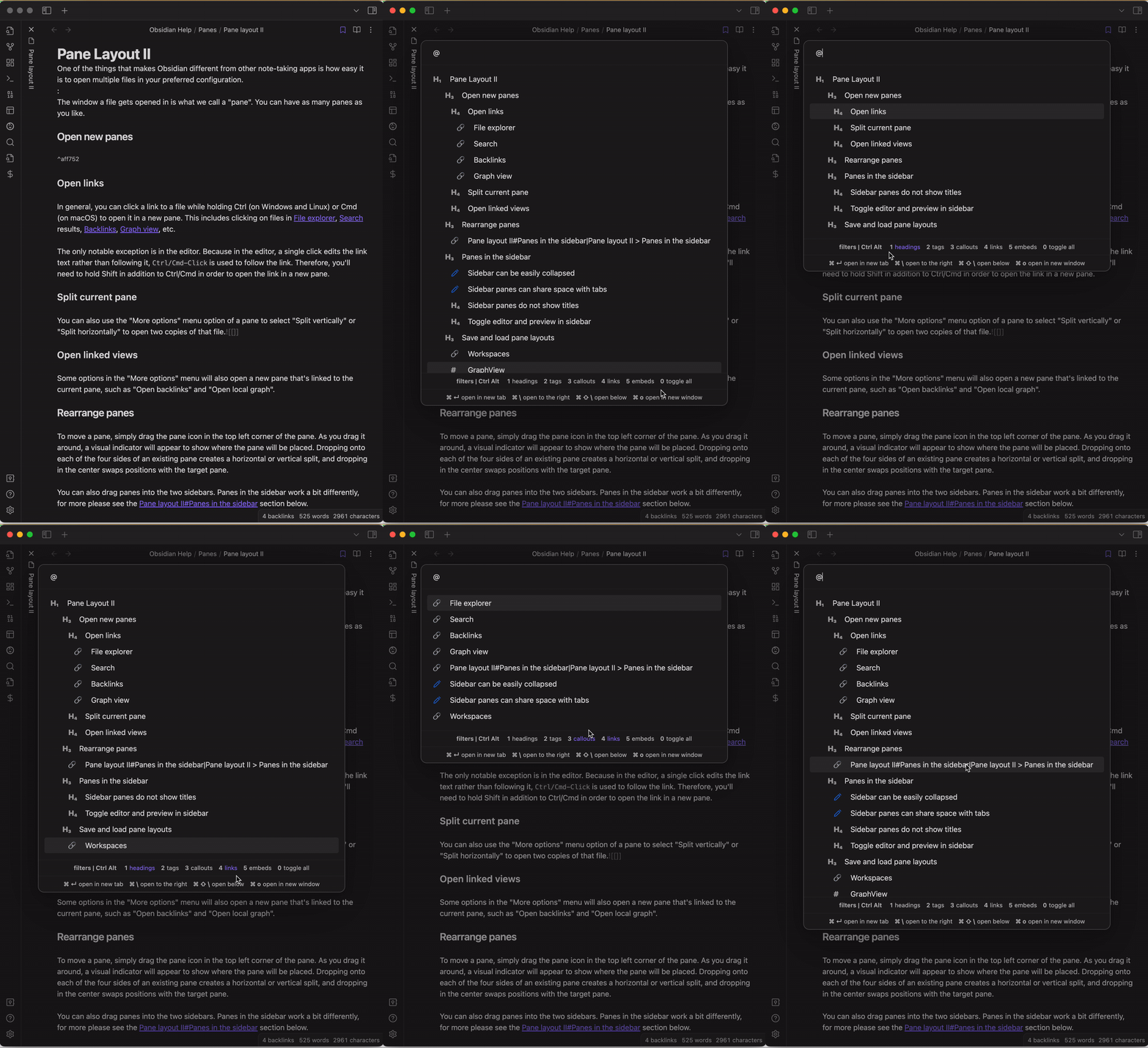
Quick Filters enable you to quickly narrow down the types of items that appear in your search results without having to change your query. Each type of results will have a hotkey assigned that can be used to toggle (show/hide) that type from the result list. When active, only results that match the Quick Filter type will be displayed, multiple Quick Filters can be active at the same time.
In the demo below, Quick Switcher++: Open Symbols for the active editor global command is triggered for the active file. Notice towards the bottom of the Switcher the hotkeys assigned to each result type. The headings Quick Filter is triggered using the Ctrl+Alt+1 hotkey, this restricts the result list to only display Heading results. Multiple Quick Filters are activated using their corresponding hotkeys, and all Quick Filters can be quickly toggle off using Ctrl+Alt+0.
General Settings
| Setting | Description | Default |
|---|---|---|
| Show ribbon icons | List of modes that should be accessible from the ribbon menu. | HeadingsListSymbolList |
| Override default Switcher launch button (the "🔍" button) on mobile platforms | Override the "🔍" button (in the Navigation Bar) on mobile platforms to launch Switcher++ instead of the default system switcher. Select the Mode to launch Switcher++ in, or select "Do not override" to disable the feature. | Do not override |
| Preferred suggestion title source | The preferred source to use for the primary suggestion text that will be searched and displayed for file based suggestions. | First H₁ heading |
| Preferred file path display format | The preferred way to display file paths in suggestions. Note: by default, path information will not be displayed for files at the root of the vault. | Parent folder & filename |
| Hide path for root items | Enabled: path information will be hidden for items at the root of the vault. | enabled |
| Mode trigger escape character | A character that can be used as a prefix to force a mode trigger character to be treated just as normal text. | ! |
| Default to open in new pane | Enabled: navigating to un-opened files will open a new editor pane whenever possible (as if cmd/ctrl were held). When the file is already open, the existing pane will be activated. This overrides all other pane settings. | enabled |
| Override Standard mode file open behavior | Enabled: Switcher++ will change the default Obsidian builtin Switcher functionality (Standard mode) to inject custom file open (tab navigation) behavior.Disabled: No changes are made to the default Obsidian builtin functionality (Standard Mode). | enabled |
| Override Standard mode rendering | Enabled: Switcher++ will change the default Obsidian builtin Switcher functionality (Standard mode) to render suggestions as multi-line. Including display of additional indicator information, and special path display handling.Disabled: No changes are made to the default Obsidian builtin functionality (Standard Mode). | enabled |
| Show indicator icons | Enabled: Display icons to indicate an item's file extension (when applicable), is recent, bookmarks status, etc... | enabled |
| Result priority adjustments | Enabled: Artificially increase the match score of the specified item types by a fixed percentage so they appear higher in the results list (does not apply to Standard Mode). See the default list of priority types that can be prioritized. Note that the adjustments are independent of each other, e.g. if adjustments are specified for both Bookmarked items and Open items a result for a file that is open and bookmarked will receive both adjustments.Disabled result match scores are not adjusted. |
disabled |
| Use filename as alias | Enabled: The file basename will be set as the link alias.Disabled: An alias will not be set | enabled |
| Use heading as alias | Enabled: The file heading will be set as the link alias. This overrides the "use filename as alias" setting.Disabled: fall back to the "use filename as alias" setting. | enabled |
| Restore previous input in Command Mode | Enabled: restore previous command mode input when launched via global command hotkey | disabled |
| Restore previous input | Enabled: restore previous switcher input when launched via global command hotkey | disabled |
| Display mode trigger instructions | Enabled: the trigger key for each mode will be displayed in the instructions section of the Switcher. | enabled |
| Display Symbol content as Live Preview | Enabled: Markdown content in symbol suggestions (Headings, Links, Tags, and Callouts) will be rendered as HTML similar to the Obsidian "Live Preview" display. When enabled, individual symbol types can be toggled on/off via their respective settings. Note that when HTML rendering is enabled, search matches in the rendered content will not be highlighted. The toggle preview (selected item) hotkey can be used to toggle the display for individual results.Disabled: All symbol content will be rendered as raw text and search matches will be highlighted. |
disabled |
| Enable quick open hotkeys for top results | Enabled: hotkeys will be defined for each of the top N results displayed in the Switcher. These hotkeys can be used to quickly open the associated suggestion directly.Disabled: hotkeys are not defined. | enabled |
Global Commands for Hotkeys
The following Global Commands are registered by the plugin, which can be used for global hotkeys/shortcuts.
Quick Switcher++: Open in Standard ModeQuick Switcher++: Open in Editor ModeQuick Switcher++: Open Symbols for selected suggestion or editorQuick Switcher++: Open Symbols for the active editorQuick Switcher++: Open in Workspaces ModeQuick Switcher++: Open in Headings ModeQuick Switcher++: Open in Bookmarks ModeQuick Switcher++: Open in Commands ModeQuick Switcher++: Open in Vaults ModeQuick Switcher++: Open Related Items for selected suggestion or editorQuick Switcher++: Open Related Items for the active editor
Installation
From Obsidian
From Obsidian v0.9.10, this plugin can be activated from within Obsidian:
- Open Settings > Third-party plugin
- Make sure Safe mode is off
- Click Browse community plugins
- Search for "Quick Switcher++"
- Click the "Install" button
- Once installed, close the community plugins window
- Under the "Installed plugins" section, enable Quick Switcher++
From Github
- Download the Latest release distribution
- Extract the the contents of the distribution zip file to your vault's plugins folder:
<vault>/.obsidian/plugins/Note: On MacOs the.obsidianfolder may be hidden by default. - Reload Obsidian
- Open Settings, third-party plugins, make sure safe mode is off and enable "Quick Switcher++" from there.
Contributing
Contributions via bug fixes, documentation, and general improvements are always welcome. For more major feature work, please create a Discussion about the feature idea, or reach out to me so we can judge feasibility and how best to implement it.
A primary design goal for Switcher++ is to be a "drop in" replacement for the built-in system Switcher. Such that, a user can simply replace the built-in system Switcher with Switcher++ and have all the built-in functionality continue to work as expected.
Getting started
- Clone the repository
cdinto the repository directory- Run
npm install - Run
npm run devthis will monitor for any source file changes and run unit tests, linter, and build the plugin whenever a change is detected. - Happy coding! 😀
Change Log
- See the releases page for changes in each release.
Notes
- This plugin very much experimental at the moment, use it at your own risk. It's only been tested on MacOS, other platforms may have issues.
Giving Thanks 🙏
If this project has been useful to you, give thanks to support its continued development and maintenance. Any contribution towards a cup of ☕ or 🍺 is greatly appreciated. Thank you!

