
README file from
GithubObsidian Mermaid Icons Plugin
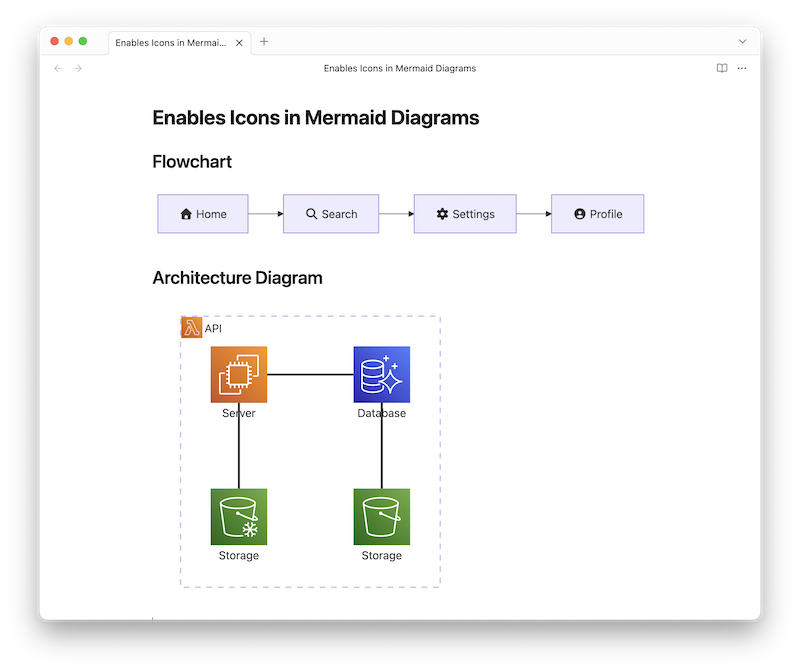
This plugin for Obsidian allows you to easily use a wide variety of icons within your Mermaid diagrams.
It not only ensures that the default Font Awesome icons render correctly but also extends functionality to include other icons.
Features
- Font Awesome Support: Correctly displays Font Awesome icons in mermaid diagrams, which are defaultly supported by Mermaid but not to be rendered properly in Obsidian.
- Expanded Icon Sets: Adds support for additional icons pre-bundled with the plugin, including popular icons, logos, Lucide icons, and Clarity icons. (If you want to add more icon sets, please submit a Pull Request!)
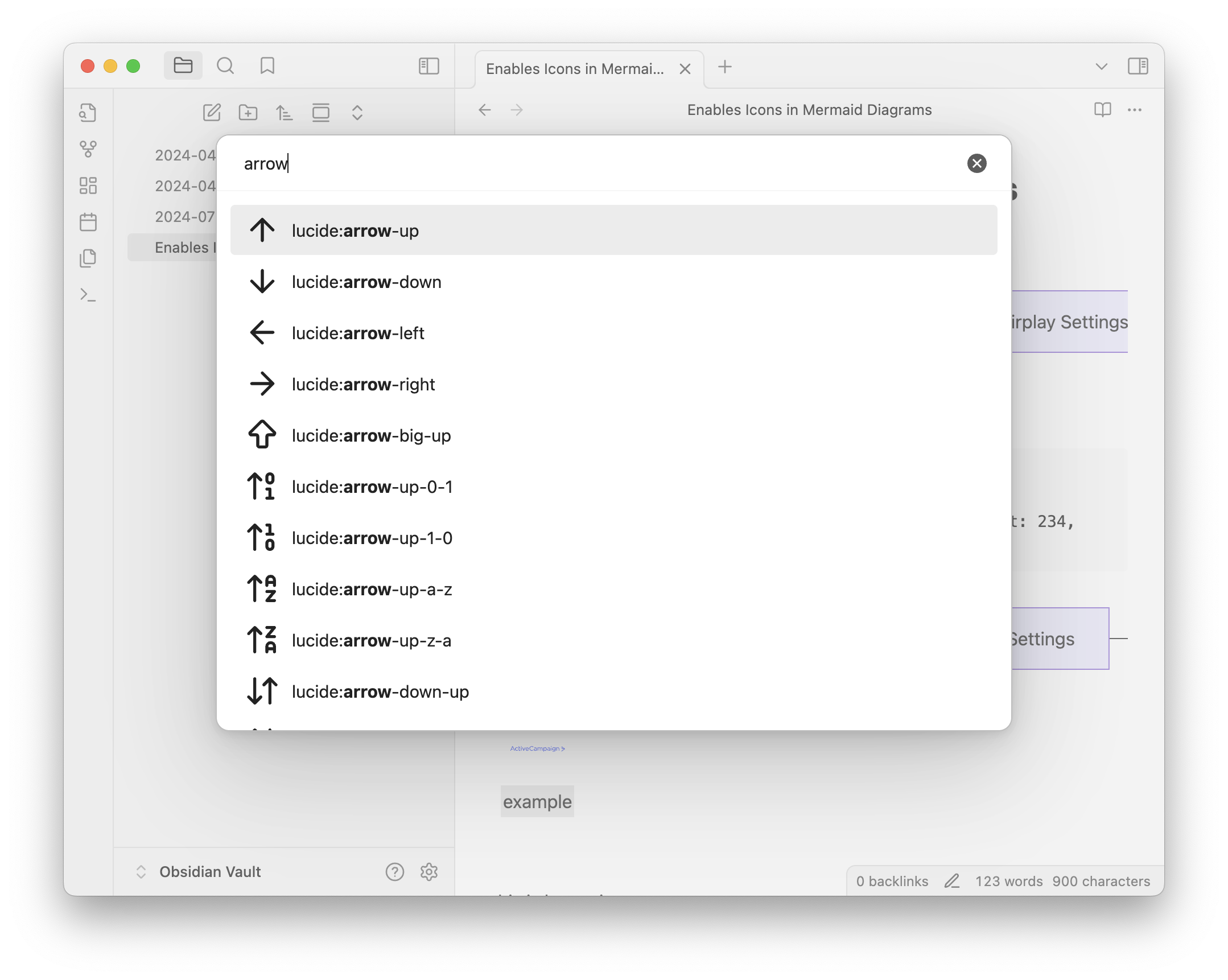
- Icon Insertion Helper: Easily search and insert icons using a fuzzy search modal, accessible via the command palette or a custom hotkey.
- Icon Browser: Browse and filter all supported icons directly from the plugin settings.
How to Use
To include an icon in your Mermaid diagram, use the following syntax:
fa[bklrs]?:[icon-name]for Font Awesome icons.[prefix]:[icon-name]for other custom icons.- Supported prefixes:
logos,lucide,clarity.
- Supported prefixes:
Insert Icon Command
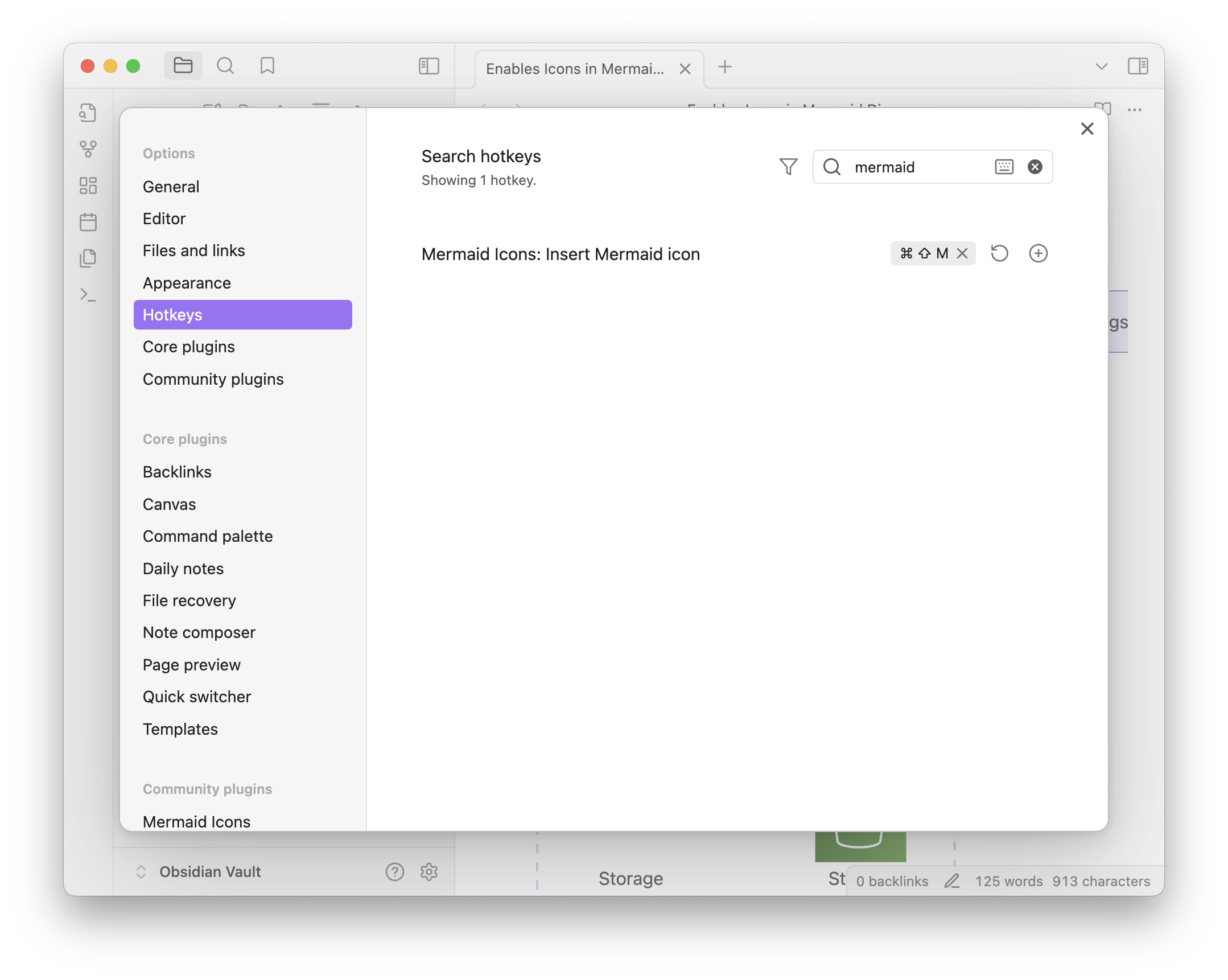
You can easily insert icons using the "Insert Mermaid Icon" command and its fuzzy search modal. By default, there is no hotkey assigned, but you can set one up in Obsidian's Hotkeys settings (e.g., Cmd+Shift+m or Ctrl+Shift+m).
Alternatively, you can open it without a hotkey:
- Open the Command Palette (
Cmd+porCtrl+p). - Type "mermaid icon" and select the "Insert Mermaid icon" command.
- Type to search for an icon.
- Select an icon to insert it into your document.
Example
Here is a simple Mermaid graph demonstrating how to use the icons:
```mermaid
graph LR
    A["fa:fa-house Home"]
    B["fa:fa-magnifying-glass Search"]
    C["fa:fa-gear Settings"]
    D["fa:fa-user-circle Profile"]

    A --> B --> C --> D
```
This will render a diagram with the corresponding Font Awesome icons.

```mermaid
architecture-beta
    group api(logos:aws-lambda)[API]

    service db(logos:aws-aurora)[Database] in api
    service disk1(logos:aws-glacier)[Storage] in api
    service disk2(logos:aws-s3)[Storage] in api
    service server(logos:aws-ec2)[Server] in api

    db:L -- R:server
    disk1:T -- B:server
    disk2:T -- B:db
```
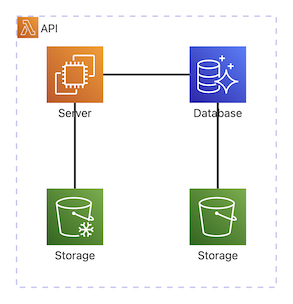
This will render a diagram with the corresponding SVG Logos Icon sets.
Settings
In the plugin settings, you can browse all supported icons under the Supported icons section.
- Use the dropdown to filter by icon set (e.g.,
logos,lucide,clarity). - Use the search bar to find specific icons by name.
Installation
From Community Plugins
- Open Settings in Obsidian.
- Go to the Community plugins tab.
- Click Browse to open the community plugin browser.
- Search for "Mermaid Icons".
- Click Install on the plugin.
- Once installed, go back to the Community plugins tab and enable "Mermaid Icons".
Manual Installation
- Download
mermaid-icons.zipfrom the latest Releases page on GitHub. - Extract the contents of the downloaded zip file.
- Move the extracted
mermaid-iconsfolder to your Obsidian vault's plugins folder:<YourVault>/.obsidian/plugins/. - Reload Obsidian.
- Go to Settings -> Community plugins, and enable "Mermaid Icons".
How It Works
This plugin enables icons in Mermaid diagrams within Obsidian by 2 ways:
-
Fixing Font Awesome Icons: When you use the
fa:fa-iconsyntax in Mermaid, it generates the corresponding HTML tag (e.g.,<i class="fa fa-icon">). However, standard Obsidian does not include the Font Awesome stylesheet or font files. This plugin simply loads the necessary assets, allowing the icons to be displayed as intended. -
Adding Custom Icons: To support additional icon sets (like brand logos), the plugin uses the Mermaid API to register new icon packs. This allows you to use them with a custom prefix (e.g.,
logos:icon-name) just like you would with the built-in Font Awesome icons.
License
This project itself is licensed under the MIT License. See the LICENSE file for details.
Acknowledgements
This plugin utilizes the following open-source icon sets. Thank you to their creators and contributors.
-
- Icons: Licensed under CC BY 4.0.
- Fonts: Licensed under SIL OFL 1.1.
- Code: Licensed under MIT License.
-
- SVG Logos (
logos): Licensed under CC0 1.0 Universal. - Lucide (
lucide): Licensed under ISC License. - Clarity (
clarity): Licensed under MIT License.
- SVG Logos (