
README file from
GithubMulti-Column Markdown
Take your boring markdown document and add some columns to it! With Multi Column Markdown rather than limiting your document layout to a single linear file you can now define blocks of data to be laid out horizontally next to each other. This additional functionality gives you the freedom to structure your notes in more creative ways.

Core Features
- Define customizable column layouts within your Obsidian documents.
- Setup your columns to look how you want, being able to define number of columns, widths, spacing, text alignment and more.
- Muliple syntax options including Pandoc compatible fenced divs.
- Setup entire documents to automatically reflow into multiple columns when viewed in Obsidian's reading mode.
Table of Contents
- Usage
- Syntax Reference
- Region Settings
- Multi-Column Reflow
- Available Commands
- Installation
- Known Issues
- Change Log
A Word On Live Preview
Live preivew has been supported in Multi-Column Markdown, however cross compatibilty with other plugins, anything that requires interaction (IE: button clicks), and more advanced, non-naitive markdown, Obsidian features may or may not be supported in this mode.
Due to how custom live preview plugins are implemented within CodeMirror6 and hook into Obsidian, I can not guarentee all plugins will render properly within live preview at this point. Plugins that do not render their content immediatly, such as needing to wait for a dataview query, do not render properly.
This plugin was originally intended for use only in Reading mode where plugins have more control over how content is rendered. Most plugins, interactive elements, advanced markdown, and visual stylings will render better and have more cross compatibility in Reading mode.
Usage:
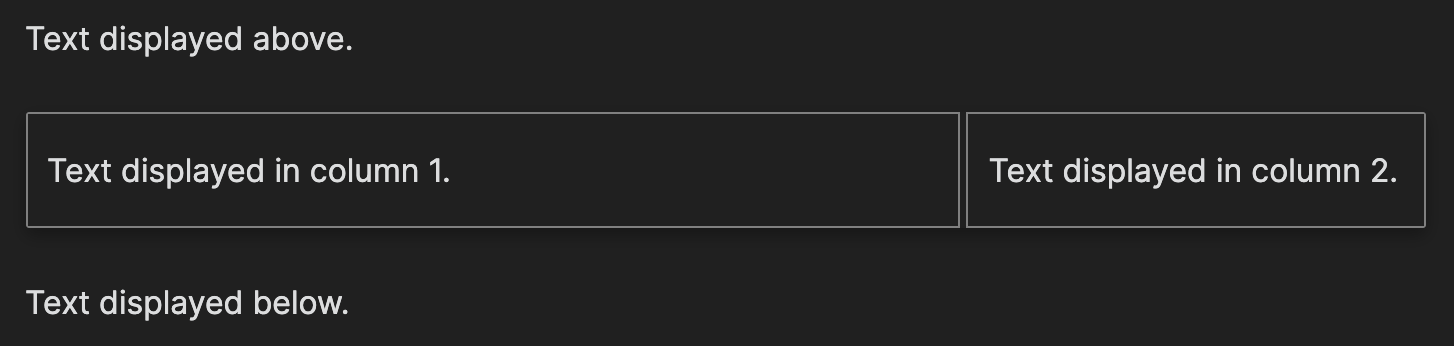
You create a multi-column region by defining the start, settings, column-end, and end tags. EG:
Text displayed above.
--- start-multi-column: ExampleRegion1
```column-settings
number of columns: 2
largest column: left
```
Text displayed in column 1.
--- end-column ---
Text displayed in column 2.
--- end-multi-column
Text displayed below.
Rendered as:
Syntax Reference
Start a Multi-Column Region:
Each multi-column region must start with either:
--- start-multi-column: A_unique_region_ID\
or
--- multi-column-start: A_unique_region_ID_1\
or
::::: {.columns id=A_unique_region_ID_2}
(See more about Pandoc's fenced divs syntax below.)
After defining the start tag you must declare an ID for the region. The ID is used to differentiate between different regions if there are multiple in the same document.
Each ID must be unique within the same document or unexpected render issues may occur. An ID may be used across multiple documents so that, for example, you can use the ID "dailynote" in the template used for your Periodic Notes.
By using the "Insert Multi-Column Region" command (more below) the start ID will be pre-set as a randomly generated 4 character string.
You can also use the "Fix Missing IDs" command which will search the currently open document and append random IDs to all regions that are missing one.
Region Settings:
```column-settings
Any Setting flags (see below)
```
```column-settings
Any Setting flags (see below)
```
::::: {.columns id=A_unique_region_ID_2 Any Additional Setting flags (see below)}
End a Column:
--- column-end ---
--- end-column ---
--- column-break ---
--- break-column ---\
::: columnbreak
:::
(New line after columnbreak required.)
End Multi-Column Region:
--- end-multi-column
--- multi-column-end\
:::
(This end region syntax is only valid when using the Pandoc fenced divs syntax to start a region.)
Pandoc Fenced Divs Support
You can also use Pandoc's fenced divs syntax to define column regions. (For more detail on this syntax see here and here.)
To create a multicolumn region use:
::: columns
<Column Content>
:::
To define multiple Pandoc regions on the same document, and to define region settings you must use the attributes syntax:
::::: {.columns property=value id=ID_ExampleID}
<Column Content>
:::::
Not providing an ID will cause regions to not render.
All other settings can be defined within the attributes using the same setting flag names defined below.
What is supported with this syntax:
- Basic fenced divs column definition: '::: columns' or '::: {.columns}'
- Specifying the number of columns with english words up to ten: '::: twocolumns', '::: {.three-columns}', etc.
- Specifying the number of columns through attributes: '::: {.columns col-count=3}'
- Specifying column gap through attributes: '::: {.columns columngap=3em}'
- Specifying column breaks through column break div: :::: columnbreak\n::::
What is not supported:
- Recusive Column Regions. Recusive regions are not supported in Core MCM so will not render the same as an exported Pandoc PDF.
- Spanning element. Elements that break up a column region to span across the view are not supported. You must manually end the region and start a new one.
- Specifying 'column rule', as there is currently no way to define this with other syntax.
- Justified or ragged column mode.
- "Fluid Columns" by default. The fluid columns default of Pandoc's syntax is equivalent to MCM's Auto Layout. However auto layout has significant perforamce overhead in Live preview and due to this Pandoc syntax will not automatically flag regions to auto layout. You can however manually flag them by adding the setting to the attributes: ::: {.three-columns fluid-columns=true} or ::: {.three-columns auto-layout=true}
Number of Columns:
- Setting Flags:
- Number of Columns:
- Num of Cols:
- Col Count:
- Valid Selections:
- Any digit.
Example:
```column-settings
Number of Columns: 2
```
Column Size:
By default all of the columns will be set to equal size if this option is omitted. Can define on a per column basis with array syntax: EG: [25%, 75%]
- Setting Flags:
- Column Size:
- Col Size:
- Column Width:
- Col Width:
- Largest Column:
- Valid Selections:
- Single Column layout:
- Small
- Medium
- Large
- Full
- For either 2 or 3 column layouts
- Standard
- Left
- First
- Right
- Second
- Only for 3 column layouts
- Center
- Third
- Middle
- Allows most CSS unit lengths (px, pt, %, etc).
- Single Column layout:
Example:
```column-settings
Column Size: standard
( OR )
Column Size: [25%, 75%]
```
Border:
By default the border is enabled but can be removed with: Can define on a per column basis with array syntax: EG: [off, on, off]
- Setting Flags:
- Border:
- Valid Selections:
- disabled
- off
- false
Example:
```column-settings
Border: disabled
( OR )
Border: [off, on]
```
Shadow:
On by default, can be removed with:
- Setting Flags:
- Shadow:
- Valid Selections:
- disabled
- off
- false
Example:
```column-settings
Shadow: off
```
Column Position or Column Location:
Only used with the single column option.
- Setting Flags:
- Column Position:
- Col Position:
- Column Location:
- Col Location:
- Valid Selections:
- Left
- Right
- Center
- Middle
Example:
```column-settings
Number of Columns: 1
Column Position: Left
```
Column Spacing:
Used to set the distance between all of the columns. Can define on a per column basis with array syntax: EG: [5px, 10px]
- Setting Flags:
- Column Spacing:
- Valid Selections:
- Allows most CSS unit lengths (px, pt, %, etc).
- A number alone without a defined unit type defaults to pt unit.
Example:
```column-settings
Column Spacing: 5px
( OR )
Column Spacing: [5px, 10px]
```
Content Overflow:
Should the columns cut off anything that goes outside the column bounds or should it be scrollable. Can define on a per column basis with array syntax: EG: [Scroll, Hidden]
- Setting Flags:
- Overflow:
- Content Overflow:
- Valid Selections:
- Scroll (Default)
- Hidden
Example:
```column-settings
Overflow: Hidden
( OR )
Overflow: [Scroll, Hidden]
```
Alignment:
Choose the alignment of the content in the columns. Can define on a per column basis with array syntax: EG: [Left, Center]
- Setting Flags:
- Alignment:
- Content Alignment:
- Content align:
- Text Align:
- Valid Selections:
- Left (Default)
- Center
- Right
Example:
```column-settings
Alignment: Center
( OR )
Alignment: [Left, Center]
```
Align Tables to Text Alignment:
Define whether to align tables to the alignment of the text content, see above. This setting overrides the plugin level alignment definition.
- Setting Flags:
- Align Tables to Text Alignment:
- Valid Selections:
- true
- on
- enabled
- disabled
- off
- false
Example:
```column-settings
Align Tables to Text Alignment: true
( OR )
Align Tables to Text Alignment: off
```
Auto Layout
- Setting Flags:
- Auto Layout:
- Fluid Columns:
- Fluid Cols:
- Valid Selections:
- true
- on
Example:
```column-settings
Auto Layout: on
```
Auto layout regions do not use defined column breaks. Instead these type of multi-column regions will attempt to balance all content equally between the columns. Headings are also attempted to be preserved so that a heading block will not end a column but will instead be moved to the top of the next column with it's corresponding content.
To use this feature set "Auto Layout: true" within the region settings.
Full Document Multi-Column Reflow
Documents can be set to fully reflow into multiple columns while in Reading mode.
Syntax
To enable document reflow use Obsdian's frontmatter to provide the metadata for the file with the following syntax:
EG:
---
Multi-Column Markdown:
  - Number of columns: 3
  - Alignment: [Left, Center, Left]
  - Border: off
---

First line of document.
All settings must be a list underneath the Multi-Column Markdown tag. If obsidian does not parse a valid syntax it will not render. You can use the "Setup Multi-Column Reflow" command to ensure proper syntax.
Features:
- Reflow automatically detects your document view size and sets the column heights to match, reducing the number of times you need to scroll through the document.
- Auto column height is overridable by defining the col-height in frontmatter settings using standard MCM syntax.
- Changes to the view size currently require a document reload to update layout.
- User definable column breaks using default Multi-Column Markdown column break syntax.
Additional Notes:
- Just as with core MCM, the default Obsidian theme, all basic markdown syntax and rendered elements should be fully supported. However cross compatibility with other plugins, embeds, and themes are not guarenteed.
- All manually set multi-column regions are overridden by the document reflow.
Known Issues:
- Changes to the document may require a file reload to properly update.
- Export to PDF is currently not supported.
- Long paragraphs of text will not be split across columns, as they are rendered as a single chunks of content by Obsidian.
Plugin Cross Compatibility.
Not all plugins will be cross compatable within a multi-column region. Depending on the implementation or use case, some plugins will either entierly not render, render incorrectly, or render but be uninteractable. For the most part, due to how Obsidian plugins work, there is little that can be done at this stage to guarentee cross compatibility. And this is even more the case when using Live Preview. You can check the Cross Compatibility sheet for plugins known to work within columns. Anything not on that list has not been tested.
Obsidian Theming
Just as with cross compatibilty above, multi-column regions may be effected by the Obsidian Theme you are running. There is very little non-layout dependent CSS within MCM but some themes may add or remove elements neccessary to properly render the columns. If regions do not render properly in a specific theme, feel free to open an issue and make sure to include what Obsidian theme you are running when describing the problem.
Full Mutli-Column Examples:
Plugin Commands:
You can access the command pallet with ctrl/command - P.
Insert Multi-Column Region
Will create a two column region where the cursor is located with a randomly generated ID and a default settings block created. Anything currently selected will be moved outside the end of the inserted region as to not overwrite any data.
Fix Missing IDs For Multi-Column Regions
Will search the current document for any region start tags that are missing IDs and randomly generate new IDs for each region.
Toggle Mobile Rendering - Multi-Column Markdown
Enables or disables column rendering on mobile devices only.
Setup Multi-Column Reflow
Adds the default multi-column reflow tags and settings to the document frontmatter. Will not overwrite if already defined.
Installation
From Obsidian Community Plugins
You can install this plugin from the Obsidian Community Plugins menu by following these steps:
- Open Settings within Obsidian
- Click Community plugins and ensure Safe mode is disabled
- Browse community plugins and find "Multi-Column Markdown"
- Click Install
- After installation is finished, click Enable
From GitHub Repository
Download main.js, manifest.json, styles.css from the latest release and add a new directory: [Obsidian-vault]/.obsidian/plugins/multi-column-markdown and add the files to that directory.
If this is your first Obsidian plugin close and reopen Obsidian and then open the settings menu, click the Community plugins tab to the left, ensure Safe mode is disabled, and then enable "Multi-Column Markdown" in the installed plugins list.
Known Issues
Live Preview
-
Any file interaction causes embeds to reload.
- All issues of this kind are due to Obsidian redrawing the entire editor on every file interaction (click, keystroke, etc). The redraw causes all embeds to be re-loaded which makes them appear to flash on screen. There is currently no solution to this problem.
- An attempt to aliviate this has been added in 0.9.0 using the LivePreview Render Cache, however the feature is still experimental and you must enable it within the settings window.
-
Some cross compatibility with other plugins is not supported and will not render.
- Most plugins that do not render are more advanced plugins that load their content over time rather than immediatly at render time.
Minor Render Issues
- Any general render issues within columns:
- If columns render their content in an unexpected way try swapping to a new file and back, this will usually fix the issue.
- When entering data into a multi-column region the data can sometimes be rendered a line above or below the intended location in the preview window. When the line is near the start or end of a column or region it may be rendered in the wrong column or outside of the region entirely.
- Copy and pasting text into a new location within a region may not update in preview view properly.
- When swapping between auto layout or single column, regions may sometimes become stuck rendering an old layout.
- Auto layout regions sometimes get stuck in a non-equal state.
- Workaround:
- Swapping to a different file and back, or closing and reopeing the file will force a reload of the data and fix the render issue.
- Workaround:
Other
- Exporting a document with pandoc columns that contains other embedded fenced divs will not export properly.
- Changes to a document may require a file reload to properly update Multi-Column Reflow.
- Long paragraphs of text will not be split across columns in Multi-Column Reflow, as they are rendered as a single chunks of content by Obsidian.
- The Obsidian API and this plugin are both still works in progress and both are subject to change.
Depricated
These syntax options are currently still supported but are being depricated for the newer syntax above.
Code-Block Start Tags
```start-multi-column
```
and
```multi-column-start
```
This syntax has been entierly depricated due to many compounding issues caused by MCM conflicting with Obsidian syntax. Notes will display an error on each column region until the syntax is updated. You can use the global syntax update featuer within the settings window, or the note specific command "Fix Multi-Column Syntax in File" within the Command Pallete
Start Multi-Column Region:
- === start-multi-column: A_unique_region_ID_2
- === multi-column-start: A_unique_region_ID_3
Settings Regions:
```settings```
```column-settings```
```multi-column-settings```
End a Column:
- === column-end ===
- === end-column ===
- === column-break ===
- === break-column ===
End Multi-Column Region:
- === end-multi-column
- === multi-column-end
Change Log
0.9.1
Bug Fixes
- Fixed false positive warning on column break syntax.
0.9.0
Major Changes
Code-Block start regions have been deprecated Due to a combination of issues, this syntax form has had to be entirely deprecated. To make the transition away from that syntax as smooth as possible a command has been added to the Command Pallete "Fix Multi-Column Syntax in Current File" which will update the opened file to the current syntax. A global syntax update command has also been added to the settings panel. Please make sure to create backups of your vault before using the global updater.
Additions
- Added settings page.
- Add checkbox setting for enable/disabling mobile rendering (only visible when on the mobile application).
- Setting how many auto layout iterations to perform per render loop.
- Added action to settings page that modifies all relevant notes to update deprecated syntax to the currently supported syntax.
- Added command to Command Pallete to modify the current note and update deprecated syntax to the currently supported syntax. Use "Fix Multi-Column Syntax in Current File"
- Added action to settings page that modifies all relevant notes to fix missing column IDs by appending a randomized ID.
- Added error system to inform user of issues in their column regions.
- Added option to align tables to column text alignment.
- Can set default alignment behavior in the settings pane.
- Columns will override plugin setting by defining: "Align Tables to Text Alignment: true/false"
Improvements
- Updated Live Preview rendering to be more cross compatible with other plugins.
- Added rendering cache to live preview regions to improve performance when editing documents.
- This feature is currently experimental only.
- This feature intermittently caused notes to erase column content during development. A fix has been implemented but due to the potential data loss you must opt-in to using this feature within the plugin settings.
- If column content is erased you can use undo to restore the file data until the file is closed.
- Please make backups of your vault and disable this feature if you experience any data loss, I can not be held responsible for any data loss.
Bug Fixes
- Fixed issue with document viewport jumping around when moving cursor, this requires a syntax update to all affected files.
- Fixed cross compatibility of clicking check boxes when using the Dataview and Tasks plugins in reading mode.
- Updated list CSS to better match reading mode.
Known Issues
- PDF Embeds are currently unsupported due to the update to Obsidian's PDF renderer.
0.8.3
Bug Fixes
- Fixed issue when button plugin directly embeded into column region, causing button to not render.
0.8.2
Bug Fixes
- Fixed issue with button plugin cross compatibility, causing buttons to sometimes not render and be uninteractable.
0.8.1
Minor Changes
- Updated viewport re-focusing to fix scrolling to end of document when selecting text.
- Updated viewport re-focus to reduce unnecessary updates.
- Updated image rendering to hopefully solve images not rendering in Reading Mode.
- Updated to include webp images in live preview rendering.
- Overhauled portion of element rendering in preparation for larger rework.
0.8.0
- Unlimited Columns
- You can now define an unlimited number of columns within your settings blocks. All columns that extend beyond the viewport will be visible when scrolling the column region.
- Use the column size settings flag and the new settings array syntax to define custom column widths.(EG: "Column size: [20%, 30%, 50%, 100%]")
- Implemented for FR #45, #46, #47
- Multiple setting values per column
- You can now define certain settings to be different for each column.
- Use the syntax: "Alignment: [Left, Center, Right]"
- The following settings can be defined in this way:
- Column Size
- Column Border
- Column Spacing
- Column Overflow
- Text Alignment
- Live preview scroll "fix"
- Added new CM6 module that attempts to alleviate the viewport scroll issue in live preview.
- The module attempts to keep the viewport centered on the cursor by moving the view after Obsidian re-renders the document.
- Known issues:
- The viewport will appear to flash as it jumps to the new cursor location. This appears to be more or less noticable depending on the machine.
- Swapping out and back into Obsidian causes the document to jump to the bottom of the document.
- Clicking back into an editor view without moving the cursor can cause the viewport to jump to the bottom of the document.
- Pandoc Multi-Column Syntax
- Added support for the fenced dives syntax used with Pandoc per FR #71.
- Not all of the fenced divs syntax is currently supported.
- If you use multiple regions on the same document you must also include an ID within the attributes: ::: {columns id=A_unique_region_ID_4}
- What is supported:
- Basic fenced divs column definition: ::: columns or ::: {.columns}
- Specifying the number of columns through english up to ten: ::: twocolumns, ::: {.three-columns}, etc.
- Specifying the number of columns through attributes: ::: {.columns col-count=3}
- Specifying column gap through attributes: ::: {.columns columngap=3em}
- Specifying column breaks through column break div: :::: columnbreak\n::::
- What is not supported:
- Recusive Column Regions. Recusive regions are currently not supported in Core MCM so will not render the same as an exported Pandoc PDF.
- Spanning element. Elements that break up a column region to span across the view are not supported. You must manually end the region and start a new one.
- Specifying column rule, as there is currently no way to define this with other syntax. Will hopefully be added in the future.
- Justified or ragged column mode.
- "Fluid Columns" by default. The fluid columns default of Pandoc's syntax is equivalent to MCM's Auto Layout. However auto layout has significant perforamce overhead in Live preview and due to this Pandoc syntax will not automatically flag regions to auto layout. You can however manually flag them by adding the setting to the attributes: ::: {.three-columns fluid-columns=true} or ::: {.three-columns auto-layout=true}
- Known Issues:
- Exporting a document with pandoc columns that contains other embedded fenced divs will not export properly.
- Full Document Multi-Column Reflow
- Documents can now be set to fully reflow into multiple columns. Per FR #70
- The multi-column reflow is only visible while in Reading mode.
- Features:
- Use core Obsidian yaml frontmatter to define what documents should reflow.
- Reflow automatically detects your document view size and sets the column heights to match, reducing the number of times you need to scroll through the document.
- Auto column height is overridable by defining the col-height in frontmatter settings using standard MCM syntax.
- Changes to the view size currently require a document reload to update layout.
- User definable render settings from within the frontmatter. (See example below.)
- You must use valid Obsidian frontmatter syntax to define the settings or they will not be applied.
- User definable column breaks using default Multi-Column Markdown column break syntax.
- 'Setup Multi-Column Reflow' command will assist in setting proper yaml syntax to Obsidian frontmatter.
- Additional Notes:
- Just as with core MCM, the default Obsidian theme, all basic markdown syntax and rendered elements should be fully supported. However cross compatibility with other plugins, embeds, and themes are not guarenteed.
- All manually set multi-column regions are overridden by the full document reflow.
- Known Issues:
- Changes to the document may require a file reload to properly update.
- Export to PDF is currently not supported.
- Long paragraphs of text will not be split across columns, as they are rendered as a single chunks of content by Obsidian.
Syntax Example:
---
Multi-Column Markdown:
  - Number of columns: 3
  - Alignment: [Left, Center, Left]
  - Border: off
---
- Minor Changes
- Updated column break flag to trigger properly when attached to the end of lists.
- Added new check for custom frame plugins that fixes rendering in view mode.
- Fixed a bug that caused theme CSS to not apply to tables when rendered in live preview.
- Updated live preview to properly render PDFs.
- Attempted to fix cross compatibilty with "Buttons" plugin in Reading mode. #72
- Added error message when user embeds a file within a live preview region.