
README file from
GithubRecently Added Files
English | 中文
An Obsidian plugin that displays a real-time sidebar list of your most recently added or modified files — not just opened ones.
Useful when you import a batch of images, drop in reference PDFs, or create several notes at once and need to quickly locate and process them.
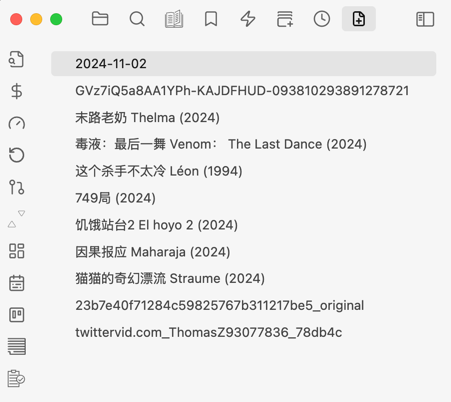
Features
| Feature | Description |
|---|---|
| Recently added / modified | Track files by creation date or last modification date |
| File type filter | Show only Markdown, PDF, images, videos, Canvas, or other files |
| Search | Live search box filters the list by filename as you type |
| Sort order | Newest first · Oldest first · A→Z · Z→A |
| Pin to top | Right-click any file to pin it — pinned files always stay at the top |
| Hash rename | Right-click → rename with a SHA-256 hash to resolve filename collisions |
| Hover preview | Hover over an image or PDF entry to see a floating preview |
| Exclude paths / tags | Regex patterns and frontmatter tags to keep the list clean |
| Show / hide extensions | Toggle file extensions in the list |
Usage
Sidebar view
Open the command palette and run "Recently Added Files: Open", or click the file icon in the left ribbon.
The view appears in the left sidebar and updates automatically as you add or modify files.
Pin files
Right-click any file item → Pin. Pinned files move to the top of the list and are shown in bold with a pin icon. Right-click again → Unpin to remove the pin.
Search
Type in the search box at the top of the view to filter entries by filename in real time.
File type filter
Enable File type filter in settings, then use the dropdown at the top of the view to switch between All, Markdown, PDF, Images, Videos, Canvas, and Other.
Hash rename
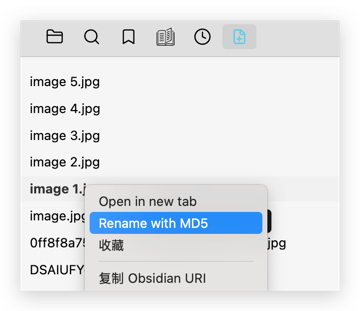
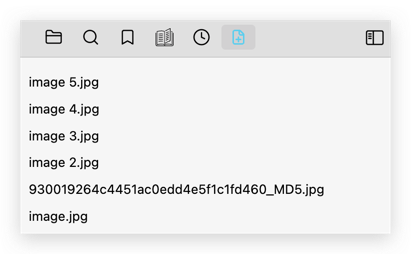
After importing images with duplicate names, right-click the file in the sidebar → Rename with hash. The file is renamed to a unique <sha256>_HASH.<ext> filename, resolving conflicts instantly.
Before:
After:
Hover preview
Hover over an image or PDF entry to see a floating thumbnail preview without opening the file.
Settings
| Setting | Default | Description |
|---|---|---|
| List tracking mode | Created files | Track newly created files or recently modified files |
| List length | 100 | Maximum number of entries to keep |
| Show file extensions | Off | Show or hide file extensions in the list |
| Enable file type filter | Off | Show the type filter dropdown in the sidebar |
| Default file type filter | All files | Which type is selected when the view opens |
| Sort order | Newest first | How entries are ordered |
| Omitted pathname patterns | — | Regex patterns (one per line) — matching files are excluded |
| Omitted frontmatter tags | — | Frontmatter tags (one per line) — matching files are excluded |
Module toggles
The settings page lets you enable or disable individual feature modules:
- Recent files core — file tracking, sidebar list, commands
- Filter and sort — type filter, sort modes, file-type icons
- Hover preview — floating image / PDF preview on hover
- Rename action — right-click hash rename
Commands
| Command | Description |
|---|---|
| Open recently added files | Open / reveal the sidebar view |
| Clear recently added files list | Empty the list |
| Prune missing entries | Remove entries whose files no longer exist in the vault |
| Open top 5 recently added files | Open the five most recent entries in new tabs |
🙏 Acknowledgements
The original idea and core architecture draw heavily from recent-files-obsidian by tgrosinger. Many thanks for the excellent foundation.
This plugin was built to fill a specific gap: while recent-files-obsidian tracks recently opened or edited files, this plugin focuses on recently added files — the ones you just imported, downloaded, or created from another tool — making it much easier to find and process them right after they land in your vault.