
README file from
GithubA Canvas-like UI to Talk with LLMs in Obsidian
We are all used to interacting with Large Language Models (LLMs) through traditional chat interfaces.
Let me introduce an alternative: a canvas-like UI.
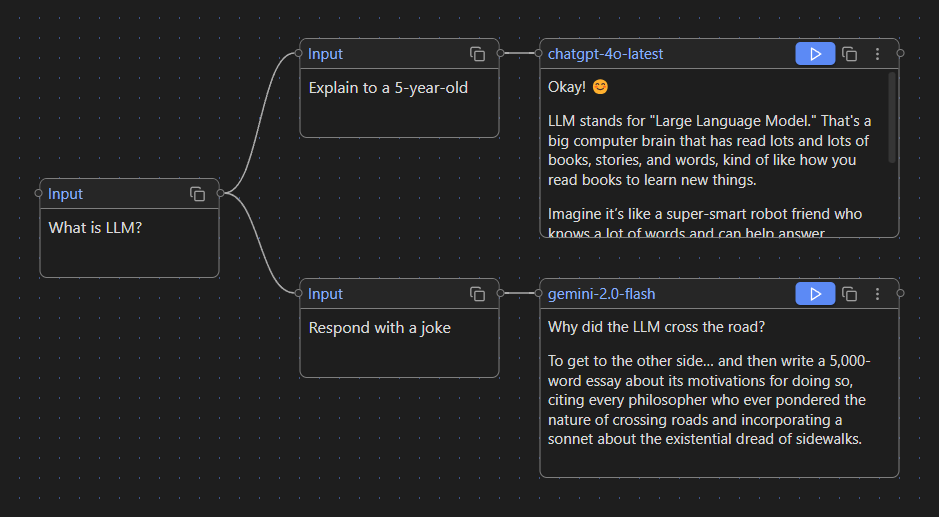
As you can see in the screenshot above, you can type prompts into Input cards and trigger LLM responses in Generate cards. This example graph shows two separate chat branches:
Branch 1:
User:
What is LLM?
User:
Explain to a 5-year-old
Model:
Okay! 😊 LLM stands for "Large Language Model." That's a big computer brain that has read lots and lots of books, stories, and words, kind of like how you read books to learn new things.
Branch 2:
User:
What is LLM?
User:
Respond with a joke
Model:
Why did the LLM cross the road? To get to the other side… and then write a 5,000-word essay about its motivations for doing so, citing every philosopher who ever pondered the nature of crossing roads and incorporating a sonnet about the existential dread of sidewalks.
As you can see, Canvas LLM provides a visual, non-linear way to interact with LLMs using branching conversations. This is especially useful for complex research projects, where navigating through a traditional chat UI becomes inefficient and overwhelming.
Features
⌨️ Text Input Node
Node for basic text prompts.
📄 File Input Node
Node for file attachment.
Currently supported file types: .md, .canvas, .docx, .fountain.
🌐 Web Input Node
Embedded browser to extract and use web content in your prompt flow.
⚡ Generate Node
Node to actually call LLM.
You can choose different model for each node.
You'll need your own API keys to use them. But don't worry — some providers, like Google, OpenRouter and SambaNova, offer free models.
Supported providers:
Alibaba, Anthropic, DeepSeek, Google, Groq, Ollama, OpenAI, OpenRouter, SambaNova, xAI.
🧩 Template Mode
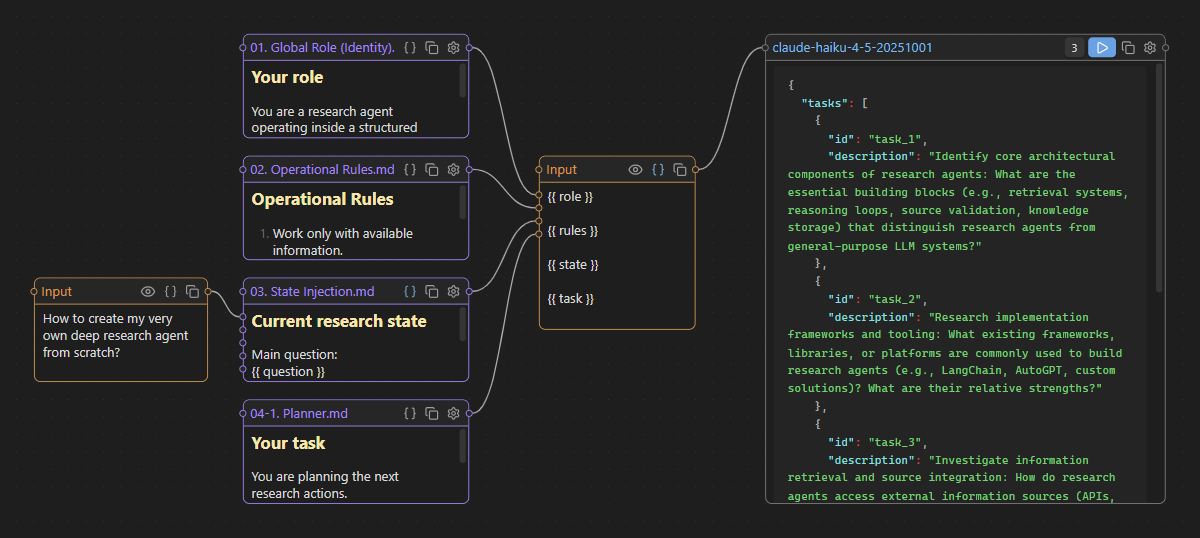
Use {{ input }} placeholders in Text input and File input nodes to create dynamic input handles.
More Screenshots
Example of use File input node and Template mode:
Installation
From Community Plugins
- Open Obsidian →
Settings→Community Plugins→Browse. - Search for
"Canvas LLM". - Install and enable.
Manual
- Download latest release (files
main.js,styles.css,manifest.json). - Copy this files to your Obsidian plugins directory:
vault/.obsidian/plugins/canvas-llm. - Enable the plugin in Obsidian →
Settings→Community Plugins→Canvas LLM.
Credits
Canvas LLM is powered by Svelte Flow from xyflow.
License
This project is licensed under the GPL-3.0 license - see the LICENSE file for details.