
README file from
GithubObsidian Latex Suite
A plugin for Obsidian that aims to make typesetting LaTeX math as fast as handwriting.
Inspired by Gilles Castel's setup using UltiSnips.

The plugin's main feature is snippets, which help you write LaTeX quicker through shortcuts and text expansion! For example, type
- "sqx" instead of "\sqrt{x}"
- "a/b" instead of "\frac{a}{b}"
- "par x y " instead of "\frac{\partial x}{\partial y}"
See Gilles Castel's writeup for more information.
The plugin comes with a set of default snippets, loosely based on Gilles Castel's. You can modify them, remove them, and write your own.
Usage
To get started, type "dm" to enter display math mode. Try typing the following:
-
"xsr" → "x^{2}".
-
"x/y Tab" → "\frac{x}{y}".
-
"sin @t" → "\sin \theta".
Have a look at the cheatsheet for a list of commonly used default snippets.
Once these feel familiar, you can check out the default snippets for more commands. e.g.
-
"par Tab f Tab x Tab" → "\frac{\partial f}{\partial x}".
-
"dint Tab 2pi Tab sin @t Tab @t Tab" → "\int_{0}^{2\pi} \sin \theta \, d\theta".
You can also add your own snippets! For more info on writing snippets, see here. You can view snippets written by others and share your own snippets here.
Aside from snippets, the plugin also comes with several other features that aim to make writing LaTeX easier.
Features
Auto-fraction
Lets you type "1/x" instead of "\frac{1}{x}".
For example, it makes the following expansions:
x/→\frac{x}{}(a + b(c + d))/→\frac{a + b(c + d)}{}
and moves the cursor inside the brackets.
Once done typing the denominator, press Tab to exit the fraction.

Matrix shortcuts
While inside a matrix, array, align, or cases environment,
- Pressing Tab will insert the "&" symbol.
- Pressing Enter will insert "\\" and move to a new line.
- Pressing Shift + Enter will move to the end of the next line (which you can use to exit the matrix).

Conceal
This feature must be enabled in the plugin settings.
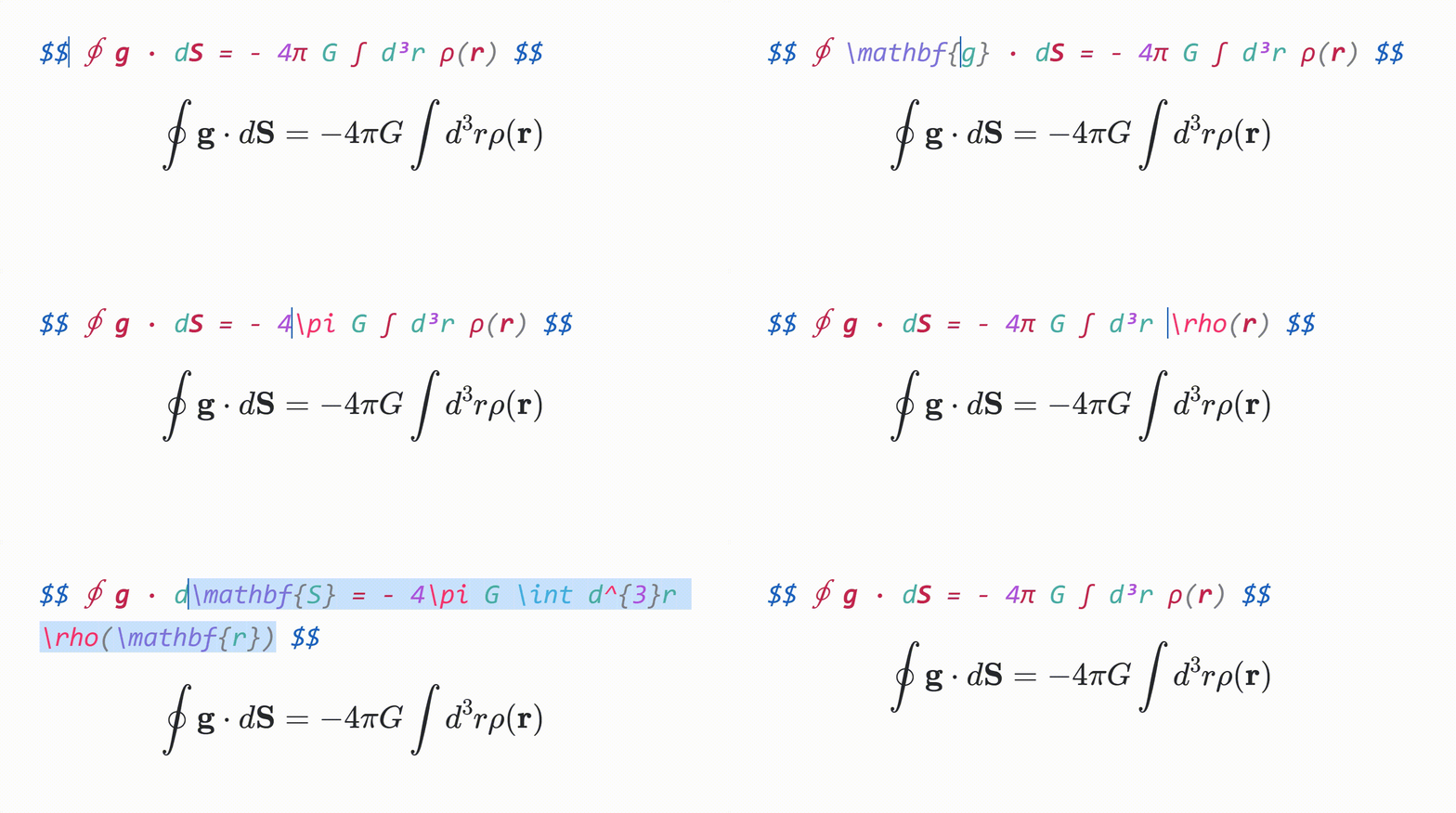
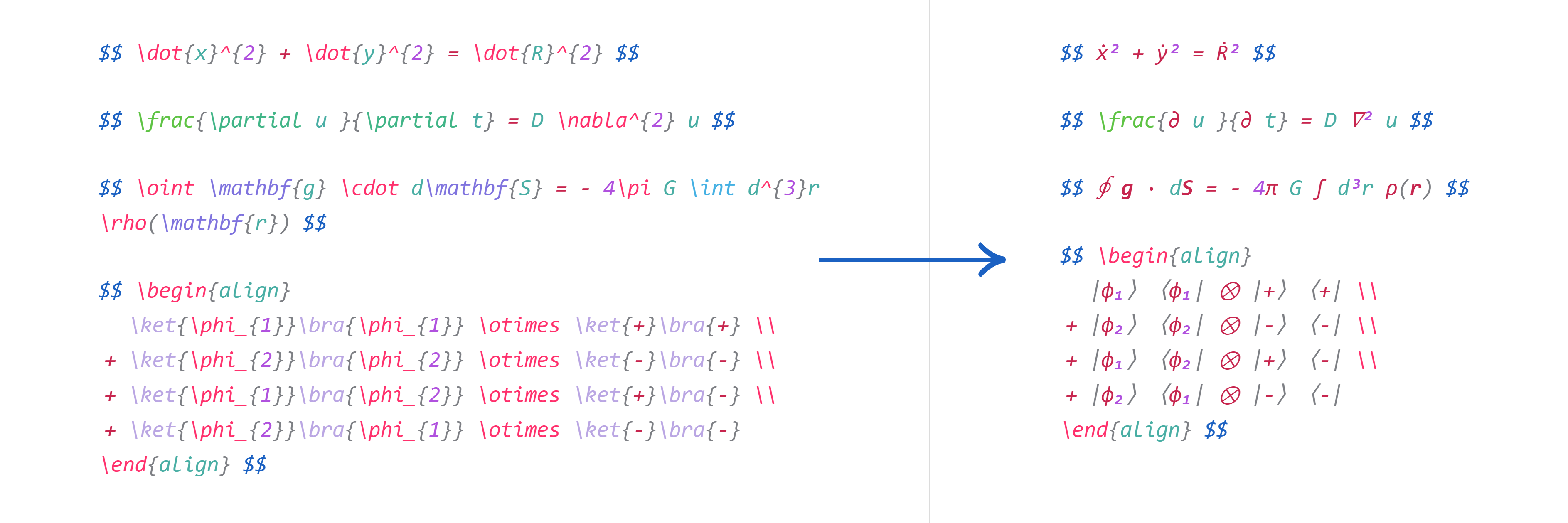
Make your equations more readable by hiding LaTeX markup and instead displaying it in a pretty format.
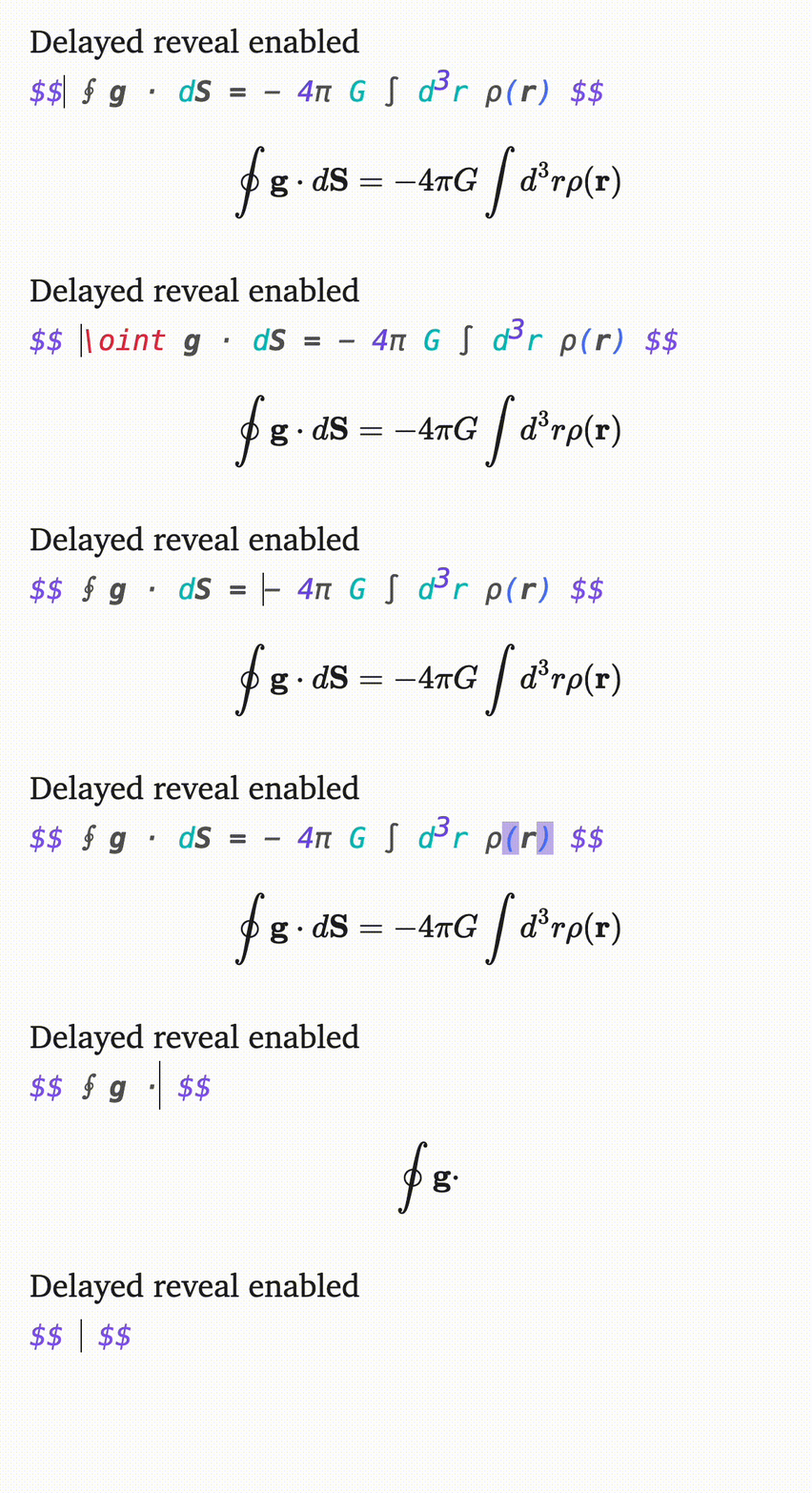
For example, "\dot{x}^{2} + \dot{y}^{2}" will be displayed as "ẋ² + ẏ²", and "\sqrt{ 1-\beta^{2} }" will be displayed as "√{ 1-β² }".
To reveal the LaTeX syntax, move your cursor over it. You can also choose to delay the reveal for a moment, which makes navigation with arrow keys more intuitive.
[!NOTE] One of your selected monospace fonts in obsidian needs to support these symbols. JuliaMono has been known to work for all symbols. Either install the font or add the following to your css file:
@font-face {
    font-family: JuliaMono;
    src: url(https://github.com/cormullion/juliamono/raw/refs/heads/master/webfonts/JuliaMono-Regular.woff2) format("woff2");
    text-rendering: optimizeLegibility;
}

body {
  --font-monospace-override: JuliaMono;
}
Tabout
To make it easier to navigate and exit equations,
- Pressing Tab while the cursor is at the end of an equation will move the cursor outside the
$symbols. - If the cursor is inside a
\left ... \rightpair, pressing Tab will jump to after the\rightcommand and its corresponding delimiter. - Otherwise, pressing Tab will advance the cursor to the next closing bracket:
),],},\rangle, or\rvert.
Preview inline math
When your cursor is inside inline math, a popup window showing the rendered math will be displayed.
Visual snippets
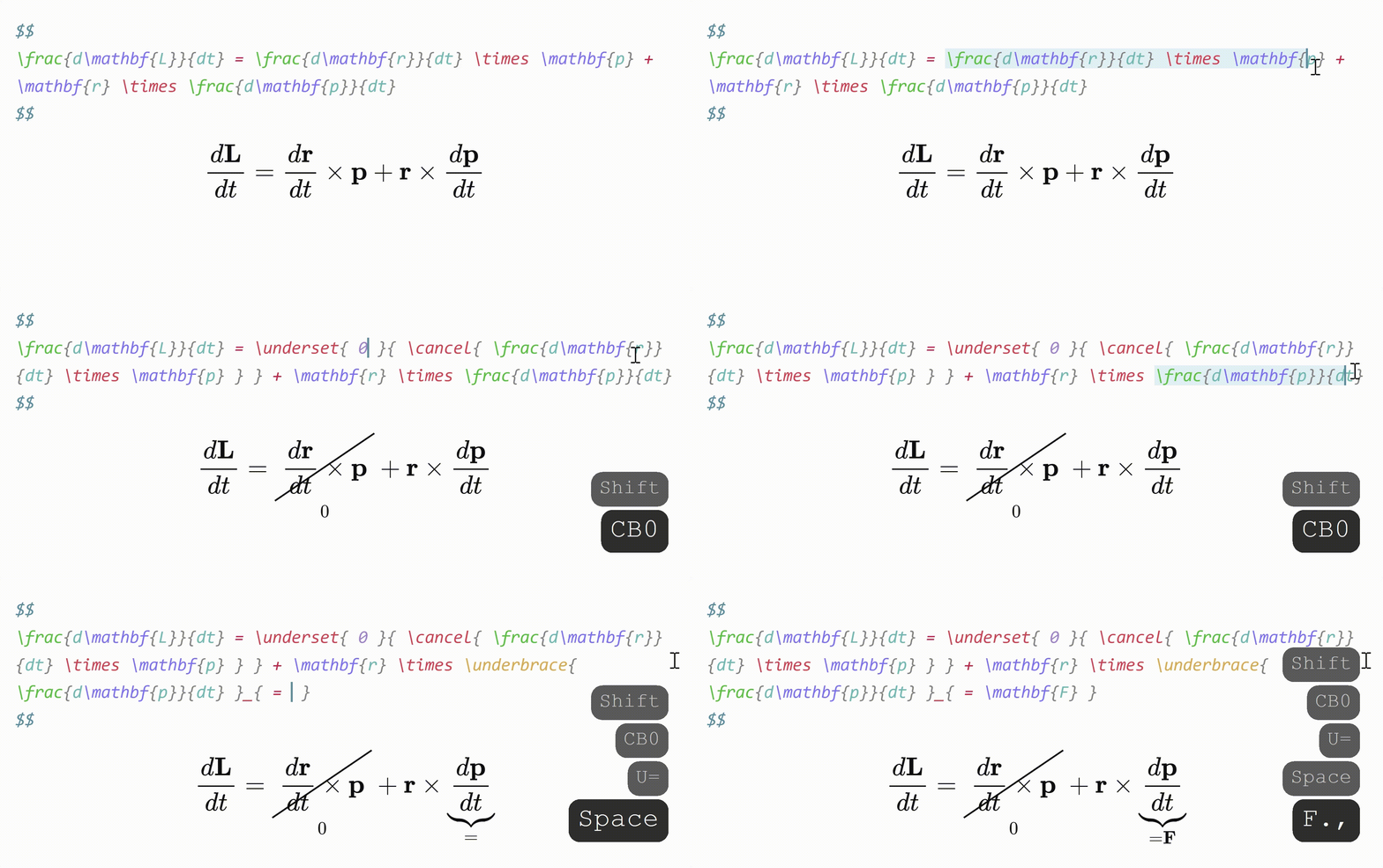
Sometimes you want to annotate math, or cancel or cross out terms. Selecting some math with the cursor and typing
- "U" will surround it with "\underbrace".
- "O" will surround it with "\overbrace".
- "C" will surround it with "\cancel".
- "K" will surround it with "\cancelto".
- "B" will surround it with "\underset".
Auto-enlarge brackets
When a snippet containing "\sum", "\int" or "\frac" is triggered, any enclosing brackets will automatically be enlarged with "\left" and "\right".

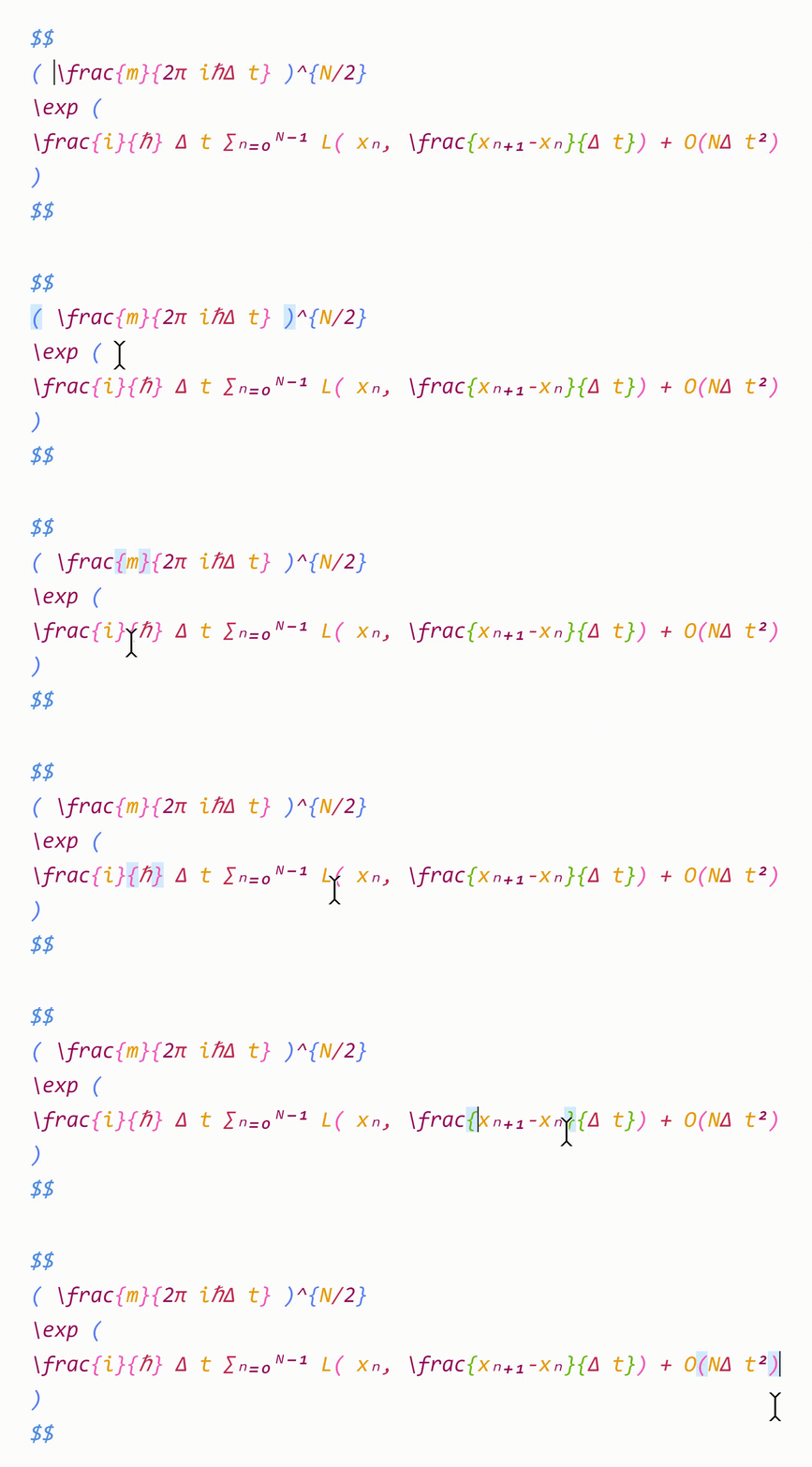
Color and highlight matching brackets
To help make your equations more readable,
- Matching brackets will be displayed in the same color.
- When your cursor is adjacent to a bracket, that bracket and its pair will be highlighted.
- When your cursor is inside brackets, the enclosing brackets will be highlighted.
Editor commands
The plugin also adds the following commands to the Command palette:
- Box current equation — surround the equation the cursor is currently in with a box, using "\boxed{ ... }".
- Select current equation – select the equation the cursor is currently in.
Snippets
Snippets are shortcuts that allow you to insert certain text based on certain triggers. For example, the default snippet
{trigger: "@l", replacement: "\\lambda", options: "mA"}
will expand "@l" to "\lambda".
Snippets can be edited in the plugin settings. The structure of a snippet is as follows:
{
  trigger: string | RegExp,
  replacement: string | BaseNode[],
  options: string,
  priority?: number,
  description?: string,
  flags?: string,
  triggerKey?: string,
  language?: string,
  excludedEnvs?: { matrix?: string[], macros?: string[]}
}
trigger: The text that triggers this snippet.- Triggers can also be regular expressions. See here for more info.
replacement: The text to replace thetriggerwith.- Replacements can also be JavaScript functions or Nodes.
options: See below.priority(optional): This snippet's priority. Snippets with higher priority are run first. Can be negative. Defaults to 0.description(optional): A description for this snippet.flags(optional): Flags for regex snippets.triggerKey(optional): Shortcut for snippets.language(optional): Code language for snippets.excludedEnvs(optional): Environments to exclude this snippet.
Options
t: Text mode. Only run this snippet outside mathm: Math mode. Only run this snippet inside math. Shorthand for bothMandnM: Block math mode. Only run this snippet inside a$$ ... $$blockn: Inline math mode. Only run this snippet inside a$ ... $blockA: Auto. Expand this snippet as soon as the trigger is typed. If omitted, the Tab key must be pressed to expand the snippet. This doesn't always work for IME keyboards (like chinese/pinyin, gboard, german/french diacritic keyboards).r: Regex. Thetriggerwill be treated as a regular expressionv: Visual. Only run this snippet on a selection. The trigger should be a single characterw: Word boundary. Only run this snippet when the trigger is preceded (and followed by) a word delimiter, such as.,,, or-.c: Code mode. Only run this snippet inside a``` ... ```blockU: Skip undo. When an automatic snippet expands, pressing undo returns to the state before the trigger key was typed, instead of first removing the snippet and reinserting that key.C: Inline code mode. Only run this snippet inside a` ... `block
Insert tabstops for the cursor to jump to by writing "$0", "$1", etc. in the replacement.
For examples and more details on writing snippets, including regex snippets and function snippets, have a look at the documentation.
You can view snippets written by others and share your own snippets here.
[!WARNING] Snippet files are interpreted as JavaScript and can execute arbitrary code. Always be careful with snippets shared from others to avoid running malicious code.
Cheatsheet
| Trigger | Replacement |
|---|---|
| mk | $ $ |
| dm | $$$$ |
| sr | ^{2} |
| cb | ^{3} |
| rd | ^{ } |
| _ | _{ } |
| sq | \sqrt{ } |
| x/y Tab | \frac{x}{y} |
| // | \frac{ }{ } |
| " | \text{ } |
| text | \text{ } |
| x1 | x_{1} |
| x,. | \mathbf{x} |
| x., | \mathbf{x} |
| xdot | \dot{x} |
| xhat | \hat{x} |
| xbar | \bar{x} |
| xvec | \vec{x} |
| xtilde | \tilde{x} |
| xund | \underline{x} |
| ee | e^{ } |
| invs | ^{-1} |
When running a snippet that moves the cursor inside brackets {}, press Tab to exit the brackets.
Greek letters
| Trigger | Replacement | Trigger | Replacement |
|---|---|---|---|
| @a | \alpha | eta | \eta |
| @b | \beta | mu | \mu |
| @g | \gamma | nu | \nu |
| @G | \Gamma | xi | \xi |
| @d | \delta | Xi | \Xi |
| @D | \Delta | pi | \pi |
| @e | \epsilon | Pi | \Pi |
| :e | \varepsilon | rho | \rho |
| @z | \zeta | tau | \tau |
| @t | \theta | phi | \phi |
| @T | \Theta | Phi | \Phi |
| @k | \kappa | chi | \chi |
| @l | \lambda | psi | \psi |
| @L | \Lambda | Psi | \Psi |
| @s | \sigma | ||
| @S | \Sigma | ||
| @o | \omega | ||
| ome | \omega |
For Greek letters with short names (2-3 characters), just type their name, e.g. "pi" → "\pi".
Acknowledgements
- @tth05's Obsidian Completr for the basis of the tabstop code.
- Dynamic Highlights for reference.
- Quick Latex for Obsidian for inspiration.
Related projects
- VimTex provides concealments in vim and more quality of life features for using vim in latex.
- UltiSnips provides a snippet engine for vim.
- LuaSnip provides a snippet engine for neovim, allowing more customization through declaring snippets in lua.
- Hypersnips provides a similar snippet engine to one of UltiSnips in vscode.
- Snippetleaf is a ported version of this plugin to codemirror only (the backend editor of obsidian). Works for editors such as overleaf.
- LaTeX Utilities provides a snippet engine for latex only in vscode.
- AUCTeX provides extensive quality of life features for latex.
Contributing
Any contributions and PRs are welcome! See here for more info.
Support
If you like this plugin and want to say thanks, you can buy me a coffee here.