
README file from
GithubQuick Latex
NOTE: This plugin is no longer maintained.
Thank you so much for using this plugin! I do hope it has been helpful. There is now a more powerful and well maintained Latex writing plugin that I highly recommend : Latex Suite. Thank you!
v 2.6.3 - 2.6.5
- bug fixes
v 2.6.1
- One can now type Greek letters directly without the $ symbol. e.g. \alpha (press "space" here) will be converted to $\alpha$. This is useful for typing Greek letters in the middle of a sentence. (Huge thanks to @FlorisE for contributing this feature!)
- The ":" symbol is now allowed within the custom shorthand! However, for old users, please replace all ":" within the custom shorthand parameter with ":::".
- user can now selectively use tab to expand custom shorthand instead of space.
v 2.4.0
- user can now set whether to use enter or shift-enter within align and cases block to automatically add next line symbols \. (see settings page) NOTE: the & symbol will no longer be automatically added after pressing enter, but an additional function for alignment is added (see next)
- new function: when within align block, the plugin automatically add align symbol "&" before user-defined symbols (default: = > < \le \ge \neq \approx) e.g. x =(press "space" here), and "&" will be added before the = sign.
- when at the end of the align, matrix or cases block, pressing "tab" once (for align) or twice (for matrix and cases block) will bring the cursor out of the block.
- If next line is double dollar signs, press "tab" again will jump out of the double dollar signs.
Description:
This simple plugin adds various shortcuts to speedup latex math typing.
Functionalities:
Note: All functionalities below can be toggled within the plugin settings page.
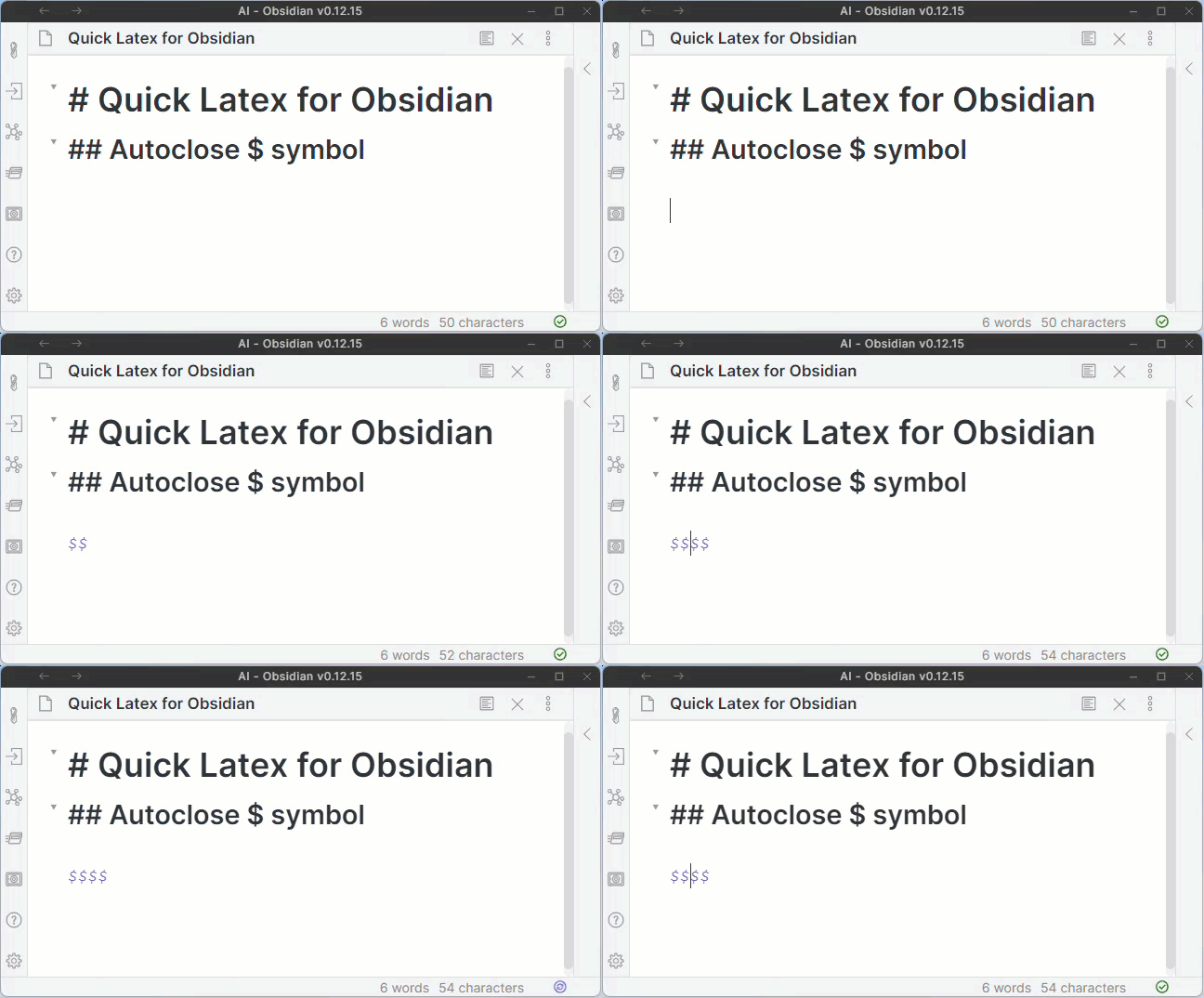
1. Auto close $ symbol + Move cursor between $$ symbols
- Typing $ will automatically close with $ and shift the cursor in between the $$ symbols.
- Tip: If you use the $ symbol often as currency symbol, you may toggle off the "auto close math symbol" function in the plugin setting. Alternatively, type "\$" to insert a $ symbol without triggering the auto close function.
2. Autoclose {}, [], () brackets
- Typing "{", "[" and "(" will automatically close with "}","]" or ")".
- Note: This function activates only when the cursor is followed by "$", space, tab, or nothing (end of line).
3. Auto append "\limits" after "\sum"
- Typing "\sum" will automatically append "\limits" to shorten the syntax for proper display of the limits for summation symbol.
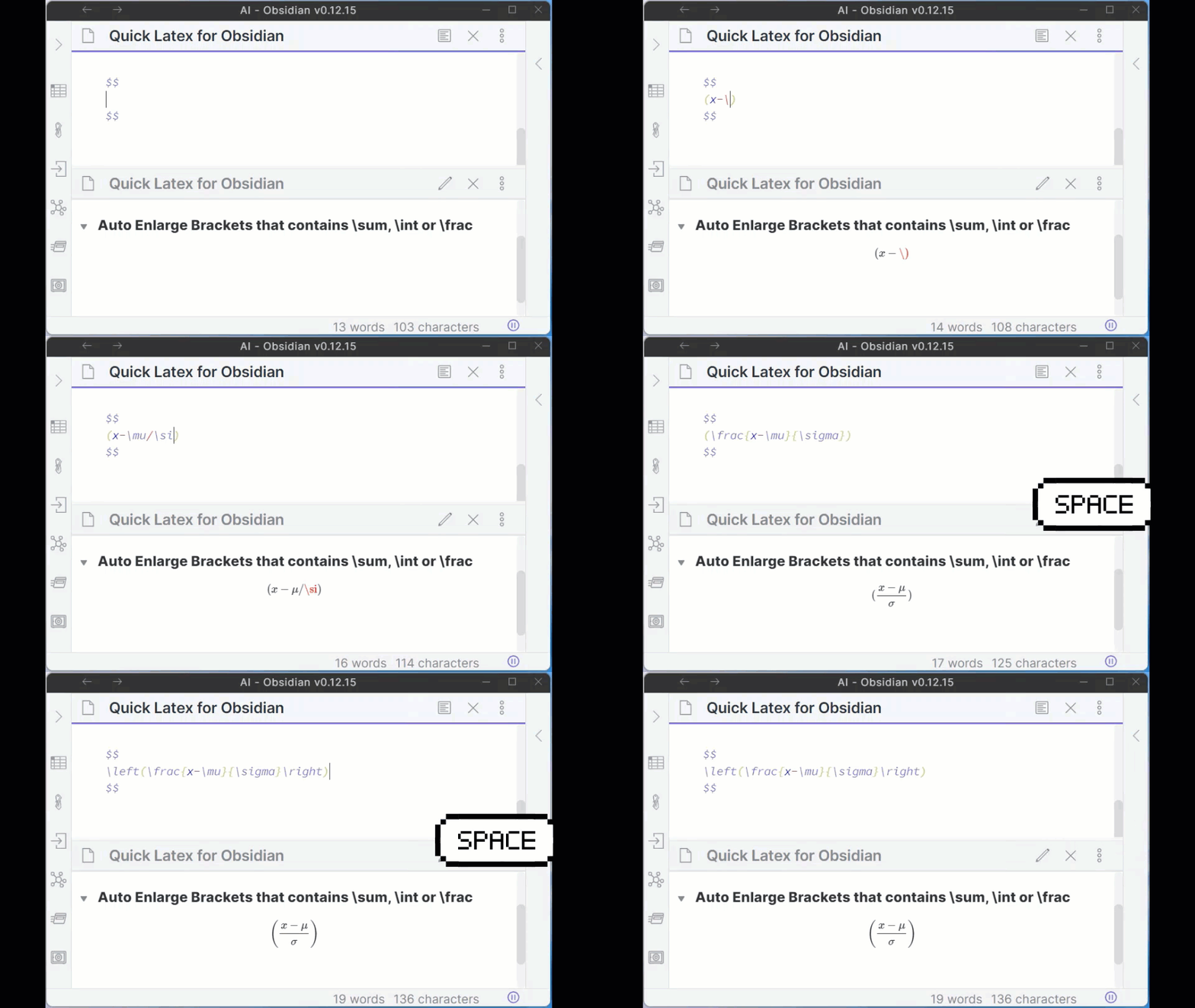
4. Auto enlarge brackets that contains \sum, \int or \frac
- Place cursor right after a () or [] bracketed expression that contains either \sum, \int or \frac and press the space key, the outermost brackets will be appended with \left and \right in order to display larger brackets to enclose these big expressions. E.g. (\sum\limits_{i=1}^n x+1) => \left(\sum\limits_{i=1}^n x+1 \right)
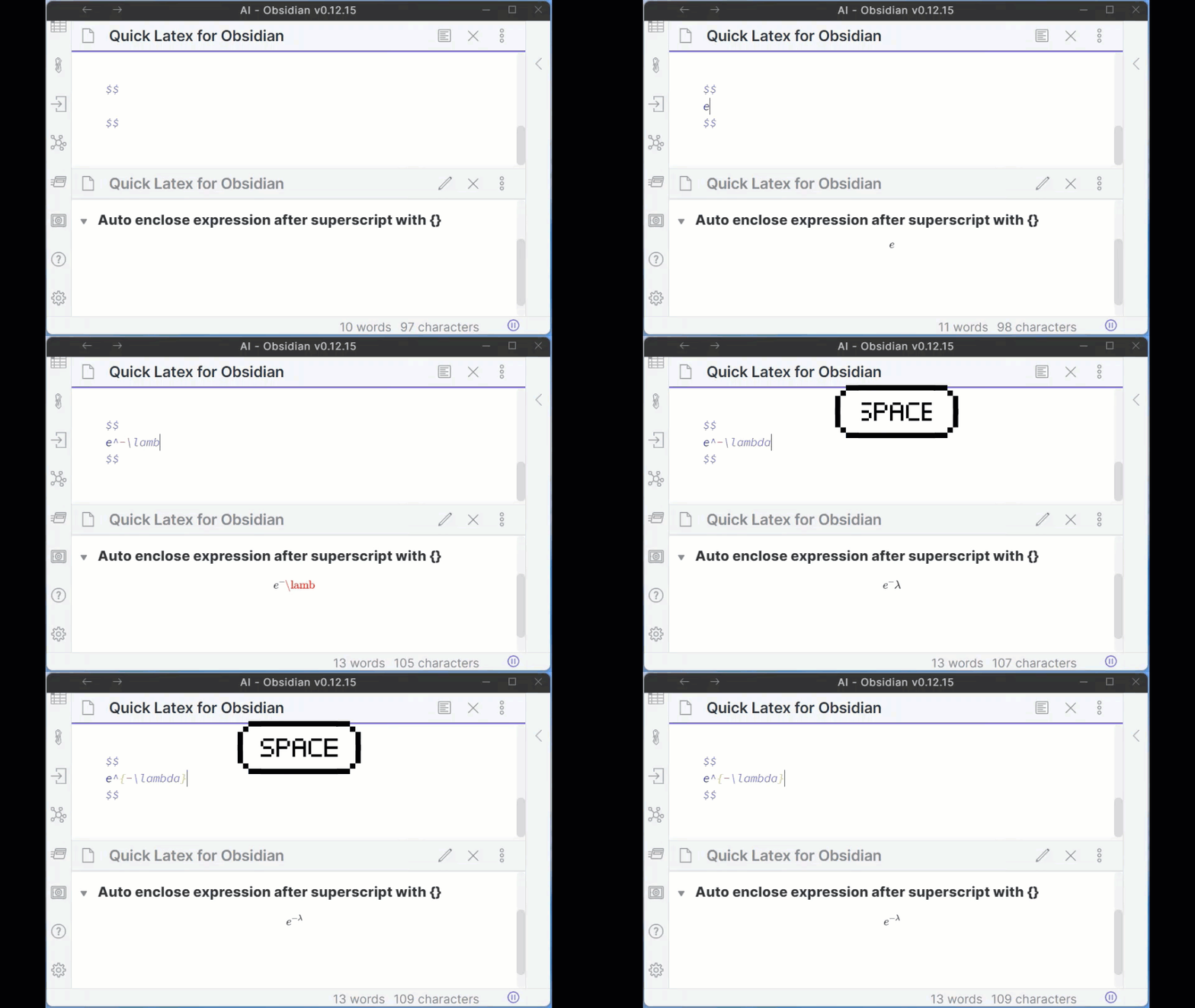
5. Auto enclose expression after superscipt and subscript with {}
- Typing expressions after superscript "^" and subscript "_" symbol follow by a "space" key will automatically surround the expressions with "{}".
- NOTE: if you are use to typing subscript indexing without enclosing it with {}, there is high tendency that the autoEncloseSubscript function may miss fire when you press space after a subscript symbol not intended to be bracketed. In this case, its recommended to turn off this function.
6. Enclose selected expression with math symbol
- Select an expression and press "$" key will automatically enclose the expression with the math symbols.
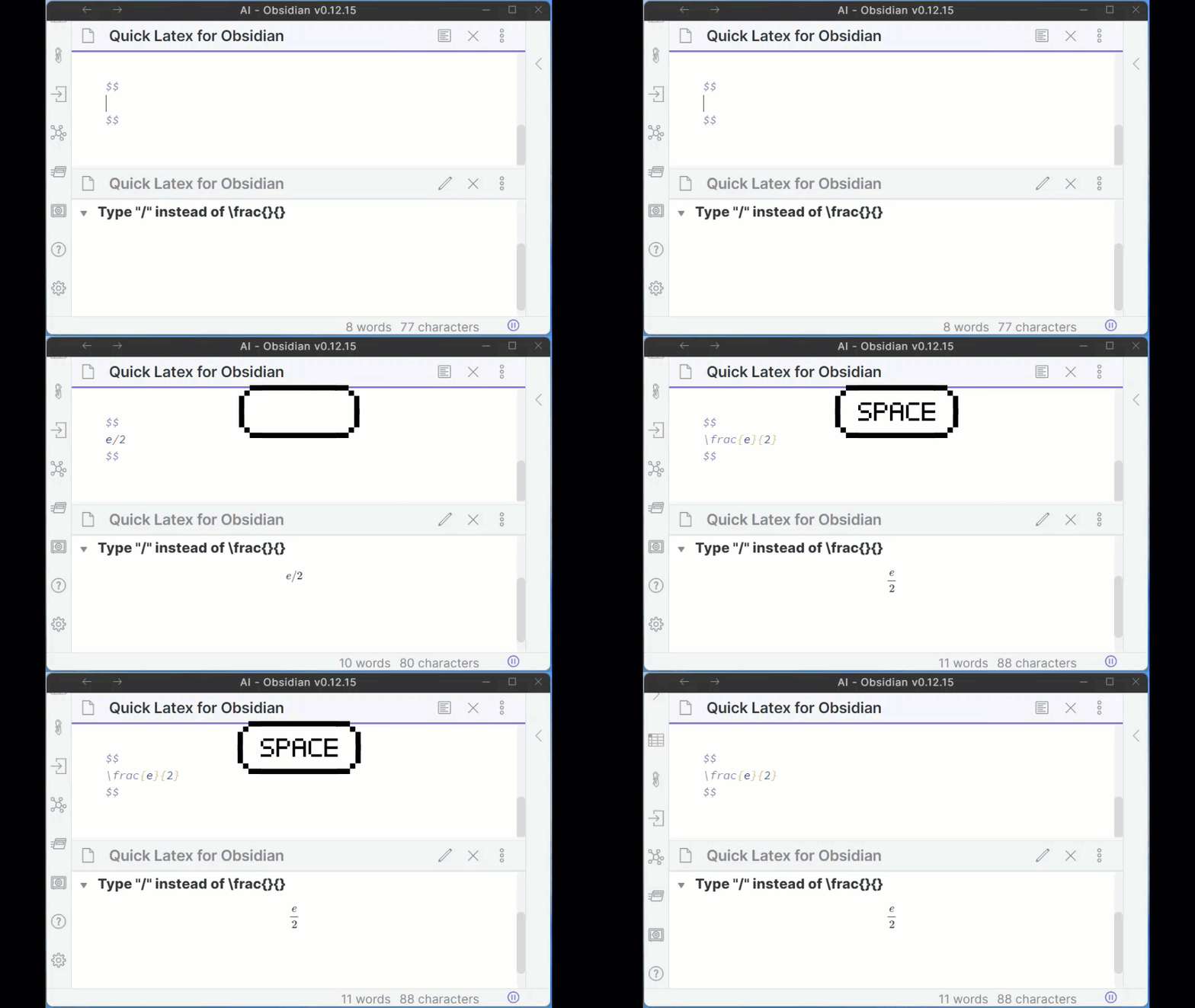
7. Auto Fraction - Type "/" instead of \frac{}{}.
- Type $e/2$ followed by a "space" key will automatically replace the expression with $\frac{e}{2}$.
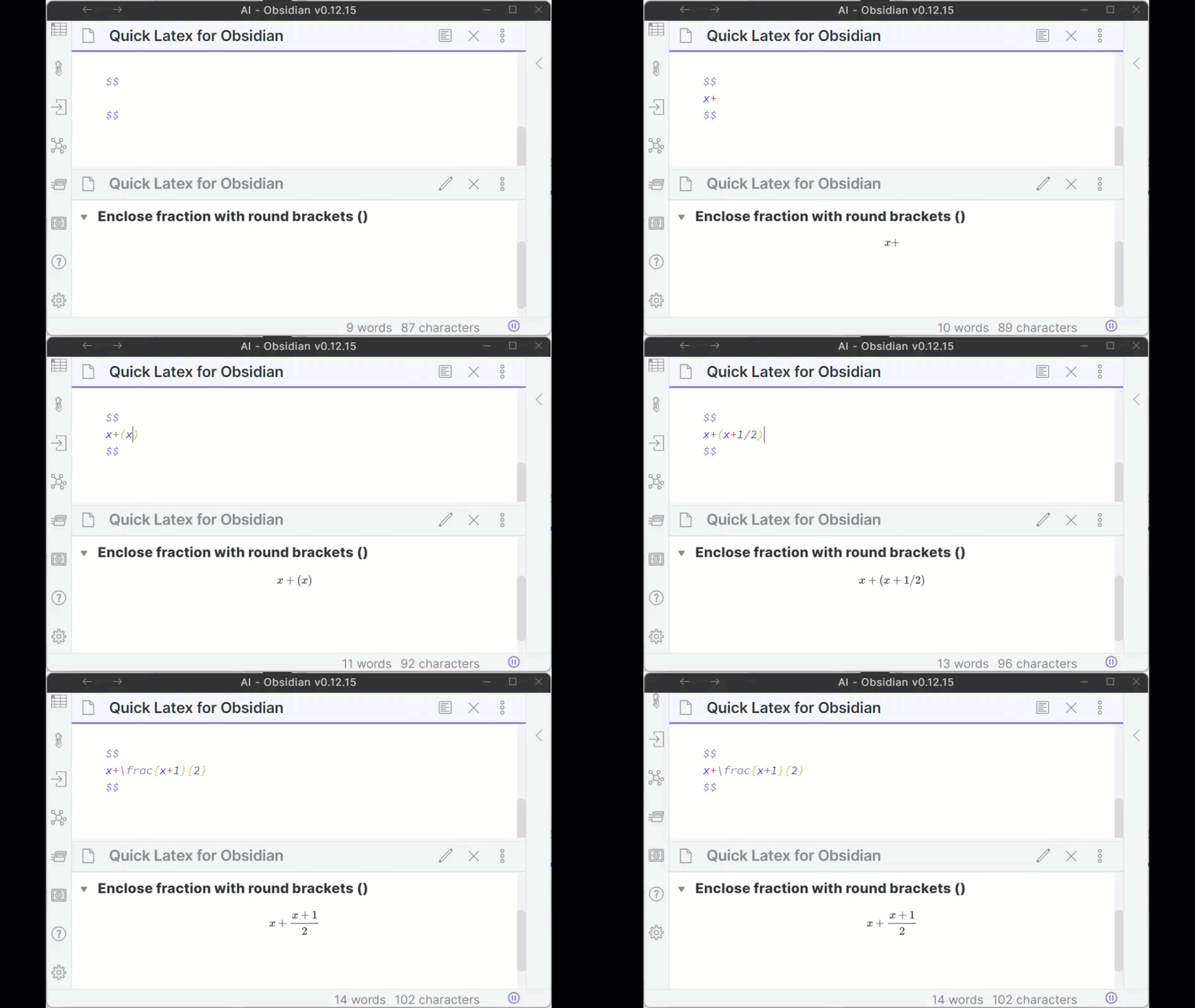
- Tip 1: Enclose your fraction expression within round brackets () will help the system identify the boundaries of your fraction.
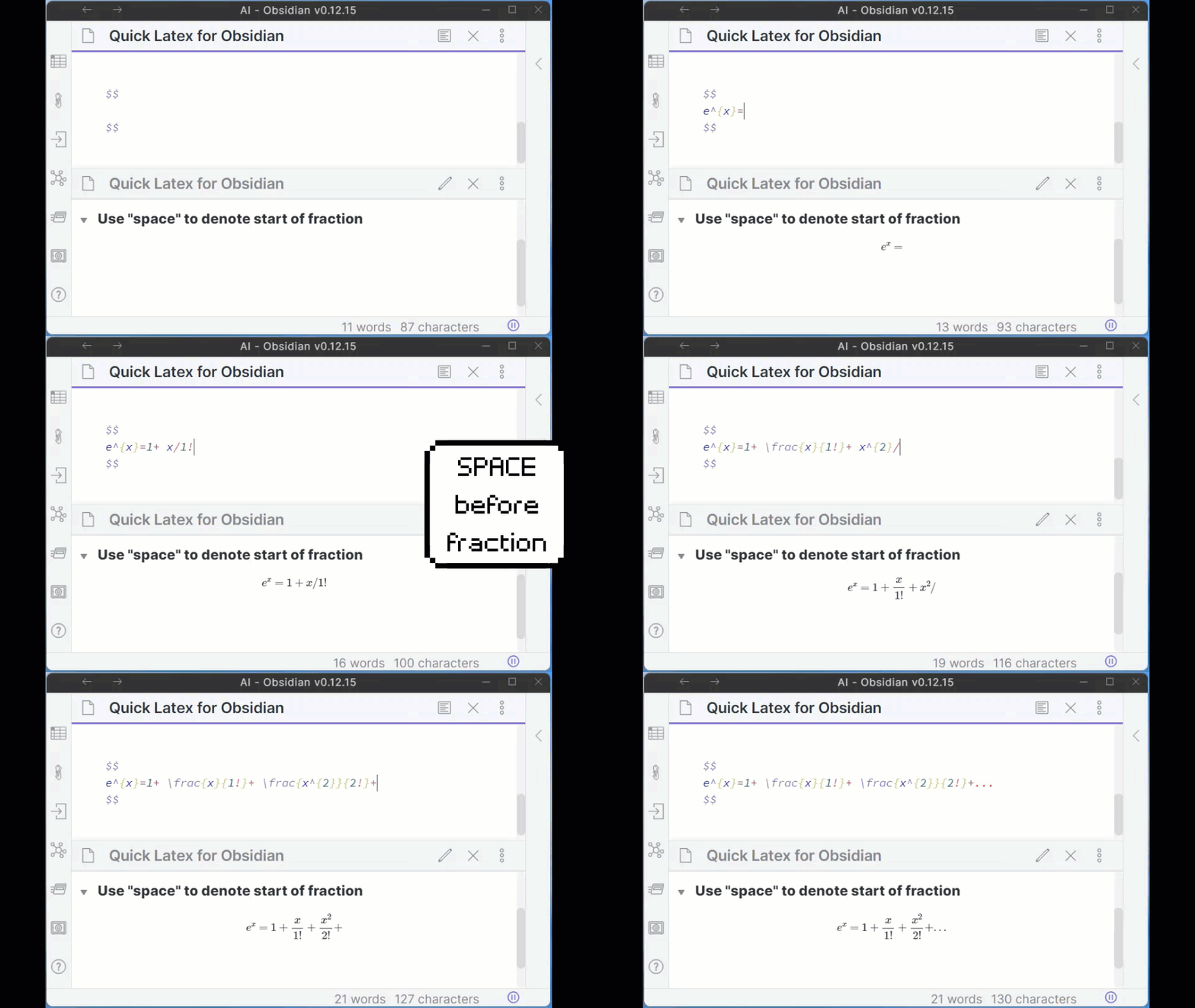
- Tip 2: Put a space infront of fraction to denote the start of the fraction. Especially useful for series of fractions!
- Tip 3: For longer numerator or denominator expressions (especially when the expressions have white spaces which may trigger the frac-replace prematurely), enclose the expressions in round brackets ().
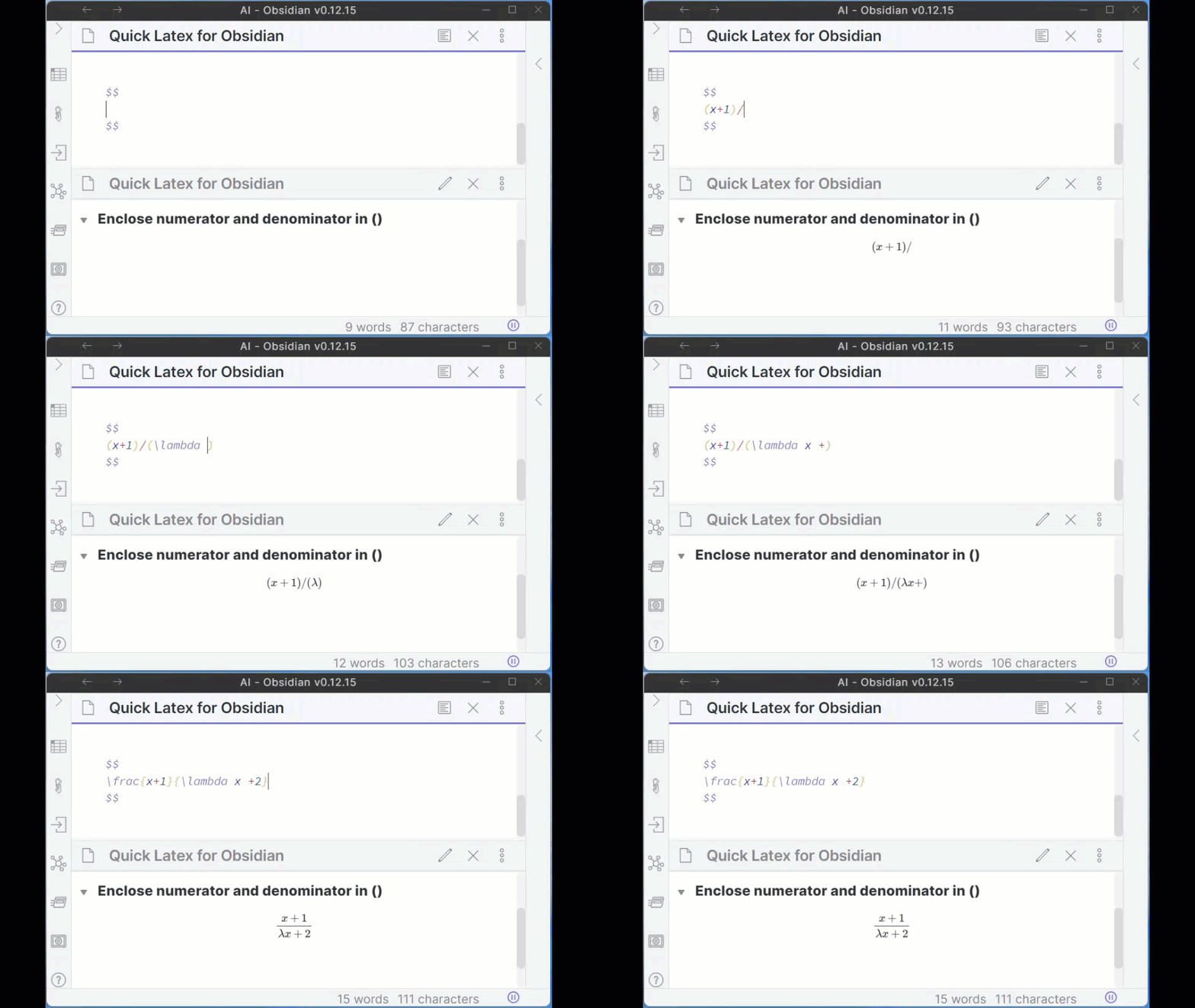
- Tip 4: The plugin will remove the outermost brackets in numerator and denominator.
8. Shortcut for Align Block
-
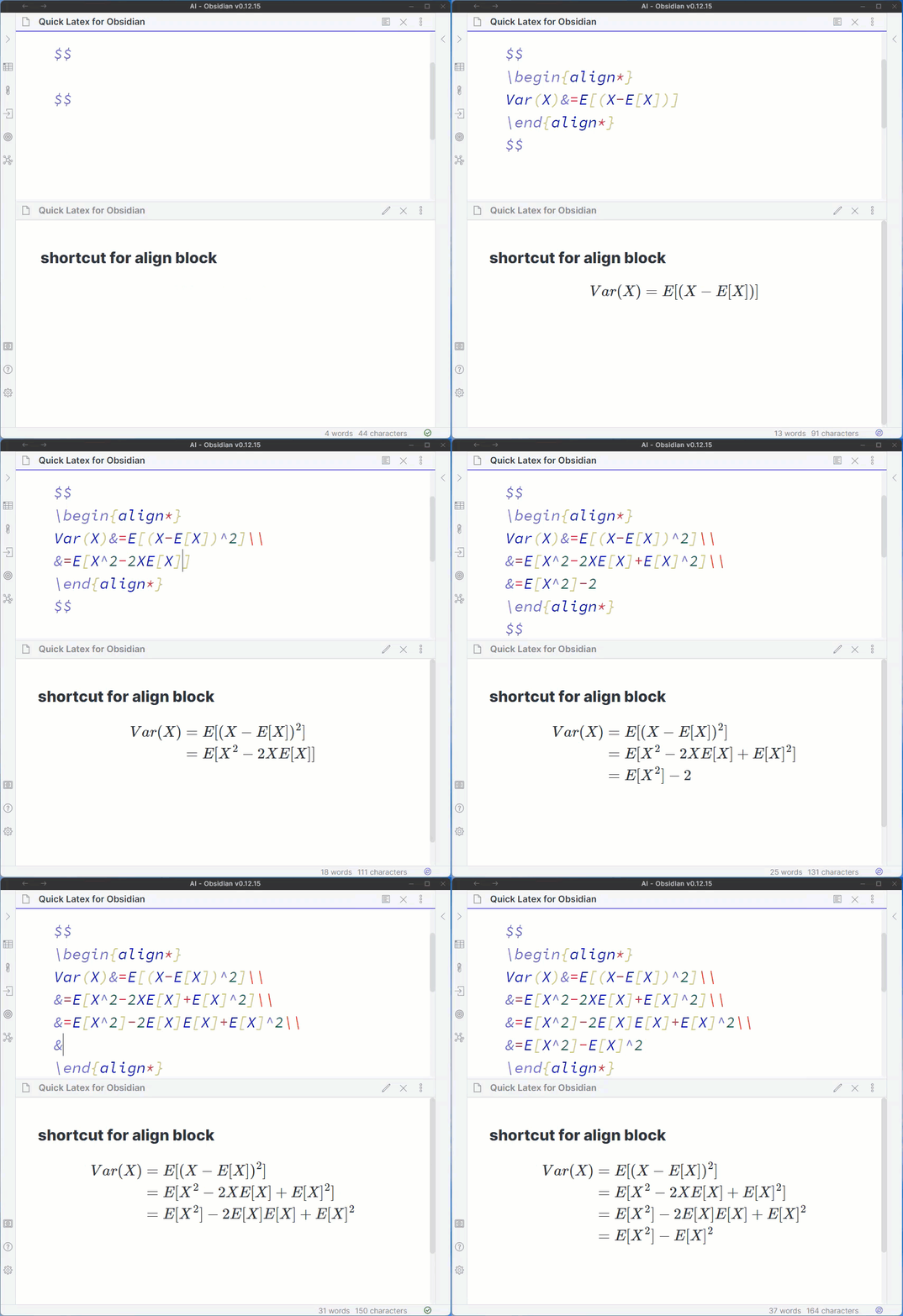
use "Alt+Shift+A" (Mac: "Option+Shift+A") shortcut key to quickly insert \begin{align*} \end{align*} block
-
Tip 1: If you have already typed some expressions and want to add the \begin{align*} and \end{align*} to the front and back, you can first select the texts then press "Alt+Shift+A" (Mac: "Option+Shift+A").
-
Tip 2: Quick next line syntax within align block
- pressing "enter" (can be changed to "shift-enter" in setting) within an align block will automatically insert \\ to the end of the line and go to next line.
- press "shift+enter" to go to next line without adding these symbols.
-
Tip 3: Changing parameter
- the default parameter "align*" can be changed in the plugin settings.
-
Tip 4: Edit Short Cut
- You may edit the shortcut keys in Settings -> Hotkeys
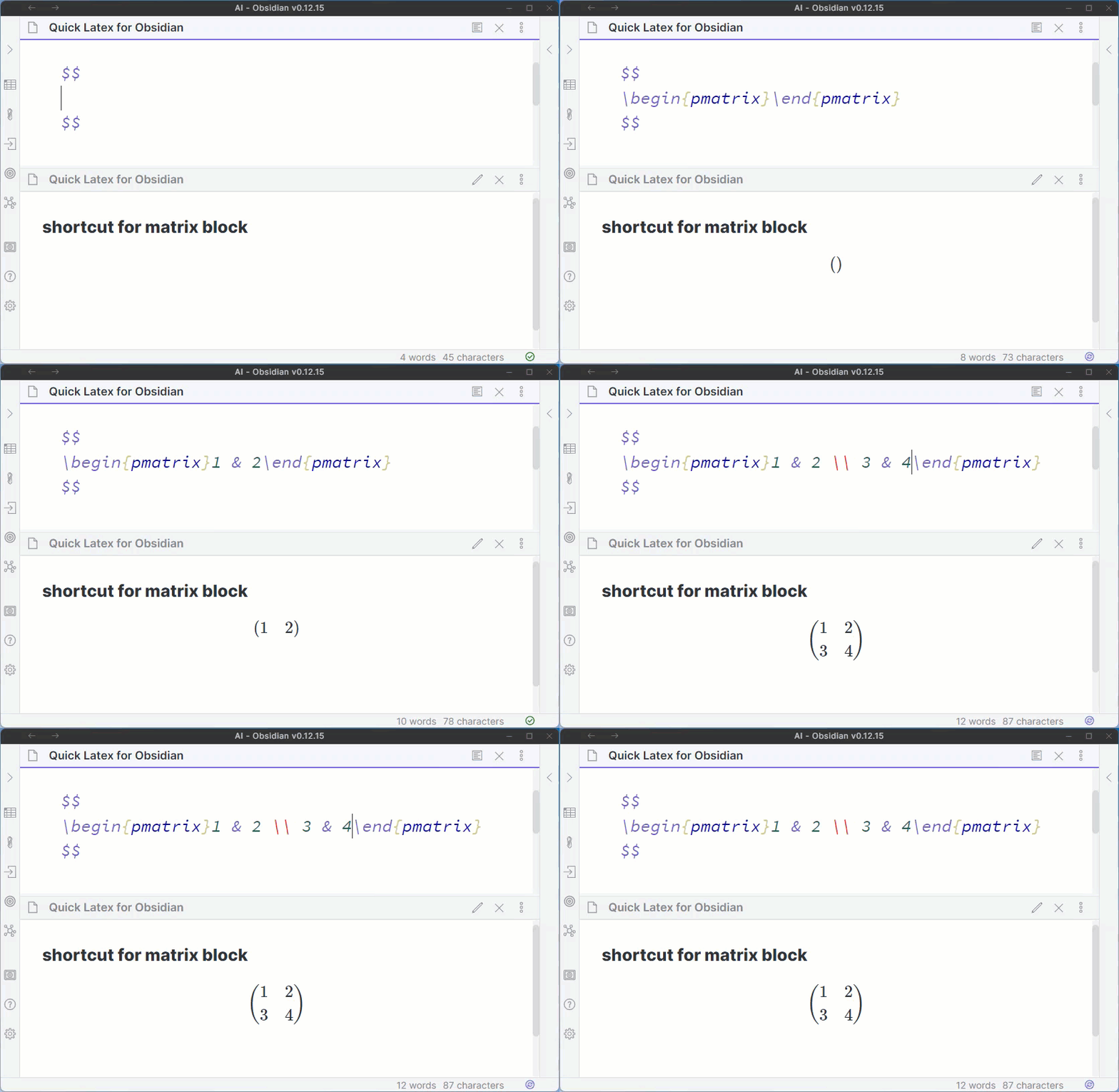
9. Shortcut for Matrix Block
-
use "Alt+Shift+M" (Mac: "Option+Shift+M") shortcut key to quickly insert \begin{pmatrix} \end{pmatrix} block
-
Tip 1: quick next item and next line syntax within matrix block
- pressing "tab" within a matrix block will automatically insert " & ".
- pressing "enter" within a matrix block will automatically insert " \\ ".
- press "shift+enter" to go to next line without adding these symbols.
-
Tip 2: Changing parameter
- the default parameter "pmatrix" can be changed in the plugin settings. e.g. matrix, bmatrix, Bmatrix, vmatrix, Vmatrix
-
Tip 3: Edit Short Cut
- You may edit the shortcut keys in Settings -> Hotkeys
10. Tab & Shift-Tab to jump from brackets to brackets
use Tab and Shift-Tab within math expressions to quickly jump from brackets to brackets.
【Enhanced!】11. Custom shorthand
- Use multi-letters custom shorthand for common latex snippets. e.g. typing "al" followed by "space" key will replace with "\alpha"
- You may set your own custom shorthand in the plugin settings page. Separate the shorthand and the snippet with ":::" ; end each set of snippets with ";" and a newline. e.g. al:::\alpha; bi:::\binom{#cursor}{#tab};
- Tip1: If the expression ends with curly brackets "{}", cursor will automatically be placed within the brackets.
- Tip2: Use "#cursor" within snippet to set the cursor position after replacement
- Tip3: Use "#tab" within snippet for cases of multiple parameters. e.g. bi:\binom{#cursor}{#tab}, after keying bi and spacebar, the shorthand will expand into \binom{|}{#tab} with cursor in the first brackets. After keying the values in first brackets, press tab to jump to the #tab location to continue typing.
- Note: The system will ignore a shorthand if it is preceeded by an alphabet. eg. "ta" is the shorthand for "\tau. Typing "delta" followed by space will NOT trigger the replacement.
- Below is the list of default shorthand:
| Shorthand | String | Shorthand | String | Shorthand | String |
|---|---|---|---|---|---|
| sq | \sqrt{} | bb | \mathbb{} | bf | \mathbf{} |
| te | \text{} | inf | \infty | bi | \binom{#cursor}{#tab} |
| cd | \cdot | qu | \quad | ti | \times |
| al | \alpha | be | \beta | ga | \gamma |
| Ga | \Gamma | de | \delta | De | \Delta |
| ep | \epsilon | ze | \zeta | et | \eta |
| th | \theta | Th | \Theta | io | \iota |
| ka | \kappa | la | \lambda | La | \Lambda |
| mu | \mu | nu | \nu | xi | \xi |
| Xi | \Xi | pi | \pi | Pi | \Pi |
| rh | \rho | si | \sigma | Si | \Sigma |
| ta | \tau | up | \upsilon | Up | \Upsilon |
| ph | \phi | Ph | \Phi | ch | \chi |
| ps | \psi | Ps | \Psi | om | \omega |
| Om | \Omega |
Note:
- The repo depends on the latest Obsidian API (obsidian.d.ts) in Typescript Definition format, which is still in early alpha so might break anytime.
- This is my first Obsidian Plugin project, bugs might be present. Please use with caution.
- Pull requests are welcome!
- Compatible with builtin vim-mode.
Source Code:
see https://github.com/joeyuping/quick_latex_obsidian
Support
Really hope this plugin has been helpful!