
README file from
GithubEnhanced tables
A plugin for Obsidian to add advanced controls (like sorting, filtering and pagination) to standard markup tables.
Its is heavily inspired by DataLoom which is an incredible plugin, but I wanted my data to be stored in simple, easily accessible and editable tables, and not in JSON files which integrate in a less seamless way into the Obsidian workflow.
Example
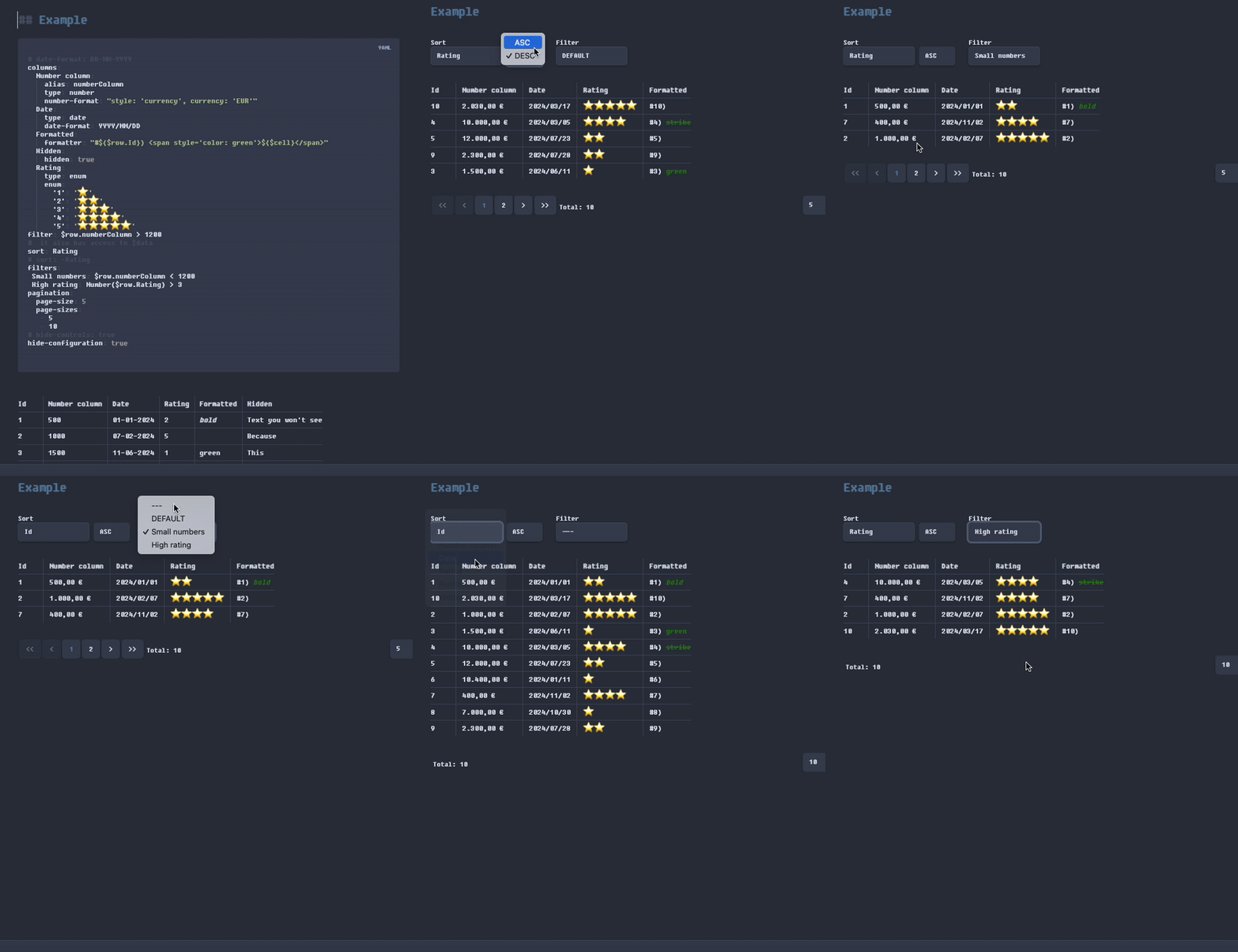
Features
- Add a configurable pagination to tables
- Write custom filters and dynamically switch between them
- Sort the table rows by their values
- Apply automatic formatting for dates and numbers
- Define "enum" columns with fixed values
- Implement per-column custom formatting
How to install
Community Plugin
- Open Settings > Third-party plugin
- Make sure Safe mode is off
- Click Browse community plugins
- Search for "Enhanced tables"
- Click Install
- Once installed, close the community plugins window and activate the newly installed plugin
Manually installing the plugin
- Go to the latest Releases
- Download main.js, manifest.json
- save into your vault VaultFolder/.obsidian/plugins/enhanced-tables/
How it works
If you want to add some advanced control or formatting to any standard Obsidian table, define before it a block of yaml code with the Enhanced tables configurations you want to apply to the table. When switching to view mode, if the configuration is corrent, the table will be formatted according to the provided configuration and will have all the needed advanced controls.
Configuration
Example configuration for the provided sample table
Configuration syntax
Yaml code opening syntax - yaml enhanced-tables
In order to be recognized as a valid Enhanced tables (ET), the yaml code must be defined with the enhanced-tables keyword.
Configuration properties
All the configuration properties are optional.
| Property | Type | Description |
|---|---|---|
date-format |
string |
Must be a valid moment.js string. This property defines the input format for all columns of type date, eg how ET expects you to write them. The default is DD-MM-YYYY. |
datetime-format |
string |
Must be a valid moment.js string. This property defines the input format for all columns of type datetime, eg how ET expects you to write them. The default is DD-MM-YYYY HH:mm. |
yes-format |
string |
The string that specifies, table-wide, how a boolean true value is represented in columns of type bool. The default is "1" |
no-format |
string |
The string that specifies, table-wide, how a boolean false value is represented in columns of type bool. The default is "0" |
columns |
object |
An object with the configurations for the table columns. Each column is optional: you don't have to configure a column if you don't need any advanced feature for it. The name of column must match the one on the first row of the table (its header). Each column configuration is an object: see Column configuration properties for the details. |
filter |
string |
Default filter for the table. Write it like a Javascript expression that has access to the $row variable.Example: $row.rating > 3$row.status === 'active' |
filters |
object |
Additional filters. The keys of the object will populate the filter selection dropdown. The value of each key is a Javascript expression that has access to the $row variable - see filter above. |
sort |
string |
Name or alias of the column to sort the table by. Prepend the name or alias with - to specify descendant soring (eg: lastUpdated and -lastUpdated). |
pagination |
object |
Pagination options, see Pagination configuration properties for the details. |
hide-controls |
boolean |
If true do not show the sort and filter controls. |
hide-configuration |
boolean |
If true hide the ET yaml configuration code when in in view mode. |
style |
string |
A css string to apply custom styling to the table |
editable |
boolean |
If true, the values of the column are editable also in view mode with inputs appropriate to the type of each column. This default configuration can be overridden per-column ⚠️ This is an experimental feature. It might not work as expected, corrupt your data and provide a user experience that is not optima! |
All the column configuration properties are optional.
| Property | Type | Description |
|---|---|---|
alias |
string |
Sometimes column names can be long and not convienient to bse used in filters and formatter. You can specify an alias string for the column. If you do so, you must use it in filters and formatters. |
type |
string |
Type of the column values. The possible values are: string | number | date | datetime | time | enum | bool. The default is string. The display format of a column of type number can be specified by the property number-format. The display format of a column of type date or datetime can be specified by the property date-format while time columns are always read formatted as HH:mm. The display format of a column of type enum can be specified by the property enum. The display format of a column of type bool can be specified by the property bool. ET determines if a value is boolean if it's equal to the one specified in the root-level yes-format |
hidden |
boolean |
If true the column won't be displayed. |
nowrap |
boolean |
If true, applies white-space: nowrap to the column cells. |
number-format |
string |
How to format the numeric values of the column. It must be a string that defines options for Javascript's Intl.NumberFormat. Examples: "style: 'currency', currency: 'JPY'""maximumSignificantDigits: 3" |
date-format |
string |
How to format the date or datetime values of the column. It must be a a valid moment.js string.Overrides the root-level date-format and datetime-format if provided. Examples: "YYYY-MM""DD/MM/YY HH:mm" |
yes-format |
object |
Defines how true boolean values are formatted. The default value is "✔" . |
no-format |
object |
Defines how false boolean values are formatted. The default value is "✖" . |
formatter |
string |
A custom formatter for the column values. Accepts any javascript code. Typically you want to use some Javascript template literal string like in the example. It has access to the variables $cell, $row and $ctx with some additional context. Examples: "\#${$row.someOtherColumn}) ${$cell}`"` |
enum |
object |
Defines how enum values are formatted. Each key of the enum object is a valid enum string and its value is how it will be displayed.Example: enum: - won: "<span style="color: green">WON</span>" - lost: "<span style="color: red">LOST</span>" |
editable |
boolean |
Overrides the root-level editable value for the specific column, so that it is possible to only make some columns editable in view mode. |
searchable |
boolean |
If at least one column has this value set to true, show a search input tha can be used to filter the results looking into the values of the searchable columns. |
| Property | Type | Description |
|---|---|---|
page-size |
number |
Mandatory. How many items to display per page. |
page-sizes |
array |
Array of numbers defining the selectable page sizes. Defaults are: 25, 50, 100. |
Advanced use
TableManager Api
The Enhanced tables plugin exposes a utility Api to work with markdown tables within a file. You can use it to program advanced integrations with custom tables, like buttons that change the table within a file.
A Tablemanager instance is exposed by the plugin and can be programmatically accessed via app.plugins.plugin['enhanced-tables'].tableManager;
Tablemanager
Each row of the table is represented by an array of strings, each being the content of a cell.
type LineValues = string[];
The class exposes the following methods:
// In all the following methods:
//   `lineNo` = 0 = first data line
//   `lineNo` = n = nth line
//   `lineNo` = -1 = last line

// In all the following methods `fileContent: string` is typically the content of the current file
// accessible with `this.app.workspace.getActiveViewOfType(MarkdownView)?.data` or the content
// of a file got with `this.app.vault.read()`

// In all the following methods `tableIndex: number = 0`  is the optional index of the table in the file
// if a file has multiple tables in it. `0` is the first column, `1` the second and so on.

// Insert the new table line represented by `values` into the provided fileContent at position `lineNo`.
//   Return the modified file content
function insertLine(fileContent: string, lineNo: number, values: LineValues, tableIndex = 0): string {}

// Replace the table line at position `lineNo` in the provided fileContent with
//   a new table line represented by `values`
//   Return the modified file content
function modifyLine(fileContent: string, lineNo: number, values: LineValues, tableIndex = 0): string {}

// Replace the header of the table in the provided fileContent with
//   a new table header represented by `values`
//   Return the modified file content
function modifyHeader(fileContent: string, values: LineValues, tableIndex = 0): string {}

// Delete the table line at position `lineNo` in the provided fileContent with
//   Return the modified file content
function removeLine(fileContent: string, lineNo: number, tableIndex = 0): string {}

// Returns the values of the table line at position `lineNo` in the provided fileContent with
function readLine(fileContent: string, lineNo: number, tableIndex = 0): LineValues| null {}

// Returns all the values of the table in the provided fileContent with
function readTableLines(fileContent: string, tableIndex = 0): LineValues | null {}