
README file from
GithubDiarian
?style=for-the-badge&logo=obsidian)
?style=for-the-badge&logo=GitHub)






Your all-in-one journaling plugin for Obsidian.
This plugin adds functionality from the Diarium journal app to the note-taking app we all know and love.
This plugin is unofficial to both Obsidian and Diarium.
Table of Contents
Features
Included features
- A Calendar view that displays which days have daily notes on them.
- Open daily notes directly from the calendar.
- Create daily notes on any day from the calendar.
- Commands to navigate between daily notes.
- Display attached images on the tiles of days that include them.
- An On this day review pane in the sidebar.
- Specify in the settings:
- The interval between days to review (eg. every 3 months)
- How long ago to start including notes (eg. 6 months ago or earlier)
- Get notified when there are daily notes to review.
- Specify in the settings:
- Import a pre-existing journal from Diarium.
- A rating for each daily note that displays in the status bar.
- Customize the Unicode characters or emojis used for the rating.
- Select a template to be automatically inserted when creating a new daily note.
- Includes all markdown files in the folder specified under Settings → Templates → Template folder location.
- Defaults to the template defined under Settings → Daily notes → Template file location
- Insert a timestamp into the active note.
- Optionally open the Calendar view and/or the On this day view on startup.
- Supports multiple notes per day.
- The number of dots on each calendar tile is the number of notes that exist on that day.
- Supports daily notes that have the date or time specified in the file path instead of just the file name.
- Allows for nested daily notes sorted in folders by year, month, or day (etc).
- Unlike most other plugins I’ve encountered on the Obsidian marketplace.
- Convert the date format of pre-existing daily notes.
- Allows for migration of previously created daily notes to a new date format.
Excluded features
Since this plugin started as a project for my own personal use, there are features present in Diarium that I do not plan on including in this plugin:
- The following views from Diarium:
- The Timeline view
- The Map view
- I recommend using the Map View plugin for this feature. Diarian will automatically use your settings for it.
- Any embedded feeds & events not mentioned in Included features.
- I may exclude the ability to insert a location based on your device's current location data.
- It depends on the feasibility of implementation.
- The Map View plugin can also be used as an alternative for this.
- The ability to lock and encrypt your vault.
- For those features, I suggest password or encryption plugins from the Obsidian Marketplace like Protected Note, Password Protection,1 or Lock Screen.1
- If you sync your vault, Remotely Save has an option to encrypt your files on the remote location. The files on your local computer will not be encrypted though.
Feel free to create an issue if you'd like me to include any of these features!
Instructions
Calendar
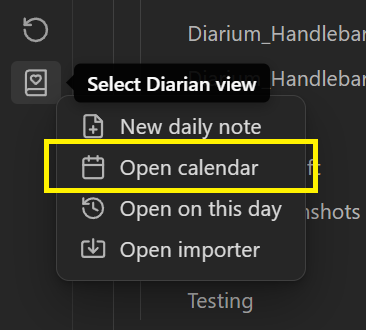
Access the Calendar view from the context menu that opens after clicking the ribbon icon.
The Calendar view displays all your daily notes in a calendar layout.
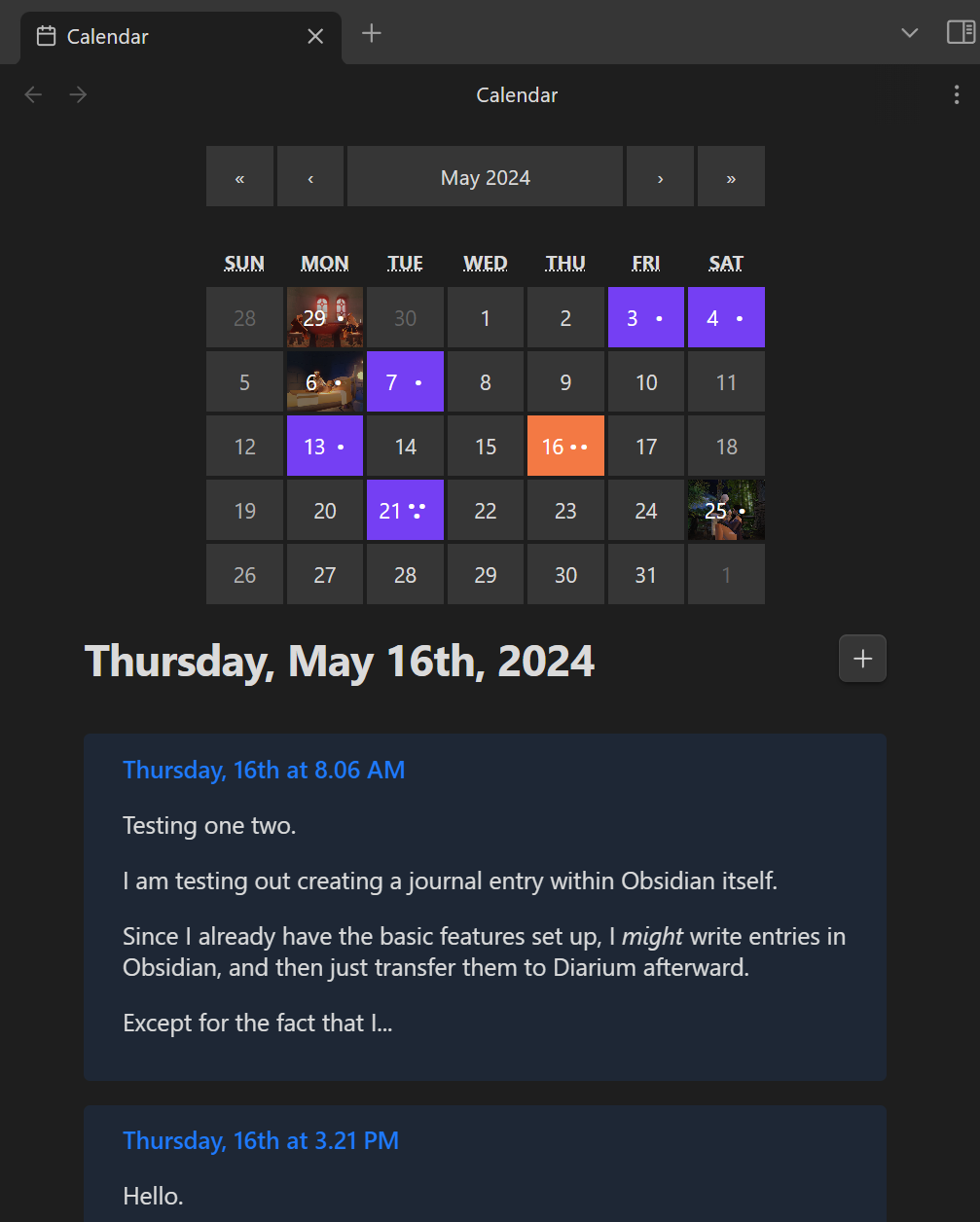
- The number of dots ( • ) on a tile represents how many daily notes you have written that day.
- If you have images attached, the first image you attached that day will show up on the tile of that day.
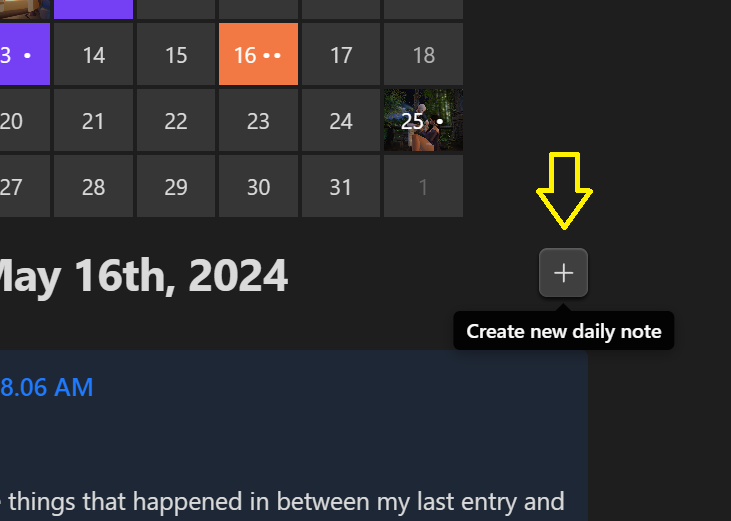
Select the plus button ( ) to create a new note on that day.
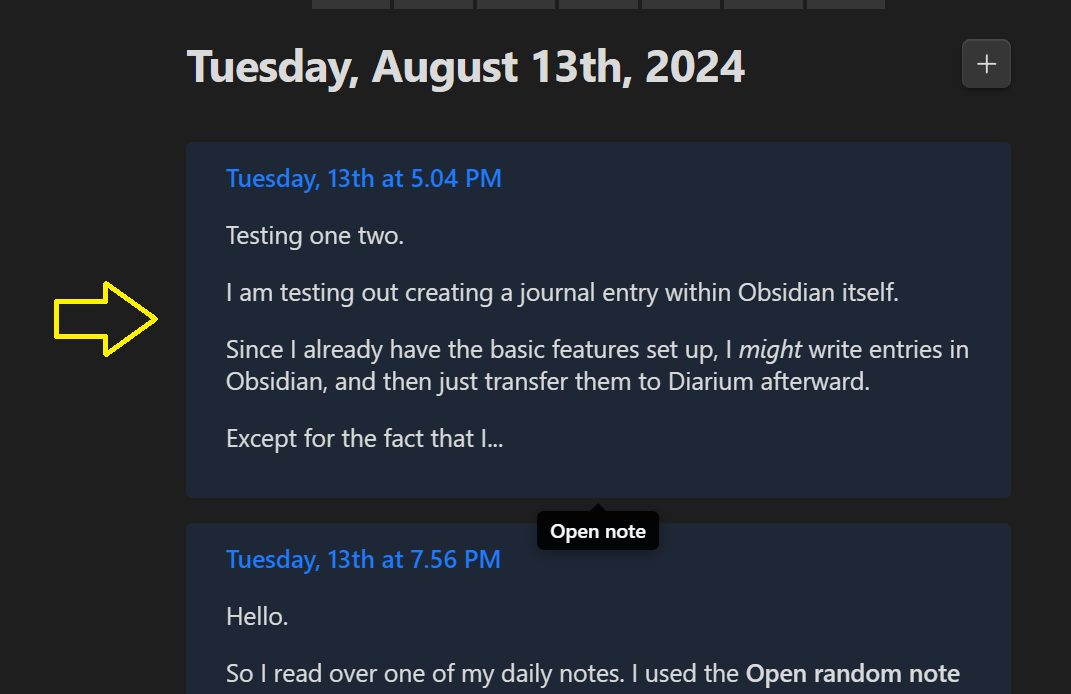
Select a note preview to open it.
Editor navigation
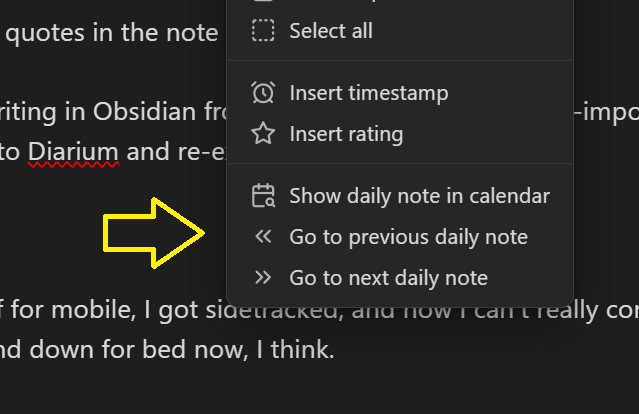
You can navigate between daily notes from the editor by using the following commands (See Command palette):
- Diarian: Show daily note in calendar
- Diarian: Go to previous daily note
- Diarian: Go to next daily note
These commands can also be accessed from the file and editor context menus.
On this day
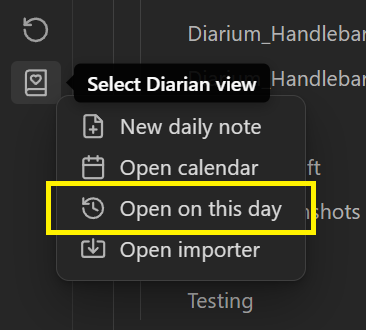
Access the On this day view from the context menu that opens after clicking the ribbon icon.
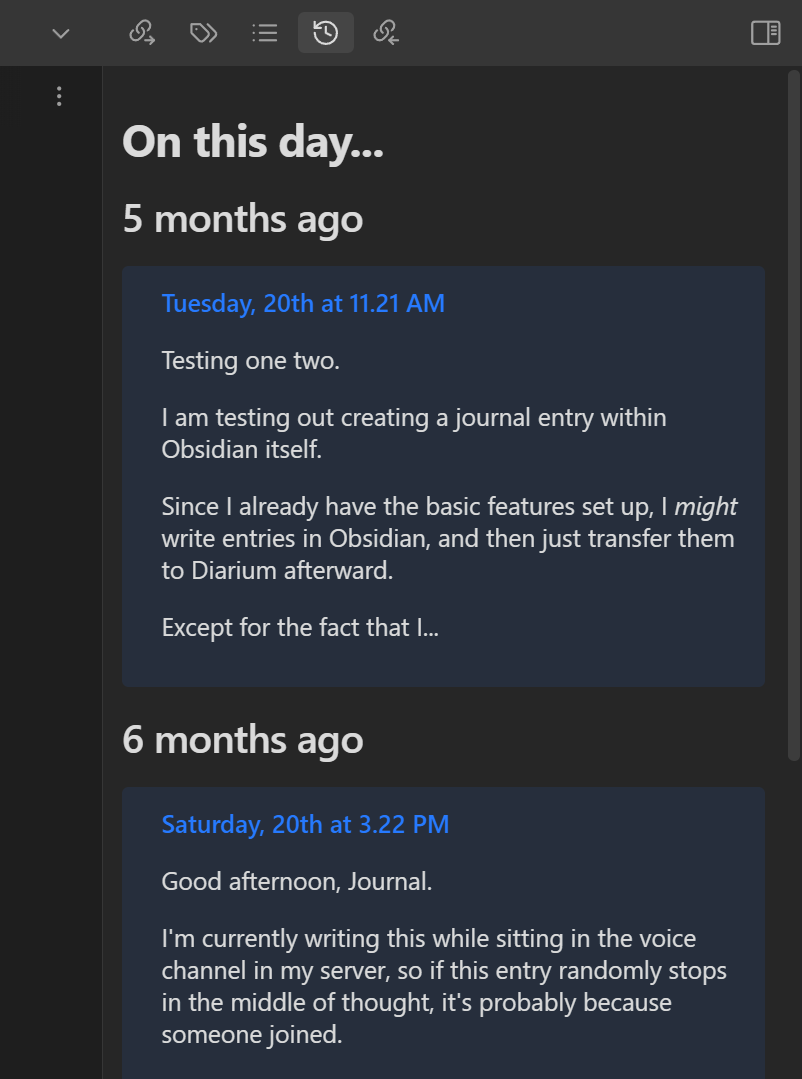
The On this day view displays notes written on previous days.
The interval between days to review (eg. every 3 months) and how long ago to start including notes (eg. 6 months ago or earlier) can be adjusted under Settings → Diarian → On this day.
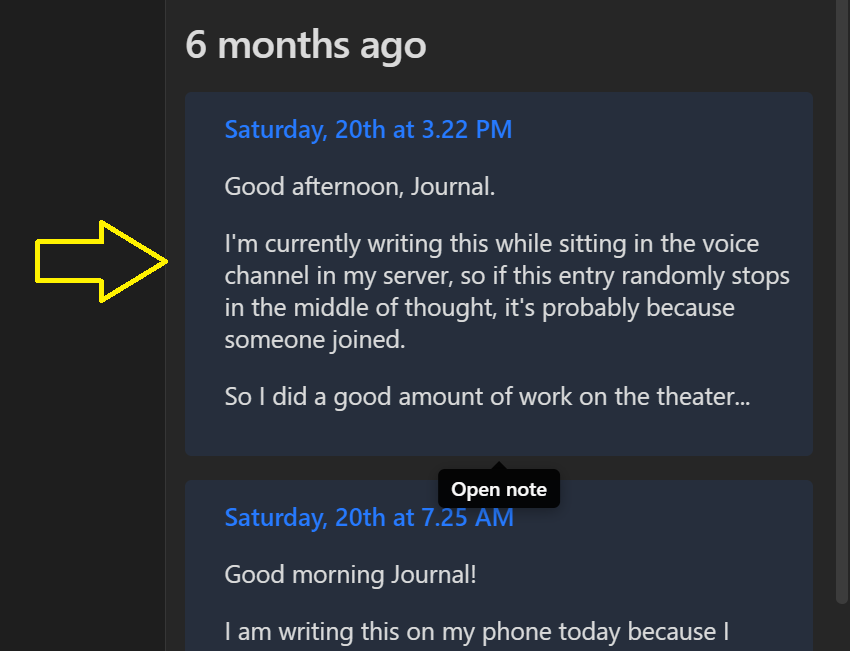
Select a note preview to open it.
Notifications
You can optionally receive a notification when there are daily notes from On this day to review.
To enable notifications, set Settings → Diarian → On this day → Notifications to either Pop-up modal or Notice.
Pop-up modals
Pop-up notifications will appear as a modal when you first open your vault.
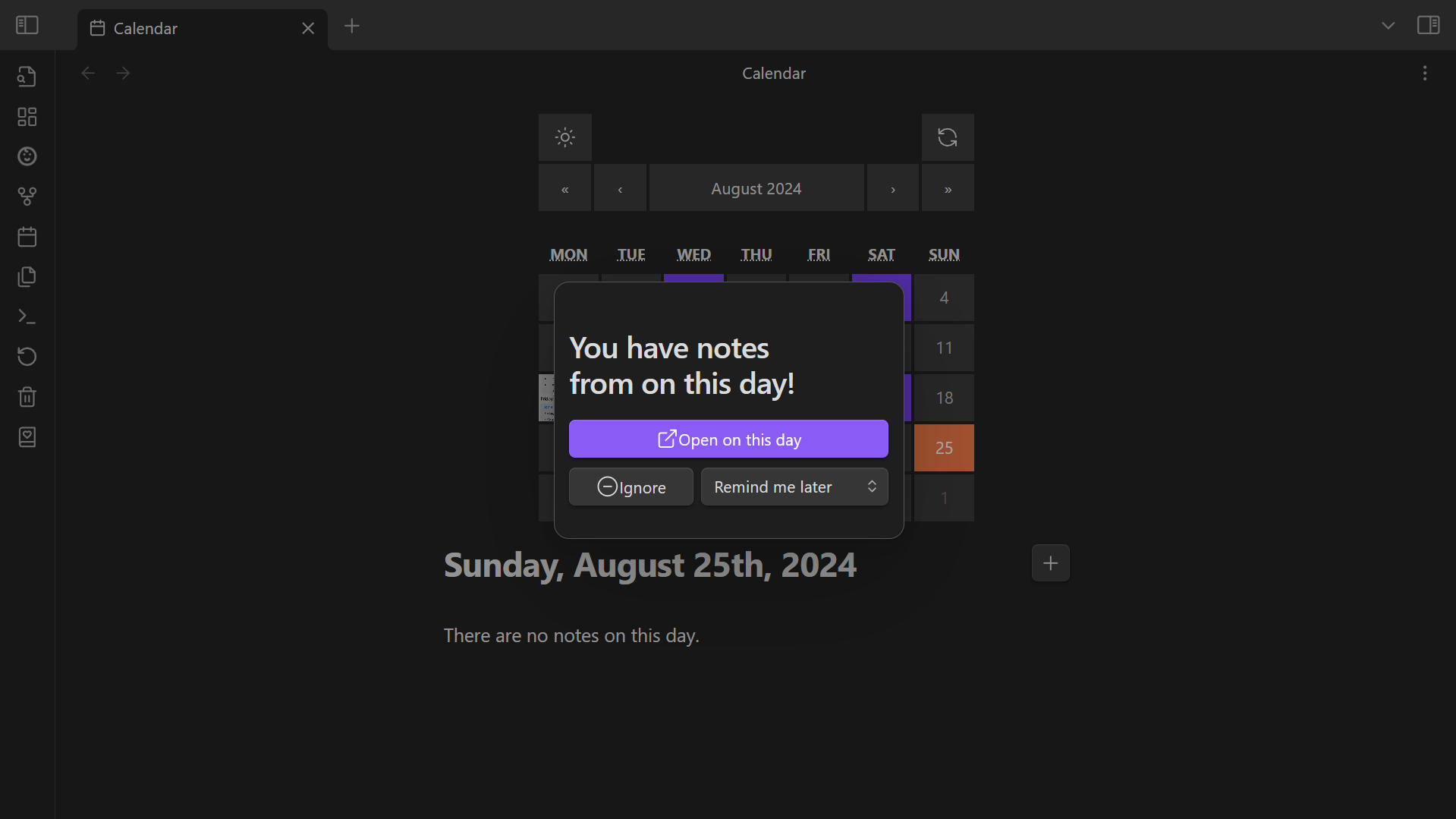
If dismissed by selecting Open on this day or Ignore, pop-up notifications will not appear again that day.
If Remind me later is selected, the notification will appear again after the chosen duration when your vault is open.
Notices
Notice notifications will appear when you first open your vault.
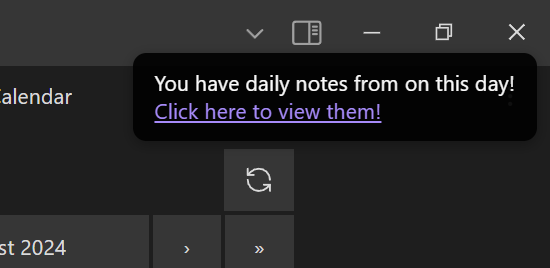
Notices will remain onscreen until selected.
- Select the link to open the On this day view.
- Click or tap elsewhere on the notice to dismiss the notice.
Importer
Access the Importer from the context menu that opens after clicking the ribbon icon.
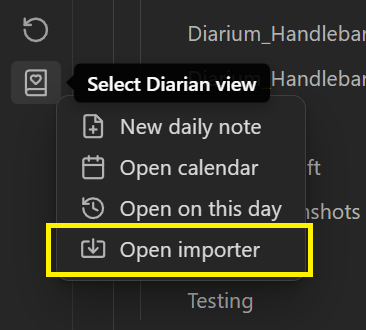
The Importer allows you to import a pre-existing journal from Diarium:
- Follow the instructions onscreen to export your Diarium journal to your local files.
- After they've been exported, choose the exported zip file, and then select Import.
Importer notes
- Entries will be imported to the location specified under Settings → Daily notes.
- If you have multiple entries per day, follow the instructions under Multiple/nested daily notes before importing your journal.
- Attachments will be uploaded to the location specified under Settings → Files and links → Default location for new attachments.
- Properties will be populated according to the data exported from Diarium.
- The rating property name can be set under Settings → Diarian → Rating → Property name.
- If Map View is installed, the location property will use the name set under Settings → Map View → Settings for the map view plugin. → Key for front matter location.
- Each tracker exported from Diarium will be imported as an individual property.
- If How to handle duplicate notes is set to Append all new entries, any existing properties from the new entry will be inserted inside a code block at the beginning of the appended content.
- I am currently planning to add options to change this behavior in the near future.
Rating
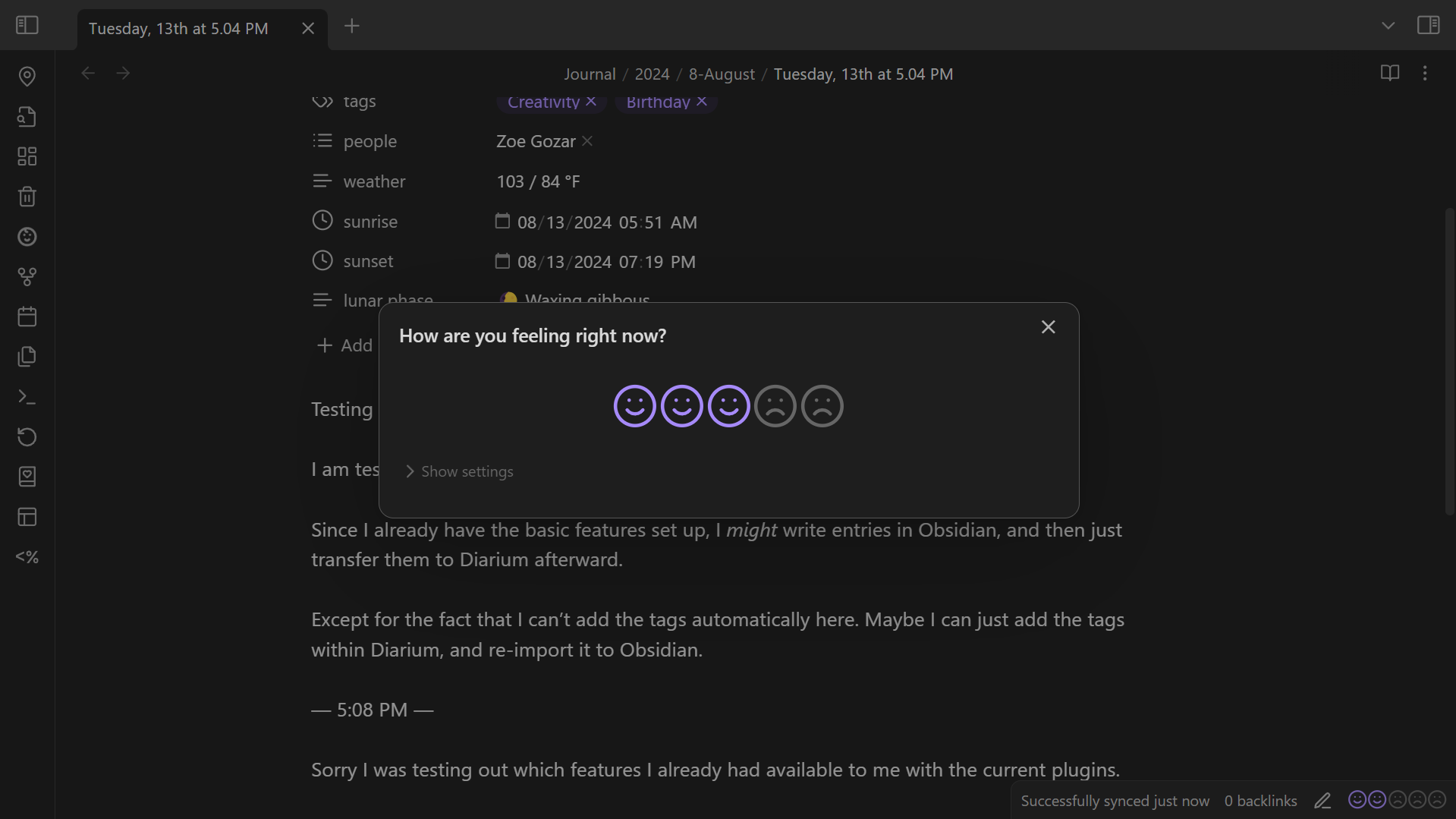
A rating will appear in the status bar whenever you're viewing a daily note.
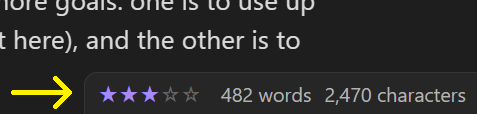
The status bar reads the note properties to determine the rating. If no rating has been set, the status bar will display an empty rating.
To set a rating, do one of the following things:
- Click the rating in the status bar (on desktop).
- Perform the Diarian: Insert rating command (See Command palette).
- Select Insert rating from the file context menu or the editor context menu.
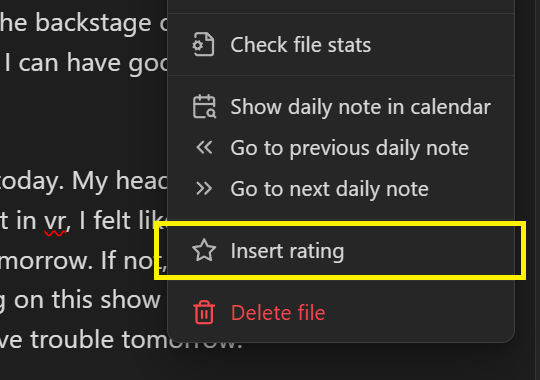
A modal will then open that will allow you to set the rating as you like.
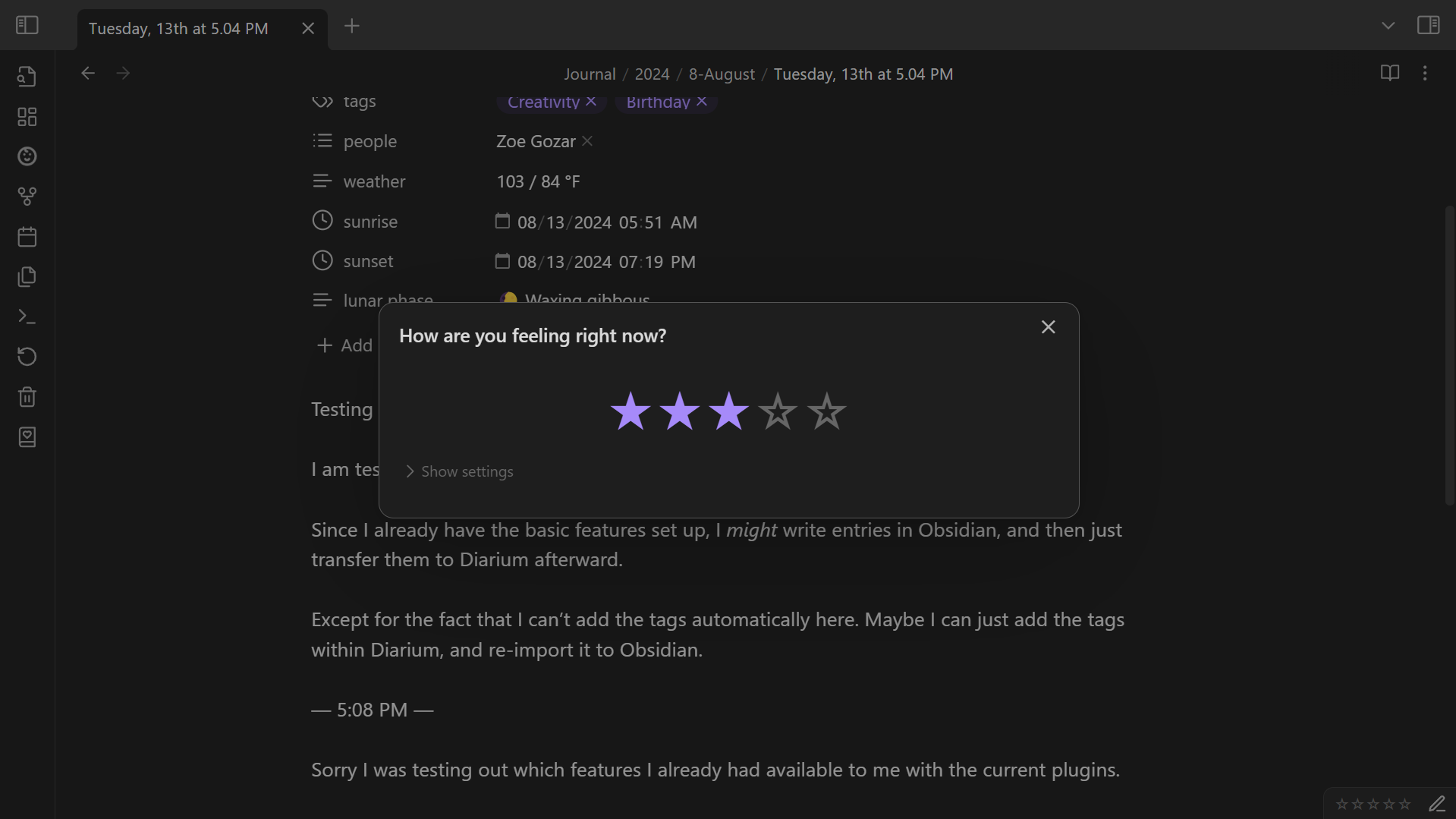
Customization
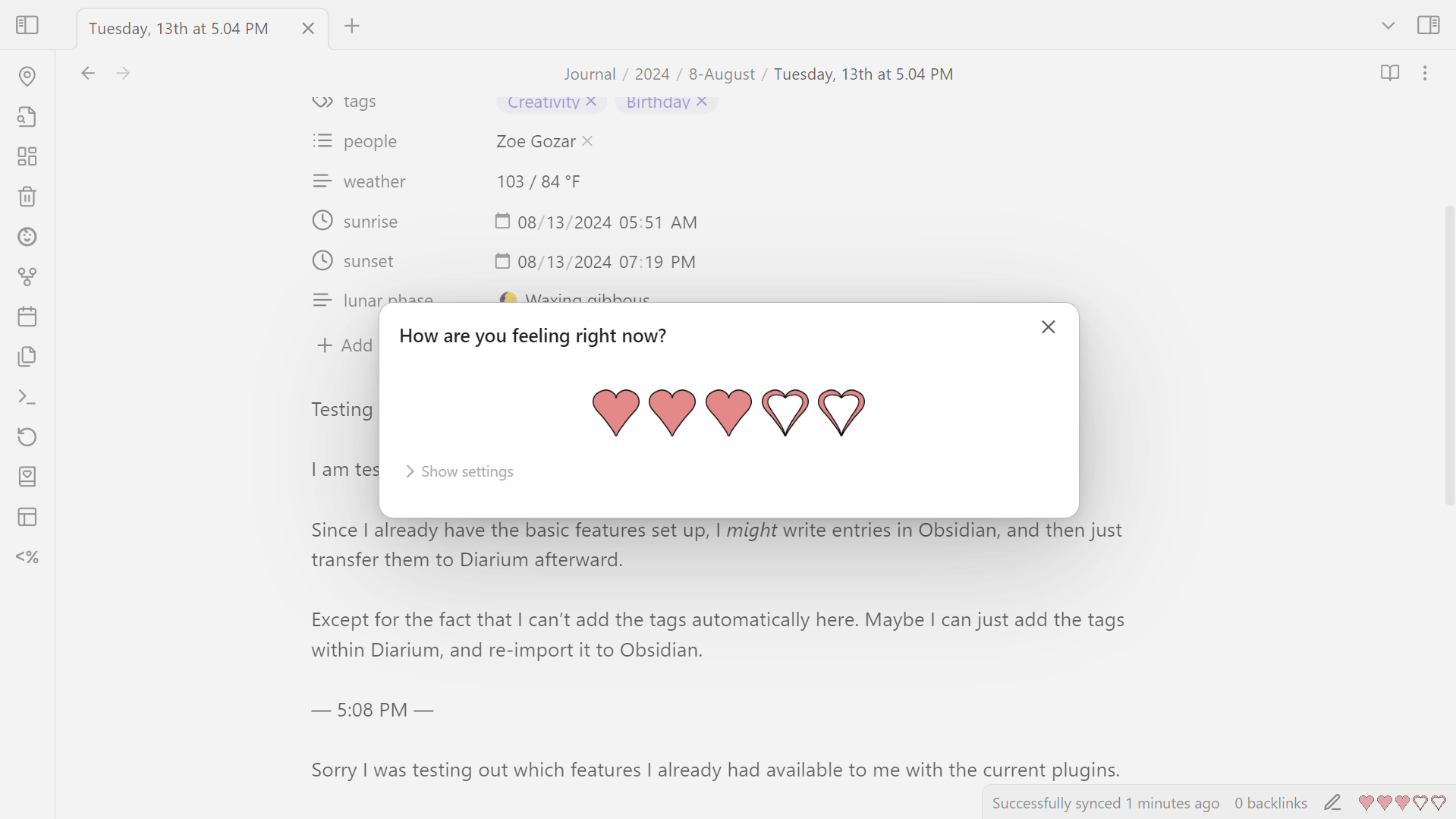
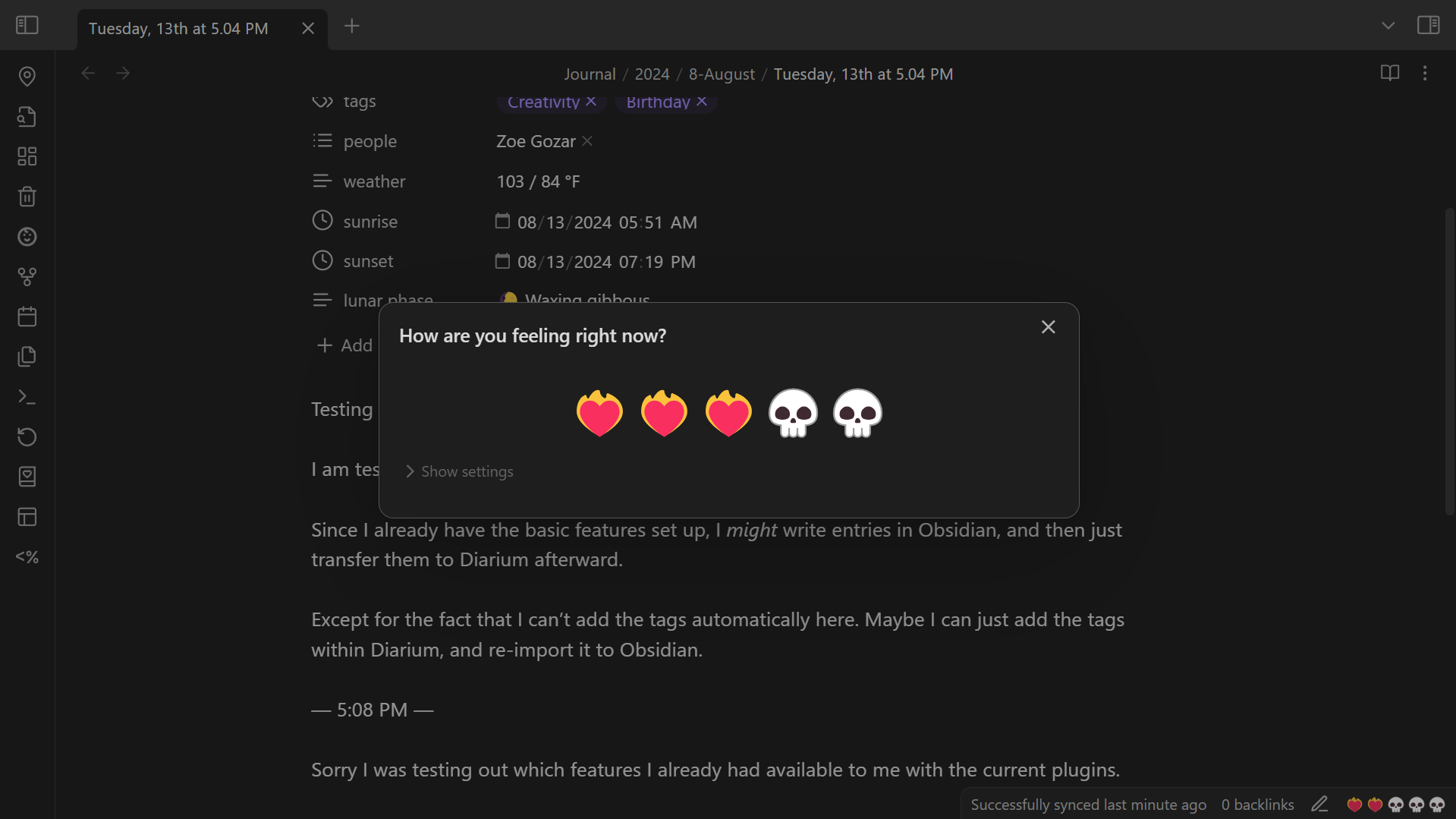
Under Settings → Diarian → Rating, you can set the Filled rating item type and the Empty rating item type to use either a Unicode character or emoji, an image of your choice, or an icon from the Lucide library.
Here are some hearts that I drew (images):
Here's something more goth (emojis):
And here are some smileys (Lucide icons):
Timestamp
To insert a timestamp, do one of the following:
- Perform the Diarian: Insert timestamp command (See Command palette).
- Select Insert timestamp from the editor context menu.
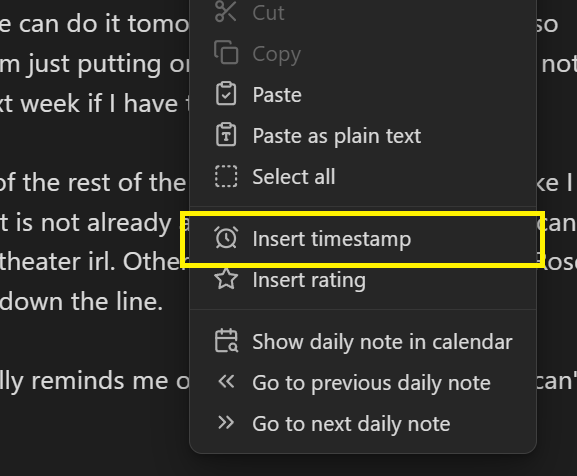
If the active note is from the current day, only the time will be inserted in the timestamp. Otherwise, both the date and the time will be inserted.
Multiple/nested daily notes
This plugin reads your settings under Settings → Daily notes to create new daily notes.
- To create multiple notes per day, you must change the Date format to include the time within the note name.
- To create nested daily notes, change the Date format to include slashes ( / ) to indicate folders and subfolders.
Format example
If you create a new daily note when
- The Date format is set to
YYYY/M-MMMM/dddd, Do [at] h.mm A- The current date is August 23, 2024
- The time is 11:15 AM
A new note will be created:
- Named "Friday, 23rd at 11.15 AM"
- In the subfolder "8-August"
- Nested under the folder "2024"
Once that is done, new notes with the new format will show up in the Calendar.
Date format converter
Access the Date format converter from the context menu that opens after clicking the ribbon icon.
The Date format converter allows you to rename/move pre-existing daily notes to match the format specified under Settings → Daily notes → Date format and the folder specified under Settings → Daily notes → New file location.
- If you wish to change the format and/or folder of pre-existing daily notes, the above settings should be adjusted before using the Date format converter.
Installation
Obsidian Marketplace
To install this plugin via the Obsidian Marketplace, perform the following steps:
- Navigate to the Diarian plugin page by either selecting this link or doing the following:
- Navigate to Settings → Community plugins
- Select Turn on community plugins.
- Select Community plugins → Browse and search for "Diarian".
- Select Install.
- To enable the plugin, select Enable.
BRAT
Install this plugin using BRAT by doing the following:
- Make sure the BRAT plugin is installed in your vault.
- Go to Settings → BRAT → Beta Plugin List → Add Beta Plugin
- Enter
https://github.com/Erallie/diarianinto the input field and select Add Plugin.
Manual installation
To install this plugin manually, follow these steps:
- Go to the Releases page and find the latest release.
- Download
main.js,manifest.json, andstyles.css. - Go to your Plugins folder (
[vault root]/.obsidian/plugins) and create a new subfolder calleddiarian. - Move the downloaded files to the new folder.
Credits
- I made use of this React calendar for my own Calendar view.
- I modified this code from the obsidian-daily-notes-interface to retrieve settings from the Daily notes core plugin and the Map View plugin.
- The modifications in my own code can be found in
get-daily-notes.tsand inimport-journal.ts.
- The modifications in my own code can be found in
- I modified this source from the Journal Review plugin to learn how to open a custom view pane.
- My own modifications can be found in
main.tsandnote-preview.tsx.
- My own modifications can be found in
- I modified
NotePreview.tsxandTimeSpan.tsxfrom the Journal Review plugin to display note previews.- The modifications in my own code are found in
note-preview.tsxandtime-span.tsx.
- The modifications in my own code are found in
- I referenced JSON/CSV Importer and the official Importer to understand how to code my own import feature.
- These 7 lines in my code were modified from these 5 lines in JSON/CSV Importer.
- No substantial code (that I can find) was borrowed from the official Importer, but I used it for reference. If you find substantial borrowed code, please let me know in an issue.
Footnotes
-
Password Protection and Lock Screen only put a password on your vault or a folder in your vault; they do not encrypt or decrypt it.
If you require an encryption feature, browse the Obsidian Marketplace for plugins with encryption. ↩ ↩2