
README file from
GithubJournal Folder
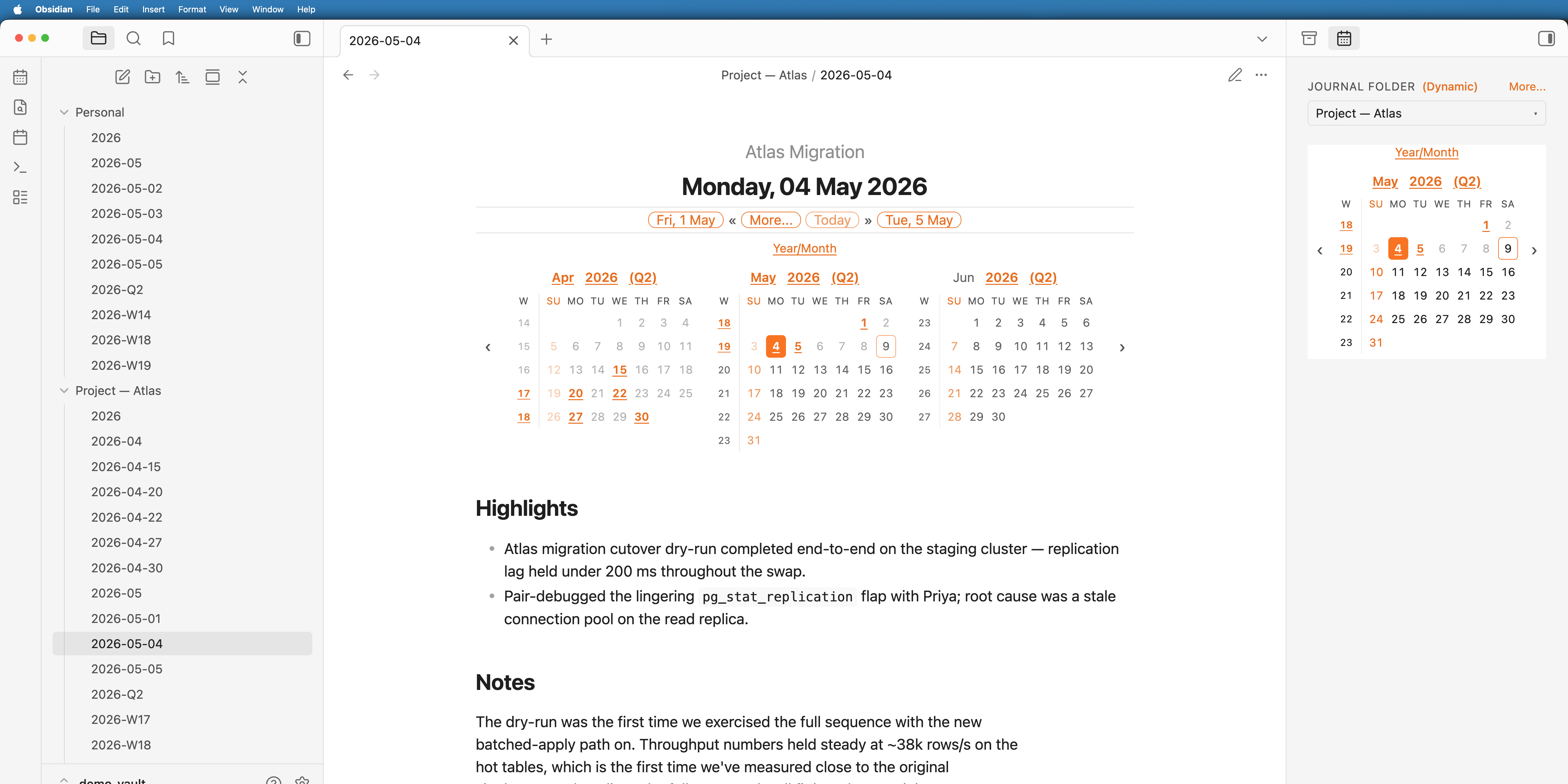
An Obsidian community plugin that turns any folder in your vault into a journal. Drop a note named 2026-05-04.md (or 2026-W19.md, 2026-05.md, 2026.md) into a folder, add a one-line code block at the top, and the plugin renders a navigable header, an inline calendar picker, and a sidebar with everything in reach.
You can run as many independent journals as you like in the same vault. A folder per project, a folder for personal notes, a folder per client — each gets its own settings, its own sequence of notes, and its own header.
What you get
- A navigable header in every journal note — backward / forward chips, a Today link, a More… popover for higher-order period jumps, and an optional inline calendar. Read more →
- A calendar picker that mirrors your whole journal — existing / missing / today / current-note states, fold-out month grid, configurable defaults per platform. Read more →
- A plugin menu — one ribbon icon (and the Open Journal Folder menu command) opens a quick-action menu: open either sidebar, switch between light and dark mode, or initialise a new journal folder. Read more →
- A sidebar tab with folder picker, calendar, and one-click access to every journal-folder action — Switch to default, Set as default, Edit folder configuration, Initialise a new journal folder. Read more →
- Auto-fill new journal notes from note-based templates (one per tier, with per-folder overrides), so you don't need Templater just to inject the
journal-headerblock. Read more → - Quarterly notes as an opt-in fifth tier between yearly and monthly. Read more →
- Tasks — surface Markdown tasks from journal notes in the sidebar panel or in any note via a
journal-taskscode block, with user-defined task flows, a scope picker (anchor × range + folder) for choosing exactly which tasks appear, tag-driven task categories (optionally range-capped so day-local chores stay out of wider rollups), and bullet-journal task migration that rolls unfinished tasks between notes with a reference trail. Read more → - Signifiers — bind an icon to a tag (BUJO-style) and it appears in the left margin wherever the tag does, so you can scan a note at a glance. Read more →
- A "start a new line below" command — begin a fresh line (continuing any bullet, checkbox, or quote) as if you'd pressed Enter at the line's end, without moving the cursor there first. Bind it to a shortcut of your choice. Read more →
- An edit-mode indicator — an optional left-edge rule on the editor so you can tell at a glance whether a note is being edited or read. Off by default. Read more →
Why folder-based?
Most journaling plugins assume one global daily-notes folder. Journal Folder assumes nothing about where journals live or how many you keep. Conventions that hold:
- A note's basename is its date. Filename formats are fixed; everything else (title, link labels, calendar visibility, folder title) is configurable.
- Settings cascade from global → folder → embedded. Per-folder overrides live in
journal-folder.md; per-header overrides live inside the code block. - The plugin only acts on files matching the date conventions, so the rest of the folder's contents are ignored.
The vault root is not supported as a journal folder — Obsidian's link resolution behaves differently there.
Recognised file names
| Note type | Filename format | Example |
|---|---|---|
| Daily | YYYY-MM-DD |
2026-05-04.md |
| Weekly | gggg-[W]ww |
2026-W19.md |
| Monthly | YYYY-MM |
2026-05.md |
| Yearly | YYYY |
2026.md |
The weekly format uses ISO week-year (gggg/gg). If you customise weekly title patterns, use gg/gggg for the year — YYYY or GGGG will desync the displayed year from the filename around year boundaries.
A fifth tier — quarterly notes (YYYY-Q[1-4]) — is available as an opt-in. See Quarterly notes.
Install
The plugin is published to the Obsidian community plugin directory under the name Journal Folder. Open Settings → Community plugins → Browse, search for it, install, and enable.
To run from source, clone this repo and:
npm install
npm run build      # tsc --noEmit + production esbuild → main.js
Copy main.js, manifest.json, and styles.css into <vault>/.obsidian/plugins/journal-folder/.
Getting started
- Pick a folder in your vault for your journal (e.g.
Personal,Project — Atlas, …). The vault root isn't supported — make it a real folder. - Click the Journal Folder ribbon icon (left edge of the workspace) and choose Initialise a new journal folder from the menu. Pick your folder.
- The plugin creates a
journal-folder.mdin that folder. Click any cell on the calendar to create your first daily/weekly/monthly note — it gets thejournal-headerblock automatically if you've turned on Auto-fill new journal notes. - Open the new note. You should see the rendered header at the top.
Once you have one journal folder, repeat the Initialise step for any other folder you want as a journal — each can have its own settings.
Working with other plugins and themes
- Themes that style task checkboxes (Minimal, Things, AnuPpuccin, Border, …) coexist via a flow's Theme checkbox rendering mode. Read more →
- The Obsidian Tasks plugin shares the same checkbox alphabet; keep
task-interaction-scopeonlistsso both plugins stay out of each other's way. Read more → - Templater with Folder Templates is the cleanest way to inject the
journal-headerblock automatically if you'd rather not use the plugin's built-in auto-template.
Configuration
Almost every setting can be edited from one of two UIs:
- Global defaults — Settings → Community plugins → Journal Folder.
- Per-folder overrides — sidebar tab → More… → Edit folder configuration.
The same form drives both, with global-only sections hidden in folder mode. Edits are stored sparsely in per-folder front matter, so fields that match the global default fall through automatically when you change the global default later.
For the underlying data structures, manual front-matter / data.json editing, and embedded-block syntax, see Advanced configuration. That section is the right reference if you're scripting setup across multiple vaults, storing config in source control, or overriding a single header from inside the note itself — but for day-to-day use, the settings UIs are the recommended path.
Table of contents
User guide (everything below is in this page):
- The journal header
- The calendar picker
- The plugin menu
- Sidebar tab
- Auto-fill new journal notes
- Quarterly notes (opt-in)
- Tasks
- Signifiers
- Starting a new line
- The edit-mode indicator
- Using with a theme that styles tasks
- Using with the Obsidian Tasks plugin
- Known issues
- Advanced configuration
Developer & contributor docs are separate files in the repo.
The journal header
Every journal note gets a header by including a journal-header code block at the top:
%% EDITING %%
```journal-header
```
That's it. The plugin replaces the code block with a rendered header keyed off the note's filename. The leading %% EDITING %% comment is optional but recommended — without it, opening a note in edit mode lands the cursor on the code block, which causes the rendered header to flicker into source until you click away. With the comment, the cursor lands on the comment line first; reading view drops the comment entirely and renders the header at the very top.
[!TIP] Turn on the plugin's own Auto-fill new journal notes feature to inject this block automatically into new notes — no extra plugins, and it's journal-aware (templates are notes, one per tier, with per-folder overrides). If you'd rather drive templating from elsewhere, the Templater plugin or the core Templates plugin can do the same job.
What the header shows
Daily note

The primary row shows: backward chip, More… button, Today (only if the note isn't today), forward chip. The folder title at the top is optional (see Folder title below).
- Backward link — closest existing earlier daily note, or the note for the previous day if it doesn't exist yet but the date is today/future. Otherwise omitted.
- Forward link — symmetric: closest existing later daily note, or the next day if today/future.
- Today — links to today's daily note; only shown when the current note isn't today.
- More… — opens the popover (next section).
Weekly note
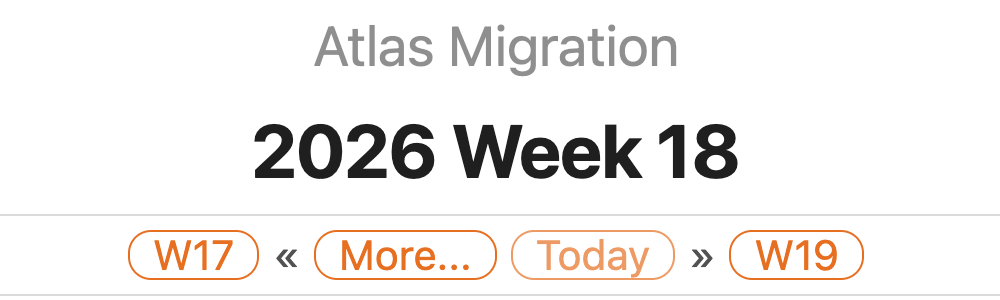
Backward/forward chips become weeks; Today always renders.
Monthly note

Backward/forward chips become months; Today always renders.
Yearly note

Backward/forward chips become years; Today always renders.
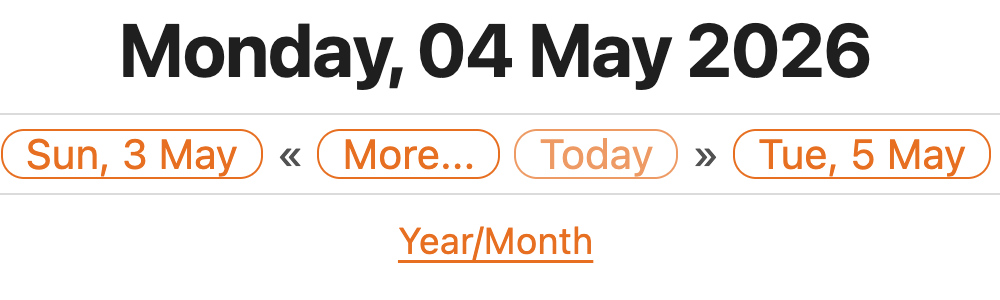
Without a folder title
If no folder title is configured, the row above the H1 is simply omitted:
The More popover
The chips on the primary row are deliberately minimal. Higher-order period jumps and lower-order period lists live in the More… popover so the bar stays uncluttered.
From a daily note
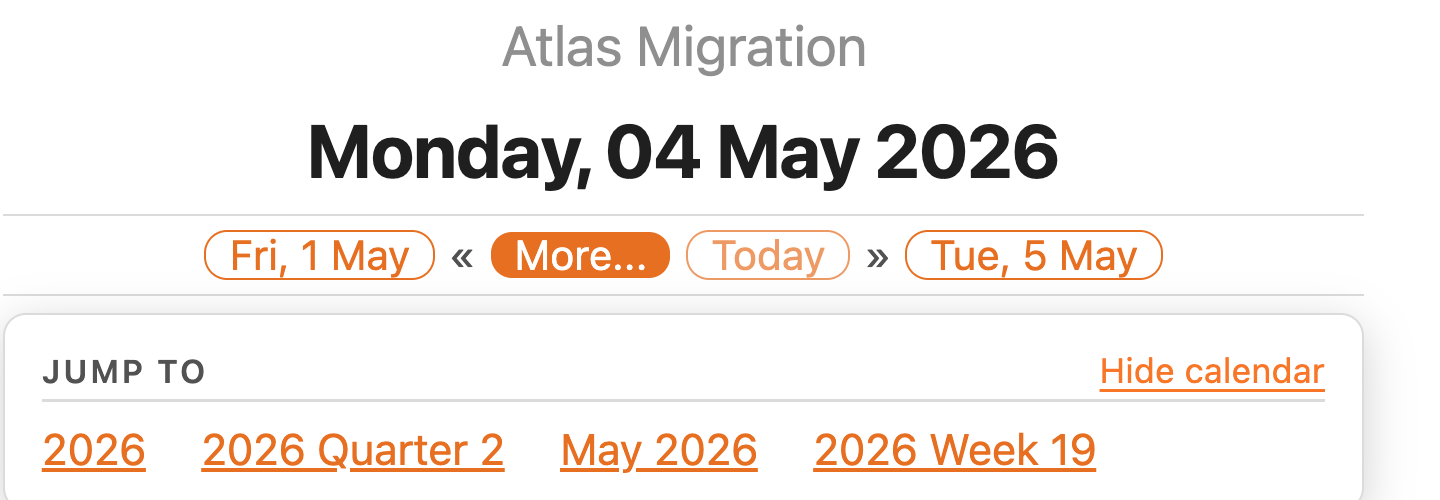
The Jump to section lists higher-order periods that contain the current note: year (2026), month (May), week (W19) — plus the containing quarter (2026 Quarter 2) when quarterly notes are enabled, as in the screenshot above. For unspanning periods each link is shown only if a note exists for that period or if the period is current/future; when the current note straddles a tier boundary (e.g. a week that crosses March/April) all overlapping periods are listed, with past+missing entries rendered inactive. The Show calendar / Hide calendar toggle on the right opens or closes the inline calendar picker (see The calendar picker).
From a weekly note
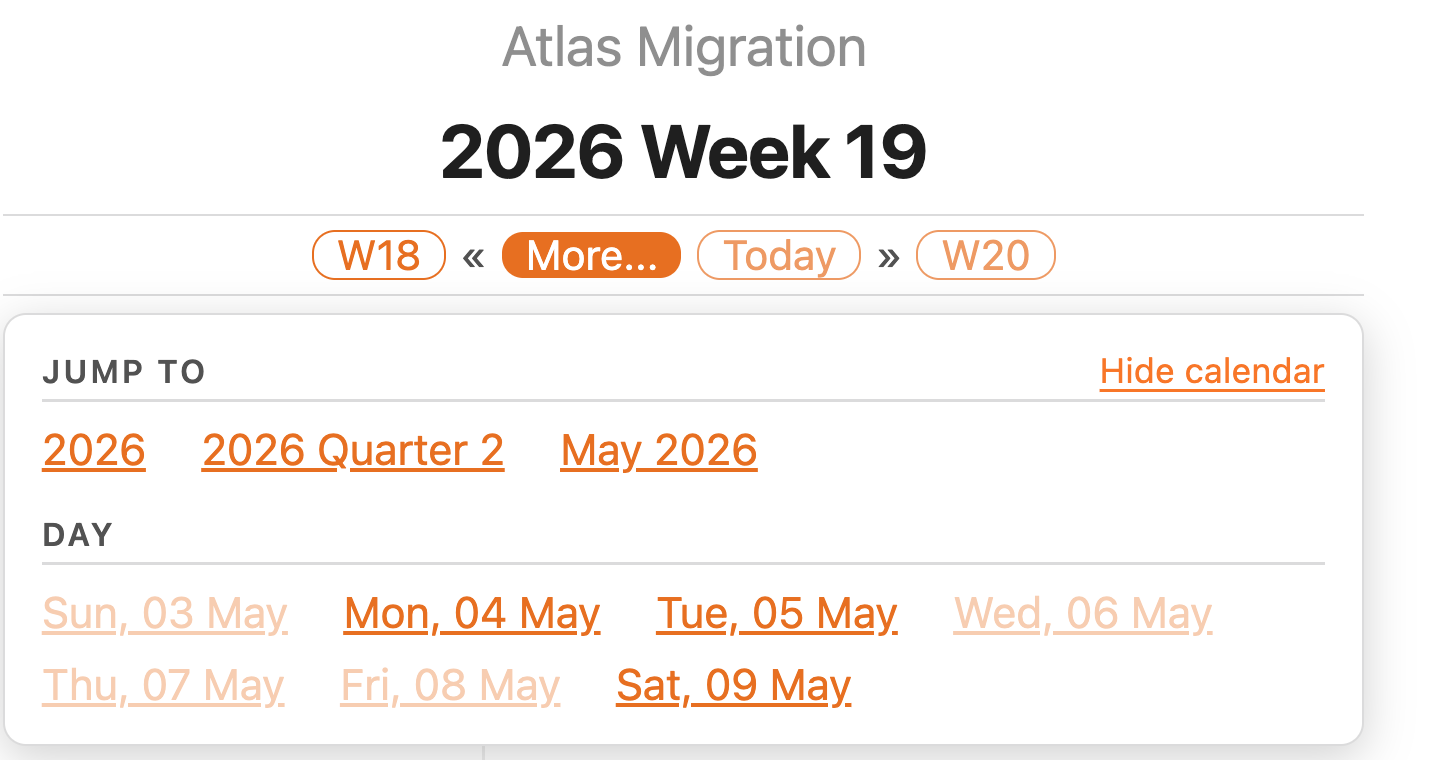
A weekly note also exposes a Day section listing each day in the week, with the same exists/present/future filter applied to each link.
From a monthly note
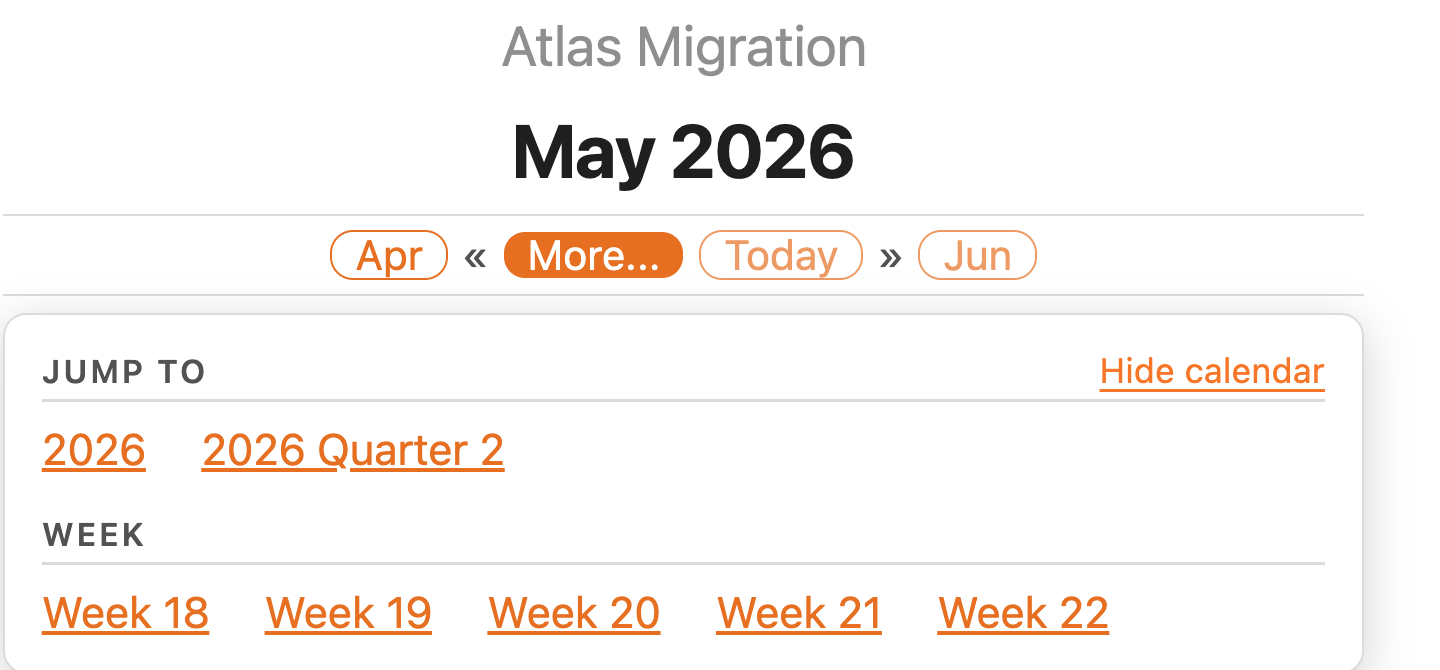
A monthly note's lower-order section is Week; a yearly note's is Month. On yearly notes the Jump to section is empty (no higher-order periods exist), so the calendar toggle moves to the Month header on the right. The toggle reads Hide calendar here because the calendar is currently visible.
Folder title resolution
The header's folder-title row is resolved as:
- If
journal-folder-titleis configured (folder or embedded), use it. - Else if
use-folder-name-as-default-titleis true, use the folder's actual name. - Else omit the row entirely.
The calendar picker
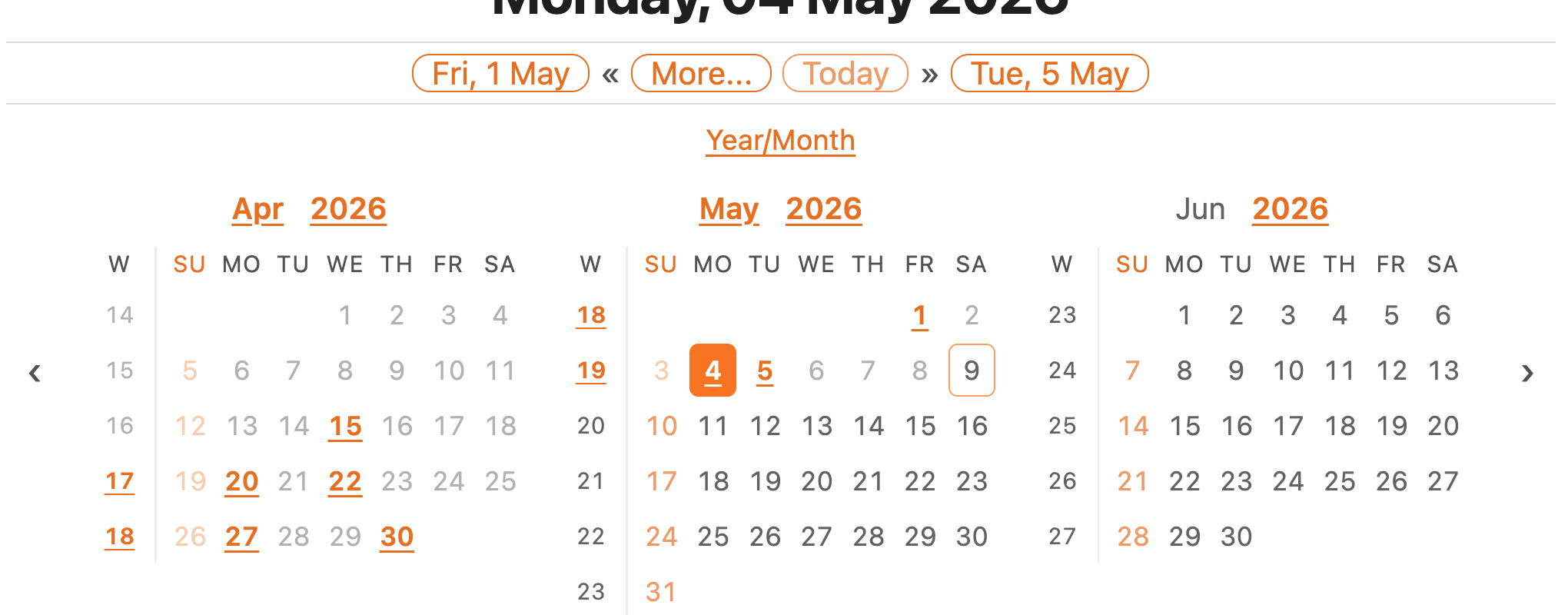
Toggle the calendar from the More popover on any journal note and the inline picker appears below the header. It reflects the same exists/missing/today/current state the rest of the plugin uses, so you can see your whole journal at a glance:
Cell rules
Apply uniformly across day, week, month, quarter, and year cells:
- Missing — theme's normal text colour, faded at the theme's unresolved-link opacity. Past missing cells are faded an additional 50% so they read as more demoted than future missing cells. Clicking a past missing cell opens a confirmation modal before creating the note (so you don't accidentally create back-dated entries).
- Existing — accent colour, bold, underlined.
- Sundays — accent colour across every state (existing, future-missing, past-missing) and on the weekday header, so the start of the week is always easy to pick out.
- Today — accent ring around the cell.
- Current note — filled accent background. Travels with the note's time unit, so opening a monthly note paints the month cell, not the day:
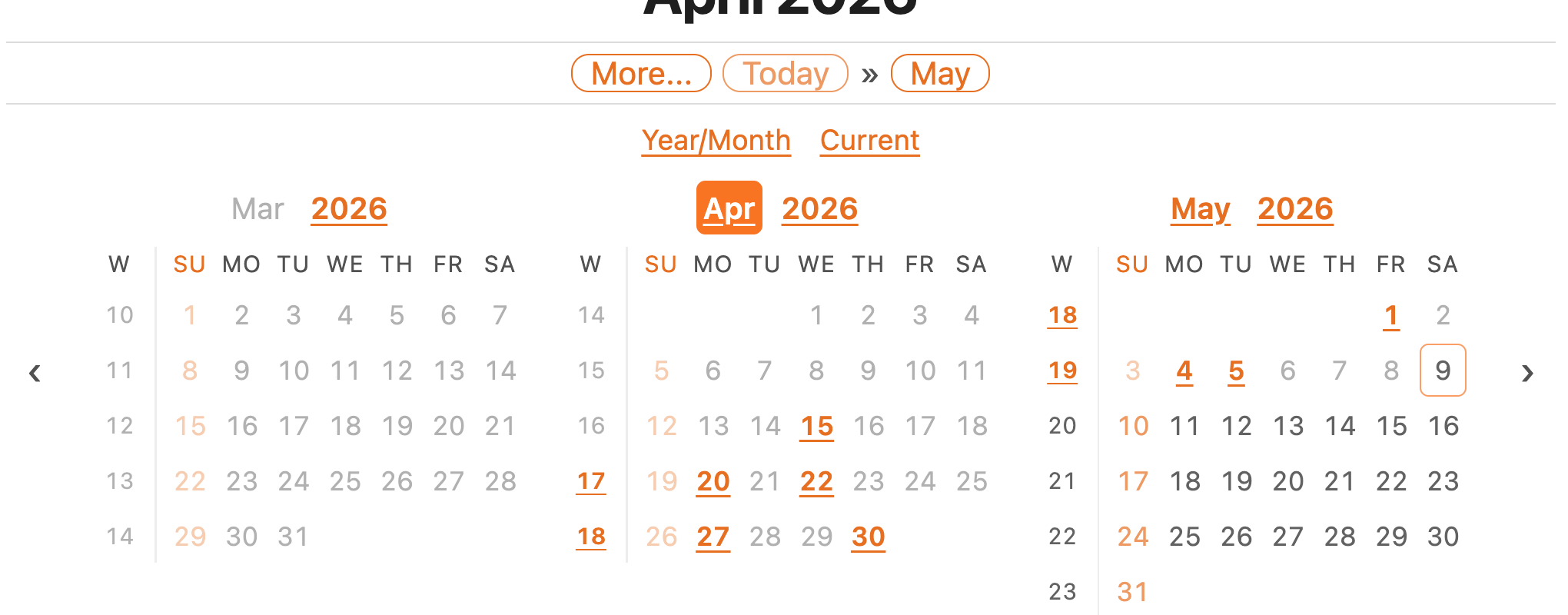
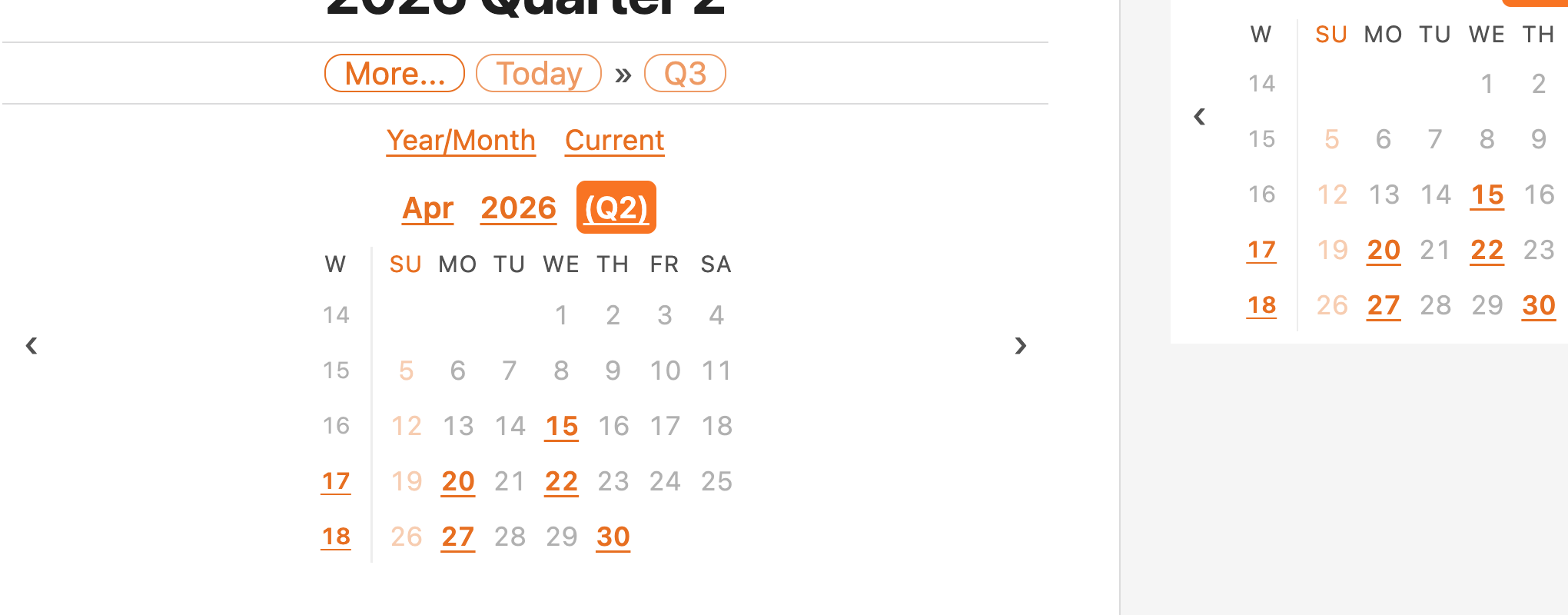
Clicking a date that doesn't yet have a note creates it (with a confirm prompt for past dates). Arrows on the sides slide the visible month window by one month at a time.
Quick-nav strip
The strip above the months grid carries up to three quick-nav controls:
- Year/Month — always shown. Opens a date-picker popover with year chevrons (
‹and›shift by ±12 months) and a 4×3 grid of month names; clicking a month jumps the window straight to it. - Current — appears only when the visible window has scrolled away from today's month. Clicking it snaps back.
- Note month — appears only when the visible window has scrolled away from the host note's own month, and only differs from Current once you start a session on a non-today note.
Both Current and Note month hide themselves when they'd be redundant, so the chrome quietly disappears as you navigate back into range.
Responsive layout
The number of visible months is chosen automatically based on the available width, capped at 5. As the pane narrows the picker drops to a single month; on mobile the cells additionally enlarge for easier tapping:
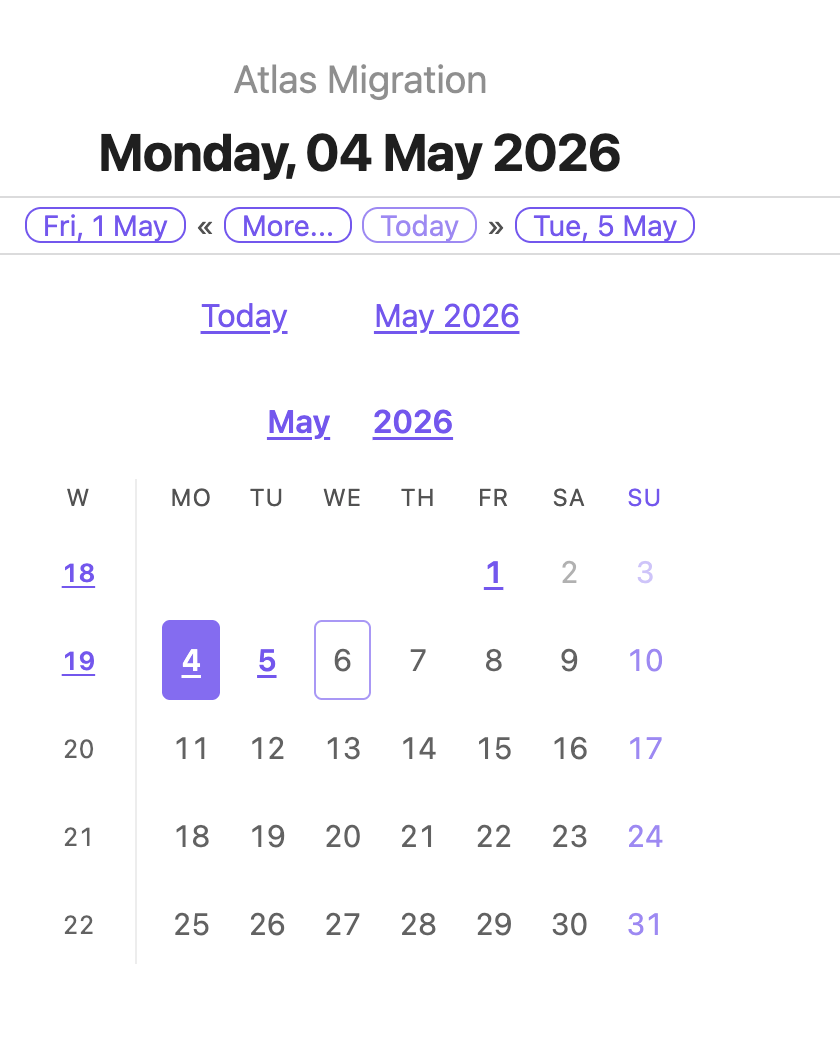
Default visibility
You can have the calendar open by default for new sessions — see default-calendar-visible-desktop and default-calendar-visible-mobile in the settings reference. The two platforms have independent defaults (calendar on for desktop, off for mobile) because the multi-month layout isn't useful at phone widths. A manual toggle from the More popover wins over any default for the rest of the running Obsidian session, so navigating between folders with different defaults won't override an explicit choice.
The plugin menu
Everything the plugin does from outside a note hangs off a single ribbon icon on the left edge of the workspace (the notebook glyph, labelled Journal Folder menu). Clicking it opens a small action menu:
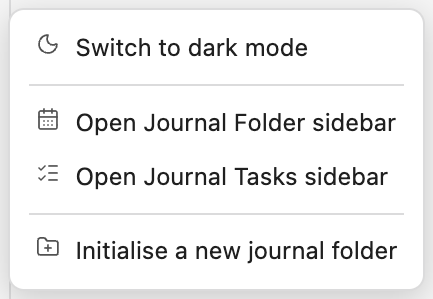
- Switch to light / dark mode — flips Obsidian's own Base color scheme (the same setting as Settings → Appearance). The label and icon track the current mode, so the row always offers the opposite. A vault set to Adapt to system is switched to an explicit light or dark scheme and left there.
- Open Journal Folder sidebar — reveals the sidebar tab (folder picker, calendar, task panel).
- Open Journal Tasks sidebar — reveals the slim tasks-only sidebar.
- Initialise a new journal folder — the same fuzzy folder picker described under More… menu; it creates the
journal-folder.mdand switches the sidebar to the new folder.
On mobile, Obsidian doesn't show the desktop ribbon, so the menu is also registered as the Open Journal Folder menu command — run it from the command palette, or pin it to the mobile toolbar (Settings → Toolbar). On a phone the menu opens as a centred sheet with roomier rows.
Sidebar tab
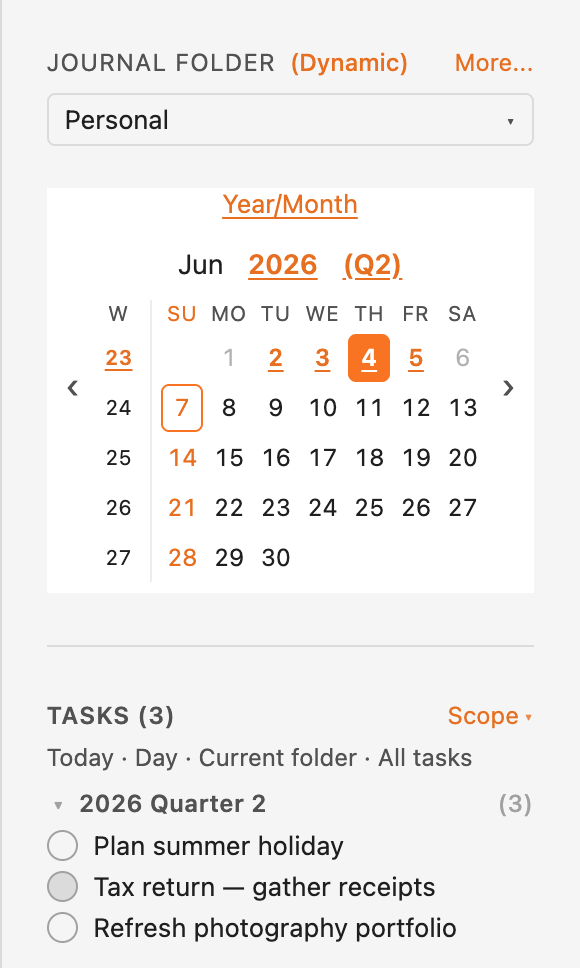
A dedicated sidebar view collects journal-folder actions in one place. Open it from the plugin menu (Open Journal Folder sidebar) — the view docks in the right sidebar by default.
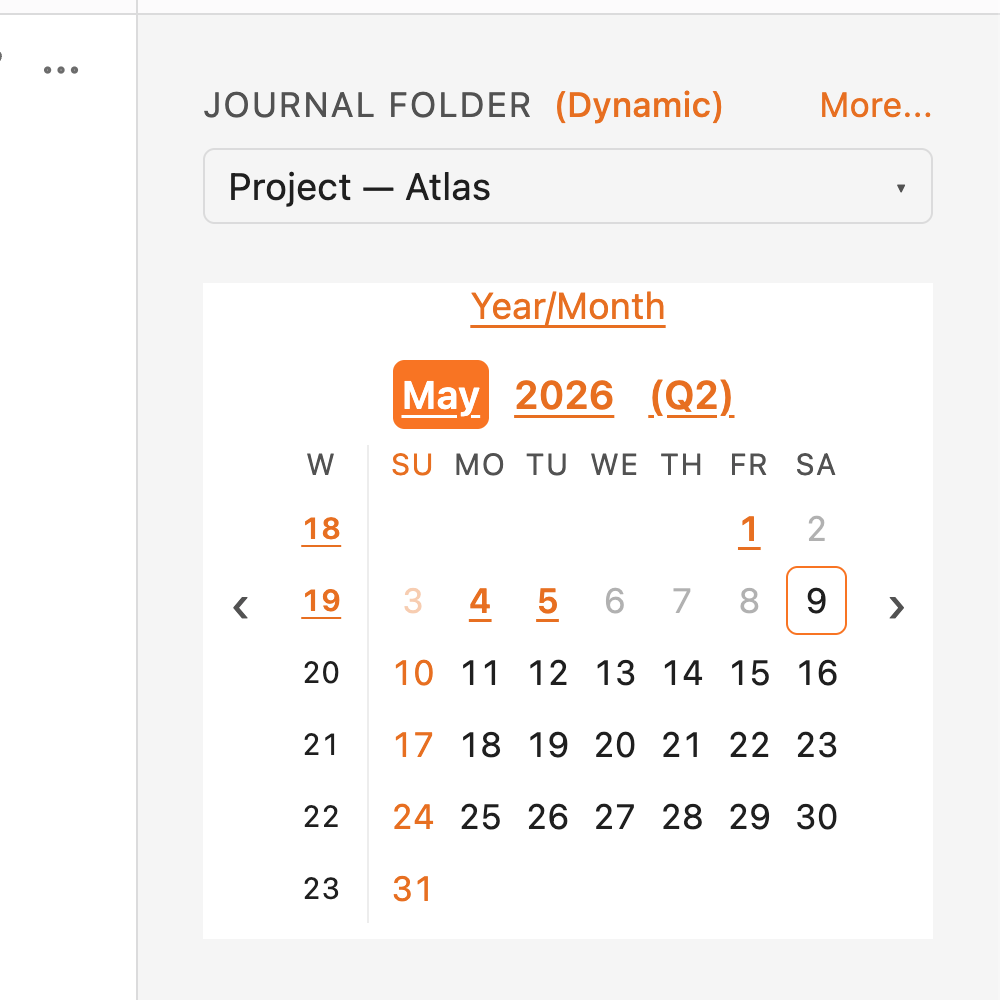
The header reads JOURNAL FOLDER (Dynamic) or JOURNAL FOLDER (Static) — the parenthesised tag tracks the current mode at a glance. A single More... link to the right of that label opens every secondary action; the folder picker beneath it switches between known journal folders.
Folder picker
Every folder that contains a journal-folder.md shows up in the picker. Click the dropdown trigger and a panel lists them all:
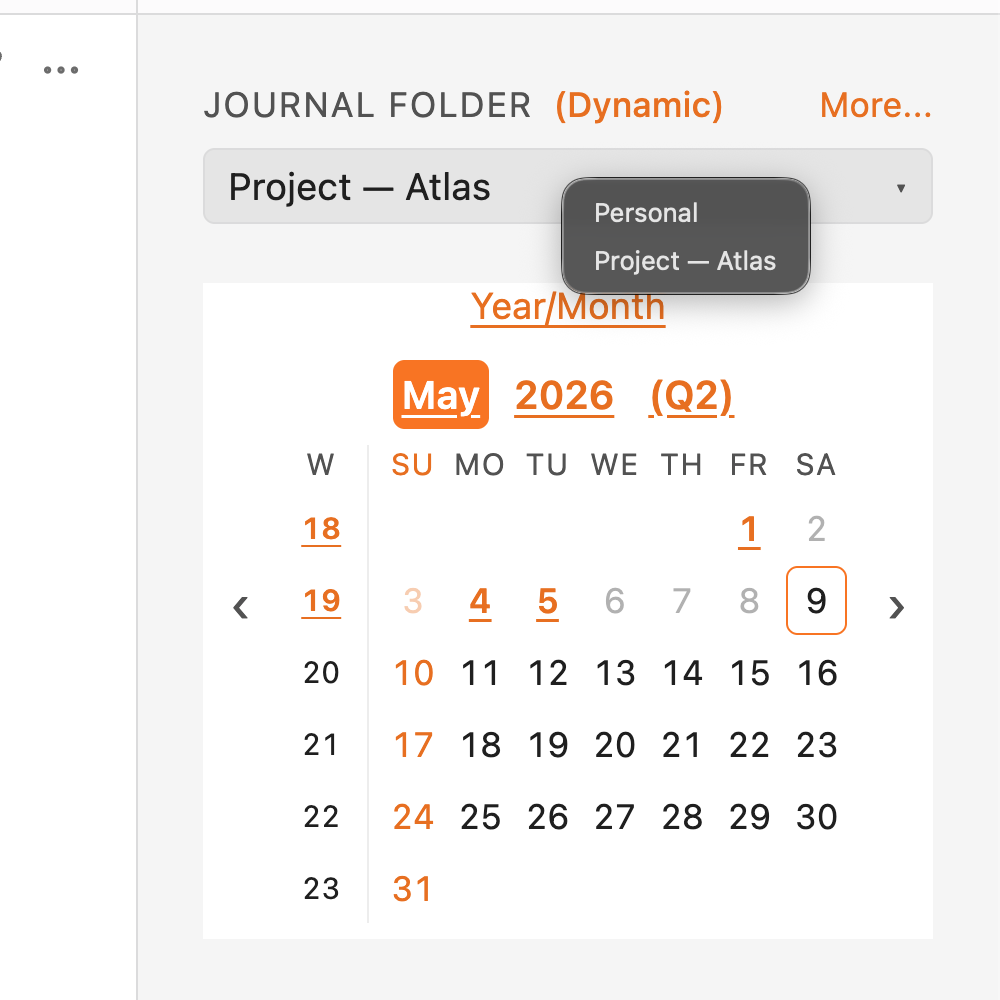
In dynamic mode (the default), opening a journal note in a different folder switches the picker automatically — the calendar scrolls to that note's period and highlights its cell. In static mode the picker holds whichever folder you chose regardless of which note is open. Persists as the global sidebar-mode setting.
Calendar
The calendar is the same single-month grid logic the in-note calendar uses, scoped to the selected folder. Clicking a day, week, month, quarter, or year cell opens (or creates) the corresponding journal note; past-dated cells with no existing note route through the same Create missing note? confirmation prompt the in-note calendar uses. The controls strip carries the same Year/Month, Current, and Note month quick-nav links as the in-note calendar, plus ‹ / › arrows for month-by-month navigation. In dynamic mode the calendar scrolls to follow the active note's period without clearing your manual ‹ / › history.
Task panel
When the tasks feature is enabled (see Tasks), the sidebar gains a panel below the calendar listing tasks in the current scope. The panel header carries a Scope ▾ link that opens a small panel for choosing the anchor (Today / Current note), range (Day / Week / Month / Quarter / Year / All), folder scope, and the completed-tasks filter; a read-only summary line under the header shows the current selection at a glance. See Sidebar task panel for the details.
More... menu
A single text link to the right of the section header opens a panel with every secondary action. It's built from the current sidebar state, so options that don't apply right now are simply omitted (e.g. Switch to default folder is hidden when you're already on the default; Edit folder configuration is hidden when no journal folder is selected).
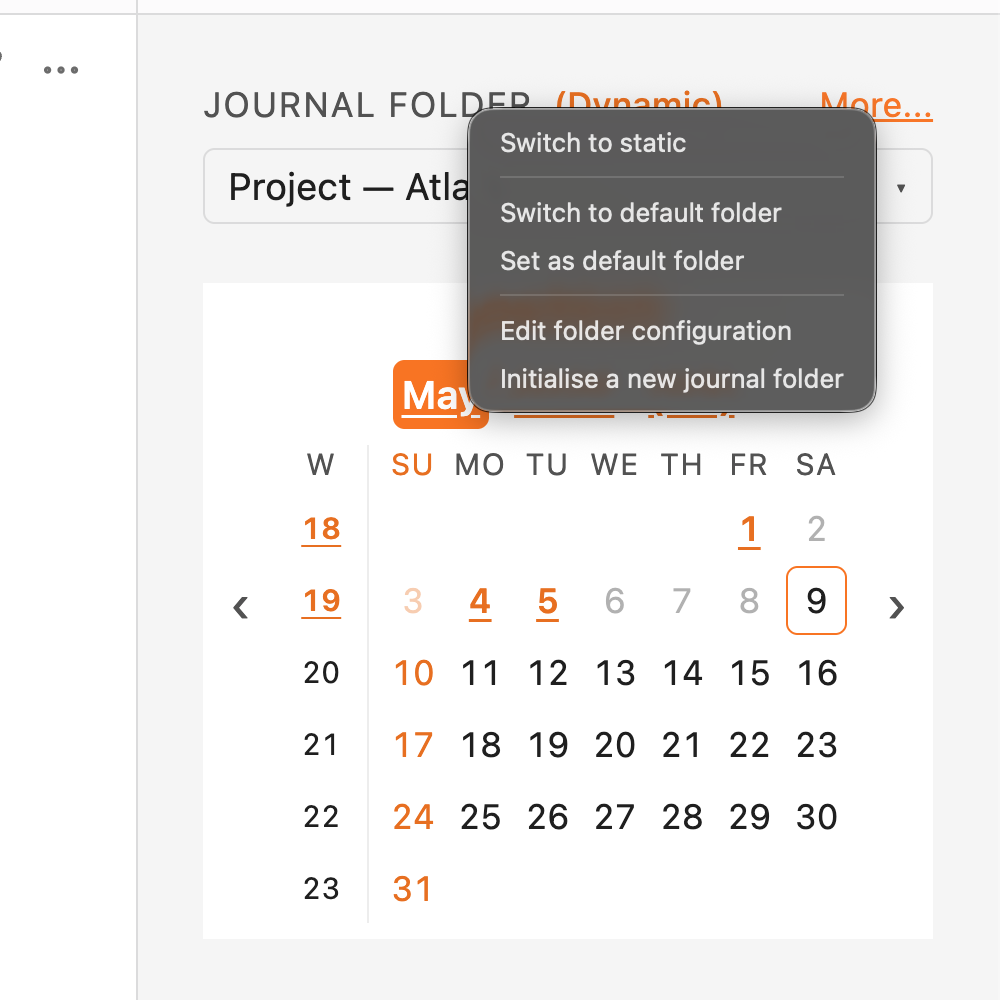
Items:
- Switch to dynamic / Switch to static — flips the mode (also reflected in the section-header tag). Persists as the global
sidebar-modesetting. - Switch to default folder — resets the picker to the configured
default-journal-folder. Shown only when you're on a non-default folder and the configured default still exists in the known list. - Set as default folder — promotes the currently selected folder to the new global default. Shown only when the picker is on a non-default journal folder. The default folder itself has no global-settings-tab UI — set it from here.
- Edit folder configuration — opens a modal containing the same form rows as the plugin settings tab, but writing to the selected folder's
journal-folder.mdfront matter instead of the plugin'sdata.json. Global-only fields (start-of-week,hide-journal-folder-notes, the Sidebar section, the destructive Reset all button) are hidden. Per-folder fields show their effective value (global merged with the folder's existing front matter), and edits are stored sparsely — fields that match the global config are removed from the front matter so subsequent global edits keep flowing through, while diverging fields are written as kebab-cased keys. - Initialise a new journal folder — opens a fuzzy folder picker showing every folder that isn't already a journal folder (the vault root is excluded — it's not a supported journal folder elsewhere in the plugin). Picking a folder creates a
journal-folder.mdin it seeded withjournal-folder-title: <folder name>, then switches the sidebar's selected folder to the new one.
Hiding the config notes
journal-folder.md files are hidden from Obsidian's file tree by default — the Hide journal-folder.md in file explorer toggle in the plugin settings tab. They remain on disk and remain reachable through search and the Edit folder configuration action above; the Edit folder configuration form is the preferred way to change per-folder settings, so most users never need to see the raw config note. Turn the toggle off if you'd rather hand-edit the front matter directly in the file tree.
Auto-fill new journal notes
The plugin can seed new journal notes with a template body, so you don't need Templater (or another helper plugin) just to drop a journal-header code block at the top of every new note. Templates are ordinary notes you author and preview like any other — not text buried in settings.
Enabling
Off by default. Turn it on at either layer:
- Globally in Settings → Community plugins → Journal Folder → New-note template → Auto-fill new journal notes.
- Per folder by adding
auto-template-enabled: true(orfalseto disable) to that folder'sjournal-folder.mdfront matter. The easiest way is through the sidebar's More... → Edit folder configuration action.
When enabled, a new note is auto-filled only when all of these are true:
- The note's basename matches a journal file pattern (
YYYY-MM-DD,gggg-[W]ww,YYYY-MM,YYYY-Q[1-4]when quarters are enabled, orYYYY). - The folder containing the note has a
journal-folder.mdconfig file. - The note is empty at creation (existing content is never overwritten).
Templates are notes
Each template is a note with a standardized filename, kept in a template folder. One per tier, plus a cross-tier fallback:
| Filename | Used for |
|---|---|
daily-template.md |
daily notes (YYYY-MM-DD) |
weekly-template.md |
weekly notes (gggg-[W]ww) |
monthly-template.md |
monthly notes (YYYY-MM) |
quarterly-template.md |
quarterly notes (YYYY-Q[1-4]) |
yearly-template.md |
yearly notes (YYYY) |
default-template.md |
any tier with no dedicated file above |
The note's whole body — front matter included — is copied verbatim into the new entry, so you can template tags and properties too. Two settings (under New-note template) control where the plugin looks:
- Template folder — the vault-wide folder holding the template notes. Default
Templates/journal-folder(namespaced so it won't collide with your ownTemplates/folder or another template plugin). The Create template files button there scaffolds any missing standardized notes for you. - Per-folder override subfolder — a subfolder name (default
Templates) looked up relative to each journal folder. Drop amonthly-template.mdinto<journalFolder>/Templates/and it overrides the global one for that folder only — no extra setting needed.
Editing a template previews it live
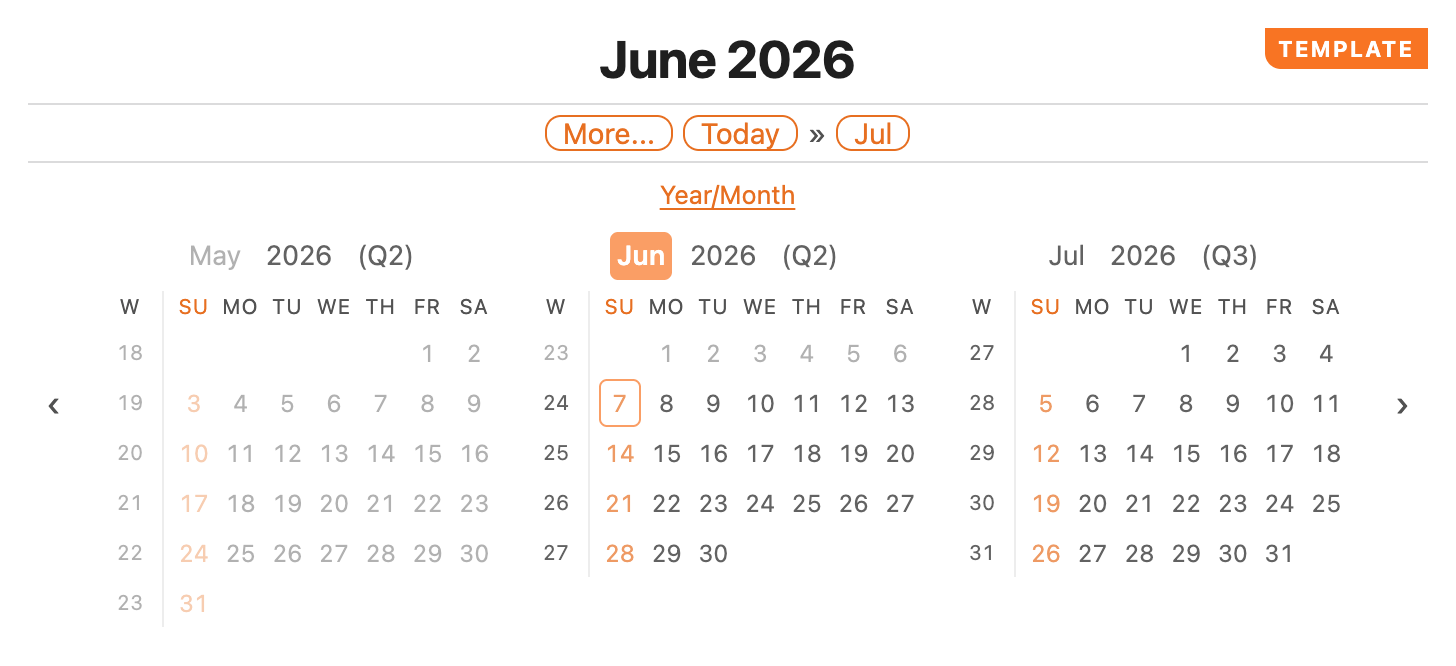
Because templates are real notes, opening one that contains a journal-header block renders it as the current period's entry — header, calendar, and signifiers — so you see exactly what a fresh note will look like. A corner TEMPLATE ribbon marks the preview, and all of its navigation links and calendar cells are display-only (they point back at the template itself rather than navigating to real journal notes).
Re-applying a template to an existing note
Edited a template after you'd already created some notes? Open one of those notes and use Re-populate note from template in the sidebar's More... menu to re-apply the current template. The item only appears when the active note is a journal note in a templating-enabled folder. It replaces the whole note, so it asks you to confirm first — there's no undo beyond Obsidian's own.
Template precedence
For a new note the body is resolved in this order, first non-empty wins:
- Per-folder override —
<journalFolder>/<override>/<tier>-template.md, then<journalFolder>/<override>/default-template.md. - Legacy folder body — the markdown body of
journal-folder.md(everything below its front matter). Still honoured for backward compatibility. - Global template folder —
<templateFolder>/<tier>-template.md, then<templateFolder>/default-template.md. - Built-in default —
%% JOURNAL NOTE %%followed immediately by an emptyjournal-headercode block.
The %% … %% line is an Obsidian hidden comment — it doesn't render in reading mode and parks the cursor above the code block when toggling into edit mode. Without it, the cursor lands inside the fence and the block stops rendering until you click out.
Example: a monthly template
Create Templates/journal-folder/monthly-template.md:
%% JOURNAL NOTE %%
```journal-header
```

## Theme for the month

## Goals
-
-

## Review
Every new YYYY-MM note now starts from this body. To give one journal folder a different monthly template, drop a monthly-template.md into that folder's Templates/ subfolder instead.
Migrating from older versions
Earlier releases stored template text in the plugin settings (a Default template, an optional per-tier mode, and a per-folder journal-folder.md body). On first launch after upgrading, that inline text is migrated automatically into template notes under your template folder — nothing to do by hand. The old values are left in data.json as a backup and the journal-folder.md bodies keep working as a legacy source, so existing setups don't break.
What the journal-header code block does elsewhere
Outside a journal note or a recognised template note, the journal-header block is a no-op — it renders nothing. So a template body containing the block stays harmless if it's pasted into journal-folder.md itself or any other regular note. Errors only show up if the block content is malformed config, not if the surrounding filename doesn't fit a journal pattern.
Quarterly notes (opt-in)
Quarters are off by default. Turn them on and the plugin grows a fifth tier — quarterly notes — that slots between yearly and monthly. Everything else (the daily/weekly/monthly/yearly walkthrough in The journal header) keeps working unchanged; the quarter tier is purely additive.
Enabling
Set quarters-enabled: true at any of the three layers:
-
Globally in Settings → Community plugins → Journal Folder (a checkbox).
-
Per folder in
journal-folder.md's front matter (or via the sidebar's Edit folder configuration action):--- quarters-enabled: true --- -
Per header inside a single
journal-headerblock:```journal-header quarters-enabled: true ```
Once on, files named YYYY-Q[1-4] (e.g. 2026-Q2.md) are recognised as quarterly journal notes. With it off, those filenames stay inert — they're just regular notes with no header rendering.
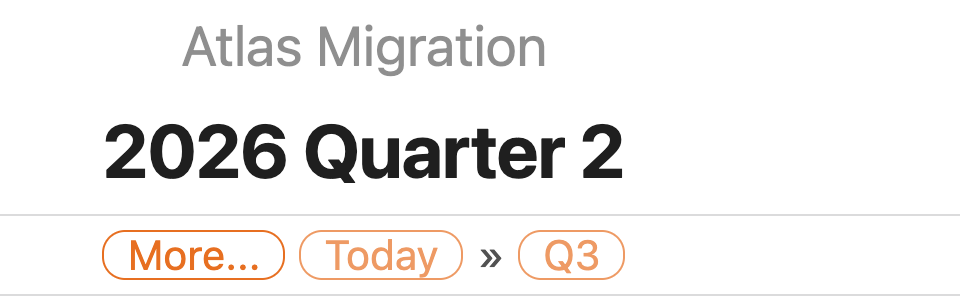
Quarterly note headers
A quarterly note gets the same header treatment as the other tiers. Backward/forward chips become quarters; Today always renders.
Quarter section in the More popover
On a yearly note, the More popover gains a Quarter section listing Q1–Q4 alongside the Month list. Each quarter follows the same exists/missing/today/past-faded rules as everything else, and clicking a past+missing quarter prompts before creating the note.
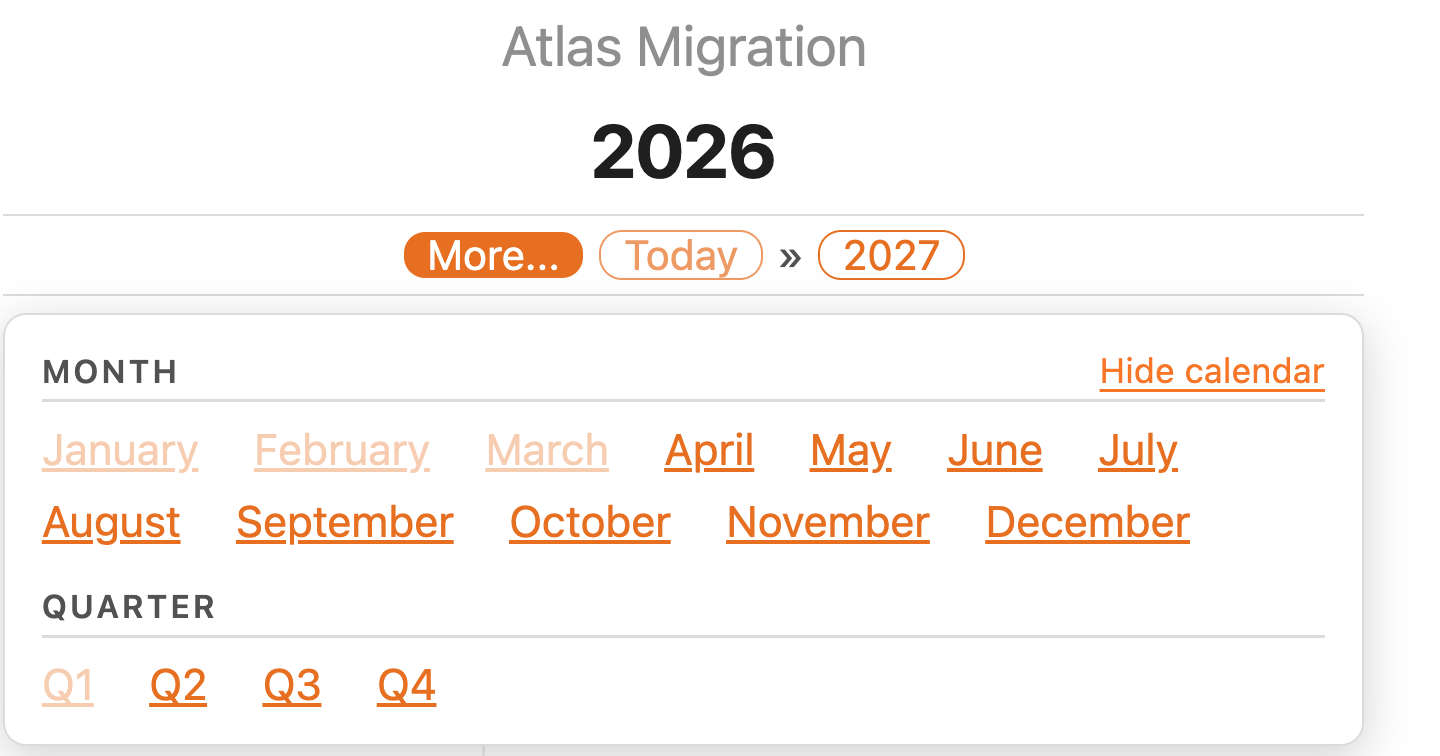
The higher-order chain on daily/weekly/monthly notes also gains the containing quarter — a daily note in May 2026 shows year (2026), quarter (Q2), month (May), week (W19) in its Jump to row. A quarterly note's primary lower-order list is the three months it contains.
Calendar month-title annotations
Each month title in the calendar gets a (Q1)–(Q4) suffix so you can see at a glance which quarter you're in.
Quarterly title patterns
Each tier has its own H1 / chip / cross-year link patterns, exactly like the other tiers. These are only consulted while quarters-enabled is on.
| Setting | What it does |
|---|---|
quarterly-note-title-pattern |
H1 title pattern for quarterly notes. Don't include sub-quarter units. |
quarterly-note-short-title-pattern |
Chip/link pattern for quarterly notes. Keep it short — multiple chips render side by side. |
quarterly-note-medium-title-pattern |
Pattern for quarterly-note links whose target is in a different year than the source — typically the short pattern plus the year, so the year change is explicit. |
The defaults are YYYY [Quarter] Q (e.g. 2026 Quarter 2) for the H1, [Q]Q for chips, and [Q]Q YY for cross-year links.
Tasks
[!NOTE] Fresh installs default to interacting only with the plugin's own task lists (see Scope of task interactions) so existing vaults aren't silently changed.
The tasks feature surfaces Markdown tasks (- [ ] … / - [x] … and friends) from your journal notes in three places:
- A panel below the calendar in the sidebar tab.
- A slim Tasks-only sidebar (its own view, opened from the plugin menu → Open Journal Tasks sidebar).
- An in-note
journal-taskscode block, analogous tojournal-header.
A task shows up wherever its source note's date range intersects the reference window you're viewing. In the sidebar you choose that window with two controls — an anchor (today, or the note you're currently in) and a range (day / week / month / quarter / year, or All for no date filter); see Sidebar task panel. There's no completion-date stamping — a task's position comes purely from the note it lives in.
Task flows
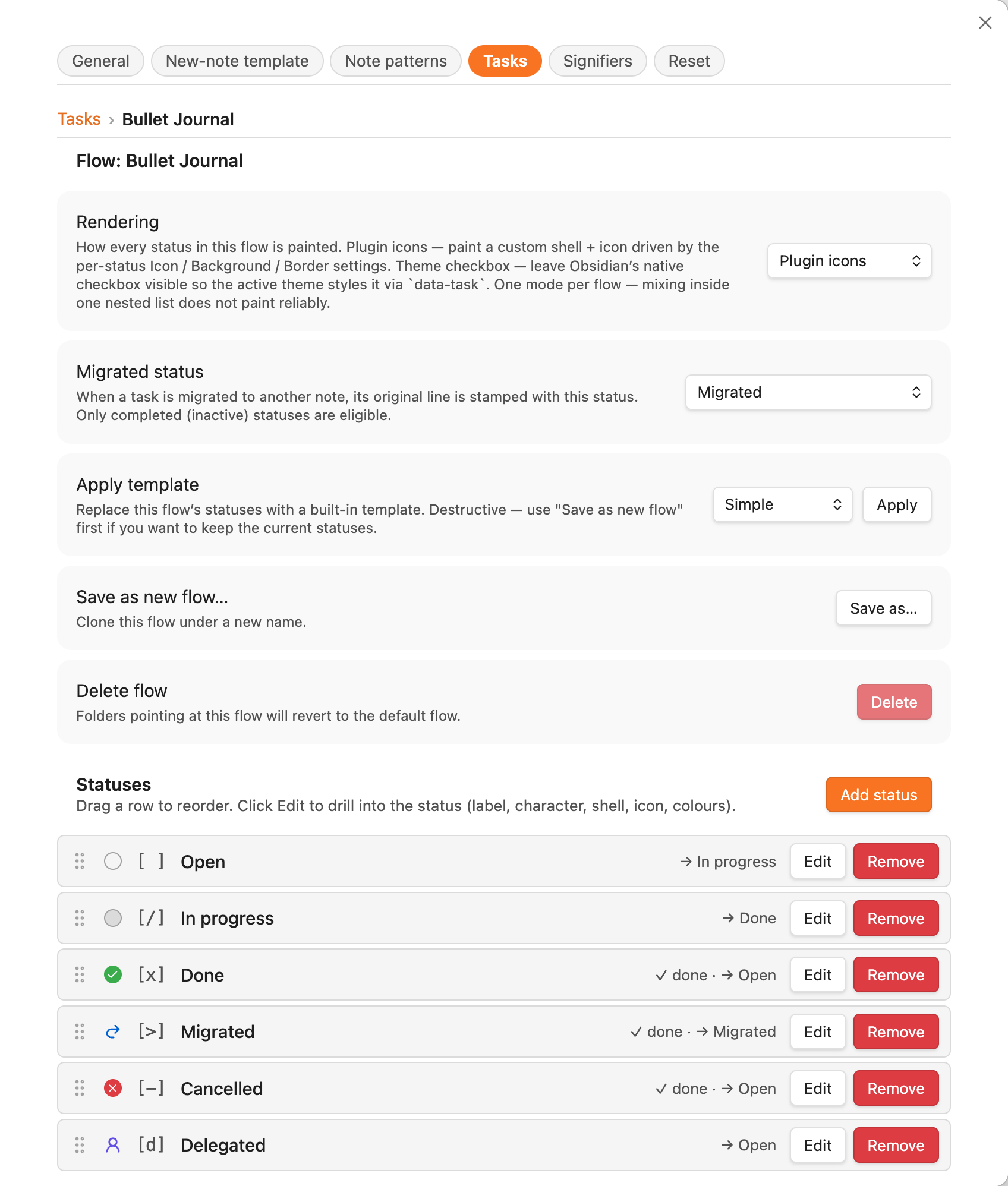
A task flow is a named ordered set of statuses. Each status has:
- A label (e.g. Open, In progress, Done).
- A character used inside
[ ]on disk (e.g./,x). - A next target — what the left-click cycle moves to. Point it at the status itself to open the status picker on click instead of cycling.
- An appearance — a custom shell (shape, background, border, colour) and inner icon, used when the flow renders with plugin icons.
- An
isDoneflag that drives the Hide completed filter.
The flow as a whole has a single rendering mode — Plugin icons (the plugin paints the shell + icon) or Theme checkbox (Obsidian's native checkbox, styled by your theme). It applies to every status in the flow; see Using with a theme that styles tasks.
Four built-in templates ship as read-only starting points — apply one to seed or reset a flow:
| Template | Statuses |
|---|---|
| Simple | [ ] [x] |
| Kanban | [ ] [/] [x] |
| Bullet Journal | [ ] [/] [x] [>] [-] [d] |
| GTD | [ ] [/] [?] [x] |
Flows live globally on the plugin settings — they're defined in Settings → Community plugins → Journal Folder → Tasks. Each folder picks which flow it uses (via the per-folder Tasks tab in the Edit folder configuration modal); edits to a flow's statuses propagate to every folder pointing at the same flow.
Drilling into a flow opens an editor with apply-template / save-as / delete actions and the status list. Each status can be drilled into further for per-status appearance.
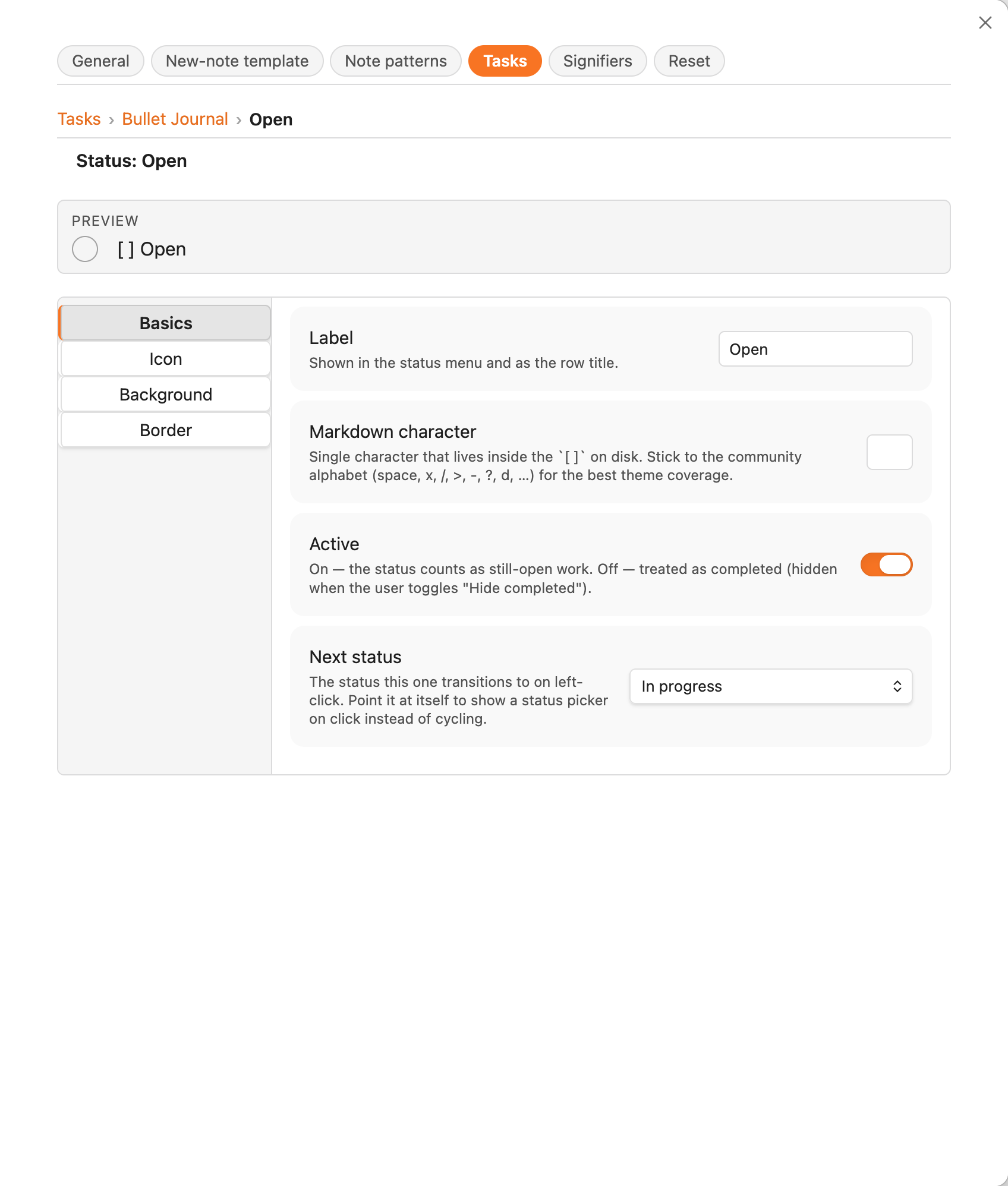
Sidebar task panel
When Show task panel in sidebar is on, the sidebar tab grows a tasks section below the calendar:
The panel header shows the task count on the left and a Scope ▾ link on the right. Below it a read-only summary line shows the current selection at a glance — Anchor · Range · Folders · Filter, e.g. Today · Week · All folders · Active. Click Scope ▾ to open the scope panel, which has four sections:
- Anchor — a date span. Today is a single day; Current note is the whole period the journal note you're reading covers (a month for a monthly note, a week for a weekly note, …; falls back to today on a non-journal leaf).
- Range — Day / Week / Month / Quarter / Year widens the anchor span out to calendar periods of that size and lists tasks whose notes fall in the result; All drops date filtering entirely (every task in the chosen folders). Quarter appears only when quarterly notes are enabled. Any period of the selected size that overlaps the anchor span is included (e.g. on a monthly note, range Week covers every week the month touches).
- In folders — Current note's folder, All journal folders, or a single specific folder. This is independent of the anchor, so you can, say, show this week across all folders, or all tasks in just the current note's folder.
- Filter — Show completed tasks toggles whether statuses whose
isDoneis true appear; the header surfaces the hidden count when they're hidden.
Changes apply immediately and the panel stays open so you can adjust several at once. The Tasks-only sidebar has the same panel with its own independent selection.
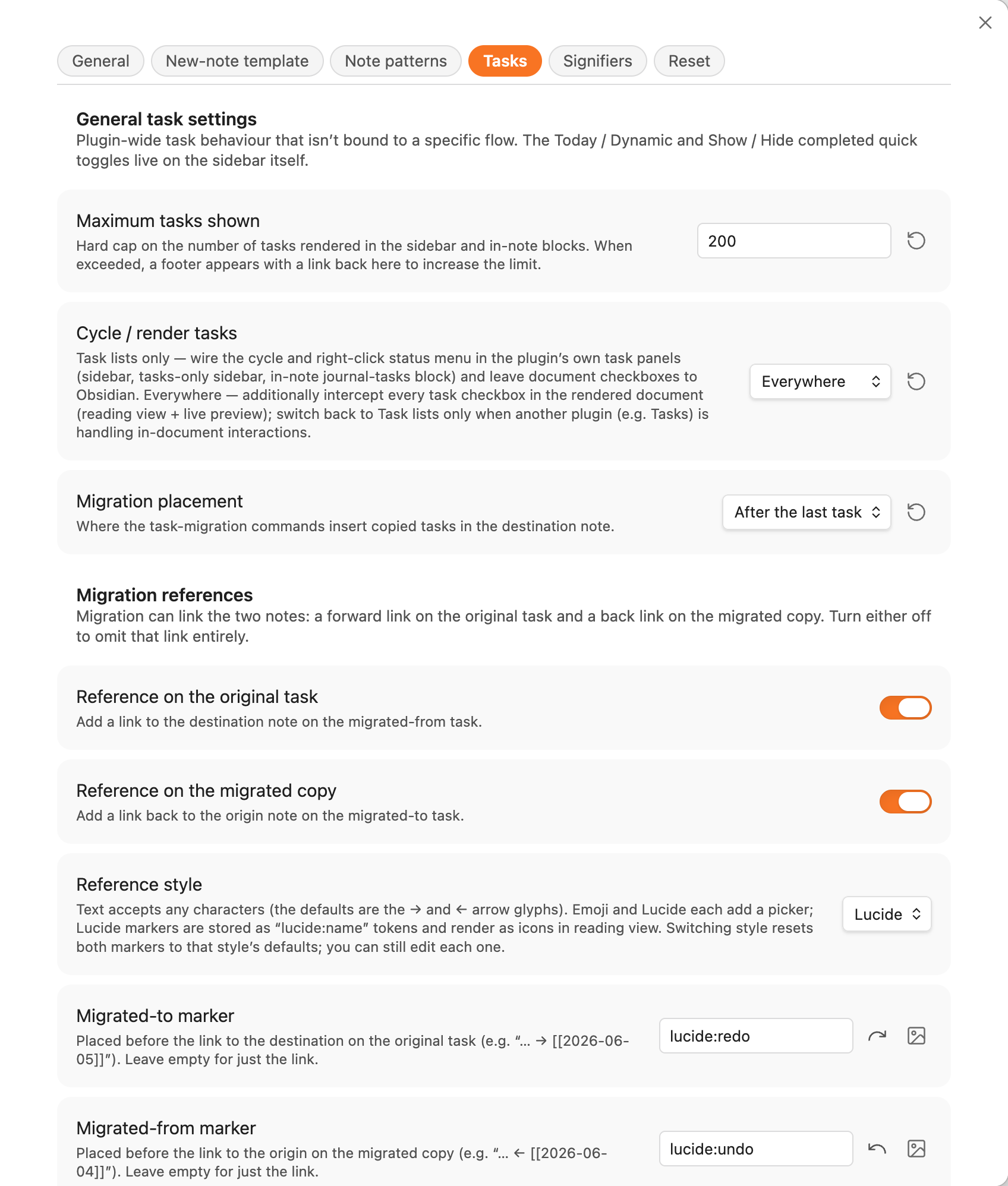
Each row shows the status icon, the task text with internal links live, and a muted chip linking back to the source note (daily · 2026-06-03, weekly · W23, …). Rows are single-line with full text in the title attribute. The list is sorted with daily tasks first, then weekly, monthly, quarterly, yearly — and capped by tasksMaxItems (default 200) with a Showing 200 of 247 — increase limit in settings footer when truncated.
The status picker
Left-click the status icon to cycle to the next status. Right-click (or long-press on mobile) opens a status picker — a panel listing every status in the flow, with the current one highlighted, plus a Migrate task… action when the task is an active task in a journal note whose flow defines a migrated status:
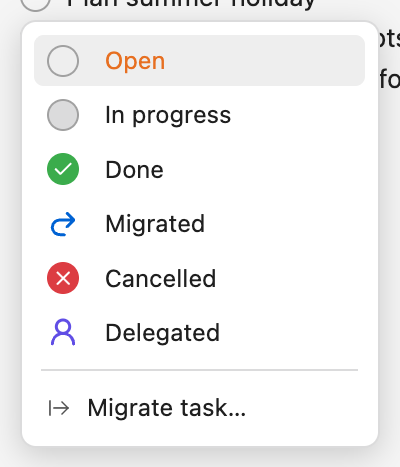
The picker is the plugin's own panel (it replaces Obsidian's native right-click menu) and appears the same way everywhere a task does — the sidebar panels, journal-tasks blocks, and (when task-interaction-scope is everywhere) document checkboxes in reading view and live preview.
You can also turn a status into a "pick on click" status: in the flow editor set its Next status to itself and a normal left-click opens the picker instead of cycling. This is handy for a status that has several equally-likely next steps rather than one obvious cycle.
In-note journal-tasks block
Drop a journal-tasks code block into any note and the plugin replaces it with the same task-list component the sidebar uses:
```journal-tasks
units: weekly, monthly, quarterly, yearly
```
Optional keys (case-insensitive, separators tolerant):
| Key | Default | Notes |
|---|---|---|
folders |
host note's folder | Required when the host note isn't itself a journal note. Comma-separated paths. |
units |
all tiers (gated by quartersEnabled) |
Restrict which note tiers are scanned: daily, weekly, monthly, quarterly, yearly. |
show-completed |
false |
Seeds the view-local Show completed toggle. Toggling in the rendered list does not persist back to the markdown. |
max-items |
global tasksMaxItems |
Truncation cap for this block. |
Inside a journal note, the reference range is the host's range — so a journal-tasks block in a weekly note lists tasks from that week's daily notes (plus the weekly itself). Inside a non-journal note, the reference range falls back to today.
Task categories
A task category binds one or more tags to a named group. Tasks carrying a category's tag are gathered into a category section at the top of every task list (sidebar panels and journal-tasks blocks), above the per-note groups. A task that matches several categories appears under each; the matched tag is stripped from the displayed text. An Important category (bound to #important, the same tag as the Priority signifier) ships by default.
The global Also show categorized tasks under their note toggle decides whether a categorized task also still appears in its note group below the sections, or only under its category. Uncategorized tasks always appear under their note.
Limiting a category's range
A category can be pinned to a Maximum range — Day, Week, Month, Quarter, or Year (or None, the default). Tasks in that category then reach no further than that range from the list's anchor:
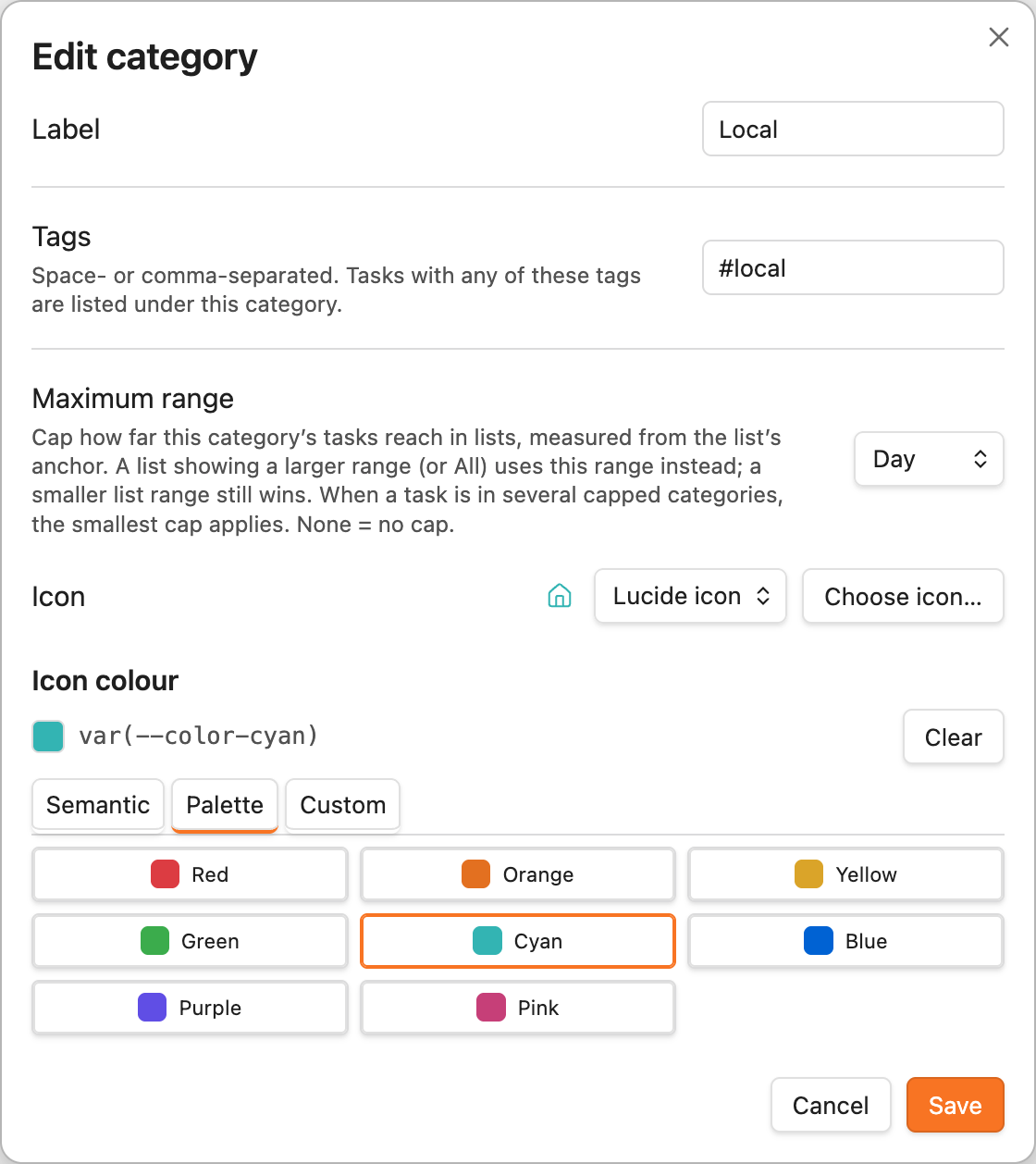
- In a list showing a larger range (or All), the cap is used for those tasks instead — so they don't flood the wider view.
- A smaller list range still wins.
- When a task is in several capped categories, the smallest cap applies.
- The cap only affects the aggregated lists; the task still renders as a normal checkbox in its own note.
- When the list is anchored on the current note — the Current note sidebar anchor, and every in-note
journal-tasksblock — the cap is measured across the note's whole period, like the range itself. On a monthly note a Day-capped task therefore covers the whole month rather than collapsing to its first day. (The cap does its main job in Today-anchored views and on daily notes.)
For example, a Local category bound to #local and capped to Day keeps those tasks visible only in a list scoped to (or anchored on) their own day — they drop out of the Week / Month / Year / All views when anchored on Today, so day-specific chores don't clutter your wider rollups.
Categories are global (one set per vault) and are managed in Settings → Community plugins → Journal Folder → Tasks.
Migrating tasks between notes
Bullet-journal style, migration moves an unfinished task from one note to another within the same folder — say, rolling today's leftovers onto tomorrow, or a week's open items up into the next week. It doesn't just move text; it leaves a trail in both directions.
When you migrate one or more tasks:
- The origin line is stamped with the flow's migrated status (an inactive
status such as
[>]) so it reads as moved, not done, and drops out of active lists. - A copy is written into the destination note at the position you've configured (see below), as a fresh top-level task.
- Cross-references are added so you can hop between the two: a forward reference on the origin pointing at the destination, and a back reference on the copy pointing at the origin.
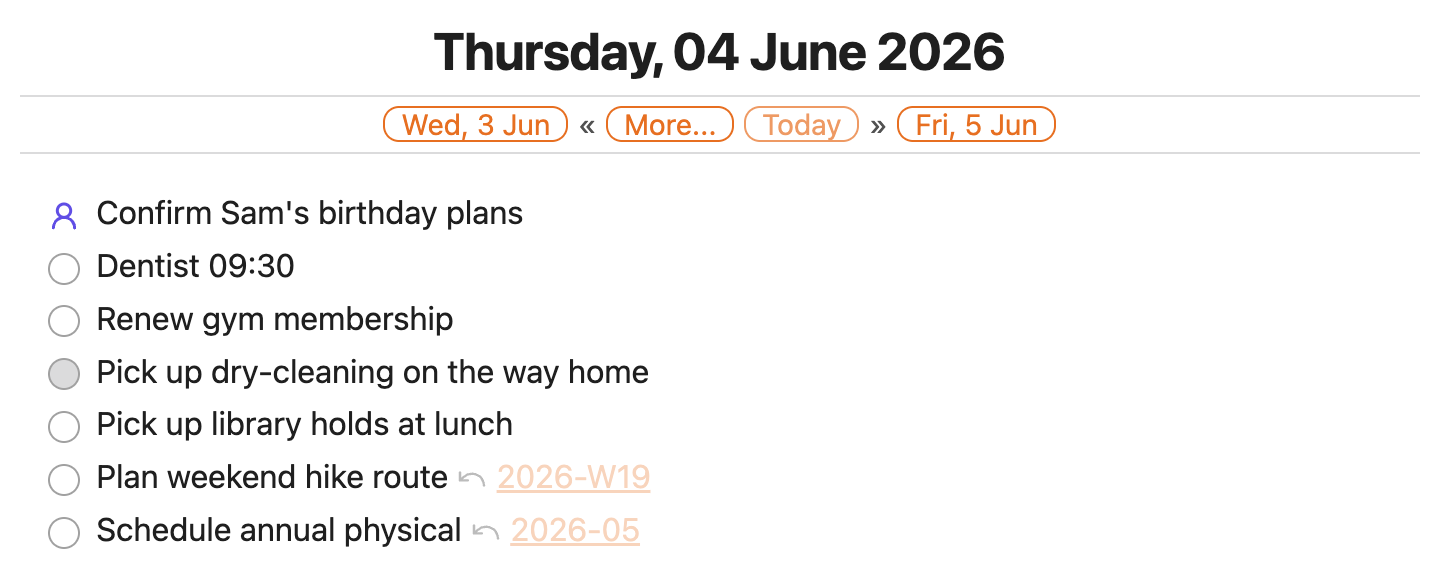
In reading view each reference renders as a small marker plus a link, faded to the background (full opacity on hover) so the note stays readable. The plugin's own task lists strip the reference markers from the displayed text.
Triggering a migration
Three entry points, all scoped to a single folder:
- Per-task — right-click a task line in the editor → Migrate task…, or use the Migrate task… row in the status picker on any active task.
- From this note / To this note — the file menu (⋯) offers Migrate tasks from this note… and …to this note, which open a grouped multi-select picker. Nothing is selected by default — tick the tasks you want and confirm.
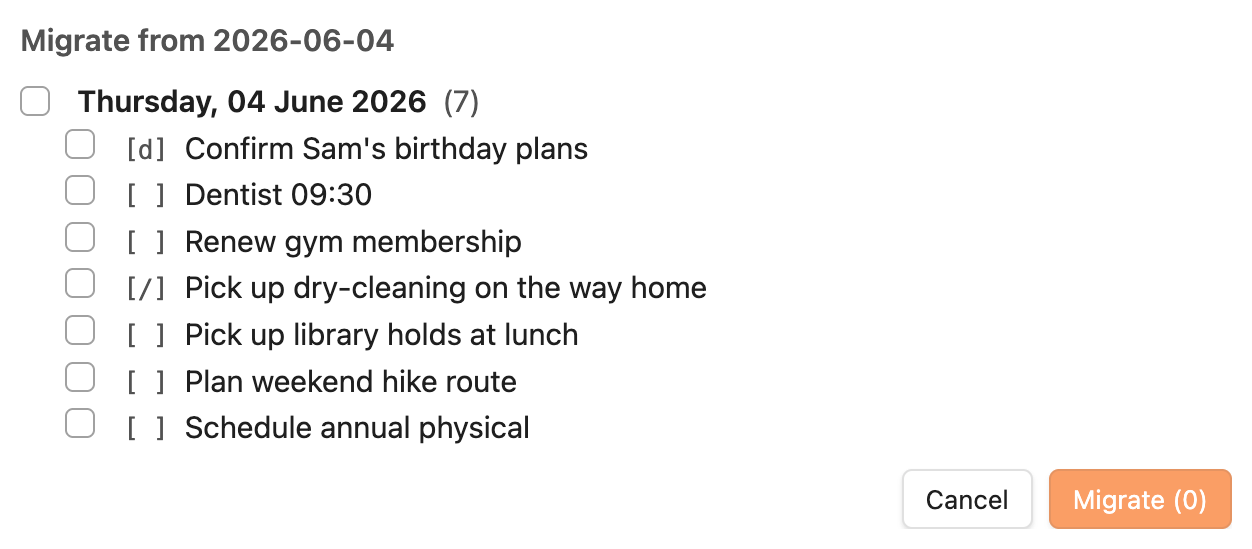
Settings
Migration is configured under Settings → … → Journal Folder → Tasks (and the placement keys are also honoured per-folder, since they're a per-note layout concern):
- Migration placement / heading — where copies land in the destination: After the last task, Top of note, End of note, or Under a heading (with the heading text you specify).
- Reference on the original task / Reference on the migrated copy — toggle either direction off if you only want one trail.
- Reference style — text, emoji, or lucide (the default; markers are
stored as
lucide:<name>tokens and rendered as icons in reading view). Each style has editable to / from markers (the defaults are redo/undo arrows). - Reference opacity — how faded the references render (default 30%).
Scope of task interactions
task-interaction-scope controls where the plugin's task-icon rendering and click handling apply:
lists(default for new installs) — only inside the plugin's own task surfaces: the sidebar panel andjournal-tasksblocks. Document-body checkboxes are left to Obsidian's native rendering and click behaviour, so existing vaults keep behaving as they always have.everywhere— the plugin also intercepts every task checkbox in the rendered document, both in reading view and live preview. Useful if you want the custom shell/icon and configured cycle to apply uniformly across the vault. Opt in only if you understand that other plugins (notably the Obsidian Tasks plugin) and themes may compete for the same DOM.
This is a global-only setting — interception happens at process-wide layers, so per-folder and embedded overrides are ignored.
Tasks plugin and theme interop
The community-conventional checkbox alphabet ([ ] [/] [x] [>] [-] [d] [?]) is exactly what most theme/plugin ecosystems read, so notes stay portable. See:
Signifiers
In a paper bullet journal, signifiers are little marks in the margin — a star for something important, an exclamation for an idea — that let you scan a page and find what matters without reading every line. This plugin brings the same idea to your notes: bind an icon to a tag, and wherever that tag appears the icon shows up in the left margin.
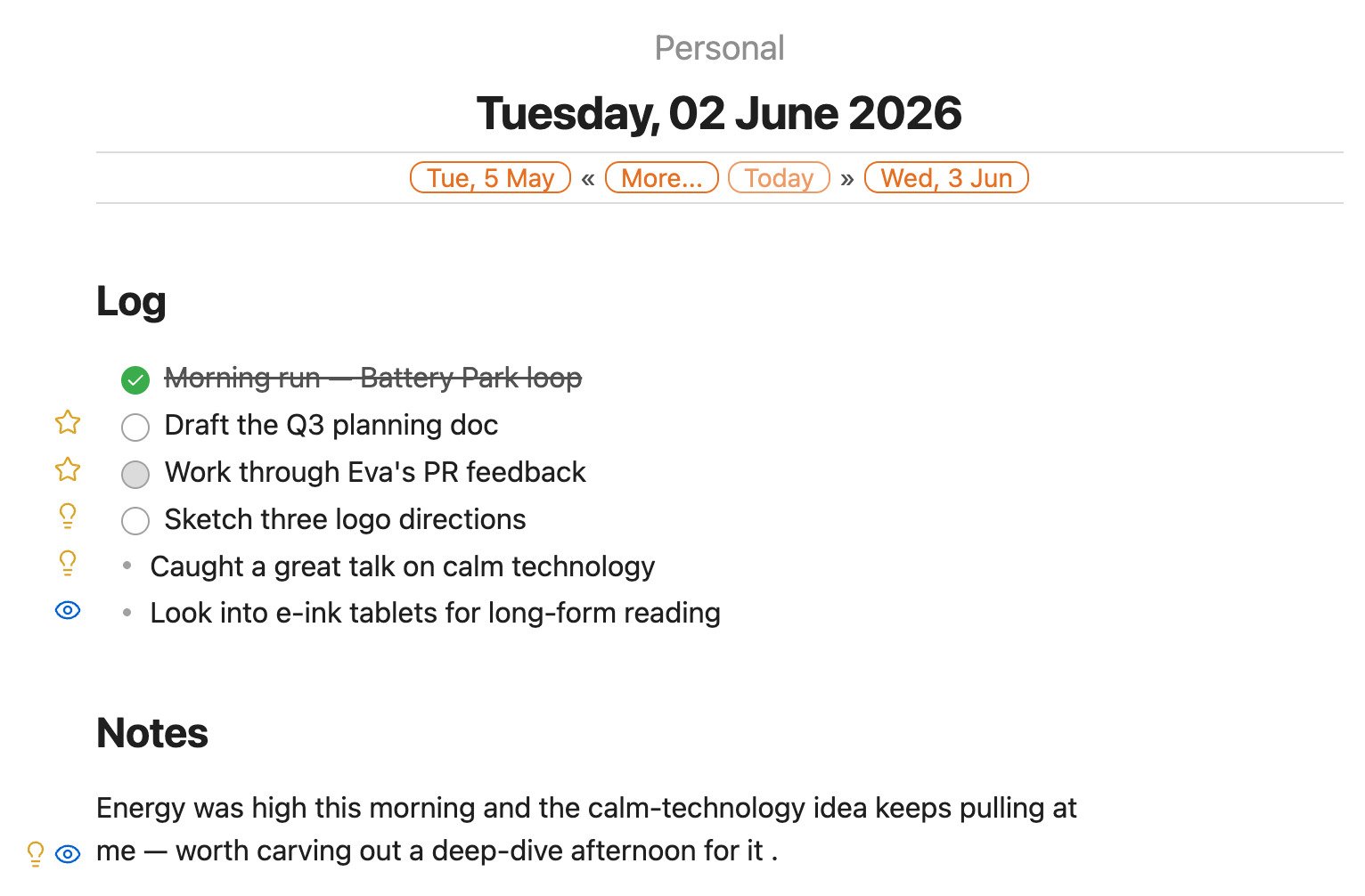
Three signifiers ship by default:
| Signifier | Tag | Icon |
|---|---|---|
| Priority | #important |
⭐ star |
| Inspiration | #inspiration |
💡 lightbulb |
| Explore | #explore |
👁 eye |
Signifiers apply to any rendered markdown — paragraphs, bullets, headings, tasks — not just task lists. A line can carry several (just add several tags); each gets its own icon, in the order you've configured them.
Where the icon sits
The Placement in notes setting controls how the margin icons line up. Both options hang the icon in the left margin (paper-journal style); they differ in alignment:
- Single column — all icons far-left (the default) — every icon lines up in one column at the far left, no matter how deeply the line is nested. This is the classic left-rule look.
- Per entry — the icon hangs just left of each line, following its indentation, so nested items get nested markers.
The horizontal position is measured from your actual layout rather than hard-coded, so the markers stay put across themes, CSS snippets, and readable-line-width settings instead of colliding with restyled bullets or checkboxes.
Reserve left margin for gutter signifiers (on by default) keeps a sliver of space at the left edge so the icons never get clipped when readable line width is off or the pane is narrow. Leave it on unless you have a specific reason not to.
Hiding the tag
By default the literal #important text is replaced by the icon so your notes
stay clean:
- Hide tag in reading view (on) — reading view shows only the icon.
- Hide tag in live preview (on) — the editor shows only the icon too, but the tag reappears while your cursor is on it so it stays editable.
- Reveal tags on the active line (off) — when on, putting the cursor anywhere on a line reveals all of that line's tags; when off, only the tag the cursor actually touches is revealed.
Turn the hide options off and the icon is shown alongside the tag instead of replacing it.
In the plugin's own task lists (the sidebar panel and journal-tasks blocks)
the signifier icon always renders and the tag is always stripped from the
displayed text.
Managing signifiers
Signifiers have their own tab: Settings → Community plugins → Journal Folder → Signifiers. Add, reorder, and edit them there — each binds one or more tags to an icon (any Lucide icon or an emoji) with an optional colour for Lucide icons.
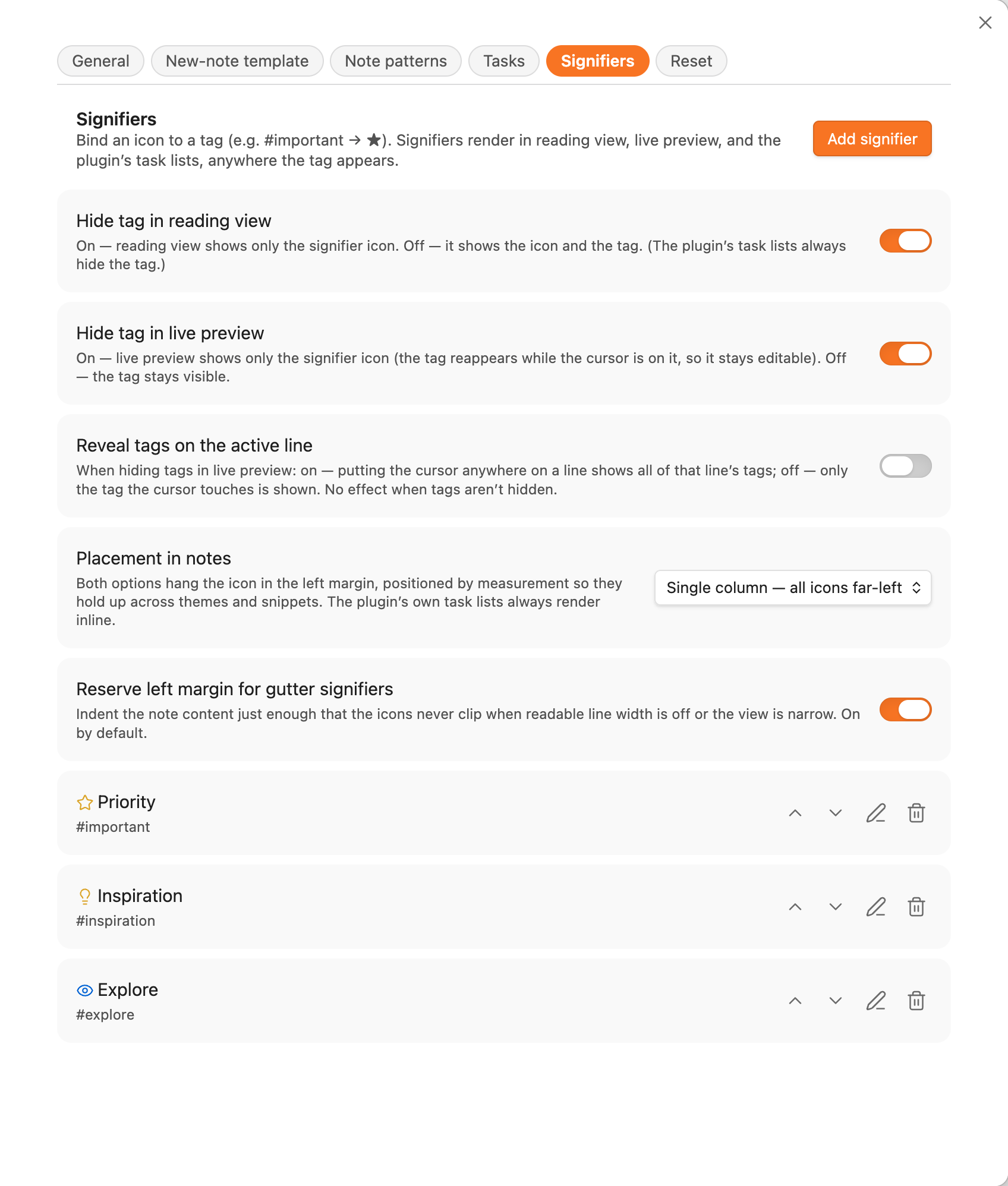
Signifiers are global — there's one shared set for the whole vault, not a per-folder list.
Tagging a line quickly
You don't have to type tags by hand. The command "Modify signifiers on the current line…" (also on the editor right-click menu) opens a checklist of your signifiers, pre-ticked with the ones already on the line. Tick or untick and apply — the plugin adds or removes the matching tags for you and leaves the rest of the line untouched.
In editing view the margin gutter is also clickable: click a line's signifier icons to open that same checklist. On a line that doesn't have a signifier yet, a faint + fades in the margin as you hover the line — click it to add one. The cursor turns to a pointer over the gutter so you can tell it's interactive.
Starting a new line
While you're writing, you don't have to move to the end of a line before pressing Enter to begin a new one. The command "Start a new line below" starts a fresh line beneath the line your cursor is on — exactly as if you had pressed Enter at the end of that line — so you can keep adding entries without first jumping to the line's end.
Because it behaves like a real Enter, it continues whatever you're in: on a bullet, numbered item, checkbox, or blockquote it opens the next one (and an empty item exits the list), just as pressing Enter normally would. This works in both Live Preview and Source mode.
The command ships without a shortcut so it can't clash with anything you've already set. Bind it under Settings → Hotkeys (search for Start a new line below) — Ctrl+Enter (Cmd+Enter on macOS) is a natural choice — the same way you'd assign any of the plugin's other commands.
The edit-mode indicator
In Obsidian it isn't always obvious whether the note you're looking at is being edited (Live Preview) or read (reading view) — the two can look almost identical. Turn on Settings → Journal Folder → General → Edit-mode indicator and the plugin draws a thin coloured rule down the left edge of the editor so the state is clear at a glance:
- Live Preview — an accent-coloured rule.
- Source mode — a muted-grey rule (you're editing, but in raw markdown).
- Reading view — nothing; the rendered note is left untouched.
The rule follows your theme's colours and adds no layout shift. The setting is off by default and applies to every note in the vault, not just journal notes.
Using with a theme that styles tasks
Several popular Obsidian themes — Minimal, Things, AnuPpuccin, Border, and others — ship custom checkbox styling that recognises the community-conventional alphabet ([ ], [/], [x], [>], [-], sometimes [d] / [?]). Journal Folder is designed to coexist with these themes; you pick — per flow — which side draws the checkbox.
The two rendering modes
Each task flow has a single rendering mode that applies to all of its statuses:
- Theme checkbox (
theme) — the plugin emits Obsidian's native<input type="checkbox" data-task="…">element and lets the active theme's CSS do the styling. Choose this when your theme already handles every character in the flow's alphabet. - Plugin icons (
plugin) — the plugin paints a custom shell (shape, background, border, colour) and inner glyph (Lucide icon, emoji, image URL, or sanitised inline SVG) for each status. Choose this when the flow uses characters your theme doesn't know about, or when you want a specific look regardless of theme.
The mode is per-flow, not per-status — mixing theme-styled and plugin-painted rows inside one nested list doesn't paint reliably across themes, so a flow always renders one way. If your theme styles some of your characters but not others (say it supports [ ] [/] [x] but not your custom [d] / [?]), keep the flow on Plugin icons so every status looks right, or use a flow whose alphabet your theme fully supports on Theme checkbox.
The rendering mode lives in Settings → Community plugins → Journal Folder → Tasks → <flow> (the flow editor).
Recommended starting point
- Apply the built-in template that matches your workflow as a starting flow (Simple / Kanban / Bullet Journal / GTD).
- If your theme already styles every character in that flow, set the flow's Rendering to Theme checkbox and let the theme draw them.
- Otherwise leave the flow on Plugin icons and give each status a shell + icon that fits — it looks consistent regardless of the active theme.
Scope of interaction
If you only want the plugin's task surfaces (sidebar panel, journal-tasks blocks) to use your configured rendering — and want document-body checkboxes left entirely to Obsidian / your theme — leave task-interaction-scope on its default value of lists. This is the default for fresh installs and is the safest mode when you're relying on a theme to drive visuals.
If you'd rather have the plugin's rendering apply uniformly to every task checkbox in the vault (so the configured plugin-painted shells appear in regular notes too, not just journal surfaces), switch the scope to everywhere. Note that this competes with theme CSS — for any flow set to Plugin icons, the theme's checkbox styling is overridden by the plugin's shell wherever those tasks appear.
Caveats
- Custom characters your theme doesn't know about render as plain checkboxes under Theme checkbox rendering. Switch the flow to Plugin icons (or rely on the plugin's own surfaces — sidebar,
journal-tasksblocks — which stay accurate either way). - Theme CSS targeting
input[type="checkbox"]only applies to flows using Theme checkbox rendering. Plugin icons rows are real DOM<span>shells and won't be touched by checkbox-selector CSS. is-checkedclass. Some themes change their styling based on Obsidian'sis-checkedclass, which is only added to native checkboxes whose status is[x]. For other "done" characters ([>],[-]), the plugin still treats them as done for filtering but the theme may not.
Using with the Obsidian Tasks plugin
The community Tasks plugin (obsidian-tasks-plugin) and Journal Folder coexist on the same checkbox alphabet. They were designed independently, so a few configuration choices keep them from stepping on each other.
[!IMPORTANT] Journal Folder's task surfaces are present-only and date-driven by the source note's filename. The Tasks plugin's query language (due dates, scheduled dates, recurrence, priorities, tags, paths) is far richer. The two are complementary: use Journal Folder's sidebar panel and
journal-tasksblocks to surface what's on the current day/week/month at a glance; use Tasks-plugin queries for due-date filtering, recurrence, and global rollups.
Sharing the same checkbox alphabet
The Tasks plugin reads (and writes) the same characters Journal Folder's built-in templates do:
| Char | Meaning |
|---|---|
[ ] |
open / todo |
[/] |
in progress |
[x] |
done |
[>] |
forwarded / migrated |
[-] |
cancelled |
If you pick the Bullet Journal or Kanban template as the starting point for a flow (and leave the characters at their defaults), notes are interchangeable — the Tasks plugin can query them, and Journal Folder can render them in the sidebar.
Recommended setting: leave task-interaction-scope on lists
When both plugins are installed, leave Journal Folder's task-interaction-scope on its default value of lists. This means:
- Journal Folder's icon rendering and click-cycle apply only inside the plugin's own surfaces (sidebar panel +
journal-tasksblocks). - Document-body checkboxes everywhere else are left to Obsidian and the Tasks plugin to render and handle.
That avoids two plugins both trying to intercept the same click on the same checkbox in the same document.
If you want Journal Folder's rendering to apply everywhere, set the scope to everywhere — but expect the Tasks plugin's hover preview, edit modal, and query rendering to behave differently on those rows. They aren't strictly incompatible; they just compete for the same DOM.
Status state mapping
Journal Folder's isDone flag and the Tasks plugin's Status Settings control the "done" concept independently. If you want both plugins to treat [>] and [-] as done:
- In Journal Folder: make sure the status's
isDoneistruein the flow editor — the built-in templates already set this. - In Tasks plugin: under Status Settings, set both characters' Status Type to
DONE(orCANCELLED, which Tasks treats as terminal for query purposes).
Cycle order
The Tasks plugin's own Cycle through tasks command cycles statuses in the order configured in Status Settings. Journal Folder's per-status next field is independent — it only drives the click cycle inside the plugin's own surfaces. Configure both if you want consistent behaviour from both keyboard (Tasks plugin command) and mouse-click (Journal Folder surfaces).
Tasks-plugin metadata
The Tasks plugin appends emoji metadata (e.g. 📅 2026-06-15, ⏫, 🔁 every week) to the task text on disk. Journal Folder keeps that text verbatim — it doesn't parse or hide the metadata, and clicking the status icon to cycle preserves it. Rows render with the metadata visible in the sidebar; if you want it hidden, your theme's CSS is the place to do it.
Queries vs. journal-tasks
The two block types target different needs and can both live in the same note:
tasksblock (Tasks plugin) — query by metadata (due before next week,priority is high,path includes Project).journal-tasksblock (Journal Folder) — surface tasks from journal notes whose date range intersects the host note's range.
A weekly review note can hold both: a journal-tasks block at the top to list everything written down during the week, and a Tasks-plugin block below it for due before tomorrow rollups.
Known issues
A short, honest list of rough edges we're aware of. None of these touch your notes or your data — they're cosmetic.
Fold arrows can overlap margin icons on collapsible lines
When a list item has sub-items, Obsidian draws a small fold arrow — the little triangle you click to collapse the item — just to its left. On those collapsible lines that arrow sits in the same left-margin strip the plugin uses for its own icons, so the two can overlap:
- Reading view — the fold arrow can overlap a signifier icon in the margin.
- Live Preview (editing) — the fold arrow can overlap a task's checkbox / status icon.
It only shows up on lines that actually have sub-items (the ones you can fold), and often only while your pointer is hovering the line. It's purely visual: clicking still does the right thing, the icons still work, and nothing is changed in your note.
Why it happens: the fold arrow is drawn by Obsidian itself, in the same margin space the plugin places its icons — and exactly where it lands depends on your theme, so there's no single position that's correct for everyone.
Planned fix (no promises on timing): a future version may add an optional, off-by-default setting that nudges the margin icons clear of the fold arrow, by an amount you can fine-tune to suit your theme. Being opt-in, it would leave existing setups exactly as they are.
Editor line numbers can overlap margin icons
If you turn on Obsidian's Show line numbers (Settings → Editor → Show line numbers), the line numbers appear down the left edge of the editor in Live Preview — and on lines that carry a signifier, a number can overlap the margin icon.
This one is not on the planned-fix list, on purpose. The line numbers and the fold arrow pull the margin icons in opposite directions — a line number sits at the far left, while a fold arrow sits right next to the text — so a single "nudge" can't clear both at once. And with the Per entry signifier placement, where icons follow each line's indentation, there's no consistent gap to slide them into. Fixing it cleanly would mean reworking the gutter layout for a fairly niche combination (line numbers on, signifiers in the margin), which isn't a trade-off worth making right now.
If line numbers and signifiers clash for you, the simplest workarounds are to turn line numbers off, or to use a signifier placement / theme where they don't collide.
Advanced configuration
[!IMPORTANT] This is an advanced topic. Every setting on this page can be edited from the provided UIs — the global Settings → Community plugins → Journal Folder tab for vault-wide defaults, and the sidebar's More... → Edit folder configuration modal for per-folder overrides. Reach for the file-level configuration covered here only when you need to script setup across multiple vaults, automate per-folder configuration, store config in source control, or override a single header from inside the note itself.
Hand-editing the underlying data structures is fully supported, but the settings UIs are the recommended path because they validate as you go and keep the per-folder front matter sparse.
The three resolution layers
Settings are resolved in three layers, last wins:
- Global — set in Settings → Community plugins → Journal Folder. Persists in
.obsidian/plugins/journal-folder/data.json. - Folder — front-matter of a file named
journal-folder.mdin the same folder as the journal note. Subfolders never inherit from a parent folder'sjournal-folder.md— each folder controls its own settings. - Embedded — body of the current
journal-header(orjournal-tasks) code block, parsed line-by-line askey: value. Applies only to that one block.
Setting names are case-insensitive and tolerant of separators. All of the following are equivalent:
journal-folder-title: Atlas Migration
journal_folder_title: Atlas Migration
JOURNAL_FOLDER_TITLE: Atlas Migration
Journal folder title: Atlas Migration
Layer 1 — global data.json
The plugin persists its global settings under .obsidian/plugins/journal-folder/data.json. Field names there are camelCase (e.g. dailyNoteTitlePattern, quartersEnabled, taskFlows). The settings UI is the canonical writer — hand-edit only when you're scripting setup or syncing across vaults.
The full default shape lives in src/data-access/journal-folder-settings.type.ts under DEFAULT_SETTINGS. A representative shape:
{
  "dailyNoteTitlePattern": "dddd, DD MMMM YYYY",
  "dailyNoteShortTitlePattern": "ddd, D MMM",
  "weeklyNoteTitlePattern": "gggg [Week] w",
  "monthlyNoteTitlePattern": "MMMM YYYY",
  "yearlyNoteTitlePattern": "YYYY",

  "quartersEnabled": false,
  "autoTemplateEnabled": false,
  "autoTemplatePerTier": false,

  "startOfWeek": "locale-default",
  "defaultJournalFolder": "",
  "hideJournalFolderNotes": true,
  "sidebarMode": "dynamic",

  "tasksSidebarEnabled": false,
  "tasksSidebarReference": "dynamic",
  "tasksMaxItems": 200,
  "taskFlow": "",
  "defaultTaskFlow": "Default",
  "taskInteractionScope": "lists",
  "taskFlows": {
    "Default": [ /* TaskStatus[] — see Task-flow data shape below */ ]
  }
}
Global-only fields
A handful of fields are intentionally not honoured at the folder or embedded layers:
startOfWeek— moment's locale is process-wide; per-folder weekday overrides would desync week numbering across the vault.defaultJournalFolder— UI preference, not a per-folder concept.hideJournalFolderNotes— affects everyjournal-folder.mdrow in the file explorer.sidebarMode— the sidebar is a singleton view.tasksSidebarEnabled,tasksSidebarReference,tasksSidebarFolders,tasksShowCompleted,tasksMaxItems— sidebar / process-wide task UI.taskFlows,defaultTaskFlow— flow definitions live globally; folders pick which flow they use, not what's in it.taskInteractionScope— interception runs at process-wide layers (markdown post-processor, editor extension).signifiers,signifierPlacement,signifierHideTagInReadingView,signifierHideTagInLivePreview,signifierShowTagsOnActiveLine,signifierReserveGutter— one signifier set per vault; see Signifiers.taskCategories,taskCategoryShowUnderNote— category definitions are vault-wide.- the migration reference fields (
taskMigrationAddToReference,taskMigrationAddFromReference,taskMigrationReferenceStyle,taskMigrationToMarker,taskMigrationFromMarker,taskMigrationReferenceOpacity). The exception istaskMigrationPlacement/taskMigrationHeading, which are folder-honoured — they're a per-note layout concern, not a process-wide preference.
Layer 2 — per-folder journal-folder.md
A file named journal-folder.md in any folder turns that folder into a journal folder. Per-folder overrides live in its YAML front matter as kebab-cased keys:
---
journal-folder-title: Atlas Migration
default-calendar-visible-desktop: true
default-calendar-visible-mobile: false
daily-note-title-pattern: dddd, Do MMMM YYYY
quarters-enabled: true
task-flow: Bullet Journal
---
The body of journal-folder.md (everything below the closing ---) is the per-folder auto-template content. See auto-template precedence.
task-flow is the only task-related field that a folder may override — flow contents (taskFlows) are still edited globally, and everything else in the Tasks section is global-only.
[!TIP] The recommended way to edit per-folder settings is the sidebar tab → More… → Edit folder configuration action. It opens a form pre-populated with the effective values, validates as you go, and writes a sparse diff to
journal-folder.mdso the folder still inherits future global changes for any field you didn't deliberately diverge on.
[!CAUTION] Anything set at folder level applies to every journal header in that folder, but does not affect the actual folder name on disk.
journal-folder-titleis a display label only.
Layer 3 — embedded key: value
Inside the body of any journal-header or journal-tasks code block, lines of the form key: value override the same field for that single block:
%% EDITING %%
```journal-header
default-calendar-visible-desktop: true
daily-note-title-pattern: dddd, Do MMMM YYYY
```
This is the right layer for one-off experiments, examples in documentation, or notes that need to override the folder default for a single rendering.
Settings reference
All title patterns use moment.js format syntax. Front-matter keys shown here are the kebab-cased form used by per-folder and embedded layers; the camelCase data.json equivalents are derived by stripping the dashes and uppercasing the next letter.
| Setting | What it does |
|---|---|
daily-note-title-pattern |
H1 title pattern for daily notes. Don't include sub-day units (hours, minutes). |
daily-note-short-title-pattern |
Pattern used for chips/links pointing to daily notes. Keep it short — multiple chips render side by side. |
daily-note-medium-title-pattern |
Pattern for daily-note links whose target is in a different year than the source — typically the short pattern plus the year, so the year change is explicit. |
weekly-note-title-pattern |
H1 title pattern for weekly notes. Use gg/gggg for the year, not YYYY/GGGG — the filename uses ISO week-year and they desync at year boundaries. |
weekly-note-short-title-pattern |
Chip/link pattern for weekly notes. Same gg/gggg caveat. |
weekly-note-medium-title-pattern |
Cross-year weekly link pattern. Same caveat. |
monthly-note-title-pattern |
H1 title pattern for monthly notes. Don't include sub-month units. |
monthly-note-short-title-pattern |
Chip/link pattern for monthly notes. |
monthly-note-medium-title-pattern |
Cross-year monthly link pattern. |
quarterly-note-title-pattern |
H1 title pattern for quarterly notes (when quarters-enabled is on). |
quarterly-note-short-title-pattern |
Chip/link pattern for quarterly notes. |
quarterly-note-medium-title-pattern |
Cross-year quarterly link pattern. |
yearly-note-title-pattern |
H1 title pattern for yearly notes. Don't include sub-year units. |
yearly-note-short-title-pattern |
Chip/link pattern for yearly notes. |
yearly-note-medium-title-pattern |
Cross-year yearly link pattern (rare; usually identical to short). |
journal-folder-title |
Display title shown above the H1 in the header. Typically set per-folder, not globally. |
use-folder-name-as-default-title |
If true and journal-folder-title isn't set, falls back to the folder name. |
default-calendar-visible-desktop |
If true, the calendar picker is open by default on desktop when Obsidian starts. A manual toggle in the current session wins over this. |
default-calendar-visible-mobile |
If true, the calendar picker is open by default on mobile when Obsidian starts. Defaults to false because the multi-month layout isn't useful at phone widths. |
quarters-enabled |
Enables quarterly notes (YYYY-Q[1-4]) as a fifth tier. See Quarterly notes. |
start-of-week |
First day of the week used by the calendar grid and gggg-[W]ww weekly numbering. Locale default leaves moment's locale untouched; picking an explicit weekday (sunday–saturday) overrides it so week 1 still contains January 1. Global only. |
auto-template-enabled |
If true, newly created notes whose basename matches a journal pattern and whose folder contains a journal-folder.md are seeded with a template body. See Auto-fill new journal notes. |
auto-template-per-tier |
If false (default), every new journal note shares auto-template-content. If true, the per-tier fields below are used instead, one per note type. The two modes are mutually exclusive. |
auto-template-content |
Single template body used when auto-template-per-tier is off. Leave blank for the built-in default. Per-folder overrides go in the body of journal-folder.md. |
daily-note-auto-template-content |
Template body used for new daily notes when auto-template-per-tier is on. |
weekly-note-auto-template-content |
Template body used for new weekly notes when auto-template-per-tier is on. |
monthly-note-auto-template-content |
Template body used for new monthly notes when auto-template-per-tier is on. |
quarterly-note-auto-template-content |
Template body used for new quarterly notes when auto-template-per-tier is on. |
yearly-note-auto-template-content |
Template body used for new yearly notes when auto-template-per-tier is on. |
default-journal-folder |
Folder path the sidebar tab opens on by default. Global only. |
hide-journal-folder-notes |
If true (the default), every journal-folder.md is hidden from Obsidian's built-in file explorer. Global only. |
sidebar-mode |
'dynamic' (default) makes the sidebar follow the active note; 'static' holds whichever folder you picked. Global only. |
tasks-sidebar-enabled |
Whether the sidebar tab renders the tasks panel below the calendar. Global only. |
tasks-sidebar-reference |
'today' or 'dynamic'. Sidebar's reference range for the task panel. Global only. |
tasks-sidebar-folders |
Comma-separated folder paths the sidebar's Today mode scans; empty = all known journal folders. Global only. |
tasks-show-completed |
If true, completed (isDone) statuses appear in task lists. Global only. |
tasks-max-items |
Hard cap on rendered tasks per list (default 200). Global only. |
task-flow |
Per-folder override — name of the flow this folder uses. Empty falls back to default-task-flow. Per-folder. |
default-task-flow |
Name of the flow used by folders without an override. Global only. |
task-flows |
Dictionary of named flows. Global only. See Task-flow data shape below. |
task-interaction-scope |
'lists' (default) — interactions only on the plugin's own task surfaces. 'everywhere' — intercept every task checkbox in rendered documents. Global only. |
task-migration-placement |
Where migrated task copies land in the destination note: after-last-task (default), top, end, or heading. Per-folder. See Migrating tasks. |
task-migration-heading |
Heading text used when task-migration-placement is heading (default Tasks). Per-folder. |
task-migration-add-to-reference |
Whether the origin task gets a forward reference to the destination (default true). Global only. |
task-migration-add-from-reference |
Whether the migrated copy gets a back reference to its origin (default true). Global only. |
task-migration-reference-style |
text / emoji / lucide (default) — how reference markers render. Global only. |
task-migration-to-marker / task-migration-from-marker |
The forward / back marker for the active style (Lucide markers are lucide:<name> tokens). Global only. |
task-migration-reference-opacity |
How faded references render, 0–100 (default 30). Global only. |
signifier-placement |
margin-column (default, all icons far-left) or margin (per-entry). Global only. See Signifiers. |
signifier-hide-tag-in-reading-view / signifier-hide-tag-in-live-preview |
Replace the matched tag with just the icon in reading view / live preview (both default true). Global only. |
signifier-show-tags-on-active-line |
When hiding tags in live preview, reveal all of the cursor line's tags (default false reveals only the touched tag). Global only. |
signifier-reserve-gutter |
Reserve left-margin space so gutter icons never clip (default true). Global only. |
signifiers |
Array of tag→icon bindings. Managed in the Signifiers settings tab, not by hand. Global only. |
task-categories |
Array of tag→category groupings shown atop task lists. Each entry may carry a maxRange (day/week/month/quarter/year) that caps how far its tasks reach in lists — see Task categories. Managed in the Tasks settings tab. Global only. |
task-category-show-under-note |
Whether a categorised task also appears in its note group (default false). Global only. |
Task-flow data shape
task-flows is a dictionary of named flows. Each flow is an array of TaskStatus records:
type ColorRef =
  | { kind: 'token'; var: string }    // CSS variable, e.g. '--color-green'
  | { kind: 'hex';   value: string }  // '#34c759'
  | { kind: 'css';   value: string }  // any CSS colour string

type IconSource =
  | { kind: 'none' }
  | { kind: 'lucide'; name: string }                    // e.g. 'check', 'arrow-right'
  | { kind: 'emoji';  value: string }                   // '🚀'
  | { kind: 'image';  url: string }                     // 'https://…/icon.png'
  | { kind: 'svg';    value: string }                   // inline SVG (sanitised)

interface ShellAppearance {
  shape: 'none' | 'circle' | 'square' | 'rounded'
  background?: ColorRef | null
  border?: { color: ColorRef; width?: number } | null
}

interface IconSpec {
  source: IconSource
  color?: ColorRef
  inset?: number   // 0..1 — fraction of shell to inset the glyph
}

interface TaskStatus {
  id: string             // stable identifier (e.g. 'open', 'in-progress')
  label: string          // shown in the status picker
  char: string           // on-disk character inside [ ]
  isDone: boolean        // drives Hide-completed filter
  next: string           // id of the next status in the left-click cycle
  rendering: 'plugin' | 'theme'
  shell: ShellAppearance // ignored when rendering = 'theme'
  icon:  IconSpec        // ignored when rendering = 'theme'
}
Example flow stored under taskFlows["Default"]:
[
  {
    "id": "open",
    "label": "Open",
    "char": " ",
    "isDone": false,
    "next": "done",
    "rendering": "plugin",
    "shell": {
      "shape": "circle",
      "border": { "color": { "kind": "token", "var": "--checkbox-border-color" }, "width": 1 }
    },
    "icon": { "source": { "kind": "none" } }
  },
  {
    "id": "done",
    "label": "Done",
    "char": "x",
    "isDone": true,
    "next": "open",
    "rendering": "plugin",
    "shell": {
      "shape": "circle",
      "background": { "kind": "token", "var": "--color-green" },
      "border": null
    },
    "icon": {
      "source": { "kind": "lucide", "name": "check" },
      "color":  { "kind": "token", "var": "--text-on-accent" },
      "inset":  0.7
    }
  }
]
[!WARNING] Editing
task-flowsby hand indata.jsonis supported but lossy on a mistake — a malformed entry can hide statuses or break the cycle. Prefer the settings-tab flow editor for any change beyond renaming a label.
Code-block keys for journal-tasks
The journal-tasks block accepts a small set of embedded-layer keys. See Tasks — In-note journal-tasks block for the user-facing reference.
folders: my-journal, work-journal   # required for non-journal hosts; defaults to host folder otherwise
units: daily, weekly                # restricts which tiers are scanned; defaults to all
show-completed: true                # seeds view-local toggle; default false
max-items: 30                       # defaults to global tasksMaxItems
See also
- Tasks and Signifiers — the features whose settings are summarised above; both are managed through their own settings tabs rather than by hand-editing.
- Per-folder layer in the architecture docs — developer-focused notes on the resolver and key-case conversion.
- Plugin source —
JournalFolderSettings— authoritative type definition with per-field JSDoc rationale.
Developer & contributor docs
These live as separate files in the repository (linked to GitHub so they resolve from the Obsidian plugin screen too):
- Developer notes — build commands, local-vault setup, screenshot harness
- Settings resolution
- Journal note model
- Header UI internals
- Calendar internals
- Sidebar internals
- Auto-template internals
- Tasks design
- Signifiers & task categories
License
GPL-3.0 — see LICENSE.md.