
README file from
Github





Hierarchical Outgoing Links
Overview
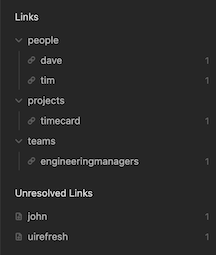
Displays outgoing links for the active document as a hierarchy based on the folder structure of the references.
Rather than showing a flat list of outgoing links, this plugin groups them into a collapsible tree that mirrors how your notes are organized into folders within your vault. For example, if a note links to recipes/breakfast/pancakes and recipes/dinner/pasta, the tree would look like:
recipes/
├── breakfast/
│   └── pancakes
└── dinner/
    └── pasta
The categories you see in the tree (e.g., "recipes", "breakfast", "dinner") are your vault's folder names, not tags or auto-generated labels.
Motivation
In the age old folders vs tags debate I tend to lean heavier on physically structuring notes into high level categories. The tag hierarchy display provides a nice overview of tags and how they relate to each other and I wanted something similar that leveraged the folder structure to display outgoing links as a tree.
Example
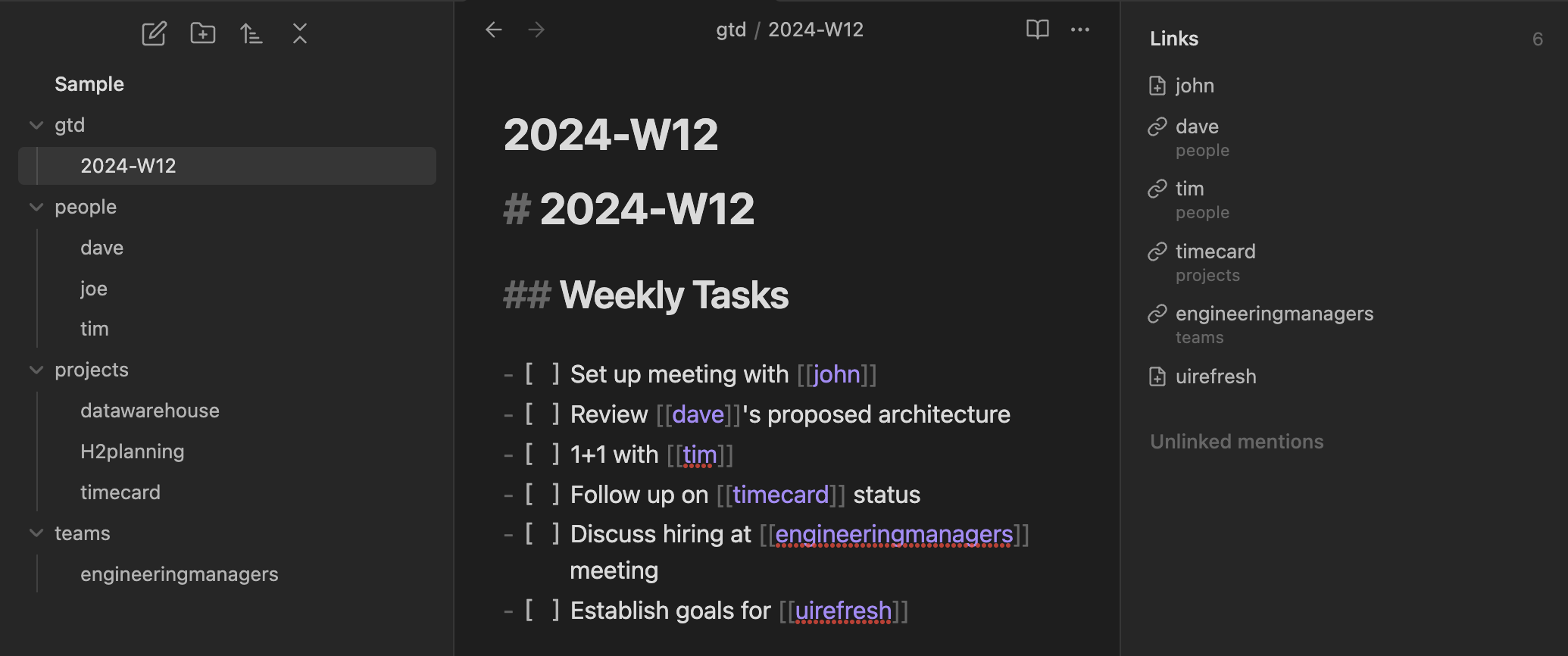
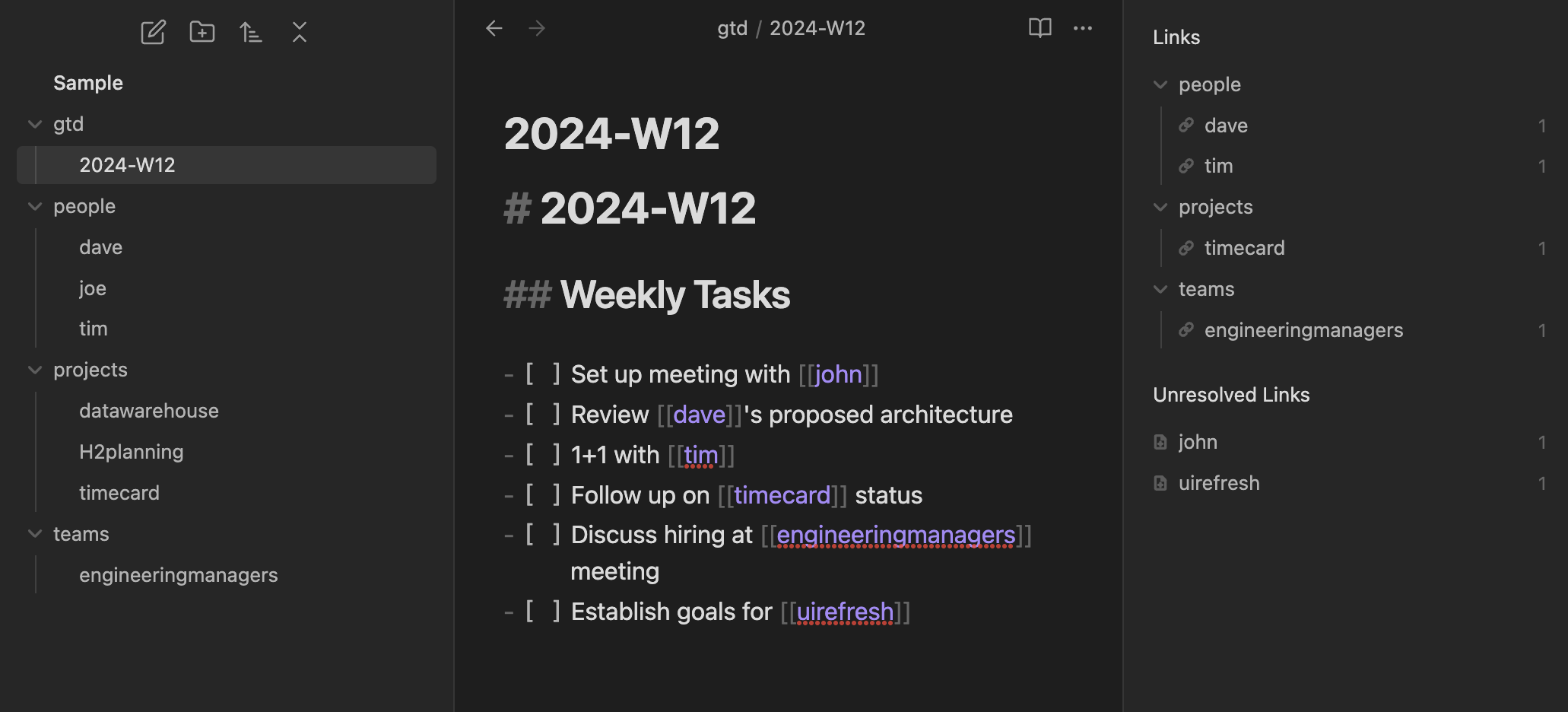
Here's a comparison of the core plugin vs the hierarchical outgoing links plugin in action.
This is how the out-of-the-box core outgoing links plugin displays links:
This is how this plugin displays links:
Features
- Collapsible tree structure allows you to easily focus on what what is most important
- Clickable links to references
- List of unresolved links indicating any dangling references which you might want to create.
- Ability to exclude items from the hierarchy using a regular expression
Filtering
The plugin has the ability to filter out items in the list based on a regular expression. This comes in handy when you want to remove all images or PDFs from displaying. The exclude filter is configurable in the Settings menu.

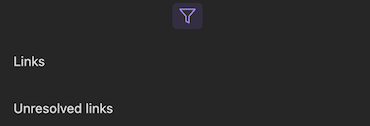
When a filter is being applied to the hierarchy a filter icon displays at the top of the plugin.
Commands
The following commands are available in the Obsidian Command Palette:
| Command | Description |
|---|---|
| Show hierarchical outgoing links | Displays the panel in the event it was closed |
Settings
The following settings are available in the settings window:
| Setting | Description |
|---|---|
| Exclude files filter | A regular expression which will filter out any match. Helpful if you want to remove images and PDFs |
Development
Setup
npm install
Running
npm run dev