
README file from
GithubMemoChron



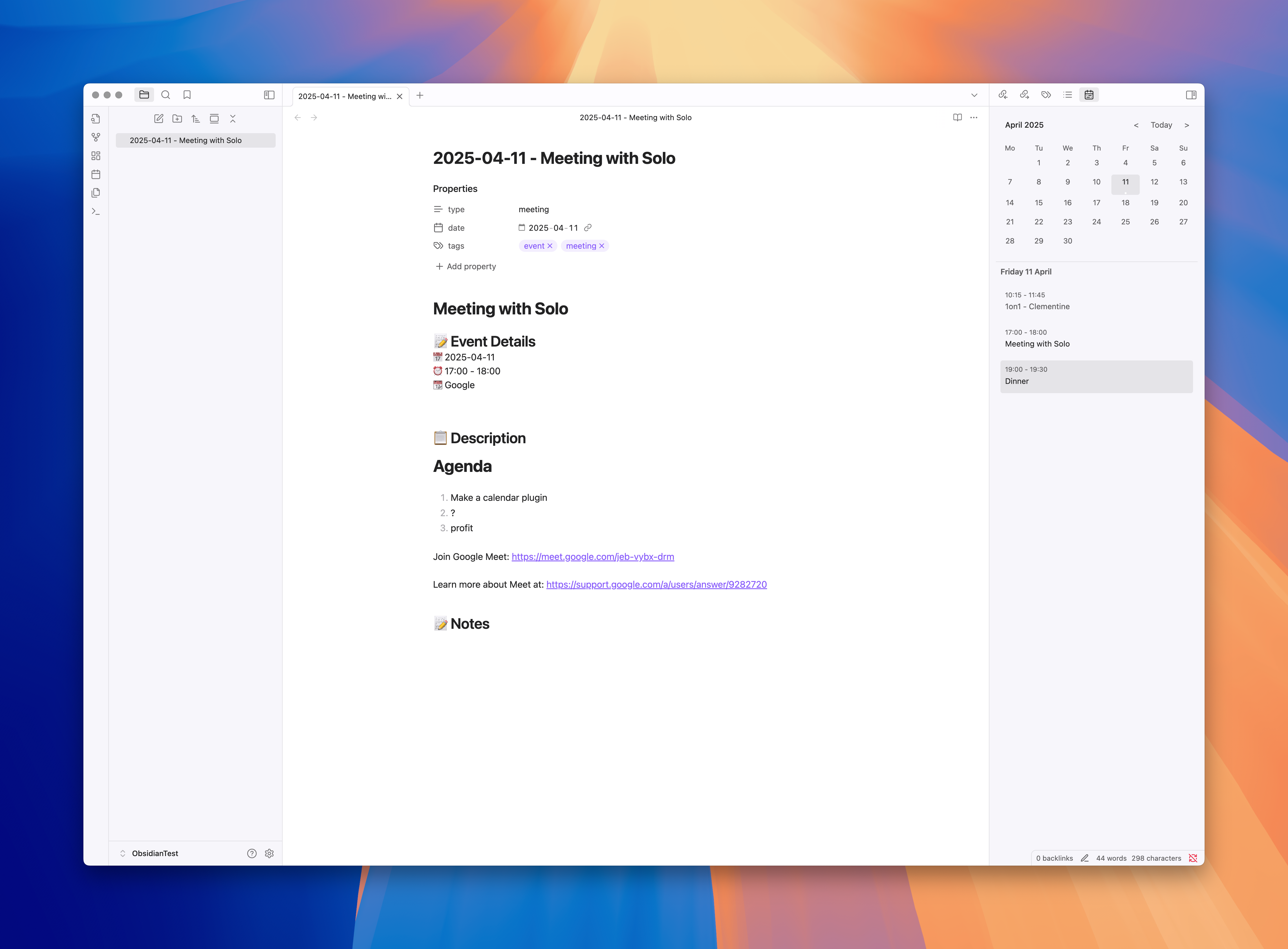
MemoChron is an Obsidian plugin that bridges the gap between personal knowledge management and time management. It showcases a list of your calendar events. When you click on an event, it creates a note for this event.
Features
- 📅 Calendar Integration: Import and display events from public iCalendar (.ics) URLs
- 📁 Local ICS File Support: Use ICS files stored in your vault or local file system
- 🎯 Drag & Drop Import: Drag single-event ICS files onto the agenda to create notes instantly
- 📂 Smart Folder Organization: Automatically organize notes into date-based subfolders with customizable templates
- 👀 Visual Calendar: View your schedule in a clean, native-looking calendar interface in Obsidian's sidebar
- 🔵 Always-Visible Today Indicator: Today is always marked on the grid, distinct from the selected day
- 📋 Daily Agenda View: See a detailed list of events for any selected day
- 🔗 Note-Exists Indicators: Events that already have a linked note are visually marked in the agenda, with an optional dot on the calendar grid
- ✨ Automatic Note Creation: Create notes for events with customizable templates and a
{{cursor}}marker for placing the caret on note open - 🔄 Auto-Refresh: Keep your calendar data up to date with configurable refresh intervals
- 🎨 Customizable: Configure note templates, locations, and naming conventions
- 🌈 Calendar Colors: Visually distinguish between different calendar sources with an advanced color picker
- 👥 Attendee Links: Automatically create wiki links for event attendees
- 🔍 Attendee Filtering: Filter attendees by type (CUTYPE) to exclude rooms, resources, and other non-person entities
- ⚙️ Calendar-Specific Configuration: Override default settings for individual calendars
- 📝 Embedded Views: Embed calendar and agenda views directly in your notes using dataview-like code blocks
Installation
- Open Obsidian Settings
- Go to Community Plugins and disable Safe Mode
- Click Browse and search for "MemoChron"
- Install the plugin and enable it
Usage
Adding Calendar Sources
MemoChron supports both remote calendar URLs and local ICS files.
Remote Calendars
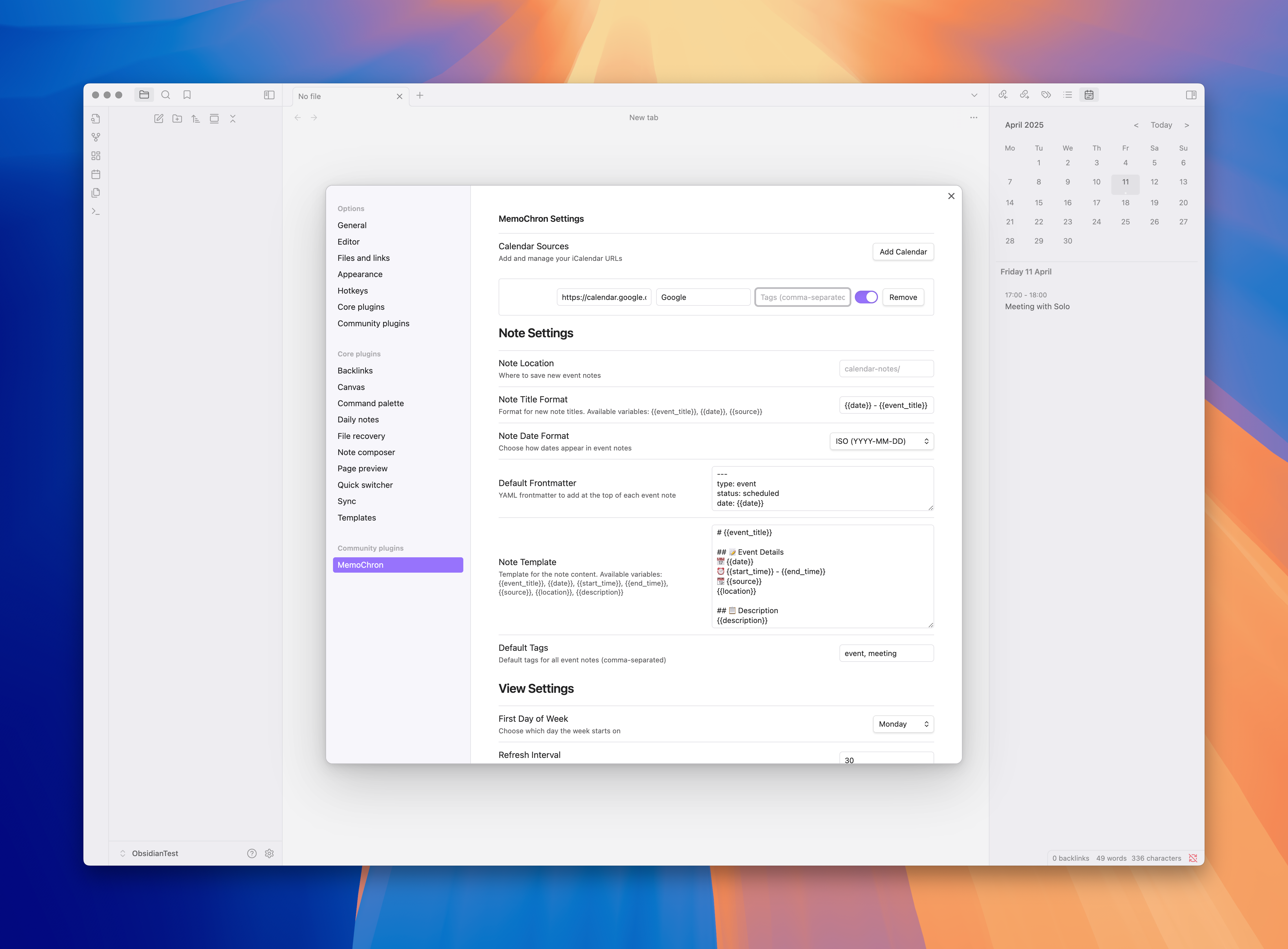
- Go to Settings > MemoChron
- Click "Add Calendar"
- Enter your public iCalendar (ICS) URL
- Give your calendar a name and optional tags
- Enable/disable calendars as needed
Getting the Correct URL from Google Calendar
Important: You need the iCal feed URL, not the public calendar link. The public link opens a webpage but doesn't provide the calendar data that MemoChron needs.
To get the correct URL from Google Calendar:
- Open Google Calendar in your browser
- Click the gear icon (⚙️) → Settings
- In the left sidebar, click on the calendar you want to add
- Scroll down to Integrate calendar
- Copy the Secret address in iCal format (recommended) or Public address in iCal format
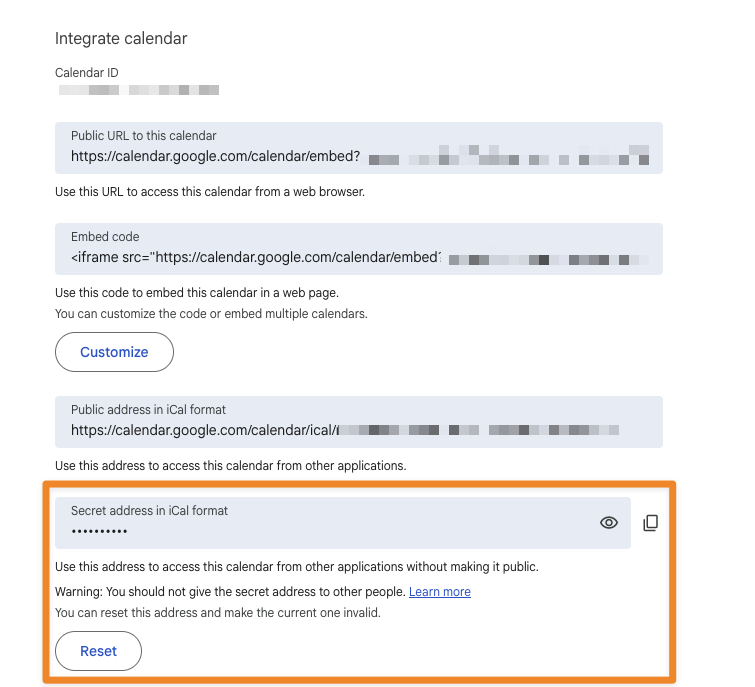
Correct URL format: https://calendar.google.com/calendar/ical/.../basic.ics
Incorrect URL formats (these won't work):
https://calendar.google.com/calendar/u/0?cid=...(public link - opens a webpage)https://calendar.google.com/calendar/embed?src=...(embed link - for websites)https://calendar.google.com/calendar/r/...(calendar app link)
Local ICS Files
You can also use ICS files stored in your Obsidian vault or local file system:
- Go to Settings > MemoChron
- Click "Add Calendar"
- Use one of these methods to specify your local file:
- File Picker (Recommended):
- Click the folder icon (📁) button next to the URL field
- A search dialog will open showing all ICS files in your vault
- Type to search/filter files by name
- Click on the desired file to select it
- The file path will be automatically filled in the URL field
- Note: If no ICS files are found, you'll see a notification. Make sure to add ICS files to your vault first
- Vault Path: Type a relative path like
calendars/work.ics - Absolute Path: Use full paths like
/Users/username/calendar.icsorC:\Users\username\calendar.ics - File URL: Use
file:///URLs likefile:///Users/username/calendar.ics
- File Picker (Recommended):
- Give your calendar a name and optional tags
- Enable/disable calendars as needed
Note: Local ICS files are read-only. To update events, you'll need to export a new ICS file from your calendar application and replace the existing file.
Calendar Visibility Control
You can control where each calendar appears:
- Show in sidebar: Toggle whether the calendar appears in the sidebar widget
- Show in embedded views: Toggle whether the calendar appears in code block embeds
These settings allow you to:
- Show work calendars only in the sidebar for meeting notes
- Show personal calendars only in daily note embeds
- Mix and match based on your workflow
Filtering Calendars in Code Blocks
You can also specify which calendars to show in individual code blocks using the calendars parameter:
```memochron-agenda
date: today
days: 7
calendars: Personal, Family
```
```memochron-calendar
month: 2025-02
calendars: Work Calendar
```
Notes:
- Calendar names are case-insensitive
- Comma-separated list of calendar names
- When
calendarsis specified, only those calendars are shown (ignoring the "Show in embedded views" setting) - When
calendarsis not specified, the default visibility settings apply
Drag & Drop ICS Files
You can quickly create notes from individual meeting invites by dragging ICS files:
- Export a single event from your calendar application as an ICS file
- Drag the ICS file onto the agenda view (bottom section) of MemoChron
- Drop when you see the "Drop ICS file here to create a note" message
- A note will be created immediately for that event
Important:
- Only single-event ICS files are supported
- Files with multiple events will show an error
- Drag & drop only works on the agenda view, not the calendar grid
- Events are not added to your calendar sources - only notes are created
- All timezones are properly handled and converted to your local time
Use Cases:
- Quick note creation from meeting invites
- Importing events from colleagues without calendar access
- Creating notes for one-off events without cluttering your calendar
Viewing Your Calendar
- The calendar will appear in the right sidebar by default
- Navigate between months using the arrows
- Single-click on any day to see the agenda for that day
- Double-click on any day to open the daily note for that date
- Hover over events to see more details
Available Commands
- Force refresh calendars: Manually refresh all calendar data
- Go to today: Navigate to the current month and select today's date
- Toggle calendar visibility: Show/hide the month calendar grid (agenda-only mode)
Creating Notes from Events
- Click on any event in the calendar or agenda view
- A new note will be created automatically using your template
- The note will include event details like title, time, description, and location
Customizing Templates
In the plugin settings, you can customize:
-
Note location in your vault
-
Folder path template for organizing notes in date-based subfolders
-
Note title format - Use any of the template variables below
-
Default template with variables like:
- {{event_title}}
- {{date}} - The event start date (for backward compatibility)
- {{date-iso}} - The event start date in YYYY-MM-DD format (for backward compatibility)
- {{start_date}} - The event start date
- {{start_date-iso}} - The event start date in YYYY-MM-DD format
- {{end_date}} - The event end date
- {{end_date-iso}} - The event end date in YYYY-MM-DD format
- {{start_time}}
- {{end_time}}
- {{day}} - Full English weekday name of the event start date (e.g.
Monday) - {{month}} - Full English month name of the event start date (e.g.
January) - {{cursor}} - Marker for where the editor caret should be placed after the note is created and opened. The marker itself is stripped from the final note. Only the first occurrence is used.
Date format: The "Note date format" setting (ISO, US, UK/EU, Long) controls how {{date}}, {{start_date}}, and {{end_date}} appear. US uses
MM-DD-YYYYand UK/EU usesDD-MM-YYYY(the NL/Dutch convention) — all with hyphens, never slashes, so dates are safe for note filenames and for YAML properties (e.g. custom properties like "Data Evento"). This also keeps frontmatter date values consistent with the title.- {{description}}
- {{location}}
- {{source}}
- {{attendees}} - Comma-separated list of attendee names
- {{attendees_list}} - Bullet list of attendee names
- {{attendees_count}} - Number of attendees
- {{attendees_links}} - Comma-separated wiki links (when enabled)
- {{attendees_links_list}} - Bullet list of wiki links (when enabled)
- {{attendees_links_yaml}} - Quoted wiki links for YAML properties (when enabled)
Multi-Day Event Support
MemoChron now supports better handling of multi-day events with dedicated template variables:
- {{start_date}} and {{end_date}} explicitly show when an event begins and ends
- {{start_date-iso}} and {{end_date-iso}} provide ISO format dates for consistency
- The original {{date}} variable remains available for backward compatibility (uses start date)
Example Template for Multi-Day Events:
## {{event_title}}

**Duration**: {{start_date}} - {{end_date}}
**Time**: {{start_time}} - {{end_time}}
**Location**: {{location}}

### Description

{{description}}
This makes it easy to see at a glance when multi-day conferences, trips, or extended events begin and end.
Calendar-Specific Configuration
Each calendar can have its own custom notes settings, allowing you to override the default configuration for specific calendars. This is perfect for managing different types of calendars (work, personal, projects) with different note templates and organization patterns.
Setting Up Calendar-Specific Configuration
- Go to Settings > MemoChron
- Find the calendar you want to configure
- Click "Configure custom settings" (or "Edit custom settings" if already configured)
- Toggle "Use custom notes settings" to enable calendar-specific configuration
- Configure any of the following settings for this calendar:
Available Calendar-Specific Settings:
- Note Location: Override where notes for this calendar are saved
- Note Title Format: Custom title format for this calendar's events
- Note Date Format: Different date format for this calendar (ISO, US (MM-DD-YYYY), UK (DD-MM-YYYY), Long); dates use hyphens so they work in filenames and YAML
- Note Time Format: 12-hour or 24-hour time format for this calendar
- Default Frontmatter: Custom YAML frontmatter for this calendar's notes
- Default Tags: Calendar-specific tags added to all notes from this calendar
- Note Template: Custom note template for this calendar's events
- Folder Path Template: Custom folder organization for this calendar's notes
- Attendee Links: Enable/disable attendee links for this calendar
Use Cases
- Work Calendar: Use professional templates with work-specific tags and folder organization
- Personal Calendar: Use casual templates with personal tags and different folder structure
- Project Calendar: Use project-specific templates with custom frontmatter and organization
- Team Calendar: Enable attendee links and use team-focused templates
Example Configuration:
- Work Calendar: Professional template, "work" tags, organized by
{YYYY}/{MMM}folders - Personal Calendar: Casual template, "personal" tags, organized by
{YYYY}/Personalfolders - Project Calendar: Project template, project-specific tags, organized by
{source}/{YYYY}folders
Embedded Views (NEW in v1.8.0)
MemoChron now supports embedding calendar and agenda views directly in your notes using dataview-like code blocks. This allows you to create custom dashboards, project timelines, and event displays anywhere in your vault.
Calendar Code Blocks
Embed calendar month grids in your notes:
```memochron-calendar
month: 2025-02
```
Available Parameters:
month: Display specific month (supports multiple formats)2025-02(YYYY-MM format)2025/02(YYYY/MM format)February 2025(Month Year)Feb 2025(Month abbreviation)this.file.name(extract date from current filename)
Features:
- Navigate between months with arrow buttons
- "Today" button to jump to current month
- Single-click dates to see event details in notifications
- Double-click dates to open the daily note for that date
- Color-coded event indicators (if colors enabled)
- Responsive design for all screen sizes
Agenda Code Blocks
Embed event lists for specific dates or ranges:
```memochron-agenda
date: today
days: 7
```
Available Parameters:
date: Starting date for the agendatoday,tomorrow,yesterday2025-01-15(YYYY-MM-DD format)- Standard date formats
this.file.name(extract date from current filename)
days: Number of days to display (default: 1, max: 30)show-daily-note: Show daily note entries (true/false)show-past: Include past events (true/false)
Features:
- Single or multi-day event lists
- Click events to open/create notes
- Daily note integration
- Color-coded events (if colors enabled)
- Responsive scrolling for long lists
Dynamic File-Based Dates
Use this.file.name to automatically extract dates from your note filenames. Perfect for daily notes!
Supported Filename Formats:
2025-01-15.md(YYYY-MM-DD)2025_01_15.md(YYYY_MM_DD)2025.01.15.md(YYYY.MM.DD)15-01-2025.md(DD-MM-YYYY)01-15-2025.md(MM-DD-YYYY)20250115.md(YYYYMMDD)
Example Usage in Daily Notes:
# Daily Note for {{date}}

## Today's Schedule

```memochron-agenda
date: this.file.name
```

## This Month's Overview

```memochron-calendar
month: this.file.name
```
Use Cases
Project Management:
## Project Timeline

```memochron-calendar
month: 2025-02
```

## Upcoming Deadlines

```memochron-agenda
date: today
days: 14
```
Meeting Dashboard:
## Weekly Meetings

```memochron-agenda
date: today
days: 7
show-daily-note: true
```
Monthly Review:
## February 2025 Events

```memochron-calendar
month: February 2025
```
Attendee Support
MemoChron can extract attendee information from calendar events and optionally create wiki links for them:
Attendee Variables:
- {{attendees}} - Shows all attendees as a comma-separated list
- {{attendees_list}} - Shows attendees as a bullet list
- {{attendees_count}} - Shows the number of attendees
- {{attendees_links}} - Creates wiki links for attendees (when enabled in settings)
- {{attendees_links_list}} - Creates a bullet list of wiki links
- {{attendees_links_yaml}} - Creates quoted wiki links for use in YAML properties (when enabled in settings)
Example Template with Attendees:
# {{event_title}}

**Date**: {{start_date}}
**Time**: {{start_time}} - {{end_time}}
**Location**: {{location}}

## Attendees ({{attendees_count}})

{{attendees_links_list}}

## Notes
Example with YAML Properties:
To use attendee links in Obsidian properties (frontmatter), use the {{attendees_links_yaml}} variable:
---
meeting: {{event_title}}
date: {{start_date-iso}}
attendees:
{{attendees_links_yaml}}
---

# {{event_title}}

## Notes
This will create a frontmatter property like:
attendees:
  - "[[Alice]]"
  - "[[Bob]]"
  - "[[Charlie]]"
This format follows Obsidian's list property requirements where internal links in list properties must be surrounded with quotes.
Enabling Attendee Links:
- Go to Settings > MemoChron > Notes
- Enable "Create links for attendees"
- Links will be created as
[[Name]]- Obsidian will find the notes regardless of their folder location
Attendee Type Filtering (CUTYPE)
Calendar files from companies often include non-person attendees like conference rooms, equipment, and resources. MemoChron can filter these out automatically based on the iCalendar CUTYPE parameter (RFC 5545).
Available Attendee Types:
- Individual - Actual people (included by default)
- Unspecified - Attendees without a CUTYPE parameter, usually people (included by default)
- Group - Distribution lists or groups (excluded by default)
- Resource - Equipment or other resources (excluded by default)
- Room - Conference rooms or meeting spaces (excluded by default)
- Unknown - Unknown attendee types (excluded by default)
Configuring Attendee Filtering:
- Go to Settings > MemoChron > Notes
- Find "Filter attendees by type" section
- Toggle each attendee type on/off based on what you want to include
- Calendar data refreshes automatically when you change settings
Default Behavior: By default, only actual people (Individual and Unspecified) are included in your notes. Conference rooms, resources, and other non-person entities are automatically filtered out.
Calendar-Specific Filtering: You can override the global attendee type filter for individual calendars. This is useful if some calendars need different filtering rules (e.g., including rooms for facility management calendars).
Organizing Notes with Folder Templates
MemoChron supports flexible folder organization using customizable templates. You can organize your event notes into date-based subfolders automatically.
Available Template Variables:
{YYYY}- 4-digit year (2025){YY}- 2-digit year (25){MM}- 2-digit month (06){M}- 1-digit month (6){MMM}- 3-letter month abbreviation (Jun){MMMM}- Full month name (June){DD}- 2-digit day (06){D}- 1-digit day (6){DDD}- 3-letter day abbreviation (Mon){DDDD}- Full day name (Monday){Q}- Quarter number (2){source}- Calendar source name{event_title}- Event title (sanitized for file names)
Example Templates:
{YYYY}/{MMM}→2025/Jun/{YYYY}-{MM}→2025-06/{source}/{YYYY}/{MMM}→Work Calendar/2025/Jun/{YYYY}/Q{Q}→2025/Q2/{MMM} {YYYY}→Jun 2025/
How to Use:
- Go to Settings > MemoChron
- Find the "Folder path template" setting
- Enter your desired template pattern
- Use the live preview to see how your template will look
- Leave empty to save all notes in the same folder (default behavior)
Configuration
Settings
- Calendar Sources: Add, remove, or toggle calendars
- Calendar-Specific Settings: Override default settings for individual calendars
- First Day of the Week: Choose which day the calendar week starts on
- Hide Calendar: Show only the agenda view without the month calendar grid
- Refresh Interval: Set how often calendar data updates
- Note Location: Set the default folder for event notes
- Folder Path Template: Organize notes in date-based subfolders with customizable patterns
- Note Title Format: Customize how note titles are generated
- Note Date Format: Choose how dates appear in notes (ISO, US (MM-DD-YYYY), UK (DD-MM-YYYY), or Long); hyphens are used so dates work in filenames and YAML properties
- Note Time Format: Choose between 12-hour (1:30 PM) or 24-hour (13:30) time display
- Template: Customize the default note template
- Tags: Set default tags for event notes
- Enable Calendar Colors: Toggle color differentiation for calendar sources
- Create Links for Attendees: Automatically create wiki links for event attendees
- Filter Attendees by Type: Choose which attendee types to include (Individual, Group, Resource, Room, etc.)
- When enabled, each calendar gets a customizable color
- Colors appear as dots in the calendar view and left borders in the agenda view
- Click the color button to open an advanced visual color picker featuring:
- Enhanced color spectrum for intuitive and accurate selection
- Improved lightness bar for precise brightness control
- Hex input for exact color values
- Carefully selected base color presets optimized for calendar use
- Instant color updates without requiring calendar refresh
Current Limitations
- Remote calendars must be publicly accessible (no authentication support)
- No bi-directional sync (changes in notes don't update calendar events)
- Basic calendar views (monthly with agenda)
- Local ICS files are not automatically watched for changes (use manual refresh)
What's New in v1.14.0
✨ UX Enhancements
- Always-Visible Today Indicator: Today is now distinctly marked on the calendar grid even when a different day is selected, so the current date is never ambiguous.
- Note-Exists Indicators: Events that already have a linked note display a distinct icon in the agenda. An optional, toggleable dot also marks days that contain at least one event with a note on the calendar grid (off by default).
{{day}}and{{month}}Template Variables: Use the fully written weekday and month names (e.g.Monday,January) in note titles, content, and folder templates.{{cursor}}Marker: Drop{{cursor}}anywhere in your note template to control exactly where the caret lands when a new event note is created and opened — start typing without clicking.- UK/EU Date Format: The UK date format is now labelled "UK/EU (DD-MM-YYYY)" and consistently uses hyphens in both the title and frontmatter, matching the NL/Dutch convention.
🐛 Bug Fixes
- Daily-Note Timezone (#59): Daily-note filenames like
2026-04-08now resolve to the correct local calendar day in non-UTC timezones (e.g. Montreal/Americas). Previously they could land on the previous day. - Snappy Navigation (#54): Month and week navigation arrows now repaint instantly with no perceptible lag, even when clicked rapidly.
- Drag-Resize View Sync (#54): Drag-resizing the calendar pane between month and week sizes now keeps the view-mode dropdown in sync, and the "Today" button correctly recenters across all view modes.
- Frontmatter Date Corruption (#56): Fixed a bug where note frontmatter could record a corrupted date (e.g.
29-01-2026→20/01/2029) when using the UK date format. - Saturday-Start Weeks: Fixed an edge case in the start-of-week calculation when the first day of the week is set to Saturday.
- Background Fetch Races: Concurrent calendar fetches are now deduplicated — no double-renders or duplicate events when manual refresh and the auto-refresh timer overlap.
🔒 Security & Robustness
- XSS-Safe Color Settings: Saved color values are validated on load and on render; malformed or malicious values fall back to a safe default and never reach the DOM as raw markup.
- Meaningful Error Messages: Every catch block now produces a meaningful Notice — no more
undefinedor[object Object]when something fails in the calendar fetch path or ICS-import handler.
🧰 Internal
- Lifecycle Cleanup: Views, services, the auto-refresh timer, and drag listeners are now properly disposed when the plugin unloads — no more dangling timers or listeners after disable/reload.
- Live Settings Reads: Services read live settings instead of cached references, so changes in the settings tab take effect immediately.
- Dead Code Removed: Removed unused code paths surfaced during the milestone audit.
What's New in v1.10.0
🎨 Settings Page Redesign
- Collapsible Sections: Major settings sections (Calendars, Notes, Advanced) now collapse/expand for better organization
- Collapsible Calendar Items: Individual calendar entries collapse by default, showing only name and enabled toggle
- Improved Organization: Settings grouped into logical sub-sections with clear labels
- Better Visual Hierarchy: Sub-group labels, separators, and improved spacing throughout
- Advanced Section: New collapsible Advanced section (collapsed by default) for performance and filtering settings
- Cleaner Calendar List: Calendar items use card-style layout with expandable details
- Compact Checkbox Lists: Attendee type filtering uses compact, readable checkbox layout
Benefits:
- Faster navigation through settings
- Less visual clutter with collapsible sections
- Easier to find specific settings with logical grouping
- Better mobile experience with collapsible items
What's New in v1.9.0
Calendar Visibility Control
- Per-Calendar Visibility: Control which calendars appear in the sidebar vs embedded views
- Code Block Filtering: Use the new
calendarsparameter to show specific calendars in embeds - Flexible Workflow: Show work calendars in sidebar for meeting notes, personal calendars in daily notes
- Case-Insensitive Matching: Calendar names in code blocks match regardless of capitalization
What's New in v1.8.5
🔍 Attendee Type Filtering (CUTYPE)
- Smart Filtering: Automatically filter attendees by type to exclude rooms, resources, and other non-person entities
- RFC 5545 Compliance: Full support for iCalendar CUTYPE parameter (Individual, Group, Resource, Room, Unknown)
- Customizable Settings: Choose which attendee types to include globally or per-calendar
- Default Behavior: Only actual people are included by default (Individual and Unspecified types)
- Calendar-Specific Overrides: Apply different filtering rules to individual calendars
- Automatic Refresh: Calendar data refreshes automatically when you change filter settings
Why This Matters: Corporate calendars often include conference rooms and equipment as attendees, cluttering your meeting notes with entries like "Conference Room A" and "Projector". Now you can filter these out automatically while keeping actual people in your attendee lists.
Example Use Case:
Before filtering: Attendees: John Doe, Conference Room A, Jane Smith, Projector
After filtering: Attendees: John Doe, Jane Smith
What's New in v1.8.4
📋 YAML Properties Support for Attendees
- New Template Variable: Added
{{attendees_links_yaml}}for proper Obsidian properties integration - YAML List Format: Attendee links now format correctly for use in frontmatter properties
- Quoted Links: Internal links are automatically quoted as required by Obsidian's property system
- Multi-line Format: Generates clean, readable YAML list format for better compatibility
Use the new variable in your templates to add attendee links directly to note properties:
---
meeting: {{event_title}}
date: {{start_date-iso}}
attendees:
{{attendees_links_yaml}}
---
This creates properly formatted properties that work seamlessly with Obsidian's property system, making it easy to query and filter notes by attendees.
What's New in v1.8.0
📝 Embedded Views - Dataview-like Functionality
- Calendar Code Blocks: Embed interactive calendar month grids directly in your notes
- Agenda Code Blocks: Embed event lists for specific dates or date ranges
- Dynamic Properties: Support for
this.file.nameto extract dates from filenames - Flexible Parameters: Customize month display, date ranges, daily note integration
- Multiple Date Formats: Support for various filename formats (YYYY-MM-DD, YYYY_MM_DD, etc.)
- Responsive Design: Mobile-optimized embedded views with theme support
- Interactive Navigation: Navigate between months, click events to create notes
- Perfect for Daily Notes: Automatically show today's agenda and current month calendar
🖱️ Double-Click Daily Note Integration
- Quick Daily Note Access: Double-click any day in calendar views to instantly open the daily note
- Automatic Creation: Daily notes are created automatically if they don't exist
🎯 Use Cases
- Create custom project dashboards with embedded calendars
- Add weekly schedules to meeting notes
- Build monthly review templates with automatic date detection
- Enhance daily notes with contextual calendar views
- Design team dashboards with multi-day event views
What's New in v1.7.0
⚙️ Calendar-Specific Configuration
- Individual Calendar Settings: Override default settings for each calendar independently
- Custom Templates: Use different note templates for different calendars (work, personal, projects)
- Flexible Organization: Set custom folder organization patterns per calendar
- Custom Tags & Frontmatter: Calendar-specific tags and YAML frontmatter
- Format Overrides: Different date/time formats per calendar
- Attendee Link Control: Enable/disable attendee links per calendar
- Easy Setup: Simple toggle to enable custom settings with automatic default copying
What's New in v1.6.0
👥 Attendee Support
- Extract Attendees: Automatically extract attendee information from calendar events
- Wiki Links: Optionally create Obsidian wiki links for attendees
- New Variables: Added 5 new template variables for attendee information
- Flexible Organization: Links use simple
[[Name]]format - organize people notes anywhere in your vault - ICS Import Support: Attendee extraction works with both calendar feeds and imported ICS files
What's New in v1.5.1
📅 Enhanced Multi-Day Event Support
- New Template Variables: Added
{{start_date}},{{end_date}},{{start_date-iso}}, and{{end_date-iso}}for better handling of multi-day events - Enhanced Note Titles: All template variables can now be used in note title format (previously limited to a subset)
- Time Format Control: New setting to choose between 12-hour (1:30 PM) or 24-hour (13:30) time display throughout the plugin
- Updated Defaults: All default templates now use
{{start_date}}for clarity (existing templates with{{date}}will continue to work) - Backward Compatibility: The original
{{date}}variable continues to work as before (uses event start date) - Clearer Event Duration: Easily display event duration in your templates with separate start and end date variables
What's New in v1.4.0
🎨 Visual Calendar Color Picker
- Custom Colors: Assign unique colors to each calendar source for better visual organization
- Interactive Picker: Choose from 12 preset colors or create custom colors with the visual spectrum selector
- Instant Updates: Colors update immediately without requiring a calendar refresh
- Smart Integration: Colors appear as dots in calendar view and borders in agenda view
🐛 Bug Fixes
- Fixed all-day events incorrectly spanning into the next day
- Improved timezone handling for all-day events
What's New in v1.3.0
🎉 New Features
- Local ICS File Support: Import calendar events from ICS files stored in your vault or local file system
- Smart Folder Organization: Automatically organize event notes into date-based subfolders using customizable templates
- Drag & Drop Import: Create notes instantly by dragging single-event ICS files onto the agenda
- Enhanced Timezone Handling: Improved support for various timezone formats, including better UTC handling
📂 Folder Organization Templates
Organize your event notes automatically with powerful template variables:
- Date-based organization:
{YYYY}/{MM},{YYYY}/{MMM},{YYYY}/Q{Q} - Source-based organization:
{source}/{YYYY}/{MMM} - Custom combinations:
{MMM} {YYYY},{YYYY}-{MM}, and more
📁 Local ICS Support
Now supports multiple ways to add local calendar sources:
- Vault-relative paths with file picker
- Absolute file system paths
- File:// URLs
- Automatic file validation and error handling
Support
If you encounter any issues or have suggestions, please visit my GitHub repository and create an issue.
License
This project is licensed under the MIT License - see the LICENSE file for details.