
README file from
GithubCode Styler Plugin



This is a plugin for Obsidian.md which lets you style codeblocks and inline code in both editing mode and reading mode. It works straight out of the box and looks pretty as well! The Latest Release badge should indicate that the plugin is up-to-date and not obsolete unlike some other code block modifying plugins.
Settings
The settings page is split into three sections which are selected via a dropdown. A core settings page, a codeblock settings page and an inline code settings page. Themes can be changed or created on any of the pages. A single theme holds the settings for both the codeblock styles and the inline code styles. Within the codeblock settings page, further settings pages can be selected via a dropdown.
Excluded Languages
The plugin can be set to ignore certain languages (for example if you want python codeblocks to not be decorated). These are set in settings as a comma separated list. The wildcard * operator can also be used to match languages such as 'ad-*' to match admonitions.
Whitelisted Proceesed Codeblocks
The plugin does not style any codeblocks with processors (i.e. those manipulated by other plugins) by default, to style such codeblocks, they need to be added to a whitelist. These whitelisted languages are set in settings as a comma separated list. The wildcard * operator can also be used to match languages such as 'run-*' to match code runners from the execute code plugin.
Themes
The plugin comes with a 'Default' theme and a few themes based on popular colour schemes. The default theme uses colours as defined by the existing Obsidian theme to minimise changes in appearance on install (it uses the CSS variables defined by the current theme).
All themes have customisable colours for both light and dark mode (to make changes to a specific mode, change to that mode first and then change the colours in settings). Each theme also includes other appearance settings such as displaying line numbers, allowing highlights to cover the line numbers and more.
When a setting or colour is changed within a theme, that change is not saved to the theme; you must then click the update button next to the theme name to update that theme to the current settings. Changes to the built-in themes can also be saved but to revert to the original themes, the plugin data will have to be reset.
The different component colours that can be set within a theme are:
- Codeblock background colour
- Codeblock text colour
- Line number gutter background colour
- Line number text colour
- Codeblock line number current line indicator
- Codeblock header background colour
- Codeblock header title text colour
- Codeblock header separator colour
- Codeblock header language tag background colour
- Codeblock header language tag text colour
- Editor active line highlight colour
- Codeblock active line highlight colour
- Default highlight colour
- Alternative highlight colours
- Button colour
- Button active colour
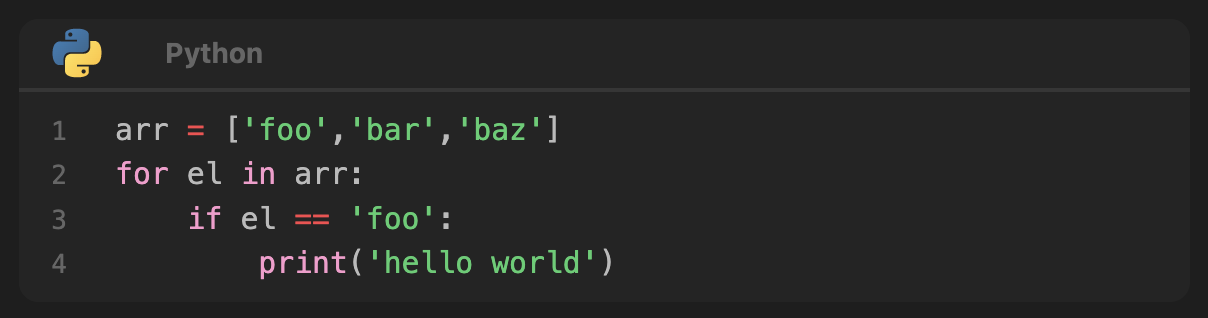
'Default' theme colours in dark mode with Default Obsidian theme:
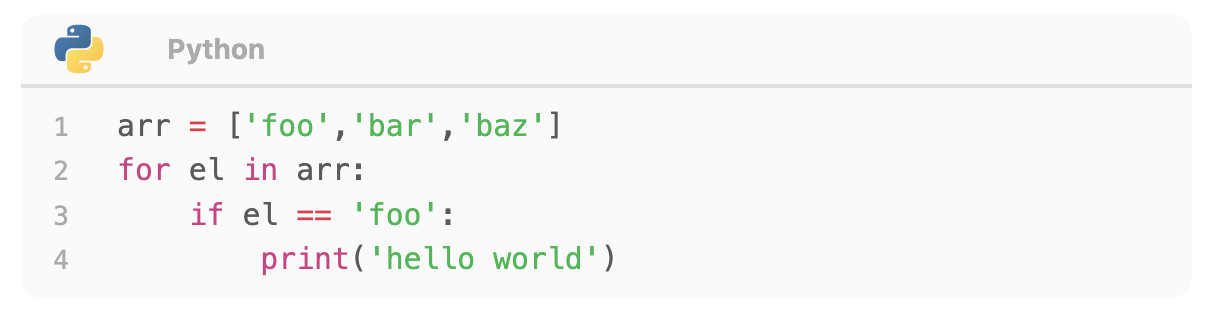
'Default' theme colours in light mode with Default Obsidian theme:
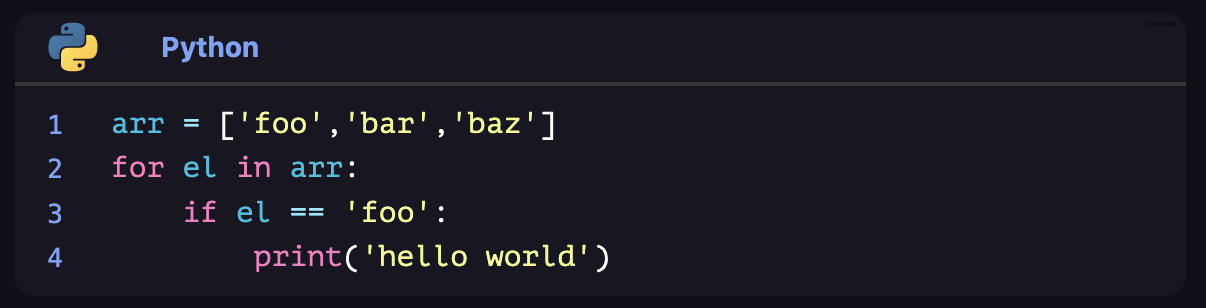
'Default' theme colours in dark mode with Obsidianite theme:
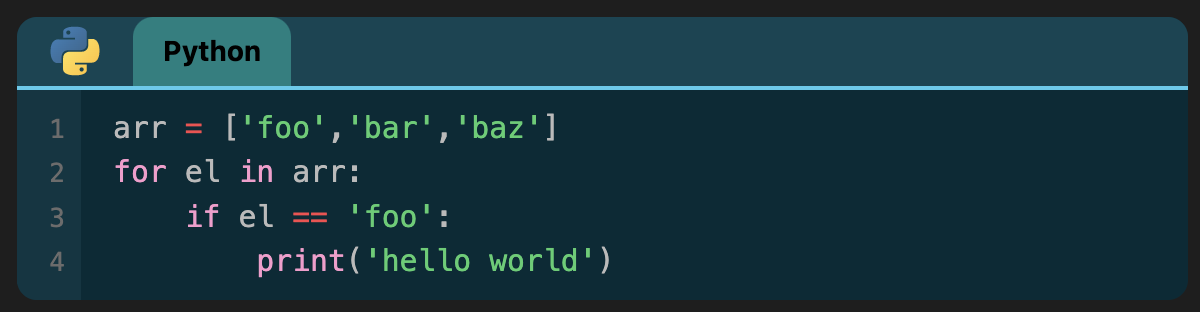
'Solarized' theme colours in dark mode with Default Obsidian theme:
Codeblock Comment Links
You can type markdown links (both internal and external) as well as wikilinks in comments inside codeblocks and they will be rendered as links. This can help reference other files. Embeds are not supported.
Note that these links will not show up on the Graph or in Backlinks - this is an upstream issue with Obsidian. To get this resolved, please support the forum issue here.
Codeblock Parameters
Codeblock parameters are added to the first line of the codeblock following the language. They can be added in any order. If no language is set, a space should be left after the codeblock delimiter ``` to indicate that the first parameter is NOT the language of the codeblock. Also note that all parameters can be set with either : or =.
Example:
```cpp fold title:example_title```cpp title=example_title fold(same effect as above line)``` fold title:example_title(if no language set)
The plugin can also parse rmarkdown style codeblock parameters so ```{r title, hl=5} is a recognised opening codeblock line.
Line Numbers
Line numbers can be enabled/disabled within a specific theme in the settings of that theme. In addition to this, whether line numbering is applied can be additionally specified in a codeblock itself using the ln parameter.
Setting ln:true will always show line numbering, ln:false will never show line numbering, and ln:NUMBER (e.g.ln:27) will always show line numbering starting at the specified number (so an offset of this number minus one).
Title
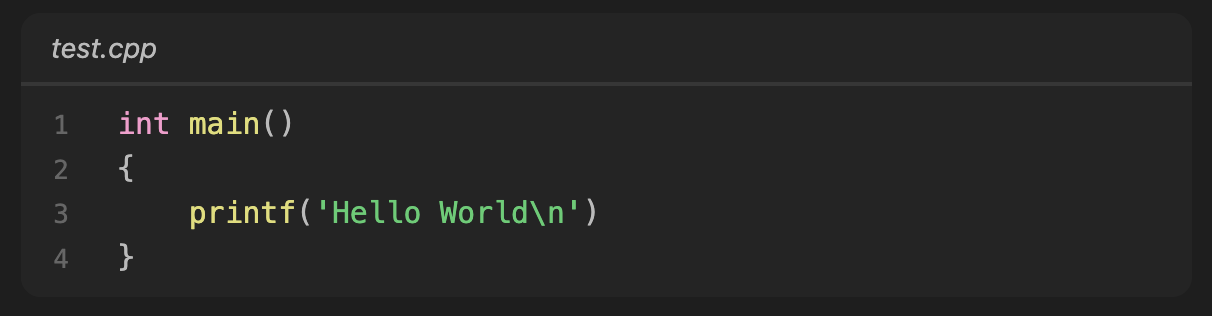
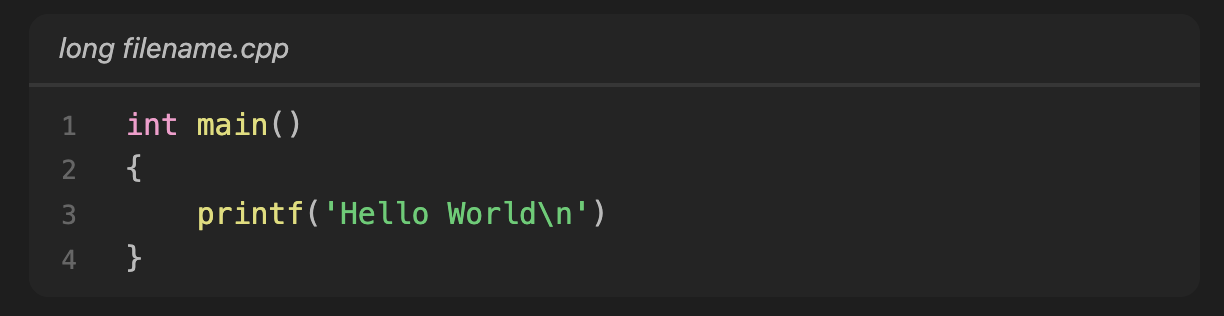
To display a title for a codeblock specify title: followed by a title in the first line of the codeblock. If the title contains spaces, specify it between "" or '' e.g.: title:"long filename.cpp".
Example:
```cpp title:test.cpp
```cpp title:"long filename.cpp"
References
To display the title as a link to another page which can be clicked or hovered over, add the ref: or reference: parameter followed by a wikilink or markdown link. The title will then show as a link to the referenced note or website. If no title: parameter is given, then the wikilink note name (or alias if given) will be used as the title.
Note that these links will not show up on the Graph or in Backlinks - this is an upstream issue with Obsidian. To get this resolved, please support the forum issue here.
Folding
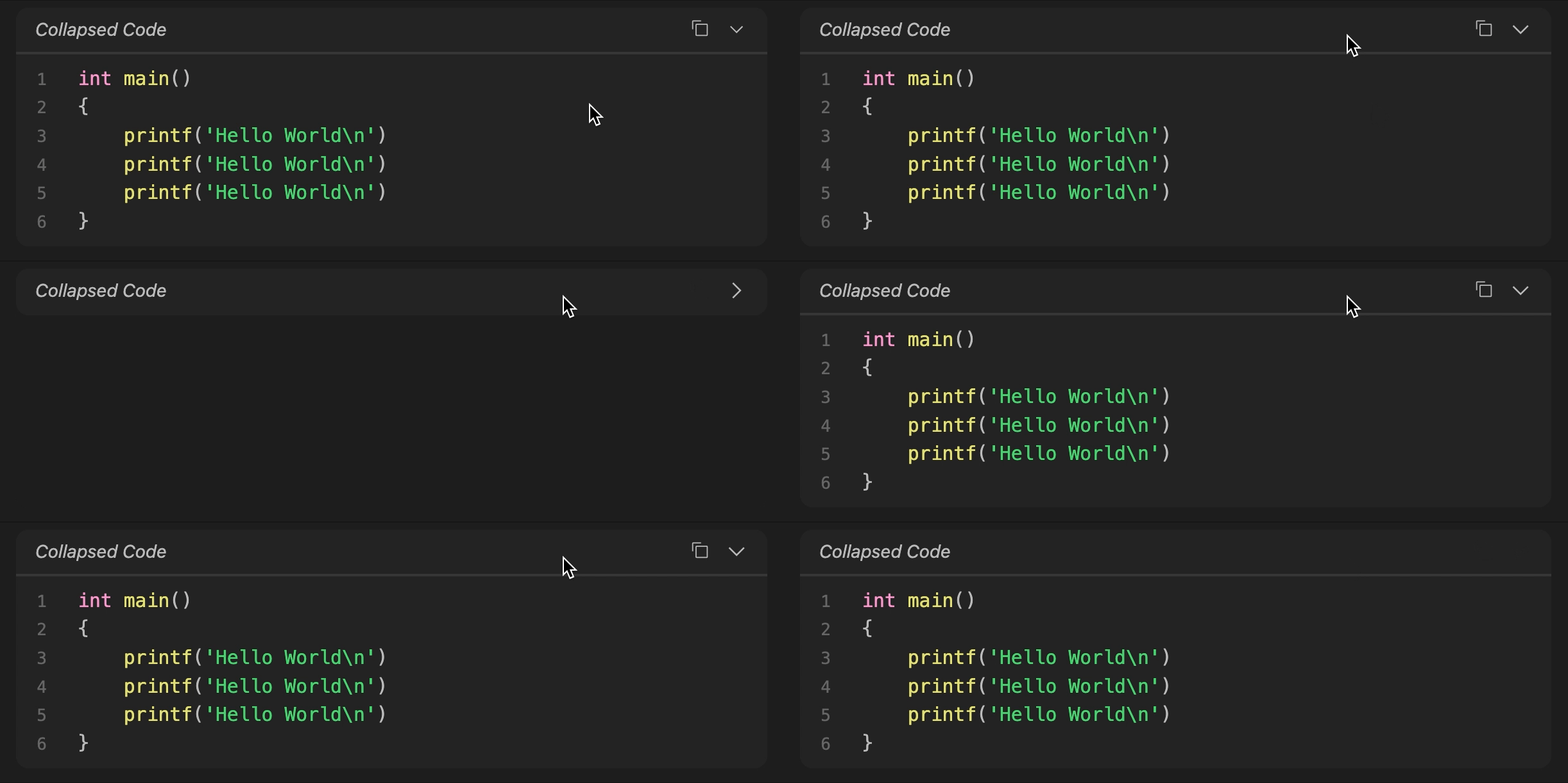
To specify an initial fold state when the document is opened, use the fold parameter. If fold is set in a codeblock, then when you open the document, the codeblock will be automatically collapsed, and only the header will be displayed. You can unfold the codeblock by clicking on the header.
Clicking on any header will toggle the fold for that codeblock.
When no title parameter is set, the folded codeblock will have a default fold placeholder title. This can be changed in settings, or it can be changed for a specific parameter by setting a string after the fold parameter as in fold:Folded or fold:"Collapsed Codeblock".
Example:
```cpp fold

```cpp fold:"This is collapsed"

Clicking on header
Highlighting
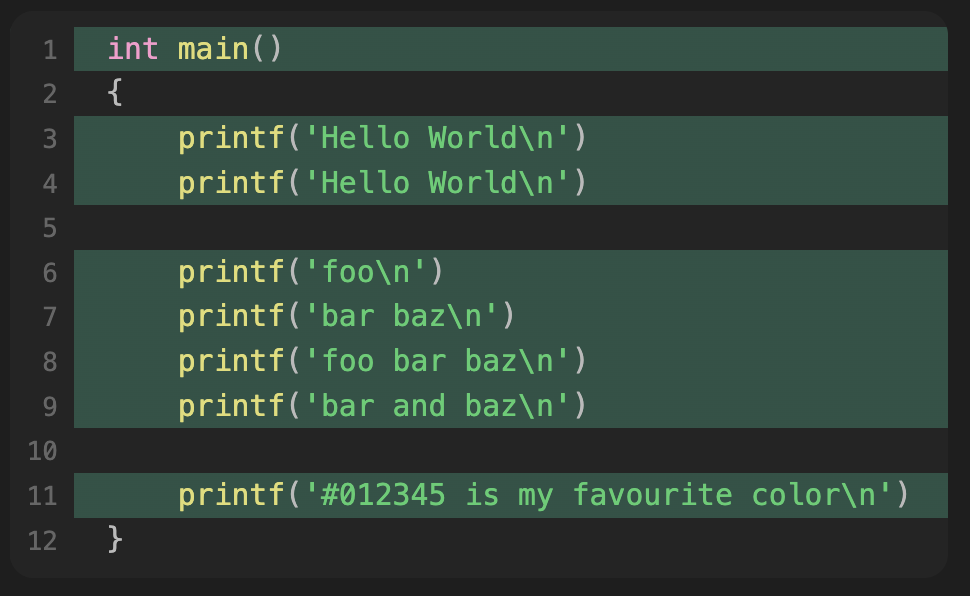
To highlight lines, specify hl: followed by line numbers, plain text or regular expressions in the first line of the codeblock.
You can specify any of the following highlight types separated with commas (without spaces) e.g.: hl:1,3-4,foo,'bar baz',"bar and baz",/#\w{6}/.
- Single numbers:
hl:1would highlight the first line - Number ranges:
hl:1-3would highlight lines 1 through to 3 - Plain text:
hl:foowould highlight lines with the wordfooinside them - Plain text in speech marks or quotation marks:
hl:'bar baz'orhl:"bar baz"would highlight lines with the wordbar bazinside them - Regular Expressions:
hl:/#\w{6}/would highlight lines which match this regular expression (tested byregex.test(line)) - for this example any lines with hexadecimal colours are highlighted
Combinations of these will highlight all relevant lines.
Example:
```cpp hl:1,3-4,foo,'bar baz',"bar and baz",/#\w{6}/
Highlights can be set to also highlight line numbers as well as the code in settings.
Example:
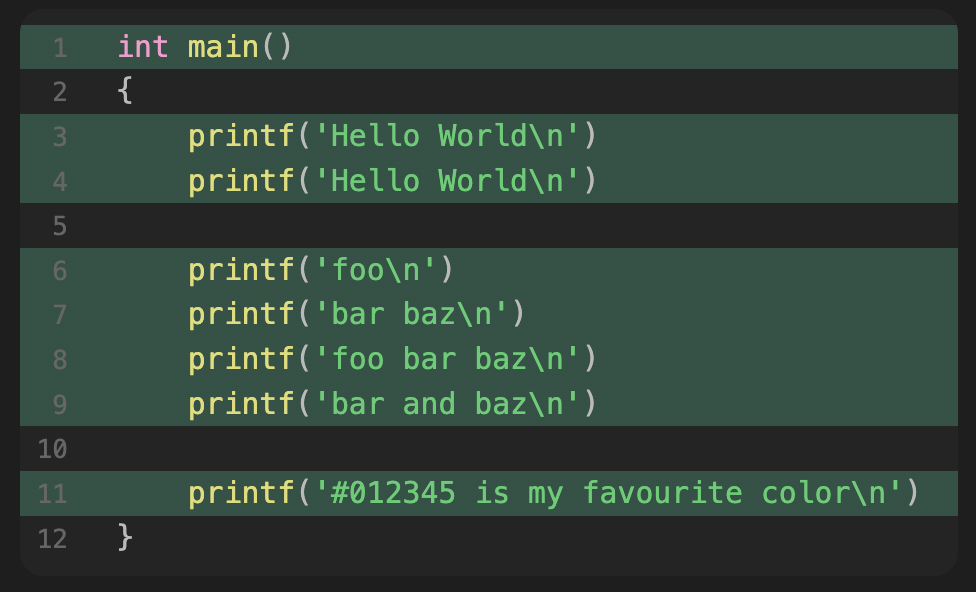
Highlights created by the default highlight parameter or alternative highlight parameters can be set to appear as gradient highlights which fade out to the right in the settings. A colour stop percentage for this gradient can also be set.
Example:
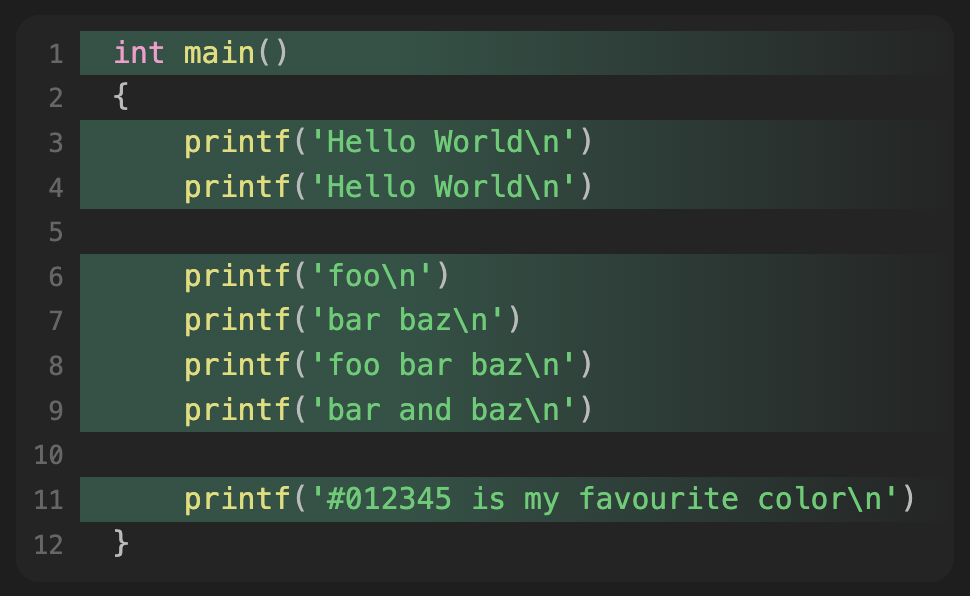
You can also highlight using the {line numbers here} syntax for compatibility with other tools however this cannot highlight via regex or words.
Example:
```cpp {1,3-4,6-9,11}
Alternative Highlights
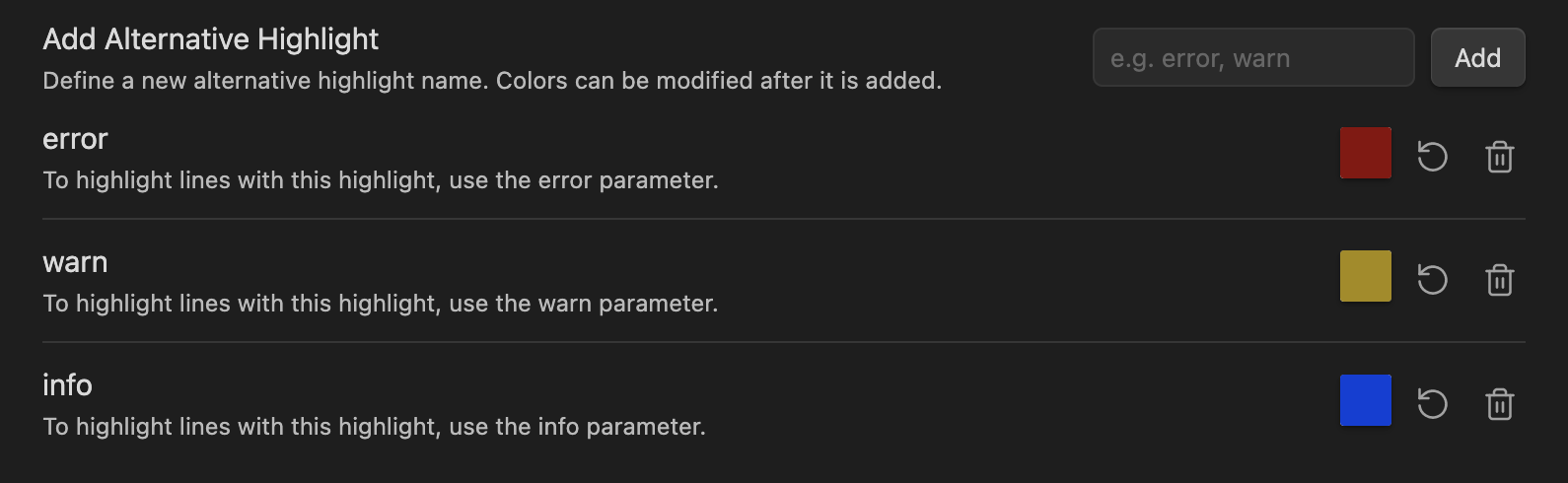
You can also define multiple highlight colours by defining an alternative highlight colour with a name. This name will be used as a parameter, and you can use it just like with the hl parameter.
Example:
You could add three further types of highlight colours (info, warn, error). After adding these in settings and setting colours as desired, you can use it in the first line of codeblocks:
```cpp info:2 warn:4-6 error:8
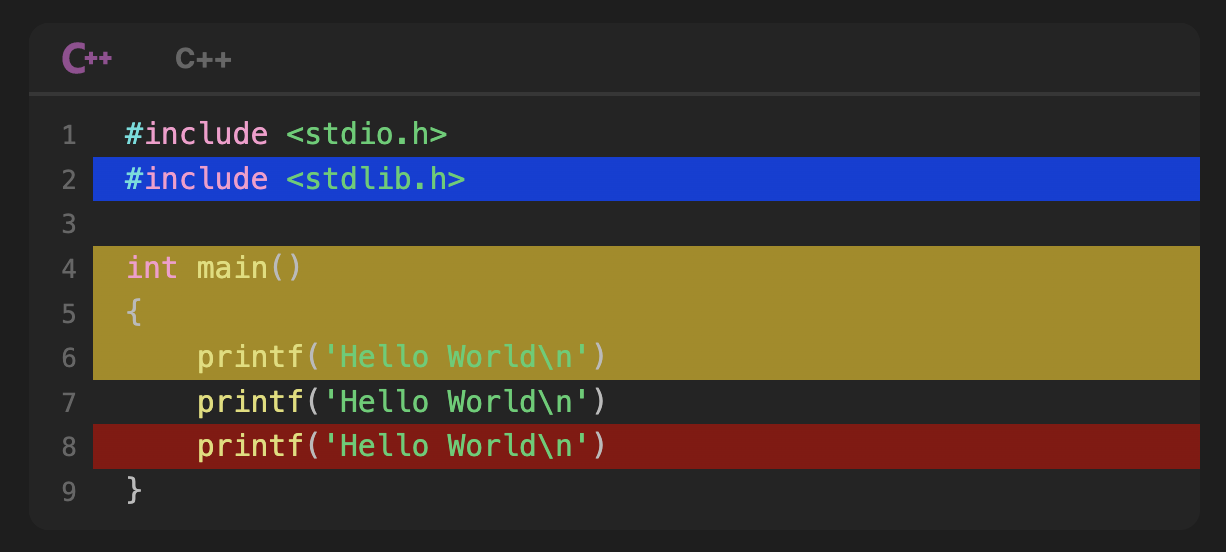
Corresponding settings:
Unwrap
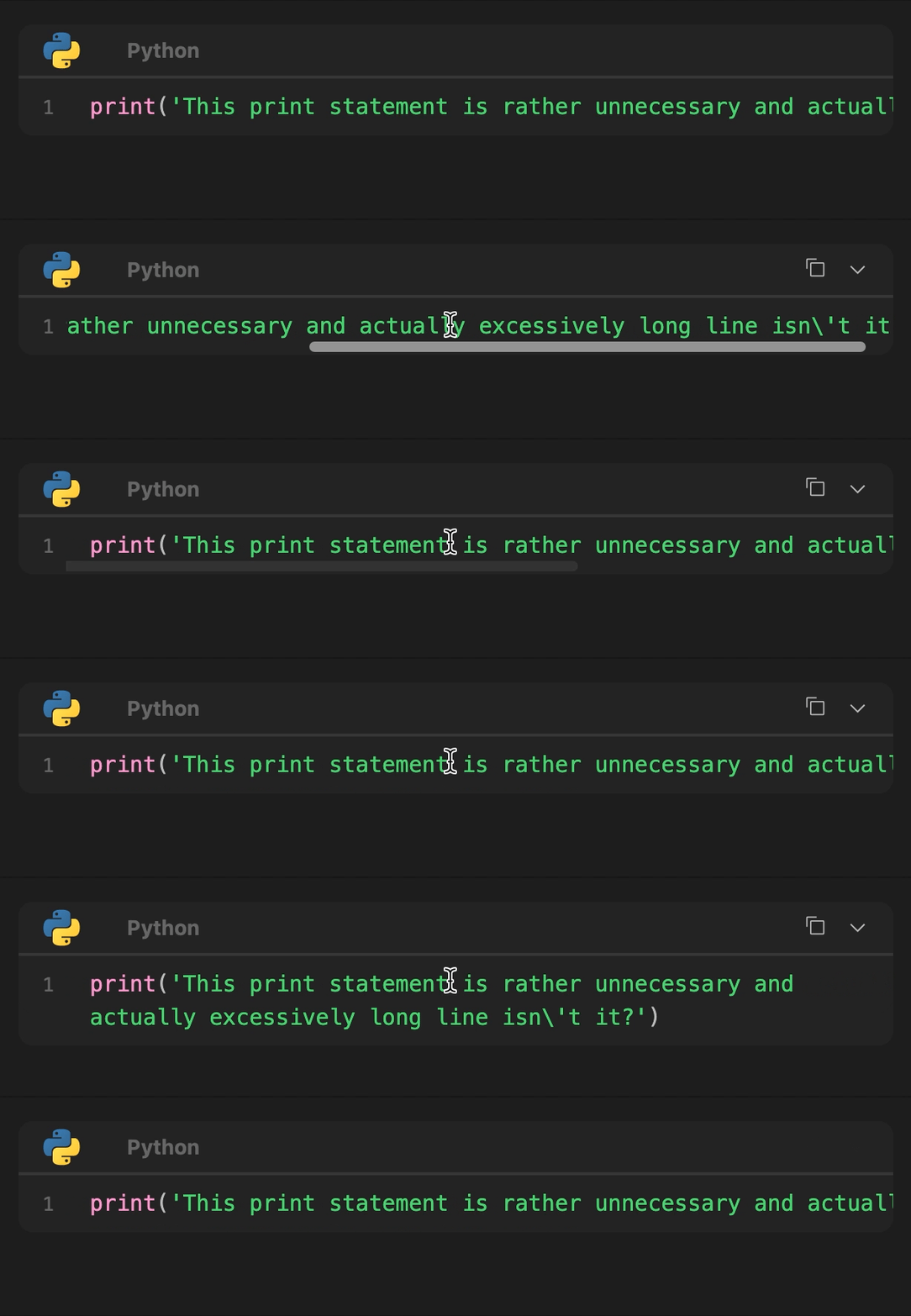
Whether lines wrap or note can be set in the settings. There is an advanced option called "Wrap Lines on Click" where holding the mouse down on a codeblock's content will cause the content to be wrapped (if line unwrapping is already set in the settings).
These settings can also be set on a per codeblock basis using the unwrap parameter which overrides the settings. Setting unwrap:true will unwrap lines in the codeblock, setting unwrap:false will wrap lines in the codeblock, and setting unwrap:inactive will unwrap lines in the codeblock but will wrap them when the mouse is held down on the codeblock. The parameter wrap is just an alias for unwrap:false and unwrap is just an alias for unwrap:true.
Example:
```python unwrap:true or ```python unwrap

```python unwrap:false or ```python wrap

```python unwrap:inactive
Ignore
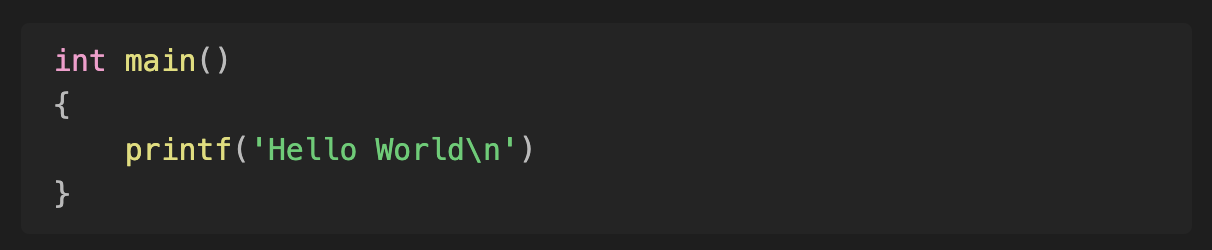
In addition to excluding the language, the plugin can be told to not apply to a specific codeblock by including the ignore parameter.
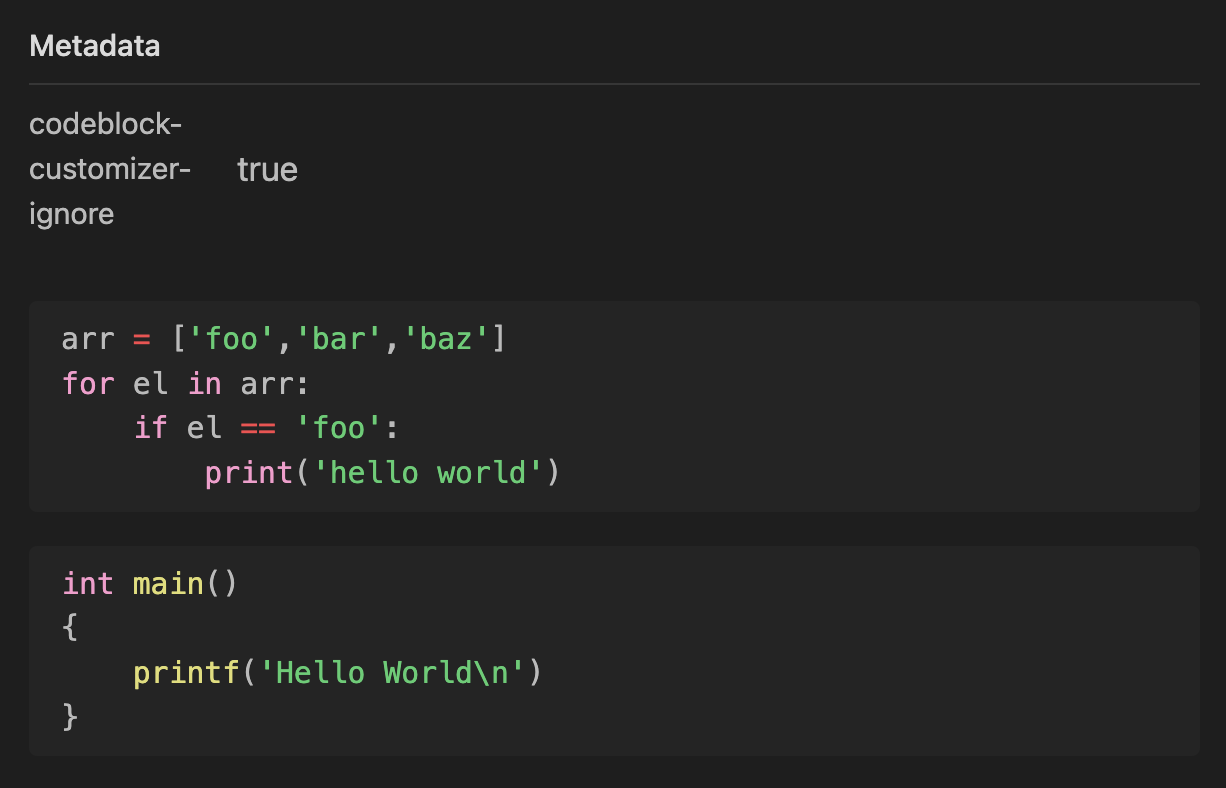
The plugin can further be told to not apply to a specific file by adding code-styler-ignore: true to the frontmatter of the note.
Example:
```cpp ignore
code-styler-ignore: true
Appearance
Codeblock
Codeblocks can have their curvature changed in settings to make them appear more or less rounded.
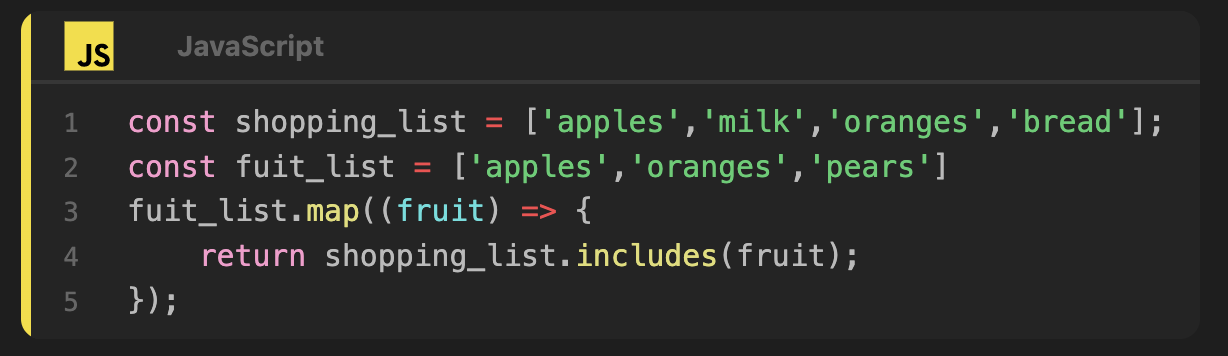
They can also have coloured left borders based on the language (colours match the language icon) if enabled in settings. The width of this border can also be changed.
Example:
Header
The header is displayed in the following cases:
- You specified a
title: - You specified
foldIf you specifiedfoldbut did not specifytitle:orfold:a default text from settings will be displayed on the header (the default is 'Collapsed Code') - You defined a codeblock language via
```languageand set theDisplay Header Language Tagssetting toAlwaysor theDisplay Header Language Iconssetting toAlwaysin the theme settings
If the header is displayed, folding works as well. If the Display Header Language Tags setting is set to Always, then the header will display the codeblock language always and if it is set to If Header Shown, it will only display when the header is displayed (i.e. the title parameter is set).
You can enable the option in the settings page to display icons in the header. When this option is set to If Header Shown, if the language specified in the codeblock has an icon and the codeblock header is displayed (i.e. the title parameter is set), then the icon will be displayed. When this option is set to Always, the header with icon will always be shown if the language specified in the codeblock has an icon. Icons can also be set to grayscale or resized in settings. There are currently around 170 icons available for different languages.
The language tag text and title text can also be styled to be bold and/or italic as well as a specific font. Furthermore, the font-size of the header text can be changed.
Example:
-
No header
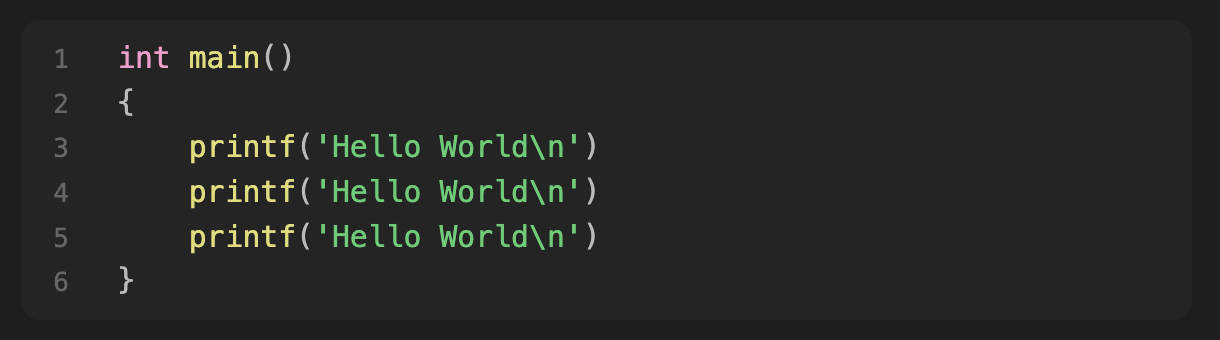
-
Header with fold only

-
Header with codeblock language only
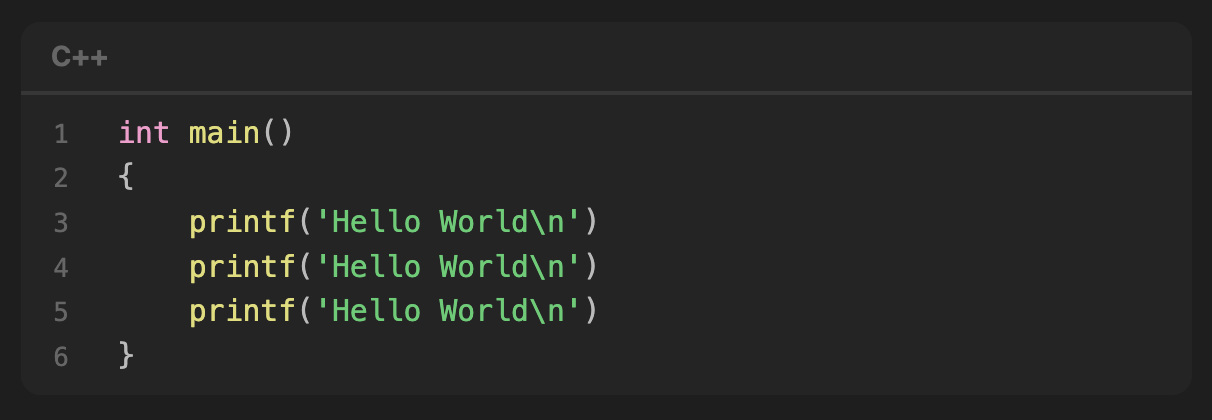
-
Header with codeblock language and title as well
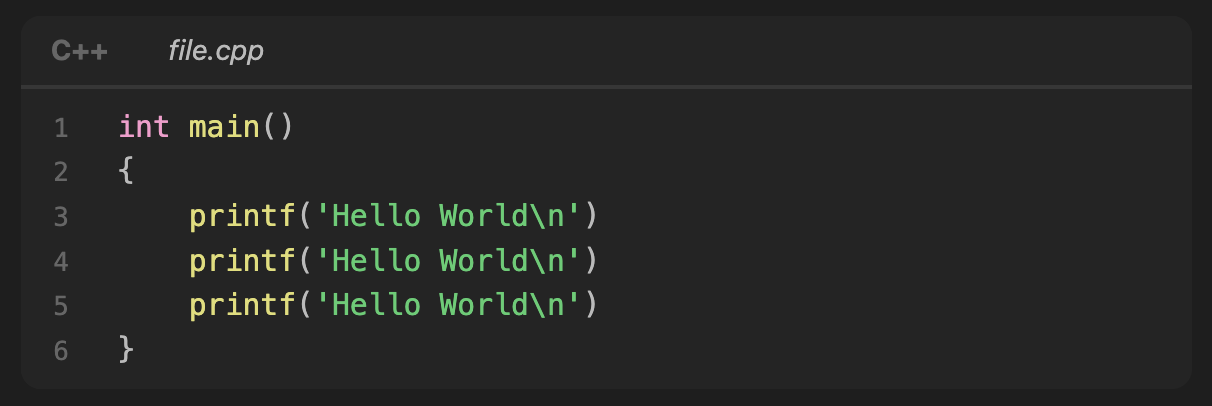
-
Header with codeblock language, title and icon as well
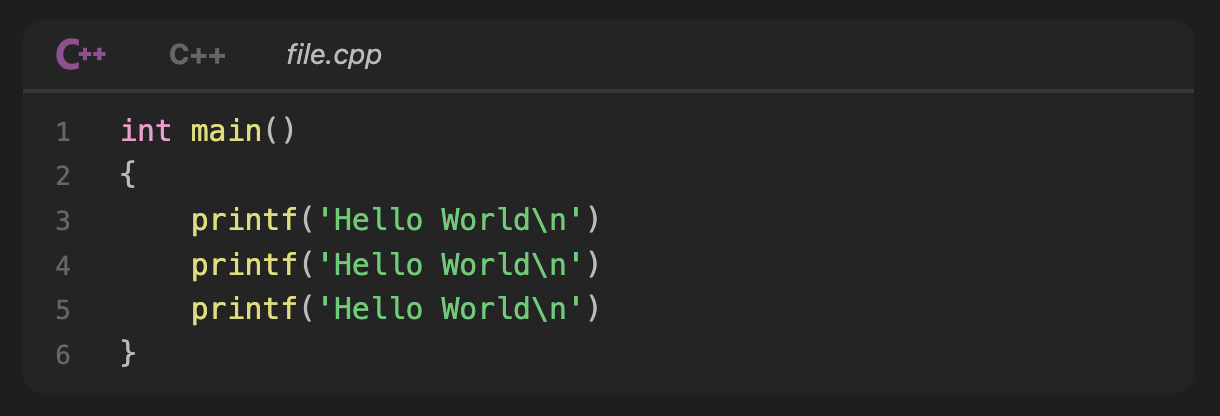
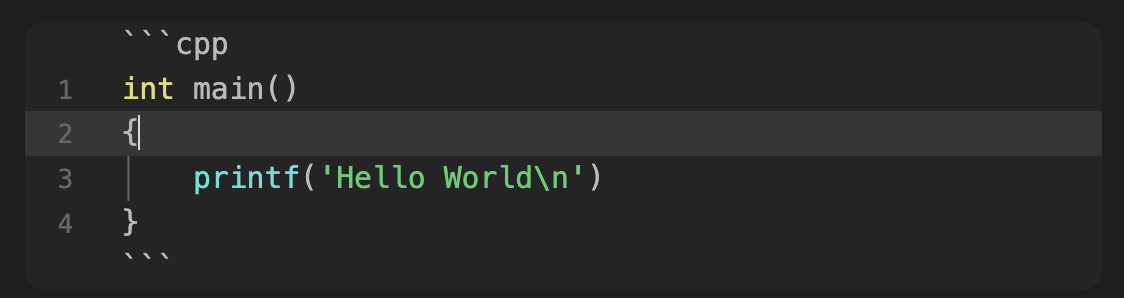
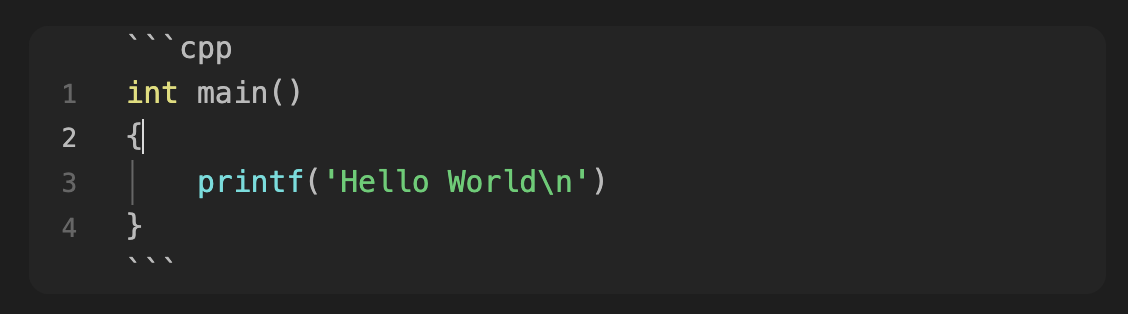
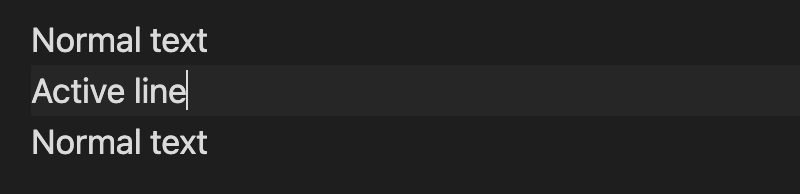
Active Line Indicators
The active line inside codeblocks can be highlighted with a custom colour if enabled in settings. It can also be indicated by a different colour line number if this setting is also enabled in settings.
The active line outside codeblocks can also be highlighted with a custom colour if enabled in settings.
Example:
Inline Code
Inline code can be customised as well with background color, text color, text color whilst being edited, font weight, spacing around the inline code and curvature of the inline code all being customisable from the settings.
Inline code can also have syntax highlighting in both editing mode and reading mode with the same highlighting style as in codeblocks. This is set by using the syntax {language} code here (note the space between {language} and code here is not necessary).
You can type the text {text here not styled} as inline code as well by prefacing it by an empty {} when the plugin is active: {}{text here not styled} will produce {text here not styled} when the cursor is outside the inline code.
Example:
{python} 'result if true'.method() if 1 else result_if_false.property

You can also set a title and/or display an icon before the inline code using the parameters title: and icon following the language. title can take multiple words in quotation marks or speech marks.
Example:
{python icon} 'result if true'.method() if 1 else result_if_false.property

{python title:'Inline If'} 'result if true'.method() if 1 else result_if_false.property

{python title:'Inline If' icon} 'result if true'.method() if 1 else result_if_false.property

File Referencing
You can reference both local and remote files using the reference codeblock. The settings for this codeblock are set with YAML syntax and
Parameters
You can set the local path or remote link using the parameters: file, path, link, and filePath. Local paths should be set as relative paths (i.e. ./path/from/current/folder), absolute paths starting from the root vault - indicated by @/ (i.e. @/file.py=.../vaultParent/file.py), or markdown links (i.e. [[file.py]]). Remote paths, should be set using a link to the file from the relevant site, i.e. link: https://github.com/mayurankv/Obsidian-Code-Styler/blob/main/README.md.
The language of the file is automatically inferred from the file-ending but you can also pass a language or lang parameter to specify the language for the syntax highlighting and codeblock header.
Some files are very large so you can also set the lines at which the file should be displayed by start and end. These can be set to numbers, words (for which the first matching line will be returned) or regex (where again the first matching line will be returned). The end parameter can also be set to a relative amount like end: +10 with start: 980 to display lines 980 through 990.
External References
External references can be set to specific versions by finding the version of that file on github or gitlab and using that specific link. You can thus set a link to a specific commit version of a file. Information about the repository, the version, and the time at which it was updated are shown in the codeblock header (and can be turned on/off via settings).
The files are locally downloaded to the .obsidian/plugins/code-styler/reference-files/ directory. They can be cleaned up and/or updated via commands or manually clicking the update button, but the plugin already automatically cleans any unneeded files when Obsidian is started up. Additionally, you can toggle a setting so that the plugin updates all your external references when Obsidian starts as well. This way you can reference files, then remove the reference codeblock and the files downloaded will be automatically removed. This means you don't have to worry about any clutter or unnecessary disk space usage.
Commands
The plugin exposes 3 folding commands:
Fold all codeblocks- folds all codeblocksUnfold all codeblocks- unfolds all codeblocksReset fold state for all codeblocks- returns all codeblock folding to the state defined in each of their parameter strings
and 3 file referencing commands:
Update all external references in vault- updates all external referencesUpdate all external references in file- updates all external references in the current fileRemove all unneeded external references- cleans up any downloaded file versions that are no longer needed
Plugin Compatibility
This plugin is also compatible with the following obsidian plugins out of the box:
Note that this plugin can also embed code files without the need for additional plugins!
Roadmap
See the roadmap at Roadmap Discussion.
How to install the plugin
- Simply install directly from Obsidian
- Alternatively you can just copy over
main.js,styles.css,manifest.jsonto your vaultVaultFolder/.obsidian/plugins/code-styler/or use the Obsidian Beta Reviewers Plugin.
Contributions
All contributions are welcome, just create a merge request. The bullet points in the roadmap are a good place to start!
Please try to create bug reports/issues that are:
- Reproducible: Include steps to recreate the issue
- Specific: Include relevant details such as possible plugin conflicts, theme conflicts etc.
- Unique: Please do not duplicate existing open issues, add to the existing issue
- Scoped: Please create a separate issue for each bug you've identified
Maintainers
Contributors
Support
If you like this plugin, and would like to help support continued development, use the button below!

License
Distributed under the MIT License. See LICENSE for more information.